1
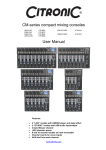
CM-DSP Compact Mixers Item ref: 170.830UK, 170.832UK, 170.834UK User Manual Introduction Thank you for choosing a Citronic CM-DSP series mixer. This product has been designed to offer reliable, high quality mixing for stage and/or studio applications with unfailing consistency. In order to gain the best results from this equipment and avoid damage through misuse, please read and follow these instructions and retain for future reference. Warning: To prevent the risk of fire or electric shock, do not expose components to rain or moisture. If liquids are spilled on the surface, stop using immediately, allow unit to dry out and have checked by qualified personnel before further use. Avoid impact, extreme pressure or heavy vibration to the unit. There are no user serviceable parts inside the mixer – refer all servicing to qualified personnel. Safety Check that the supplied adapter and connectors are in good condition and the mains supply voltage is correct. Ensure signal leads are of good condition without shorted connections (especially when using phantom power) Do not use the USB connector as a general purpose power source or charger. Do not allow any foreign particles to enter the console through connectors or control apertures Placement Keep out of direct sunlight and away from heat sources. Keep away from damp or dusty environments. Ensure adequate access to controls and connections Cleaning Use a soft cloth with a neutral detergent to clean the casing as required Use a soft brush to clear debris from the control surface Do not use strong solvents for cleaning the unit. 170.830UK, 170.832UK, 170.834UK User Manual Control Panel 1. Stereo channel L + R 6.3mm jack inputs 16. Channel auxiliary level control 2. Stereo channel Left + Right RCA inputs 17. Channel effect level control 3. Left + Right Recording RCA outputs 18. Channel fader 4. Auxiliary output 6.3mm jack 19. L+R balanced main output XLR 5. Effect output 6.3mm jack 20. L+R balanced main output TRS jack 6. Headphones output stereo 6.3mm jack 21. DSP programme select 7. Global phantom power switch & indicator 22. Output level and power indicators 8. Combo XLR/jack mic/line inputs 23. DSP effect on/off switch 9. Audio compressor rotary adjustment 24. USB/SD player transport controls 10. Channel insert TRS 6.3mm jack 25. Headphones level control 11. Channel Gain control 26. DSP effect time control 12. High frequency EQ control 27. Master AUX send level 13. Channel Pan or balance control 28. DSP effect level control 14. Mid frequency EQ control 29. Master Effect send level (internal or output) 15. Low frequency EQ control 30. Master fader 170.830UK, 170.832UK, 170.834UK User Manual Rear Panel 31. 12Vac 1500mA power adaptor input 32. SD card slot for digital audio player 33. USB input for digital audio player Connection Before connecting to amplifier or other equipment, turn down all volume controls to avoid loud noises which may cause damage to other equipment. Always switch amplifier power on last in line with volume levels down. Using good quality 6.3mm jack or XLR leads (balanced or unbalanced), connect L + R main outputs from the mixer to the amplifier, recorder or whichever equipment is to receive the main mix output. If phantom power is to be used, press the “+48V PHANTOM” switch in. Connect microphones, DI boxes and other balanced low impedance audio inputs to the mono channels using a quality XLR lead. Connect high impedance and line level signals to the mono inputs using a 6.3mm jack lead. For the stereo channel, connect left and right line level signals via 6.3mm jack or RCA leads (unbalanced). If this channel is to be used as mono, connect to the left jack input only. Channel inserts may be connected to individual processing equipment like EQ or compressors. These connections completely interrupt the signal flow and divert to the external processor before returning to the channel for volume adjustment via the channel fader. This requires a stereo to 2 x mono jack lead – the 2 mono ends are send and return connections, the stereo connection is wired as per below. 170.830UK, 170.832UK, 170.834UK User Manual Recording equipment can be connected via the “REC” outputs using a twin RCA lead and the 6.3mm jack AUX output can be connected to monitoring or external processing equipment if required. Individual levels can be adjusted to the AUX output via the individual channel AUX controls. Overall auxiliary send level is governed by the master AUX control. If the internal DSP effects are not required, a send can be connected from the “EFFECT” jack output to and external effect unit, whereby the EFF channel controls act as individual level controls to the EFFECT output (same as for AUX output) Overall effect send level is governed by the master EFFECT level control. With all faders down, connect the supplied AC adapter to the 12Vac input an d to the mains supply (ensure correct supply voltage) – the power LED will illuminate (if phantom power is selected, this LED should light also) Checking Test each channel’s gain level by making the loudest expected sound into it and increasing the GAIN control until the red PEAK LED starts to light. Then back the GAIN control off slightly until the PEAK LED hardly lights at all. Test the main mix output by increasing the MAIN master fader and selected channel faders whilst making sound through the channel(s) – the L + R output LED ladders should begin to show the output as it varies up and down. Connecting a pair of headphones to the PHONES stereo 6.3mm jack is a good way of checking the mix output, remembering to gradually increase the PHONES level control. Turn down all faders and then switch power on to connected equipment (amplifier last in line) and increase volume levels. Gradually increase MAIN and channel faders again and the sound should be heard through the speakers or be indicated on the recording equipment. Operation Mono channels have a COMP control which varies the amount of audio compression applied to the signal. Fully down (anti-clockwise) gives no compression and fully up (clockwise) gives maximum compression to the signal, making quieter sounds louder and louder sounds quieter whilst boosting the signal. This limits the dynamic differences in a signal and is especially useful for vocals and some instruments where the sound level can vary greatly. Each channel has a 3-band EQ (LOW/MID/HIGH), which can be used to balance the mix of frequencies and emphasise certain aural characteristics in the signal. Adjust these as required, noting that and overall increase may require an equivalent reduction of the GAIN control to compensate (otherwise clipping may occur from EQ boost). 170.830UK, 170.832UK, 170.834UK User Manual Use the PAN control to position the channel input either to the left or right side of the stereo field. This can be useful to help separate and define sounds within a mix but be aware that extreme settings can be counter-productive by removing the channel from certain listening positions. Use the AUX control to feed the correct amount of the channel signal to the AUX output. This routing is “Pre-fader” and is independent from the channel fader setting. The EFF control feeds a part of the signal to the internal DSP effects. Overall controls for TIME and LEVEL are on the right-hand side of the control surface - these can be adjusted as required. If external effects are to be used, plugging a jack lead into the EFFECT output defeats the internal DSP effects and acts as a mono line level “send” to the external effect unit. The output(s) from the external unit will need to be “returned” via a mono or stereo channel and added to the mix, whereby the channel fader takes the place of the overall EFFECT return level control. Channel faders should be used to adjust the individual levels in the mix and the MAIN fader is for overall level. Turn down amplifier levels when changing any connections or powering down the mixer to avoid speaker damage. USB features The USB and SD card connection is for the internal media player, which can offer playback of compressed digital audio files through the stereo channel. When a USB pen drive or SD card with such files on is connected via the rear panel, the player recognizes this and automatically begins playback through the stereo channel. Transport buttons are situated next to the output LEDs on the top panel to control USB/SD playback as shown below… Previous/Back Play/Pause Next/Forward 170.830UK, 170.832UK, 170.834UK User Manual Specifications Model Stock Code Power Supply Phantom Power Frequency Response Mic/Line inputs (bal/unbal) Stereo Input (unbal) SNR: Mic Inputs SNR: Line Inputs SNR: Stereo Input EQ: High EQ: Mid EQ: Low Effects Outputs: Main (L + R) AUX, EFF, REC out Phones Output Dimensions (mm) Weight CM4-DSP 170.830UK CM8-DSP 170.832UK CM12-DSP 170.834UK 12Vac 1500mA (included) Switchable +48V (XLR inputs) 20Hz - 20kHz 2 x XLR/jack 4 x XLR/jack 6 x XLR/jack 6.3mm jack/RCA (-8 to +15dB / +13 to +60 parallel) 120dB E.I.N. 95dB E.I.N. 96dB E.I.N. 10kHz, ±15dB 700Hz, ±15dB 50Hz, ±15dB 16 preset programme DSP engine 6.3mm jack (+28dBu balanced / +22dBu unbalanced) unbalanced 6.3mm jack (+22dBu) +15dBu stereo 6.3mm jack 60 x 190 x 230 60 x 270 x 230 60 x 350 x 230 2.09kg 2.42kg 2.75kg DSP effect programmes 1. Small Hall 9. Analog Delay 2. Large Hall 10. Chorus Verb 3. Small Room 11. Stereo Chorus 4. Bright Room 12. Flanger 5. Thin Plate 13. Phaser 6. Large Plate 14. Gated Reverb 7. Spring Reverb 15. Flange Verb 8. Multi-tap Delay 16. Vocal Echo 170.830UK, 170.832UK, 170.834UK User Manual Troubleshooting No power LED on control panel Power LED is on but no other LEDs and no output Power and VU LEDs lit but no output USB/SD player will not play audio from media Volume range lacking Output is very loud or distorted Output is working but at very low level Feedback (loud squealing or howling from mics) Ensure power adapter is working and connected properly Ensure mains outlet voltage is OK and as stated on adaptor Check input signals and condition of connection leads Check jack is connected to input and not channel insert Check GAIN is not too low on channel input Check channel fader is not fully down Check MAIN fader is not fully down Disconnect channel insert (if used) and check for correct wiring For condenser mics, turn down MAIN fader and check +48V is on Check output connections to amplifier or recorder Check amplifier or recorder levels are not turned fully down Press PLAY on transport controls Check memory device is connected properly (remove and re-insert) Check file types – standard compressed digital audio files required Check memory device works on a PC or Mac for standard playback Check COMP control is not turned up too high Check level of input signal is not too high Reduce channel GAIN and EQ settings Reduce channel and MAIN faders levels Ensure Hi-Z line level input(s) not connected via XLR Check output levels of equipment connected via channel inserts Check AUX and EFFECT level controls and reduce if necessary Check for high gain recording of media files on USB/SD Check input gain level on recorder or recording software Check input audio source level is not too low Ensure low impedance line or mic signal is not connected via jack Increase channel GAIN control and EQ settings if turned down Increase channel and MAIN faders levels Check output levels of equipment connected via channel inserts Check for quiet recording of media files on USB/SD Check input gain level on recorder or recording software Face microphone away from speakers and monitors Reduce channel GAIN level and EQ level(s) Reduce AUX and/or EFFECT levels Reduce channel and/or MAIN fader levels Errors and omissions excepted. Copyright© 2012. AVSL Group Ltd. 170.830UK, 170.832UK, 170.834UK User Manual