1
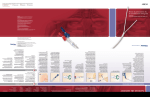
Refine the Image
Adjust the Depth
Zoom
Press to adjust the image depth.
1. Press .
Four depths are available: 1.6 cm, 2.2 cm, 3.3 cm and 4.4 cm. As you adjust the depth, the current level is shown on the left-hand side of the screen.
2. Use the cursor keys to highlight Zoom.
Each patient may require a different depth for the greatest vascular visibility.
4. The zoom box will appear on the screen.
Note: If the scale is set to 1.6 cm and the zoom feature is chosen, the calipers will not appear.
Adjust the Gain (CONTRAST)
5. Press to resize the box.
Note: If the scale is set to 2.2 cm, the calipers cannot be resized, but they can be panned up or down.
6. Use the cursor keys to move the position of the zoom box on the image.
Set
zoom in on the image.
7. Press Zoom or to
Enter text
Depending on the density of a patient’s tissue, you may need to adjust the gain for better vascular contrast and visibility.
Measurements
Press to adjust the gain (contrast) of the image, up or down.
Sel
3. Press .
8. Once you zoom in, press again to turn the zoom off.
ZOOM BOX
Image Depth (cm)
Repositionable?
Box Sizes (cm)
1.6
No
–
2.2
Yes, up and down
2 x 1.6
3.3
Yes, up and down
2 x 1.6, 2 x 2.2
4.4
Yes, up and down
2 x 1.6, 2 x 2.2, 2 x 3.3
Shortcuts
Save and Print
The flexibility you have when zooming depends on the depth of your image.