1
Use
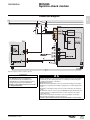
SFT2841 software Mimic-diagram
editor
Use
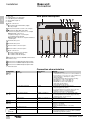
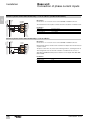
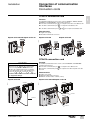
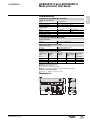
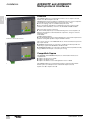
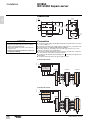
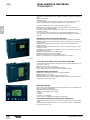
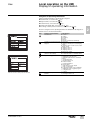
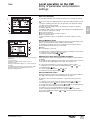
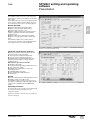
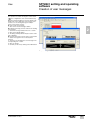
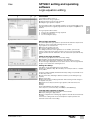
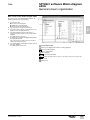
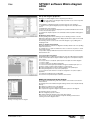
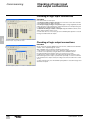
Run the mimic-diagram editor
PE50431
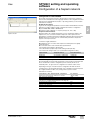
The mimic-diagram editor can be accessed only if the Sepam series 80 was set up
with a mimic-based UMI on the "Hardware set-up" screen in the SFT2841 software.
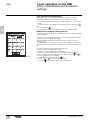
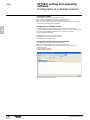
icon and
The mimic-diagram editor of the SFT2841 software is accessed via the
the "Mimic-based UMI" tab.
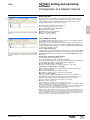
Click the [Edit] button to run the mimic-diagram editor.
Simply close or reduce the mimic-diagram editor to return to the setting and
operating screens in the SFT2841 software.
2
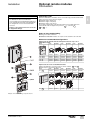
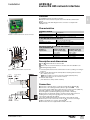
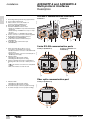
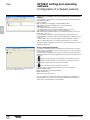
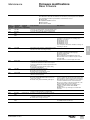
Access to the mimic-diagram editor.
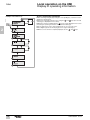
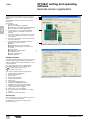
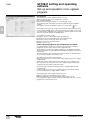
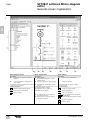
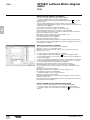
When the mimic-diagram editor is run:
b if a diagram is already linked to the Sepam, the editor displays the diagram
b if a diagram is not linked to the Sepam, a window opens for selection of a
predefined diagram template in one of the two diagram libraries supplied:
v diagrams complying with standard IEC 60617
v diagrams complying with standard ANSI Y32.2-1975.
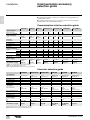
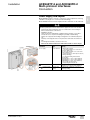
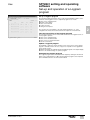
Select a predefined diagram template
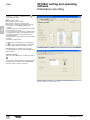
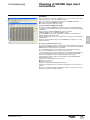
PE50432
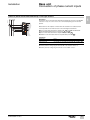
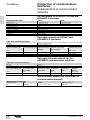
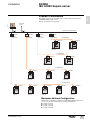
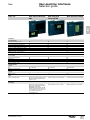
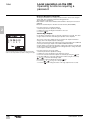
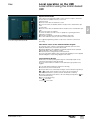
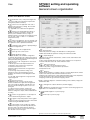
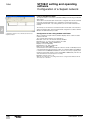
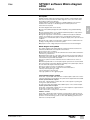
The window used to select a predefined diagram template is displayed:
b when the mimic-diagram editor is opened for the first time
b when the File/New command is clicked
b when the
icon is clicked.
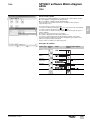
Two libraries of predefined diagrams are supplied:
b diagrams complying with standard IEC 60617
b diagrams complying with standard ANSI Y32.2-1975.
For each Sepam application, each library contains a number of predefined diagram
templates corresponding to the most frequently encountered single-line diagrams.
Other diagram templates can be managed by clicking the [Browse the templates]
button.
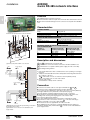
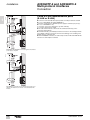
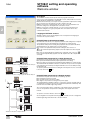
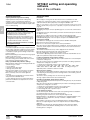
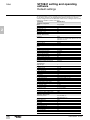
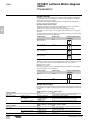
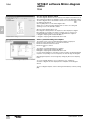
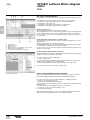
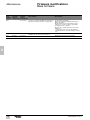
Selection of a predefined diagram template.
To see the available diagrams, select a subcategory (e.g. substations).
A number of diagrams are then displayed in the "Template of mimic diagram"
window.
To select a diagram template, click the drawing and immediately confirm by clicking
[OK].
126
SEPED303003EN - 01/2013