1
using Z-Wave command class, user can set a threshold watt to
get the warning caused by abnormal operation.
MM Motor Controller have overload protection function, and can
help to prevent short circuit caused by load.
There are 1 group (Group 1) for
the MM Motor Controller
Including a node ID allocated by Z-Wave Controller means
inclusion. Excluding a node ID allocated by Z-Wave Controller
means exclusion.
Failed or success in including/excluding the node ID can be
viewed from the Z-Wave Controller.
MICROMODULE
MOTOR CONTROLLER
QUICK INSTALLATION GUIDE
v1.3
ADDING TO Z-WAVE NETWORK
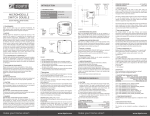
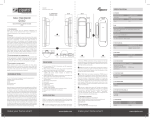
In the front casing, there is an include button with LED indicator
below which is used to carry out inclusion, exclusion, reset or
association. When first power is applied, its LED flashes on and
off alternately and repeatedly at 2-second intervals. It implies that
it has not been assigned a node ID and cannot work with Z-Wave
enabled devices.
LED INDICATION
Function
Description
LED Indication
No node ID
The Z-Wave Controller does
not allocate a node ID to the
MM Motor Controller.
2-second on,
2-second off
Have Z-Wave Controller
entered inclusion mode.
Inclusion
Pressing Include button three
times within 1.5 seconds will
enter inclusion mode.
Have Z-Wave Controller
entered exclusion mode.
Exclusion
Pressing Include button three
times within 1.5 seconds will
enter exclusion mode.
Node ID has been excluded.
Pressing Include button three
times within 1.5 seconds will
enter inclusion mode.
Reset
Within 1 second, press Include
button again for 5 seconds
until LED is off.
IDs are excluded.
Association
Have Z-Wave Controller
entered association mode.
OR
Pressing Include button three
times within 1.5 seconds will
enter association mode
One press one
flash
One press one
flash
2-second on,
2-second off
One press one
flash
2-second on,
2-second off
One press one
flash
make your home smart
PROGRAMMING
LED Indication
Motor
activate
No matter up or down, close or open, Led will
flash every second while Motor activate. When
S1 or S2 close to L, the LED will flash even when
the motor stop by itself, this is to let user know
the S1 or S2 still close and not been release yet.
No node ID
Under normal operation, when the MM Motor
Controller has not been allocated a node ID, the
LED flashes on and off alternately at 2-second
intervals. By pressing S1 S2 or Include button,
it will stop flashing temporarily. However, after
disconnect and reconnect the power of MM
Motor Controller, the LED will flash on and off
alternately at 2-second intervals.
Overload
When overload state occurs, the MM Motor
Controller is disabled and LED flashes on and
off alternately at 0.5 second intervals. MM Motor
Controller will send
alarm_type=8 alarm_Level=0xFF to Group1,
Overload state can be cleared by disconnect
and reconnect the MM Motor Controller to the
main power.
The MM Motor Controller will respond to BASIC and BINARY
commands that are part of the Z-Wave system.
BASIC_GET
When MM Motor Controller receive Basic Get
Command it will send Basic Report Command to report the
position of the shutter. When the report value is 0x00, that mean
the shutter is at the Bottom, if the report value is 0x63 or 0xFF
that mean the shutter is at the Top, any other value between
0x01~0x62 imply Shutter at the position between top and bottom.
Basic Get Command: [Command Class Basic, Basic Get]
[Command Class Multilevel Switch, Multilevel Switch Set,
Value = 0x00(0)] control the shutter to the bottom(0x00)
CHOOSING A SUITABLE LOCATION
INSTALLATION AND OPERATION
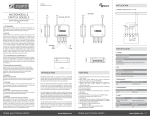
ut the in wall MM Motor Controller into a wall box and connect
P
the AC power wire L,N to MM Motor Controller connector L, N.
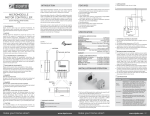
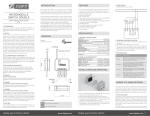
Connect the wall switch to the MM Motor Controller as shown in
picture above.
It is important to carry out a shutter calibration process before
you control the shutter to move. Press inclusion button over 3
seconds and release before the 6th second, the roller shutter
controller will start the shutter calibration process. The process
is composed of three continue stages. The shutter move to the
TOP in first stage, and move to the BOTTOM in second stage, and
move to the TOP again in third stage. Then MM Motor Controller
will know the total range of UP and DOWN.
During the shutter calibration process, any emergencies happen
you can press and release the include button to stop the process.
If user found the direction is reverse, this may cause by the wrong
connection of NC and NO to the motor, please change NC and NO
connection and execute calibration process again.
For safe issue, please select the motor which can stop by itself
when go to bottom end or top end.
To manually switch up and down of the shutter, simply press the
external switch S1 or S2. The detail is described in Z-Wave
configuration section (External switch type) of this manual.
MM Motor Controller built in meter function and can read the
Watt, KWh, V(Voltage), I(Current), PF(Power Factor) of the load by
www.zipato.com
Multilevel Switch Report Command:
[Command Class Multilevel Switch, Multilevel Switch Report,
Value = 0x00(BOTTOM)]
[Command Class Multilevel Switch, Multilevel Switch Report,
Value = 0x01~0x62(Between BOTTOM and TOP)]
[Command Class Multilevel Switch, Multilevel Switch Report,
Value = 0x63/0xFF(TOP)]
ULTILEVEL SWITCH START LEVEL CHANGE
M
This is the command which user can move the shutter up to the
top or down to the bottom.
[Command Class Multilevel Switch, Multilevel Switch Start
Level Change, Up/Down Value]
[Command Class Basic, Basic Set, Value = 0x00(0)] control the
shutter to the bottom(0x00)
[Command Class Basic, Basic Set, Value = 0x01-0x62] control
the shutter to the position between bottom and top
ULTILEVEL SWITCH GET
M
When MM Motor Controller receive Multilevel Switch
Get Command, it will send Multilevel Switch Report Command
to report the position of the shutter. When the report value is
0x00, that mean the shutter is at the Bottom, if the report value
is 0x63 or 0xFF that mean the shutter is at the top, any other
value between 0x01~0x62 imply shutter at the position between
top and bottom.
Switch Multilevel Get Command:
[Command Class Multilevel Switch, Multilevel Switch Get]
BASIC_SET
MM Motor Controller can accept Basic Set Command
which value is either (0x00)Bottom or Top (0x63/0xFF) or (0x010x62) the position between TOP and Bottom. Other value (0x640xFE) is not acceptable.
[Command Class Basic, Basic Set, Value = 0x63 or 0xFF]
control the shutter to the top (0xFF)
o not locate the MM Motor Controller facing direct sunlight,
D
humid or dusty place.
The suitable ambient temperature for the MM Motor Controller is
0°C~40°C.
Do not locate the MM Motor Controller where exists combustible
substances or any source of heat, e.g. fires, radiators, boiler etc.
After putting it into use, the body of MM Motor Controller will
become a little bit hot of which phenomenon is normal.
[Command Class Multilevel Switch, Multilevel Switch Set,
Value = 0x01-0x62] control the shutter to the position between
Bottom and Top.
Basic Report Command:
[Command Class Basic, Basic Report, Value = 0x00 (BOTTOM)]
[Command Class Basic, Basic Report, Value = 0x01~0x62
(Between BOTTOM and TOP)]
[Command Class Basic, Basic Report, Value = 0x63/0xFF
(TOP)]
Command which value is either (0x00) Bottom or Top (0x63 or
0xFF) or (0x01-0x62) the position between TOP and Bottom.
Other value (0x64-0xFE) is not acceptable.
[Command Class Multilevel Switch, Multilevel Switch Set,
Value = 0x63 or 0xFF(255)] control the shutter to the top (0xFF)
BASIC COMMAND CLASS
State Type
AUTO INCLUSION
The function of auto inclusion will be executed as long as the MM
Motor Controller does not have Node ID and just connect the MM
Motor Controller to main power.
Note: Auto inclusion timeout is 4 minute during which the node
information of explorer frame will be emitted once every 5
seconds. Unlike “inclusion” function as shown in the table below,
the execution of auto inclusion is free from pressing the Include
button on the MM Motor Controller.
The table below lists an operation summary of basic Z-Wave
functions. Please refer to the instructions for your Z-Wave
Certificated Primary Controller to access the Setup function, and
to include/exclude/associate devices.
Up/Down Bit:
If Up/Down Bit=0x00 Shutter move up
If Up/Down Bit=0x01 Shutter move down
If Up/Down Bit=0x03 no move
BINARY SWITCH COMMAND CLASS
BINARY_SWITCH_GET
When MM Motor Controller receive Binary Switch Get
Command, it will send Binary Switch Report Command to report
the position of the shutter. When the report value is 0x00, that
mean the Shutter is bottom down, if the report value is 0xFF that
mean the Shutter is at the top. But if report value is 0xFE means
the position is unknown.
Binary Switch Get Command:
[Command Class Binary Switch, Binary Switch Get]
Binary Switch Report Command:
[Command Class Binary Switch, Binary Switch Report, Value
= 0x00(BOTTOM)]
[Command Class Binary Switch, Binary Switch Report, Value =
0xFE(UNKNOWN)]
[Command Class Binary Switch, Binary Switch Report, Value
= 0xFF(TOP)]
[Command Class Multilevel Switch, Multilevel Switch Start
Level Change, Up/Down=0x01] control the shutter to the
bottom (0x00)
[Command Class Multilevel Switch, Multilevel Switch Start
Level Change, Up/Down=0x03] Don’t move the shutter or stop
the moving shutter
Ignore_Start_Level,Start_Level, Dimming_Duration, Inc/
Dec, Step_size can not be used.
M Motor Controller can not control the speed of motor.
M
It may have some distance error caused by motor start up
time.
If user found the error become significant, you may using S1
or S2 move shutter to the end or remote move shutter to
0% and 100%, and that will automatically calibrate this
error.
Multilevel switch stop level change
When receive Multilevel Switch Stop Level change Command
MM Motor Controller will stop the motor.
ATT.
BINARY_SWITCH_SET
MM Motor Controller can only accept Binary Switch
Set Command which value is either (0x00) Bottom or Top (0xFF),
other value is not acceptable.
[Command Class Binary Switch, Binary Switch Set, Value =
0xFF(255)]
control the shutter to the top (0xFF). But if the shutter is on
the way down,
this command will stop the shutter.
[Command Class Binary Switch, Binary Switch Set, Value =
0x00(0)]
control the shutter to the bottom(0x00). But if the shutter is
on the way up,
this command will stop the shutter.
MULTILEVEL SWITCH COMMAND CLASS (VERSION 3)
[Command Class Multilevel Switch, Multilevel Switch Start
Level Change, Up/Down=0x00] control the shutter to the top
(0xFF)
ULTILEVEL SWITCH SET
M
MM Motor Controller can accept Multilevel Switch Set
make your home smart
SCENE ACTIVATION COMMAND CLASS
cene Activation Set Command
S
When MM Motor Controller receive Scene Activation
Set command, it will read the level of the pre-configured Scene
ID from EEPROM. And it will be controlled as a Multilevel Switch
Set command. The Dimming Duration of the command will be
ignored because MM Motor Controller can not control
the speed of motor.
www.zipato.com 02