1
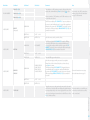
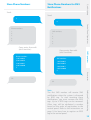
Sub Menu 1
Sub Menu 2
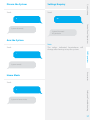
Phone [1~5] is:
Phone numbers
SMS Num [1~5] Is:
CMS Num [1~2] is:
Accessories
-
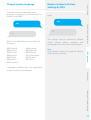
5 phone numbers, 5 SMS numbers and 2 CMS numbers can be
stored in the control panel.
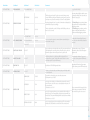
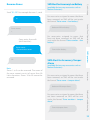
DELETE ALL?
1=YES
DELETE ONE
ENTER 01-30:
Select the remote control you wish to delete.
Add a new
Pls Connect
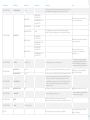
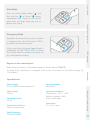
The LCD screen displays “PLS connect 30”: swipe the RFID tag
in front of the RFID reader on the control panel within the next
30 seconds (the countdown is indicated on the screen after "PLS
CONNECT", in seconds). You hear one beep, the LCD screen displays
“ADD OK! RFID [01~50]”, the connection is successful
Delete all?
1=YES
Delete ONE
ENTER 01-50
Select the RFID tag you wish to delete
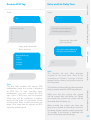
Normal Sensor
Home Sensor
Delay Sensor
24 Hour Sensor
Select the sensor type you wish your sensor to be assigned to
(Normal Sensor, 24 Hour Sensor, Delay Sensor, or Home Sensor),
press “Enter” to confirm.
The LCD screen displays “PLS connect 30”: trigger the detector
once within the next 30 seconds (the countdown is indicated on
the screen after "PLS CONNECT", in seconds). You hear one beep, the
LCD screen displays “ADD OK! SENSOR [01~50]”, the connection is
successful.
0=NO
0=NO
Delete all?
1=YES
Delete ONE
ENTER 01-50:
0=NO
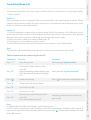
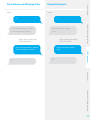
Trigger the sensors you have previously connected to the control
panel. You hear 1 beep, the LCD screen displays the signals that have
been respectively sent by each sensor triggered. Make sure all the
sensors you have triggered are mentioned on the LCD screen. Press
“Esc” to exit the test mode.
This mode enables you to test if the sensors have been connected successfully
to the control panel.
Safety and Troubleshooting
-
For more information on zone setup,
refer to the instructions on page 14.
Accessories
-
RFID Tag
Test Mode
If you want to set a CMS center phone
number, please refer to the instructions
on page 14 of this manual.
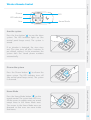
The LCD screen displays “PLS connect 30”: press any button on
the remote control within the next 30 seconds (the countdown is
indicated on the screen after "PLS CONNECT", in seconds). You hear
one beep, the LCD screen displays “ADD OK! REMOTE [01~30]”: the
connection is successful.
Add a new
Wireless
Sensors
Note
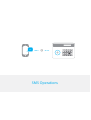
SMS Operations
Accessories
-
Select the phone or SMS number you want to edit, type in the phone
number and confirm with the key "Enter". Use the key " " to clear.
Remote
(or Keypad)
Add a new
Accessories
Comments
Control Panel Operations
Accessories
Sub Menu 3
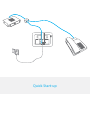
Quick start-up
Main Menu
10