1
GXW42xx Configuration
This document introduces manual configuration steps performed for interoperability testing between Broadvox and
Grandstream GXW42xx. Configuration parameters not explained in this document were kept at factory default
settings. Grandstream products support automated provisioning via TR-069 or AES encrypted XML configuration
file. For details on Grandstream device automated provisioning, please refer to
http://www.grandstream.com/general/gs_provisioning_guide_public.pdf .
1.
Connect GXW42xx to the network and power it up. Connect an analog phone to a FXS port.
2.
From the analog phone, press *** to get into the Interactive Voice Prompt (IVR) menu, enter 02 to get the
GXW42xx’s IP address. From a PC in the same LAN, log into the GXW42xx’s Web UI by typing the
GXW42xx’s IP address on the PC’s web browser.
Default login name and password for the administrator is admin/admin for Grandstream devices.
3.
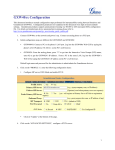
Click on tab "PROFILE 1", enter the following configuration items:
•
Under General Settings, configure SIP server:
•
Click on “Save” at the bottom of the page.
1
4.
•
Under Network Settings, configure DNS Mode, and enable STUn
•
Click on “Save” at the bottom of the page.
Click on tab “Maintenance”, under Network Settings, configure a STUN server:
•
Click on “Save” at the bottom of the page.
2
5.
Click on tab “FXS PORTS”,
•
Under Port Settings, configure the SIP trunk account information below:
•
Click on “Save” at the bottom of the page.
•
Under Advanced port settings, configure the hunting group as below:
•
Click on “Save and Apply” at the bottom of the page to apply all new configurations.
3
Settings
Description
Primary SIP Server
SIP Server’s IP address or Domain name provided by VoIP service provider.
NAT Traversal
Choose “STUN” if device is behind a NAT.
DNS Mode
Set up the lookup method for Domain Name System. Choose “SRV”.
IP address or Domain name of the STUN server. STUN server assists devices
STUN Server
behind a NAT firewall or a router to set up calls via VoIP.
Port
FXS Port Number
SIP User ID
Enter SIP trunk ID.
Authenticate ID
Same as SIP trunk ID.
Password
SIP authentication password.
Name
Name or a DID number for Caller ID display.
Profile ID
Select the corresponding Profile ID (1/2)
Hunting Group
Please see below.
Enable Port
If set to No, FXS port will become inactive (Default is set to Yes)
Hunting Group allows user to setup a single SIP account on the gateway and have the ability to use all FXS ports
to make/receive calls. Using this feature, all ports active in same Hunting Group will share the same SIP
trunk and incoming calls to any one of the three DID numbers assigned by Broadvox will be distributed in
a Linear or Circular manner among the ports active in that Hunting Group.
Example Configuration:
1.
Configure the SIP account for FXS port 1 under FXS PORTS webpage.
2.
Select Active under the Hunting Group drop box for FXS port 1.
3.
For the remaining ports (2, 3 and 4) select 1 for Hunting Group. Ports 2, 3 and 4 are now active members
of the hunting group associated with port 1.
This configuration will route all calls directed to FXS port 1 to ports 2, 3 and/or 4 in round robin fashion
respectively if port 1 is busy or times out.
Note:
For more configuration information, please refer to GXW42xx user manual on our web site:
http://www.grandstream.com/products/gxw_series/gxw42xx/documents/gxw42xx_usermanual_english.pdf
4