1
Where do I get Eudora?
You may download Eudora from the World Wide (WWW) at:
www.hawaii.edu/help/software/pcsoft.html
Eudora is also on the ITS CD-ROM which is available at the ITS Help Desk, Keller 105.
Getting Started
Print out and read Installation and Configuration from the Web
(www.hawaii.edu/help/software/pcsoft.html), or Getting Started with Eudora 5.1 from
the ITS CD-ROM (click ITS Documents, More Documents, Getting Starting with Eudora 5.1) before
installing. These instructions will help guide you through the installation process.
Installation
With your copy of Eudora and this document, you are ready to install Eudora.
1. Close all Windows applications. Disable your anti-virus scanner.
2. Insert the ITS CD-ROM into the CD-ROM drive. It should automatically open the main menu. Click
on Install Software. Close the Notepad window after you have read the installation instructions.
Click on Install Eudora 5.1.
If you downloaded Eudora from the Help Desk web site, locate eudora51.exe on your hard drive.
Double click on the eudora51.exe icon to launch the installer.
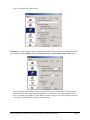
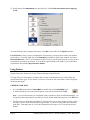
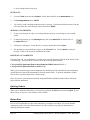
3. Click Yes to start installing Eudora. The Eudora Installer will launch. Click Next. The License
Agreement will appear. If you agree with its terms, click Yes.
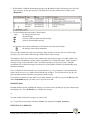
4. You will be asked what you want installed. If you wish, you can uncheck PureVoice and Importers.
Click on Next
5. It is recommended that you install Eudora in the default destination program folder,
C:\Program Files\Qualcomm\Eudora. Click Next.
6. Specify a folder where you want Eudora to store mail, settings, address books, etc. (destination data
folder). If you are already using Eudora on this computer, make sure to specify the folder where your
existing Eudora data files are stored. The default destination data folder is C:\Program
Files\Qualcomm\Eudora. Click Next
7. The installer shows you the destination program folder and the destination data folder again. Click
Nextcontinue or Back to change.
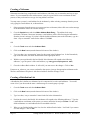
8. Click Yes to create a shortcut to Eudora on the desktop.
9. Specify a name for the shortcut. Click Next.
Page 4
Getting Started with Eudora 5.1 Win95/98/ME/NT/ 2000 WIN9X003