1
Ring Tones
Turning Ring Tones Off
To set the ring tone your phone makes when you
receive phone calls, message notifications, or call
alerts:
You can set your phone to make no sound when you
receive all phone calls, Private calls and group calls,
messages notifications, and call alerts. If your phone
includes the vibrate feature, this sets your phone to
vibrate instead of making a sound.
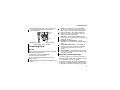
1 From the main menu, select Ring Tones.
2 Make sure Vibrate All or SilentAll is set to Off.
3 Scroll through the list of ring tones to the one you
want to assign. Highlighting a ring tone lets you
hear it.
4 Press A under Assign.
5 Scroll to the feature you want to assign the ring
tone to.
6 Press A under Select.
Tip: A checkmark next to a feature means the
current ring tone has been assign to it. To
remove the assignment: Scroll to the feature.
Press A under Select.
7 To assign the ring tone to other features, repeat
step 5 through step 6.
8 When you are finished, press A under Done.
To hear the ring tone you have selected:
Press the volume keys on the side of your phone.
1 From the main menu, select Ring Tones > Vibrate
All.
2 Scroll left or right to set Vibrate All to On.
Note: This feature may not be offered by your
service provider.
If your phone does not include a vibrate feature, you
can still set it to make no sound:
1 From the main menu, select Ring Tones >
SilentAll.
2 Scroll left or right to set SilentAll to On.
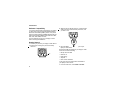
This icon M appears in the upper right of your
display.
To set your phone to make no sound for some
features but not others:
1 From the main menu, select Ring Tones.
2 Make sure Vibrate All or SilentAll is set to Off.
3 Scroll through the list of ring tones to Vibrate or
Silent.
4 Press A under Assign.
37