1
FAQs
Before requesting service or assistance, please follow
these simple guides to solve the problem.
● For details, refer to [eHELP] (Support > FAQs).
The TV does not switch on
● Check the mains lead is plugged into the TV and the
mains socket.
● The fuse in the mains plug may have blown. Replace
it with one of an identical rating. (p. 3)
The TV goes into Standby mode
● Auto power standby function is activated.
The remote control does not work or is intermittent
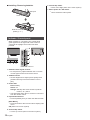
● Are the batteries installed correctly? (p. 12)
● Has the TV been switched on?
● The batteries may be running low. Replace them with
new ones.
● Point the remote control directly at the TV’s remote
control signal receiver (within about 7 m and a
30 degree angle of the signal receiver).
● Situate the TV away from sunshine or other sources
of bright light so they do not shine on the TV’s remote
control signal receiver.
No image is displayed
● Check the TV is turned on.
● Check the mains lead is plugged into the TV and the
mains socket.
● Check the correct input mode is selected.
● Check the setting of [AV2] ([COMPONENT] /
[VIDEO]) in [Input Selection] to match the signal being
output by the external equipment.
● Is [Backlight], [Contrast], [Brightness] or [Colour] in
the Picture Menu set to the minimum?
● Check all required cables and connections are firmly
in place.
An unusual image is displayed
● This TV has a built-in Self Test. Makes a diagnosis of
picture or sound problems.
[TV Self Test] (Help Menu)
● Turn the TV off with Mains power On / Off switch,
then turn it on again.
● If the problem persists, initialise all settings.
[Shipping Condition] in [System Menu] (Setup
Menu)
Parts of the TV become hot
● Parts of the TV may become hot. These temperature
rises do not pose any problems in terms of
performance or quality.
16
English
When pushed with a finger, the display panel moves
slightly and makes a noise
● There is a little gap around the panel to prevent
damage to the panel. This is not a malfunction.
Check you can get Freeview HD in your area.
Text your postcode, followed by your house
number or name to 80560*. Or visit freeview.
co.uk
*e.g. NW96NY1 (Costs no more than a normal text.)
To get the most up to date service from Freeview it is
important for Freeview customers to retune from time
to time.
How do I re-tune my Freeview TV ?
This is a quick reference. If you have any problems,
check the Operating Instructions or ask a friend or
family member to show you how. Alternatively, go
to your local electrical retailer, contact your local
Panasonic dealer or visit freeview.co.uk/retune
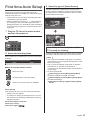
Re-tuning only takes a few minutes, just follow the
steps below:
1. Press the TV button to select DVB mode.
2. Press the MENU button to open the main menu.
3. [Setup] [DVB Tuning Menu] [Auto Setup]
Please note: most digital TV recorders will keep your
original recordings after running a re-tune but you will
need to reset any future recordings.