1
KinetaMap User Guide
2009.04.01
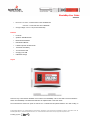
the side of the device is the miniUSB connector. Plugging a USB cable into a powered KinetaMap from a computer
will open a Mass Storage Device. The Mass Storage Device allows access to the log files and configuration file, as
well as provides the ability to load custom firmware.
Using the KinetaMap Default Firmware
While SparkFun encourages it's customers to create and modify custom code to load onto the KinetaMap, we've also
created a new and robust default firmware version that should be able to meet the needs of many applications. This
section of the User Guide will describe the new firmware (version 1.2) and give an overview of the flow of the
firmware.
Quick Start
If you don't really care how the firmware works, and you just want to get going, well, this section is for you! To get the
device working out of the box all you need to do is flip the switch to “ON!” By default all of the bluetooth functions are
disabled. The device will begin logging to two files: a data file which contains the accelerometer readings, battery
voltage readings and GGA GPS data; and a NMEA data which logs the unedited GGA GPS messages. The
accelerometer and battery readings will be logged at 10Hz, and the GPS messages will be logged no faster than 1
Hz. Invalid GPS messages will not be logged. The accelerometer will be set to 2G mode. WAAS will be enabled on
the GPS module.
Data will be logged to each file until either the device is turned off, the device runs out of battery power, or a USB
cable is plugged in from a computer. To retrieve the data files from the device plug a USB cable into the device from
a computer(with the power to the KinetaMap turned on). This will open a Mass Storage Device. The log files are
located on this drive and can be downloaded to your hard drive.
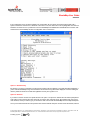
You may also open the config.txt file to edit the configuration parameters. Just save your changes on the SD card,
and don't alter the file name. The edited parameters will be loaded the next time you turn the KinetaMap on. Don't
worry about corrupting the configuration file, a corrupted config file will be detected by the firmware and handled.
Power-up Sequence
Turn the KinetaMap on by flipping the rocker switch to the '-' position. Once the device is powered it will go through
the startup sequence. First the KinetaMap will load the configuration settings from the config file (config.txt which is
located on the SD card). The firmware checks to see if the config file exists. If the file is not on the card then a config
file with default parameters is loaded. If the firmware finds the config file, then the file is read and the parameters are
loaded. However, if the firmware reads the config file and detects that invalid settings have been saved, or if the file is
not in the correct firmware, than the existing config file is deleted and a new one with default parameters is created.
While the KinetaMap is loading the parameters, the tri-color LED on the front of the KinetaMap will be solid GREEN.
More information on the config file and it's parameters will be discussed in the Configuration File section of this user
guide.
After the parameters are loaded on the KinetaMap, the initialization process takes place. The initialization process
largely depends on the loaded parameters. If gps logging or communication is enabled than the GPS module is
initialized with the proper parameters; if neither of these options are selected then the GPS module is left off. The
Bluetooth module is only turned on and initialized if the “config_menu” setting or the “send_gps_to_bt” parameters
are enabled. The accelerometer is initialized to the selected range, and then the firmware configures the internal
timer for readings based on the accel_frequency parameter. The Real Time Clock, used to timestamp each log, is
initialized to 00:00:00. Once a valid GPS reading has been logged, the RTC is updated to the current time indicated
in the GPS message; the time is only updated to GPS time if a GPS function is enabled though. While the KinetaMap
is initializing the peripherals, the tri-color LED on the front of the KinetaMap will be solid Blue. (Note: More information
on the parameters and how they affect the initialization can be found in the Configuration File section of this user
guide.)
© 2009 SparkFun Electronics, Inc. All Rights Reserved. Product features, specifications, system requirements and availability are subject to change without notice.
KinetaMap (GPS-08275) is a trademark of SparkFun Electronics, Inc. All other trademarks contained herein are the property of their respective owners.
KinetaMap_UG_090401
3