1
Xoterm 1.0.7
A TMX viewer for MacOSX
Release: Janyary 18, 2012
Latest version: jfbraun.com/xoterm
Author: Joakim Braun [email protected]
Pricing: Shareware, USD 25.00 (PayPal to account [email protected])
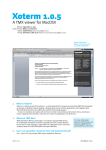
Xoterm’s TMX panel
floats on top of text editors
such as Microsoft Word.
1. What is Xoterm?
Xoterm is a reference tool for translators – a small
application for viewing and searching TMX files (translation
memories) on MacOSX. Xoterm displays a floating panel on
top of other applications and integrates with MS Word and
other text editors for seamless terminology support.
If you’re a translator who works with technical or other
structured documents where terms and phrases reoccur
regularly and translation memories are useful, this
application may be for you.
2. What are TMX files?
TMX (Translation Memory Exchange) is an industry-standard
XML format for multilingual translation memories. Typically,
such files contain identical text in two or more languages,
segmented into ”translation units” (short text sections).
Most CAT tools will import and export TMX files.
Xoterm 1.0.7
Structure of a TMX file:
TMX file (an XML file)
One header with various attributes
Multiple translation units
Various attributes...
Multiple variants One version of
the same text for each language
For further information about the
TMX format, see www.lisa.org/fileadmin/
standards/tmx1.4/tmx.htm.
User Manual Page 1
3. Can I use translation memories from my favorite CAT tool?
Yes – if your CAT tool provides TMX export capabilities. Most do.
4. Can I edit or export TMX files with Xoterm?
No, Xoterm is intended as a simple, easy-to-use reference tool. Adding editing capabilities would require a
much more complex user interface, and a much steeper learning curve.
However, watch for TMXX, a full-featured TMX editor for MacOSX, in the fall of 2011.
Translation units and their variants can, however, be copied in a spreadsheet-friendly tabbed text format.
5. Does Xoterm read XLIFF files?
No. Currently, Xoterm reads TMX files only. The ability to read XLIFF tops the ”to do” list.
6. Which text editors are supported?
Xoterm is a standalone TMX viewer, quite functional on its own. However, when triggered by a user-defined
shortcut, Xoterm can access selected text from other applications, and use it as a search term.
Xoterm can access selected text in any application with the following methods:
●●
If the text editor supports MacOSX’s Accessibility technology, and if Accessibility
is enabled in the System preferences, Xoterm can access selected text
seamlessly.
●●
If the text editor is Microsoft Word, Xoterm accesses selected text through a
built-in AppleScript. (Tested on Microsoft Office Mac 2008.)
●●
For other applications, a ”service menu item” is provided. For technical reasons
this service cannot be triggered by a keyboard shortcut – you’ll have to select it
manually.
●●
If you’re interested in making Xoterm work with a particular application, please contact me
and perhaps it will be supported in an upcoming version.
For more information
about Accessibility,
see www.apple.com/
accessibility/macosx/
vision.html.
7. Can I open multiple TMX windows?
No. Xoterm would then become similar to a document-based application, with the added complexity this
entails. (I may reconsider this depending on user feedback.)
8. Can I filter or search for all TMX metadata?
No, this typically wouldn’t be very useful for everyday translation work. Again, the goal is to keep the user
interface as simple as possible. The complete TMX specification is a quite complex format.
9. How about ranked relevance search?
This is available by selecting one of the three relevance search modes
in the lower section of the search mode menu of the search field (right).
Words shorter than a certain limit are ignored (this limit is set in the
preferences dialog, see page 5). Variants that match the search term
exactly as a phrase are at the top of the search results. This type of
search can be quite slow.
Relevance search comes in these flavors:
●●
Relevance: Case-insensitive, word-based search of source language
variants, ranked by the number of unique words matched.
●●
Relevance matching case: As above, but case sensitive.
●●
Relevance ignoring diacritics: Case-insensitive word search as above,
but hits must contain all the words of the search term.
Relevance search modes.
10. How about fuzzy matches, concordance, spell checking, etc, etc...?
No.
Xoterm 1.0.7
User Manual Page 2
11. Why doesn’t Xoterm show up in the dock/the Application switcher?
Because it’s a “status menu item” (LSUIElement) application and doesn’t have a main menu bar. Apple doesn’t want
such applications to show up in the dock or the Application switcher.
12. Is Xoterm free?
Xoterm is a tool for professionals. You won’t use it unless it saves you time and money. Please encourage further
development by making a contribution of USD 25.00 to PayPal account [email protected].
13. Where do I report bugs and make suggestions?
E-mail me at [email protected].
14.Acknowledgements
Transparent controls from Tim Davis’ BGHUDAppKit library (https://github.com/binarygod/BGHUDAppKit).
15. Version history
1.0.7
January 18, 2012
Greatly speeded up TMX file parsing.
1.0.6
October 20, 2011
Added user-customizable search term coloring.
Added optional bolding of search terms.
Added diacritic-insensitive search modes.
Added tolerant language code matching.
Added “Hide target column”.
Simplified TMX panel look.
Made variant section collapsible.
Fixed a few focusing bugs.
Changed to BGHUDAppKit controls library.
1.0.5
September 3, 2011
Fixed some word relevance search bugs.
Removed ability to collapse bottom pane of panel (it might get “stuck”).
Fixed bug and improved visual feedback when dragging files on TMX panel.
1.0.4
September 2, 2011
Added ranked word relevance search options.
Added default source and target languages.
Improved search term highlighting.
Added duplication command for TMX file groups.
Clears search field when opening new file groups.
Files open a bit faster.
1.0.3
August 16, 2011
Fixed crasher in Lion.
Fixed malfunctions if TMX file lacked a header element.
Improved error messages.
1.0.2
August 12, 2011
Fixed hang when “search while typing” was on.
Collapsed TMX panel uncollapses when hotkey is triggered.
Added target variant search in search field options.
More copy options in translation unit table context menu.
1.0.1
August 12, 2011
1.0a
July 18, 2011
Added TMX panel collapsibility.
Xoterm now activates before showing alerts.
Added “Open file in Finder” command.
TMX panel handles “first mouse-down” (don’t ask!).
First release.
16. Known issues
Large TMX files open too slowly.
TMX panel position remembered wrongly if quitting Xoterm when panel is collapsed.
Highlighted search terms in table do not quite reflect scope of search.
Xoterm 1.0.7
User Manual Page 3
TMX Panel
Note: Every TMX file consists of multiple translation units (text segments).
Every translation unit contains multiple variants (versions of the segment text in different languages).
Search mode menu
To select a search
mode, use the black
triangle here to display
a menu.
Miniaturize button
By default this miniaturizes the panel (in this case,
option-click to collapse it to the title bar!).
It can also be configured to collapse the panel to
the title bar (if so, option-click to miniaturize it!).
TMX file group
Search field
User-configurable list
of TMX files to load and
search. See page 7.
Enter search term here.
Translation units
Containing the search term.
Source text on the left side,
target text on the right side.
Target language button
Source language button
Variants to display in the right
section of the panel.
Variants to display in the left
section of the panel.
Drag-and-drop
to add TMX files
to the panel!
All variants
All available language versions
of the text of the selected
translation unit.
Parent file
A TMX file group consists of multiple files, so the displayed
translation units may originate from different parent files.
This label indicates the selected translation unit’s parent file.
(Right-click to show a context menu for revealing and
opening that file in Finder!).
Xoterm 1.0.7
The panel loads the
TMX files defined for
each file group in the
Preferences. To use
TMX files that are not
in the TMX file group,
simply drop them on
the panel from Finder.
Their TMX content will
be added to existing
content. (Press Shift
while dragging to clear
existing TMX content
before loading the
dropped file).
User Manual Page 4
Preferences dialog: Application: Left pane
Open panel on launch
Uncollapse TMX panel when showing it
Whether the TMX panel should be displayed once
Xoterm has started.
If the TMX panel is collapsed to the title bar, uncollapse
it when redisplaying the panel (for example, when
keyboard shortcuts are triggered).
Activate Xoterm when displaying panel
Whether Xoterm should activate when the TMX panel
is displayed. In this case, keyboard focus shifts from the
active application (your text editor) to the search field of
the TMX panel. If this box is unchecked, you’ll need to
click on the TMX panel to type in the search field.
Search while typing
Whether the TMX panel should filter the translation
memories as you type, or when return key is pressed.
Continuously select first search hit
Hide panel on application switch
Whether the TMX panel should select the first search hit
as you type. This is useful in relevance search situations.
Typically, a translator works in a single word processor
and the TMX panel is useless in other applications. If
this box is checked, the panel is automatically hidden
when other applications become active.
Text size
Whenever the TMX panel is displayed (triggered by a hotkey),
Xoterm remembers the active application at that point and hides
the TMX panel when other applications become active (frontmost).
Focus search field when displaying panel
Whether Xoterm should move latent keyboard focus to
the search field when the TMX panel is shown. Focus
doesn’t actually shift until Xoterm is activated (by
clicking on the TMX panel).
Miniaturize button behavior
This button, at top left of the TMX panel, can either
miniaturize it (default) or collapse it to the title bar.
Xoterm 1.0.7
The size, in points, of text in the TMX panel.
Bold font for search terms in results list
Whether to emphasize search terms found in the table
and text fields using a bold font.
Search term color in results list
The color used to emphasize search terms in the search
results table and text fields.
Exact match color
When using relevance search (where each word of the
search term is matched separately), exact matches of
the entire search term are emphasized using this color.
User Manual Page 5
Preferences dialog: Application: Right pane
Warn on launch if Accessibility is disabled
Show panel if hidden
“Accessibility” is the built-in MacOS technology for
assistive technologies. Xoterm uses Accessibility to
access selected text in other applications as search
terms. If Accessibility is disabled, a warning will be
shown when Xoterm launches, if this box is checked.
Whether to automatically display the TMX panel when
updating the search term.
Tolerant language code matching
Languages in TMX files are designated using two- or
five-character codes. French is “FR”, while Canadian
French is “FR-CA” and French French is “FR-FR”. If this
box is checked, languages are matched using the first
two letters only, so you’ll find FR-FR matches along
with FR-CA and plain FR.
Minimum relevance word size
Relevance matching involves matching every word in
the search term with every word in the entire TMX
file group. This is much more processor intensive
that “straight” string matching. This setting enables
the user to decide the speed/precision trade-off for
themselves. Terms (words) shorter than the minimum
word size will be ignored.
Hotkey for “Update search term”
The global keyboard shortcut to press to update
the search term to the selected text of the active
application.
Xoterm 1.0.7
Use pasteboard if selected text is inaccessible
Xoterm attempts to access selected text in other
applications using several methods. If they fail,
this setting enables Xoterm to use the pasteboard
(clipboard) contents instead. This can be useful if
you are using a text editor that doesn’t support
Accessibility.
Hotkey for “Display TMX panel”
Toggles TMX panel visibility, without updating the
search term.
Attempt to set source and target languages
When a file group has finished loading, attempt to set
favorite source and target languages in the TMX panel.
This saves a few annoying clicks.
Default source language/target language
The source/target languages to attempt to set when
a file group has finished loading. If the file group
does not contain any variants with this language, this
setting has no effect.
User Manual Page 6
Preferences dialog: TMX file groups
Drag-and-drop TMX files
onto this list
This section of the Preferences is where you define groups of TMX files to load for various translation contexts,
purposes or customers. These files groups show up in the “File group” button in the TMX panel.
Adding files to the file groups
Use the ‘+’ button to run a file dialog, or simply dragand-drop TMX files from Finder onto the list at right.
Xoterm 1.0.7
User Manual Page 7