1
22
Installation and Registration
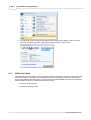
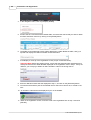
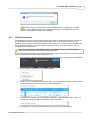
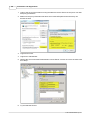
4. In the navigation menu, click on [Company Details]
5. Scroll to the the 'Licensed Product Details' table, and select the license that you wish to obtain
an offline activation code for by clicking on the [Details] button.
6. The details for that particular license will be displayed in a table. Below the table, click [+] to
expand and display the 'Offline Activation Code' information.
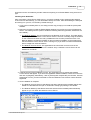
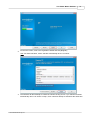
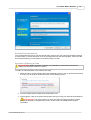
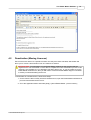
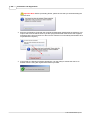
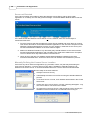
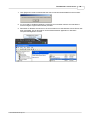
7. It will display a mock-up of the registration screen (as per screenshot below).
Important Note: Before proceeding further, ensure that the Serial Number displayed here is
exactly the same as the Serial Number displayed on the registration form in step 1. If they are
different, you are trying to obtain an offline activation code for the wrong licence.
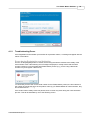
8. Enter the 'Machine Code' that was displayed in step 1, and click on the [Generate] button.
9. You will then be asked to pick the nominated user for this licence from a list, or create a new
user.
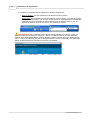
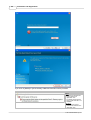
10. An activation code will then be displayed to you on the website.
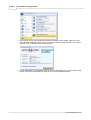
11. Back on the registration screen, enter this code in the registration form in step 1 and click
[Activate]
© 2014 Estate Master Pty Ltd