1
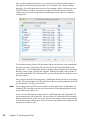
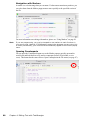
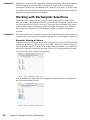
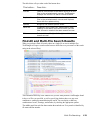
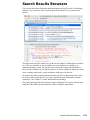
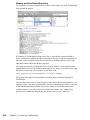
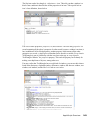
Click any match in the list of occurrences to have TextWrangler display the part of the file
that contains the match in the text pane.
IMPORTANT
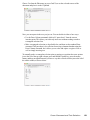
You can edit text directly within a search results browser, or double-click any line that
contains a match to open the corresponding file at the point of the match.
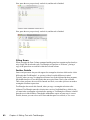
After you have opened a file, you can use the Find Again, Replace, Replace All, and
Replace & Find Again commands in the Search menu to continue searching it, as if you had
chosen a File by File search. See the next section for information on File by File searching.
Note
You can use a search results window as the basis of another multi-file search. See
“Specifying the Search Set” below.
Specifying the Search Set
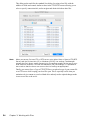
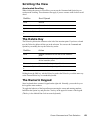
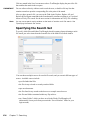
To specify which files and folders TextWrangler should examine when performing a multifile search, just select items from the Search In list of the Multi-File Search window.
You can choose multiple sources for a multi-file search, and you can mix different types of
sources. Available sources include:
• specified individual files
• the files in any selected or recently-searched folder
• open text documents
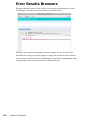
• the files listed in any search results browser or compile errors browser
• the files and folders contained within any Zip archives
• any “Smart Folders” which you have saved in the Finder (TextWrangler will
automatically list any such items present in the “Saved Searches” folder for your
login account)
124
Chapter 7: Searching