1
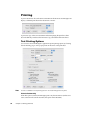
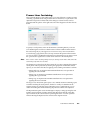
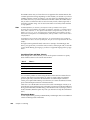
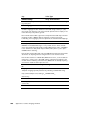
Automatically refresh documents as they change
on disk
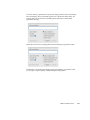
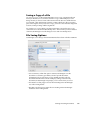
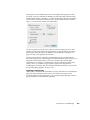
This option controls whether TextWrangler checks if documents (files) have changed on
disk while they’re open. If an open document has changed on disk, and there are no
unsaved changes, TextWrangler will automatically reload the document. If a document
has changed on disk and also has unsaved changes, TextWrangler will ask whether you
want to reload the document from disk or keep the unsaved changes. This option is on
by default.
The effects of the Revert command (from the File menu), and of a file Reload (which
occurs when a document is reloaded by a refresh action) are both undoable.
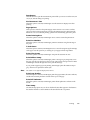
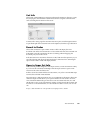
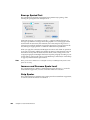
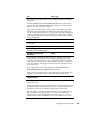
Remember the N most recently used items
This text field lets you choose how many files appear on the Open Recent sub-menu of
the File menu, and how many folders appear on the folder search popup menu in the
Find Differences folder lists.
Always Show Full Paths in “Open Recent” Menu
Check this option to have TextWrangler always display full paths in the Open Recent
menu. If this option is off, TextWrangler will only display path info when it’s needed to
distinguish between files with the same name.
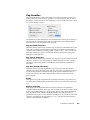
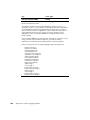
At Startup
This preference controls what TextWrangler does when you launch it, or when you
click on TextWrangler’s Dock icon or double-click its icon in the Finder and there are no
open windows (even if the application is already running).
Do Nothing
Choose this option to prevent TextWrangler from opening a new text editing window.
New Text Document
Choose this option to have TextWrangler open a new, empty text editing window.
New Disk Browser
Choose this option to have TextWrangler open a disk browser starting at your home
directory.
Open
Choose this option to have TextWrangler bring up the standard Open dialog, in which
you can select and open files.
Open from FTP/SFTP Server
This option specifies that TextWrangler should bring up the Open from FTP/SFTP
Server dialog, allowing you to connect to an FTP server and open a file.
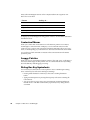
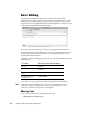
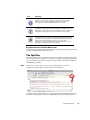
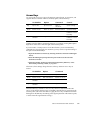
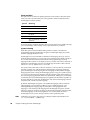
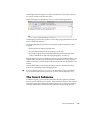
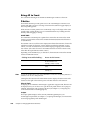
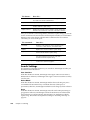
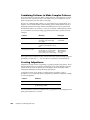
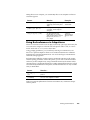
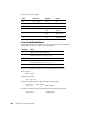
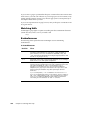
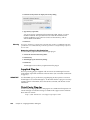
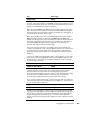
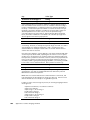
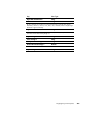
You can hold down the following modifiers during launch to override these actions.
174
Modifier(s)
Function
Option
Suppress startup items only
Chapter 10: Preferences