1
USB
Windows®
For USB Interface Users
(Windows® 2000 Professional/XP/XP Professional x64 Edition/Windows Vista®/Windows® 7)
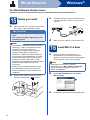
15
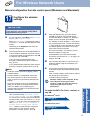
a
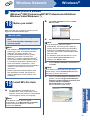
Before you install
Make sure that your computer is ON and you
are logged on with Administrator rights.
16
a
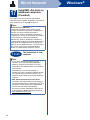
IMPORTANT
• If there are any programs running, close
them.
• The screens may differ depending on your
operating system.
Note
The installation CD-ROM includes ScanSoft™
PaperPort™ 12SE. This software supports
Windows® XP (SP3 or greater), XP Professional
x64 Edition (SP2 or greater), Windows Vista®
(SP2 or greater) and Windows® 7. Update to the
latest Windows® Service Pack before installing
MFL-Pro Suite. For Windows® 2000 (SP4 or
greater) users, when the ScanSoft™ PaperPort™
11SE download screen appears during the
installation of MFL-Pro Suite, follow the on-screen
instructions.
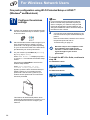
b
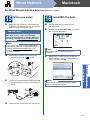
Turn off the machine and make sure the USB
interface cable is NOT connected to the
machine. If you have already connected the
cable, disconnect it.
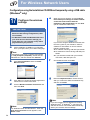
Install MFL-Pro Suite
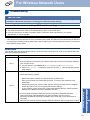
Put the installation CD-ROM into your
CD-ROM drive. If the model name screen
appears, choose your machine. If the language
screen appears, choose your language.
Note
If the Brother screen does not appear
automatically, go to My Computer (Computer),
double-click the CD-ROM icon, and then
double-click start.exe.
b
c
Click Initial Installation and then Install
MFL-Pro Suite.
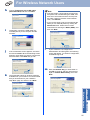
Click Yes if you accept the license agreements.
Note
• If the installation does not continue
automatically, open the top menu again by
ejecting and then reinserting the CD-ROM or
double-click the start.exe program from the
root folder, and continue from step b to install
MFL-Pro Suite.
• For Windows Vista® and Windows® 7 users,
when the User Account Control screen
appears, click Allow or Yes.
• If you want to install the PS driver (BR-Script3
printer driver), choose Custom Install and then
follow the on-screen instructions.
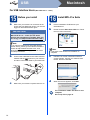
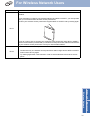
d
12
Follow the on-screen instructions until this
screen appears.