1
INDEX
1. Introduction......................................................................................................... 1
1.1 Key features ................................................................................................ 1
1.2 Minimum system requirements ...................................................................... 1
1.3 What’s in the box ......................................................................................... 1
2. Description of DEUX ............................................................................................. 2
2.1 Front panel .................................................................................................. 2
2.2 Rear panel ................................................................................................... 3
3. Connections ......................................................................................................... 4
4. Software installation ............................................................................................ 5
4.1 Driver software installation ............................................................................ 5
4.1.1 Installation (Windows® OS) .............................................................. 5
4.1.2 Installation (Mac OS) ........................................................................ 6
4.3 The bundled DEMO software installation .......................................................... 7
5. Control panel ....................................................................................................... 8
6. Using with applications ........................................................................................ 9
6.1 Cubase SX and Nuendo ................................................................................. 9
6.2 Cakewalk SONAR ....................................................................................... 11
6.3 ABSYNTH 4, MASSIVE, TRAKTOR 3 ............................................................... 13
7. Hardware specification ...................................................................................... 15
END USER WARRANTY ........................................................................................... 17
V.1.1 April 10, 2008
* All specifications are subject to change without prior notice.
1. Introduction
Congratulations on the purchase of INFRASONIC DEUX!
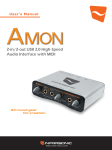
The DEUX is the most powerful FireWire recording interface for audio recording.
It is suitable for providing high quality results at reasonable price. It features a small-size
and a rugged aluminum case.
The DEUX is a professional recording interface that will satisfy its users in features,
performance and convenience.
1.1 Key features
• 2-in/4-out FireWire audio interface
• 2 balanced inputs with 1/4 inch TRS phone jack
- A/D converter: SNR 102 dBA @ (44.1 kHz)
• 4 balanced outputs with 1/4 inch TRS phone jack
- D/A converter: SNR 106 dBA @ (44.1 kHz)
• Supports fully balanced I/O
• Supports up to 24-bit/96 kHz
• Small footprint with a heavy duty aluminum case
• 1 x FireWire (IEEE 1394a) port
• Bus-powered with 6-pin connector
• External power supply is available
• Supports zero latency direct hardware monitoring
• ASIO2.2, WDM, DirectSound and CoreAudio supports
• Windows® XP/VISTA (32-bit and 64-bit) or later, Mac OS X (10.3 or later)
• Native Instruments ABSYNTH 4 DEMO, MASSIVE DEMO and TRAKTOR 3 DEMO software
included
1.2 Minimum system requirements
<PC>
Intel Pentium 4 or equivalent and
Compatible CPU
512MB of RAM
One available FireWire port
Microsoft Windows® XP/VISTA or later
<Mac>
Macintosh with G4 or better processor
512MB of RAM
One available FireWire port
Mac OS 10.3 or later
1.3 What’s in the box
•
•
•
•
•
DEUX Hardware
Installation CD (Driver and bundled DEMO software)
Standard FireWire cable
FireWire adapter - 6 pin female to 4 pin male
User’s Manual
1
DEUX User’s Manual
2. Description of DEUX
2.1 Front panel
1. Left line input gain control
- This knob adjusts the left side of the line input gain.
2. Left line input peak LED
- This LED light when the input signal is within -6dB of analog clipping.
If the peak LED flickers occasionally, the signal is approaching clipping levels,
but does not necessarily indicate distortion or actual clipping.
3. Left line input (1/4” TRS)
- The left side of the line input connections can be used with balanced or
unbalanced cables via the 1/4” TRS connectors.
4. Right line input (1/4” TRS)
- The right side of the line input connections can be used with balanced or
unbalanced cables via the 1/4” TRS connectors.
5. Right line input peak LED
- This LED light when the input signal is within -6dB of analog clipping.
If the peak LED flickers occasionally, the signal is approaching clipping levels,
but does not necessarily indicate distortion or actual clipping.
6. Right line input gain control
- This knob adjusts the right side of the line input gain.
7. Headphone output
- The high powered headphone output accommodates stereo headphones with
a 1/4” stereo plug.
8. Headphone level control
- This knob controls the overall output level of Headphone output.
DEUX User’s Manual
2
2.2 Rear panel
1. 4 Line outputs (1/4” TRS)
- These outputs are 1/4” balanced phone jack connections. They can be
connected to a mixing board, power amplifier, powered studio monitors,
recorder, or another stereo line inputs.
2. FireWire FireWire 400 (IEEE 1394a) port
- This six-pin IEEE 1394a connector is connected the audio interface to your
computer.
3. Optional DC power supply
- The DEUX can be powered by an external PSU, if required.
The most common (larger, 6 pin) type of FireWire port can supply power, so the
use of an external power supply will not normally be necessary. However, if the
connected computer/laptop only features the smaller 4-pin FireWire connector,
which cannot supply power, then the PSU must be connected.
CAUTION: Please check the polarity of the DC power supply.
3
DEUX User’s Manual
3. Connections
1.
2.
3.
4.
5.
Connect the DEUX to FireWire port on computer with the included FireWire cable.
Find the FireWire port on the rear of the DEUX.
Connect provided FireWire cable (Plug type IEEE 1394a) to the DEUX.
Find the FireWire port on your computer.
Plug the DEUX’s FireWire cable (Plug type IEEE 1394a) into the FireWire port of
your computer.
6. Connect the DEUX to your equipments. (mixer, monitoring system, recorder, etc.)
DEUX User’s Manual
4
4. Software installation
4.1 Driver software installation
This manual contains a step by step guide for driver software installation to your OS.
If you have any difficulties during installation, please contact our technical support
department.
NOTE:
1. Before starting the driver software installation, prepare your original OS software,
as you may need it during installation. Also please make sure that you have installed
a recent version of the chipset drivers and patches provided by your manufacturer
for your motherboard.
2. Please check http://www.infra-sonic.com for driver updates and last minute issues
regarding the DEUX.
4.1.1 Installation (Windows® OS)
1.
Please plug your DEUX before starting installation. Windows will automatically detect a new
device installation and the “Found New Hardware Wizard” window will appear.
2.
Insert the provided CD-ROM in your CD or DVD disc drive and wait for the following
menu to pop up. Click “Install Driver” to proceed with the driver installation.
5
DEUX User’s Manual
3. Click “Next” and follow the instructions on the screen.
4. After the installation has finished, please confirm if the
of the task bar.
icon is visible in the system tray
4.1.2 Installation (Mac OS)
If you have earlier versions of Mac OS, please upgrade to OS 10.3 before using the DEUX.
The installation is very simple. After connecting DEUX, your Macintosh computer will
automatically detect the DEUX. The DEUX fully works with Mac OSX’s Core Audio driver.
DEUX User’s Manual
6
4.3 The bundled DEMO software installation
To install the bundled software on your OS, insert the provided CD-ROM in your CD or DVD
disc drive and wait for the following menu to pop up. Click “Bundle Software” to proceed with
the Native Instruments demo software installation. Choose software which you want to install
and then follow the instructions on the screen.
7
DEUX User’s Manual
5. Control panel
6
2
3
4
5
1
8
9
10
7
1.
Connection status: The DEUX logo indicates the current status of the FireWire
connection.
2. Input direct monitor: You can monitor the sound directly from the input source with
zero latency.
3. Input monitor level information: The input monitor level is displayed in here.
4. Output mute: Select this button to mute signals of output channels.
5. Output level information: The output level is displayed in here.
6. Sample rate: The current sample rate is indicated by light. The DEUX supports 44.1,
48, 96 kHz sample rates. It is matched the sample rate of the source audio.
7. Latency: You can choose between different buffer sizes. Typically a lower latency is
good when you process audio signals from the audio inputs in real time with your
audio software. A smaller latency value will however also make more system load.
8. Factory reset: It resets the control panel to default settings. Click this button to go
back to default setting.
9. Always on top: Enables to display the DEUX control panel always over other windows.
10. About: Check current driver information.
DEUX User’s Manual
8
6. Using with applications
This chapter contains basic configuration examples for some popular software applications.
Please refer to the specific software’s manual for detailed information.
6.1 Cubase SX and Nuendo
After launching Cubase SX, go to Device Æ Device Setup Æ VST Audiobay.
Select ‘ASIO 2.2 - DEUX’ for the ASIO device. Make sure you need to click Apply button
after changing the settings.
9
DEUX User’s Manual
After changing the settings, go to Device Æ Device Setup Æ ASIO 2.2 - DEUX.
If you click the Control Panel button, ‘ASIO latency setup’ window will pop up.
You can set the latency in here.
It’s synchronized with the latency
setup of control panel.
If you want to change the sample
rate, you must change it on the host
program.
DEUX User’s Manual
10
6.2 Cakewalk SONAR
After launhing SONAR, go to option Æ Audio tab.
1. WDM/KS mode
Change the settings as above in the input/output driver settings.
The input and output drivers have to be matched to each other.
Restart SONAR after the settings have changed.
11 DEUX User’s Manual
2. ASIO mode
First, change the driver mode to ASIO
on the advanced tab of the audio
options as below, then restart SONAR.
Secondly, change the settings as above on the input/output driver settings.
DEUX User’s Manual
12
6.3 ABSYNTH 4, MASSIVE, TRAKTOR 3
Demo versions of NATIVE INSTRUMENTS ABSYNTH 4, MASSIVE and TRAKTOR 3 are included
on the CD. These softwares are operated in stand-alone mode as well as a plug-in mode with
audio and MIDI sequencers such as Cubase, Sonar, Logic.
To switch to stand-alone mode, after launching these softwares, go to File Æ Audio and MIDI
settings Æ Soundcard or Audio Device. Select the device as pictures below. The settings of
sequencer apply to all installed plug-ins. The software also supports both WDM and ASIO
options.
< Audio Setup in ABSYNTH 4>
< Audio Setup in MASSIVE>
13 DEUX User’s Manual
< Audio Setup in TRAKTOR 3>
DEUX User’s Manual
14
7. Hardware specification
[ANALOG AUDIO]
SAMPLE RATE SUPPORTS
44.1, 48, 96 kHz
ANALOG LINE INPUT
Input type
Connector type
Peak level
Analog gain range
Impedance
Balanced line input 1, 2
1/4” TRS phone jack
0dBFS @ +20dBu
0 ~ +15dB
About 10K Ω
ANALOG OUTPUT
Output type
Connector type
Peak level
Attenuation
Impedance
Balanced line output 1, 2, 3, 4
1/4” TRS phone jack
+14dBu @ 0dBFS
-48dB ~ + 0dB (0.5dB step size)
330 Ω
HEADPHONE OUTPUT
Output type
Connector type
Peak level
Load impedance range
Stereo Headphone
1/4" TRS phone jack
+14dBV Max
~600 Ω
15 DEUX User’s Manual
[DIGITAL AUDIO]
SAMPLE RATE SUPPORTS
44.1, 48, 96 kHz
A/D CONVERTER
SNR
Dynamic range
THD+N
Inter channel isolation
102dBA @ 48kHz
102dBA @ 48kHz
92dB @ 48kHz
110dB
D/A CONVERTER
SNR
Dynamic range
THD+N
Inter channel isolation
106dBA @ 48kHz
106dBA @ 48kHz
90dB @ 48kHz
110dB
[INTERFACE]
INTERFACE
FireWire 400
IEEE1394a, iLink
[Power Supply]
POWERSUPPLY
FireWire 400
Optional DC power supply
-IEEE1394a Bus Power
-12VDC 500mA external power supply is available
DEUX User’s Manual
16
END USER WARRANTY
Trademarks
INFRASONIC and DEUX are registered trademark of SIMS Corp.
Windows is a trademark of the Microsoft Corporation. Other products and brand names are trademarks or registered
trademarks of their respective companies.
End User Warranty
SIMS Corp. warrants this product, under normal use, to be free of defects in materials and workmanship for a period
of One(1) year from date of purchase, so long as: the product is owned by the original purchaser, with proof of
purchase from an authorized SIMS Corp. dealer. This warranty explicitly excludes power supplies and included
cables which may become defective as a result of normal wear and tear.
In the event that SIMS Corp. receives, from an original purchaser and within the warranty coverage period, written
notice of defects in materials or workmanship, SIMS Corp. will either: replace the product, repair the product, or
refund the purchase at its option. To obtain warranty service, the original purchaser or his authorized dealer must fill
the support contact form at www.infra-sonic.com. In the event repair is required, shipment to and from SIMS Corp.
and possible handling charges shall be borne by the purchaser. SIMS Corp. will not accept returns without prepaid
return shipments. In the event that a repair is required, a return authorization number must be obtained from SIMS
Corp. After this number is obtained, the unit should be shipped back to SIMS Corp. in a protective package with a
description of the problem and the Return Authorization Number clearly written on the package. All such returns
must be shipped to SIMS Corp. headquarters in Seoul, Korea.
In the event that SIMS Corp. determines that the product requires repair because of user misuse or regular wear,
it will assess a fair repair or replacement fee. The customer will have the option to pay this fee and have the unit
repaired and returned, or not pay this fee and have the unit returned un-repaired.
The remedy for breach of this warranty shall not include any other damages. SIMS Corp. will not be liable for
consequential, special, indirect, or similar damages or claims including loss of profit or any other commercial damage,
even if its agents have been advised of the possibility of such damages, and in no event will SIMS Corp.’ liability for
any damages to the purchaser or any other person exceed the price paid for the product., regardless of any form of the
claim. SIMS Corp. specifically disclaims all other warranties, expressed or implied. Specifically, SIMS Corp. makes
no warranty that the product is fit for any particular purpose.
17 DEUX User’s Manual
The FCC and CE Regulation Warning
This device complies with Part 15 of the FCC Rules. Operation is subject to the following two conditions:
(1) this device may not cause harmful interference, and (2) this device must accept any interference received,
including interference that may cause undesired operation.
Caution: Any changes or modifications in construction of this device with are not expressly approved by the party
responsible for compliance, could void the user's authority to operate equipment.
NOTE: This equipment has been tested and found to comply with the limits for a Class A digital device, pursuant to
Part 15 of the FCC Rules. These limits are designed to provide reasonable protection against harmful interference
when the equipment is operated in a commercial environment. This equipment generates, uses, and can radiate radio
frequency energy and, if not installed and used in accordance with the instruction manual, may cause harmful
interference to radio communications. Operation of this equipment in a residential area is likely to cause harmful
interference in which case the user will be required to correct the interference at his own expense. If necessary,
consult an experienced radio/television technician for additional suggestions.
Correspondence
For technical support inquiries, contact your nearest dealer, local SIMS Corp. distributor or SIMS Corp. directly at:
SIMS Corp.
RAON Bldg, 9F, 92-8, Wonhyoro-2ga, Yongsan-gu, Seoul, Korea
www.infra-sonic.com
www.simsaudio.com
All features and specifications are subject to change without notice.
Parts of this manual are continually being updated.
Please check our web site www.infra-sonic.com occasionally for the most recent updated
information.
DEUX User’s Manual
18