1
MAX1464 Evaluation Kit
Required Equipment
•
MAX1464 EV kit
•
A fixed +5VDC power supply
•
Computer running Windows 98/NT/2000/XP with an
available parallel port (USB-to-parallel-port converters not supported)
•
A multimeter
•
One parallel (printer) cable
4) Press the Flash Memory tab in the Hardware
Debugger window.
5) Press Load Buffer from file tab.
6) Select … | MAX1464 | examples | cctmr1-64.hex
file to read the .hex file and save it in the temporary
buffer.
7) Press Write to device tab to write the cctmr1-64.hex
program to the flash memory.
8) Press Verify device against buffer to verify that the
flash memory write operation is successful.
Note: In the following sections, software-related items
are identified by bolding. Text in bold refers to items
directly from the EV kit software. Text in bold and
underlined refers to items from the Windows
98SE/2000/XP operating system.
9) Execute the LED double-blinking program by
pressing on the Run CPU button. The LEDs start
blinking. This process verifies that the EV kit connections are correct, the EV board jumpers are set
correctly, and the computer interface is working.
Procedures
Example of Using the Control Program
Note: Exit the Hardware Debugger before starting the
Control program.
This section demonstrates how to start the Control
program and make the basic measurement of the input
voltage.
1) Start the Control program from Start | MAX1464
EV kit | Control Program.
Applying Power to the MAX1464 EV Board
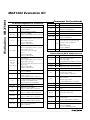
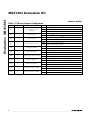
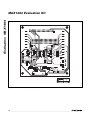
1) Verify that all jumpers on the EV kit board are set
per the default setting shown in Table 1.
2) Connect a fixed +5V power supply to the EV kit
board TB2 +5V terminal.
3) The LEDs on the EV kit board start blinking. The
MAX1464 EV kit is shipped with a program,
EVTEST1.hex, preloaded in the MAX1464 flash
memory. This program alternatively flashes the two
LEDs on the EV board.
Setting Up for Digital Communication
1) Download the latest MAX1464 software from the
Maxim website.
2) Start the INSTALL.EXE program and follow the
instructions to install all MAX1464 applications programs and to copy supporting files to your computer.
3) Set up the MAX1464 EV kit by connecting the EV
board and the KEY using the 16-pin ribbon cable.
Connect the KEY to the PC’s parallel port using a
25-pin straight-through, female-to-male cable.
Example of Using the Hardware Debugger
1) Start the Hardware Debugger program from Start |
MAX1464 EV kit | Hardware Debugger.
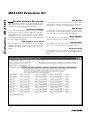
2) A window (Figure 1) appears on the monitor.
3) Read the text in the window next to the Check CPU
status on the top row and verify that it reads
Running or Halted. Any other reading indicates a
hardware and/or setup problem. Fix the problem
before continuing to the next step. The next few
steps detail loading a new LED double blinking program to the MAX1464 flash memory and running it.
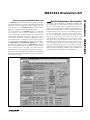
2) A window (Figure 2) appears on the monitor.
3) The DUT? button turns green if the hardware setup
is correct and communication with the MAX1464 is
established. A red button indicates a hardware
and/or setup problem. The next few steps detail
reading the signal applied on the MAX1464 input
and write to the Data Array, which is the input to
the compensation algorithm.
4) Set the value of This Temp Point and This Press
Point to match one of the test conditions displayed
in the Data Array.
5) Press the Read ADC button to convert the on-chip
temperature sensor output and channel 1 input voltage and display the results of both conversions in
the Data Array.
6) To read other input voltages, adjust VR1 and VR2
potentiometers and repeat steps 5 and 6.
7) Refer to the MAX1464 Control program manual for
a full description of Control program capabilities.
_______________________________________________________________________________________
3
Evaluates: MAX1464
Quick Start