1
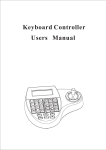
General HD Visual Keyboard
Manual
PDF pdfFactory Pro
www.fineprint.cn
CATALOGUE
1. Summary------------------------------------------------------------------------------------------- --------1
1.1 Notice-------------------------------------------------------------------------------------------------1
1.2 Function and Characteristic-------------------------------------------------------------------------1
1.3 Technical Data---------------------------------------------------------------------------- -----------1
2. Keyboard Connection------------------------------------------------------------------------------------2
2.1 Keyboard Interface Instruction------------------------------------------------------------- -------2
2.1.1 Rs422 and Rs485---------------------------------------------------------------------------2
2.1.2 Power Supply Port--------------------------------------------------------------------------2
2.1.3 Rs232 EIA Interface-----------------------------------------------------------------------2
2.1.4 C VBS Interface -----------------------------------------------------------------------------2
2.1.5 USB Interface--------------------------------------------------------------------------------2
2.1.6 VGA Interface-------------------------------------------------------------------------------2
2.2 Matrix Connection----------------------------------------------------------------------------------3
2.2.1 RS422 Remote Connection----------------------------------------------------------------3
2.3 Connect with The Dome Directly------------------------------------------------------------------4
2.4 Connect DVR-------------------------------------- -------------------------------------------- -----4
2.5 The Connection of The Keyboard in The System--------------------------------------------- ----5
3. Keyboard operation manual-----------------------------------------------------------------6
3.1 Current-carrying to keyboard----------- ---------------------- ---------- --------------- ---------------6
3.2 LCD----------- ---------------------- ---------- ----------------------------------- ---- ---------6
3.3 Joystick controls dome ---------- ---------------- - ------------------------ ------- ---------- -------------6
3.4 Change object dome---------- ------------------ - ------------------------- -------- - ------ ----------------7
3.5 C ontrol d ome lens- ----------- ---------------------- --- -------------------------- -- -- --------------------7
3.6 Set dome function---------- ---------------- ------ ---------------------------- ------------- ------------7
3.6.1 Preset---- ---------------------- --------- ------------------------- - -------- - -------------7
3.6.2 Scan-- ---------- ------ --------------------------------------------------- - ------------7
3.6.3 Pattern-------------- ----------------------------------------------------- ----------------7
3.6.4 Tour-------------- --------------------- --- ------------------------------------ -------------7
3.7 Call dome main menu---------------------------- ------ ---------------------- --- ---- ---- -------------8
3.8 SDI and CVBS video output switch----------------------------------------------------------------8
3.9 Battery display setup--------------------------------------------------------------------------------8
3.10 Control matrix-------------- ---------------------- ----- - -- ------------------------------ --------------8
3.10.1 Switch dome in order---- ---------------------- -- ---------------------------- -- --- ----------8
3.10.2 Call matrix main menu-- ---------- ------ ----------------------------------------- - ---------- 8
3.10.3 Confirm after program-------------- --------------------------------------------- -- ------------8
3.10.4 Change object monitor -------------- --------------------------------------------- --------------8
4. Keyboard control---------------------------------------------------------------------------------------9
4.1 keyboard index setting--------------------------------------------------------------------- ------9
4.1.1 Set ID number------------------------------------------------------------------------------9
4.1.2 Set the baud rate---------------------------------------------------------------------------9
4.1.3 Set password------------------------------------------------------------------------------9
4.1.4 Joystick calibration----------------------------------------------------------------------10
4.1.5 Multi keyboard state---------------------------------------------------------------------11
4.2 Dome setup--------------------------------------------------------------------- ----------- ------11
4.2.1 Set dome preset----------------------------------------------------------------------------11
4.2.2 Set dome scan ------------------------------------------------------------------------------11
4.2.3 Set dome pattern --------------------------------------------------------------------------- 12
4.2.4 Set dome tour-------------------------------------------------------------------------- ------12
PDF pdfFactory Pro
www.fineprint.cn
4.3 Alarm box control--------------------------------------------------------------------------------13
4.3.1 Set the alarm input channel status and the alarm spot-------- -------------------------13
4.3.2 Set alarm ON/OFF status and alarm reset time -----------------------------------------13
4.3.3 Manually reset alarm input ---------------------------------------------------------------14
4.3.4 Resume the factory default setting-------------------------------------------------------14
4.4 Protocol setting-----------------------------------------------------------------------------------14
4.4.1 Pelco matrix model------------------------------------------------------------------------14
4.4.2 Directly control model--------------------------------------------------------------------14
4.4.3 DVR control model------------------------------------------------------------------------15
4.5 Keyboard information display-------------------------------------------------------------------15
4.6 Exit keyboard menu-------------------------------------------------------------------------------15
5.Appendix--------------------------------------------------------------------------------------- --------16
5.1 Rs485 Bus Basic Knowledge ---------------------------------------------------------------------16
5.2 Keyboard shortcut operation manual-----------------------------------------------------------17
6.Keyboard Menu Index---------------------------------------------------------------------------------18
7.Maintenance service terms-----------------------------------------------------------------------------19
PDF pdfFactory Pro
www.fineprint.cn
Summary
1. Summary
It is a portable HD visual 3-aixs keyboard, can
better control the integrate speed dome camera
with various protocols, matrix and DVR; support
4 keyboards at the same time. 8-inch HD TFT
LCD screen and the flip design, the user can easier
control and provide the best visual sense.
1. 1 Notice
●
Please read the manual carefully and reserve it.
●
Please advert to the notice in manual.
●
Please don't place the keyboard in the moist place.
●
Please don't close up the keyboard to exothermic
object for long time.
1.3 Technical Data
◆ Electrical
1.2 Function and Characteristic
Input voltage:DC12V
●
With the 8-inch HD TFT LCD screen, this can
display the real time image from the camera.
●
Auto compatible with NTSC and PAL.
●
English-Chinese OSD menu, easier to set up
◆ Communication
Communication interface:
RS485×1,RS422×1,RS232×1
system parameters.
●
Communication frequency:
SDI Input, can display the SDI image on the
silkscreen directly
●
Rated power:7.2W
2400Bps ,4800Bps ,9600Bps,19200Bps
Communication distance:1.2km
(RS485 and Rs422 can achieve it)
Built-in SDI-HDMI auto switch device.
HDMI output interface. .
●
Support VBS/VGA, 800 x 600 display resolutions.
●
Can control many brands of speed domes and
DVR systems like Dahua, HikVison, Pelco matrix.
●
Expandable interfaces can meet the different
market requirements.
●
Low power consumption, about 1.5W in standby
mode.
◆ Battery specification
Ni-MH battery:900mAh 9.6V
Charging time: Approx 4.5 hours
Charging current: 220mA
Battery life: 1 hours (battery completely charged)
◆ Operational environment
Operating temperature:-20℃~+50℃
●
Flip design can provide the best visual sense.
●
Built-in rechargeable batteries (optional)
Relative humidity:less than 90%
◆ Physical property
L×W×H=290×191×95(mm)
Weight:1.6kg(Net Weight)
PDF pdfFactory Pro
www.fineprint.cn
1
Connection
2.1.2 Power Supply Port
2. Keyboard Connection
Power supply is DC12V.
2.1 Keyboard Interface Instruction
the keyboard: RS232, RS422, and RS485, which
2.1.3 RS232 Interface
To expand the functions and controlling like
can connect and control various peripheral
picture processor, DVR, PC and so on.
There have following interfaces on the back of
equipment.
2.1.4 CVBS Interface
To receive the video signal of the camera; also
2.1.1 RS422 and RS485 interface
can switch the video to receive multichannel
RS422 and RS 485 interface are on the 6bit
camera video.
ribbon cable connection of the keyboard. Rs485
(Tx+,Tx-) can connect with the dome when the
2.1.5 USB Interface
keyboard controls the dome directly; RS485
(Tx+,Tx-) can connect with DVR and other keyboards
when keyboard controls the dome by matrix; Rs422
For SDI signal (1080i60/720p60/1080i50/
720p50/1080p30/1080p25and etc.)
(Tx+,Tx-) is sending the signal, RS422(Rx+,Rx-) is
receiving the signal, both of which can connect with
2.1.6 VGA Interface
matrix ,DVR and so on.
Keep reserve for future expansion in function
Power switch button: cut-off power supply /
requirements.
activate power supply
Picture 2-1.1
Power
Power
Supply Port Switch
RS422
HDMI
RS232
Picture 2-1.2
2
PDF pdfFactory Pro
www.fineprint.cn
CVBS
SDI
Connection
2.2 Matrix Connection
The keyboard can control PELCO matrix CM6700,
CM6800. Below we set an example“the connection
between keyboard and PELCO matrix CM6700” to
explain it. RS422 (REMOTE KEYBOARD(S)) in
the back of CM6700 matrix connects with RS422 in
keyboard, the max distance is 1200m.
2.2.1 RS422 Remote Connection
RS422 connection line, one end connects with
RS422 interface (“REMOTE KEYBOA-RD(s)”)
of CM6700 matrix, the other end connects with
Rs422 in the keyboard, keyboard RS422 (Tx+ Tx-)
corresponds with matrix RS422(Rx+ Rx-).
Rs422 remote connection, the maximum
distance between the keyboard and the
matrix is 1200m.
3
PDF pdfFactory Pro
www.fineprint.cn
Connection
2. 3 Connect with The Dome Directly
2.4 Connect DVR
Keyboard connects with dome by RS485 directly.
The keyboard can connect DVR and dome by
RS485 interface is on the switchboard of pendent
Rs422 interface, the keyboard Rs422(Rx+,Rx-)
hanger of the upper cover of the dome. It can be found
Can seperately connect DVR Rs485(A+,B-)
that there are 4 Pin control/power sockets and the
Rs422(Tx+,Tx-)and dome Rs485(A+,B-)
corresponding interface according to the above mark
when you turn the metal button inside the hanger and
the hanger of switchboard.
There are different connection ways according to the
domes which produced by the different manufacturers.
Please be in strict accordance with the installation
manual.
Dome
Keyboard
Picture 2-3.1
Power DC12V
Dome
Keyboard
Power DC12V
4
PDF pdfFactory Pro
Picture 2-4.1
www.fineprint.cn
Connection
2. 5 The Connection of The Keyboard in The System
Keyboard controls the alarm box, and connects
the dome by the alarm box. The details please see
the alarm box user manual. Every alarm box only can
connect one camera.
Computer
(DVR)
The keyboard controls the matrix, then controls
the domes indirectly by the matrix (sees to the
picture 2-5.1). When unconnect with the matrix, the
Dome 1
Keyboard
keyboard controls the dome directly(see to the
Dome 2
picture 2-5.2) .
.
Picture 2-5.2
when unconnect with DVR,
the keyboard controls the dome directly Keyboard and
camera may control each dome by parallel connect to
Rs485 Bus and each keyboard may control each dome.
Matrix
This way is required to have a main keyboard( the main
keyboard ID set as 1), the Baud rate of keyboard is set
as 9600bps.(sees to the picture 2-5.3)
Keyboard
Dome 1
Dome 2
Picture2-5.1
As the previous picture shows, keyboard and
keyboard connection or keyboard and computer
connection set as Rs232, when their distance is more
1. A line of Rs485 may control up to 32 main
controlling and under controlling equipments,
so a keyboard which controls the dome directly
may connect up to 31 domes.
than 20m, suggest that set it as Rs485.
2. The system may connect up to 4 keyboards at
the same time, and the four keyboards ID are
different.
Keyboard1
Keyboard2
Keyboard3
Dome1
Dome2
Dome3
Dome4
Dome7
Dome8
keyboard4
Dome5
Dome6
Picture 2-5.3
5
PDF pdfFactory Pro
www.fineprint.cn
Connection
Numeric zone LCD
Function DVR
controlling
Joystick
Lens
Controlling
Picture 3-1.1
3. Keyboard Operation Manual
This passage mainly describes the operation ways
of keyboard, it needs to especially explain that different systematic platform has not the same operations,
and different systematic platform may have some particular requirements and operations, please operate it
to combine with the operation manual of dome and matrix.
3. 2 LCD
LCD display is used to display the basic
information like model, ID, object dome, object
monitor ID, baud rate etc, also display the input
command and joystick operation in the bottom of
the LCD. See (3-1.2),
Press"Ent" button for 3 sec, can manually turn
on/off LCD.
Press " Shit" button for 3 sec, can manually turn on/off
3. 1 Current-carrying to keyboard
the character displayed on LCD.
When electrity to keyboard, the keyboard
will auto-test the version number, keyboard ID, baudFirmware
Keyboard ID:
Camera
ID:
Monitor
ID:
Protocol:
Baudrate:
rate, protocol, and object dome and object monitor
will auto-set as 1, and these information will display
in the LCD.
1.when the keyboard is initializing, should be
V1.03
001
002
001
Pelco Matrix
9600bps
Picture 3-1.2
make the joystick to return to 0, not to pull or
tilt the joystick.
3. 3 Joystick controls the dome
Joystick has two functions, one is manually controlling dome rotation, the other is setting controlled
object menu.
6
PDF pdfFactory Pro
www.fineprint.cn
Connection
●
Tilt joystick at any directions, the dome will rotate
in correspondence with directions, at the same time,
LCD displays the information as lower right corner
shows" 3 4 5 6 ",they respectively reflects tilt up,
tilt down, tilt right, tilt left. If the joystick tilts upper
right corner, the screen will display such information
5
“ 4 ”The joystick return to the primary location,
and the dome immediately stop to rotate.
●
The joystick tilt up means choosing previous menu,
which is down means choosing next menu if it is used
to set the menu; the joystick is right means entering the
next menu or reserving setting after setting, which is left
means exit or stop reserving.
The more heavy is the gradient of joystick, the more
fast speed the dome rotates. By control the gradient of
joystick, to control the rotation speed of dome.
●
●
Rotate the joystick cap may adjust the focus of lens,
to rotate in clockwise, the camera lens is Tele, at the
same time there is“ ”displays in the LCD;the camera rotates in counter clock wise, the lens is wide,
at the same time there is“ ” displays in the LCD.
In usual situation, the camera is in the status of auto
focus, user may operate manual focus to run other operations by the two keys, and the camera will automatically resume to auto-focus.
Ø Iris control:
Press 【OPEN】manual Iris increase, Iris is max, the
screen will show white, leave to stop.
Press 【CLOSE】manual Iris reduction, Iris is min,
the screen will show black, leave to stop.
3.6 Dome function operation
3.6.1 Preset
●
Set preset: 【SET】+【N】 + 【Preset】
●
Call preset: 【N】 + 【Preset】
【N】reflects preset number.
3.6.2 Scan
●
Set left limit:
●
Set right limit: 【SET】+【2】+【Scan】
●
Run scan:
【SET】+【1】+【Scan】
【1】+【Scan】
If change the speed of scan, should enter into
menu setup.
3.6.3 Pattern
3. 4 Change object dome
● Set
【N】 + 【Cam】
【N】reflects numeric key(Do not explain it again),
input the dome ID,Press【Cam】to change object
dome.
pattern path:【SET】+【N】 + 【PATTERN】
+Path+【SET】+【0】+【PATTERN】
Press【SET】, input pattern NO.(1-4),
press【PATTERN】to enter tour setup,the dome
records a series of motions, when end up, press【SET】,
then press【0】,then press【PATTERN】, the pattern
3. 5 Dome lens control
setup is finished.
Ø Zoom control:
Press【TELE】,lens zoom tele (the multiple of
lens increase), leave to stop.
Press【WIDE】, lens zoom wide (the multiple of
lens reduction), leave to stop.
User may control the zoom by rotating joystick.
● run
pattern:【N】 + 【PATTERN】Input pattern
number(1-4),press【PATTERN】,run pattern.
3.6.4 Tour
Run tour: 【N】 + 【TOUR】/【TOUR】
Ø
Press tour number,press【TOUR】 ,run tour.
Focus control:
Press 【FAR】manually far focus, to make the far
object more legible, leave to stop.
Press 【NEAR】manually near focus, to make the
near object more legible, leave to stop.
If system has only a tour, press【TOUR】directly.
Set tour must enter menu setup.
7
PDF pdfFactory Pro
www.fineprint.cn
Connection
3. 7 Call the dome main menu
3. 10 Control the matrix
【9】+【5】 + 【Preset】:input 95, then press
【Preset】to call the main menu of object dome, and
3.10.1 Switch the domes in order
The matrix connects sixteen domes, and switches
the menu is displayed in the object monitor. About
the dome to previous and next dome. Series No.,date
how to set the dome menu by keyboard,
and time will display in the monitor..
Please refer to the dome Operation manual.
【PREV】: switch to previous dome. Press
【PREV】, switch to previous dome in single step;
Press 【PREV】 to hold it for 2s, and jump sixteen
3.8 SDI and CVBS video output switch
domes of the connection matrix in previous order.
Press【Stop】to stop to switch.
The SDI video will be displayed in priority when
there are SDI and CVBS video output at the same time.
【NEXT】:switch to next dome. Press【NEXT】to
Press 【shi】+【2】+【Enter】to switch to sole CVBS
output mode, even there is no CVBS video signal output,
to hold it for 2s, and jump the sixteen domes of the
the SDI video also can’t be displayed either.
switch the next dome in single step; press【NEXT】
connection matrix.
【Stop】:switch continuously, press 【Stop】
Press 【shi】+【1】+【Ent】to resume the priority of
to stop to switch.
SDI video signal output.
3.10.2 Call main menu of matrix
3.9 Battery display setup
【Shift】 + 【Set】:call the main menu, and
If the keyboard is equipped with battery ,please enter
the OSD keyboard setup→ Battery label:
When choose “on ”: 3 auto-cycle charging symbol
the menu will be displayed in the object monitor.
How to set the matrix menu by keyboard? Please
refer to the matrix operation manual.
will display on the bottom right corner of the screen:
“
”
The bottom right corner of the keyboard screen will
show:“
”. When the battery is completely charged.
press 【ENTER】, reflects confirm after program, as
If not, there will show:“
for the detail program, please refer to the matrix oper-
”
When choose “off ”: charging symbol will not
3.10.3 Confirm after program
【ENTER】:after the matrix is programmed,
ation manual.
be displayed.
3.10.4 Change object monitor
1 .When the keyboard is only powered by the battery, the
screen will be auto shut-off to reduce the consumption
after a period time of idle. Press any keys or Move the
joystick to activate the displaying. When the keyboard
【N】 + 【MON】
Input the monitor ID, then press【MON】,the
image and the menu of the dome that controlled by
keyboard will display in the object monitor.
is connected to a power source directly, the screen will
not auto shut-off anymore.
2. After a period time of use, the battery will be charged
again when the keyboard is connected to power source
directly.
3. The battery has a little discharging current which is 25uA.
As the keyboard is working in Pelco matrix mode
(refer to DIP switches setting),the keyboard
can directly control the dome or the monitor by
matrix. just work under pelco matrix mode, may
carry out the command of controlling matrix.
8
PDF pdfFactory Pro
www.fineprint.cn
Operation
4、The Keyboard Menu Controlling
2. Press【1】then choose keyboard setting
Ø The keyboard menu controlling
Press【Set】,keep 2 seconds; Got the main menu,
the LCD display as below.(See to picture 4.1-1)all
menu setup should call main menu.
LCD display ( See to the picture 4.1.1-2)
1、Set keyboard ID
2、Set baudrate
3、Set password
4、Joy stick calibrate
5、Multi-keyboard state
Press numerical key or move the joystick up and
down after entering the main menu, which can enter
the relevant menu setting.
Press Prev to back
Picture 4.1.1-2
1、Keyboard setup
2、Dome setup
3、Alarm box setup
4、Protocol select
5、About keyboard
6、Exit menu
3. Press【1】to choose keyboard ID setting
LCD display ( Sees to the picture 4.1.1-3)
Input keyboard ID:
Picture 4.1-1
Picture 4.1.1-3
Ø
Saving Setting
Choose relevant numerical keys in according to
the menu hint, then can enter relevant function setting;
Press 【Enter】and reserve; LCD will display
“success”after finishing the setting successfully.
Pr e s s t h e r e l ev a n t n u me r i ca l k e y ( 1 - 6 4) ;
p r e s s 【 En t e r 】t o c on f i r m . T h e s c r e en
d i s p l ay ( S e e t o p ic t u r e 4 . 1 . 1 - 4 ) , w h i ch m e a ns
o p er a t i n g s uc c es s f u l ly。
Success!
Ø
Returning previous menu
Press 【Prev】,or move the joystick leftwards,
then return the previous menu.
4. 1 Keyboard ID Setting
Picture 4.1.1-4
The screen will show 【 Error 】 if putting the
numerical key which are exceed the ID scope (1-64)
(Sees to picture 4.1.1-5)
4. 1. 1 Setting keyboard ID
Error!
1. Enter main menu
Picture 4.1.1-5
LCD display( See to picture 4.1.1-1)
1、Keyboard setup
2、Dome setup
3、Alarm box setup
4、Protocol select
5、About keyboard
6、Exit menu
4. Press 【PREV】 or move the joystick leftwards
then go back gradually
The factory default ID of the keyboard is 1;
The ID Number must be 1 if the single keyboard
works; It can connect up to 4 keyboard when
working on line, but make sure there is only a
keyboard ID set as 1,otherwise all the online
keyboards can not work normally.
Picture 4.1.1-1
9
PDF pdfFactory Pro
www.fineprint.cn
Operation
4. 1. 2 The keyboard baud rate setting
Enter menu (LCD display sees to the picture 4.1.1-1)
Press 【1】to set the keyboard
LCD display ( sees to the picture4.1.1-2)
Press 【2】to set the keyboard baud rate.
Press【1】 to choose of password setting, as
choosing 1, LCD will show"SUCCESS", it means
entering OSD menu need to input password;
as choosing 2, LCD will show " SUCCESS", it
means entering OSD menu no need password.
(As picture 4.1.3-2 shows)
LCD Display (Sees to the picture 4.1.2-1)
2400
4800
9600
12900
1.ON
2.OFF
PRESS PREV TO BACK
bps
bps
bps
bps
Picture 4.1.3-2
Press【2】to choose modify password . LCD will
display as picture 4.1.3-3 shows
Picture 4.1.2-1
There are 4 kinds of baud rate:2400bps/4800BPS/
9600BPS/19200BPS,user choose one accordingly.
then press “ Enter”. The screen display ( sees to the
picture 4.2-4) It means the operation is success.Then
Press 【Prev】or move the joystick leftwards to go back.
Please input
old password:******
new password:******
confirm password:******
Picture 4.1.3-3
Must be used 9600BPS when connecting with the
matrix DVR; and must be used 9600BPS or
19200bps when connecting the keyboard online.
Firstly input the initial password " 892226",
press "ENTER", the cursor will jump to the
second row,then input the new password, press
"ENTER", the cursor will jump to the third row,
confirm your new password again, press
"ENTER",, LCD will show "SUCCESS",and
back to the menu.
4.1.3 Setting password
Enter OSD menu, LCD will display as Picture (4.1.1-1)
shows:
Press【1 】 to choose keyboard setting, LCD will display
as Picture 4.1.1-2 shows.
Press 【3】 to choose password setting, LCD will display
as Picture 4.1.3-1 shows.
1.Password enable
2.modify password
Press PREV to back
Picture 4.1.3-1
"892226" as super password, as the user
forget password and can't enter OSD menu,
NOTICE
at this time user can use if password
to enter it.
4. 1. 4 Joystick Calibration
User can entry the joystick menu for calibration,
the joystick must stay with natural status when
calibration.
Enter the main menu.
LCD display.( sees to the picture 4.1.1-1)
Press【1 】To choose the keyboard setting.
LCD setting. (sees to the picture 4.1.1-2)
Press【3 】to enter Joystick Calibration.
LCD display (sees to the picture 4.1.3-1)
10
PDF pdfFactory Pro
www.fineprint.cn
Operation
4.2 Dome function setting
Joystick is free then
Press Enter
Entering OSD menu, press 【2】 to enter dome function
setting. As picture 4.2-1 shows
Picture 4.1.4-1
1、Set dome preset
2、Set dome scan
3、Set dome pattern
4、Set dome tour
Press 【 Enter 】then finish the operation
The screen display (sees to the picture 4.1.3-2)
Success!
press PREV to back
Picture 4.1.4-2
Picture 4.2.1
4 . 2 . 1 P re s e t
Press 【1】 to choose preset, LCD will display as
As joystick calibration,make sure the
Picture 4.2.1-1 shows.
joystick be on natural status.
1、Save preset
2、Show preset
3、Clear preset
press PREV to back
4. 1. 5 Multi-keyboard Connection
state setting
Picture 4.2.1-1
Enter into OSD menu, LCD will display as Picture
4.1.1-1 shows.
Press 【1】 to save preset: by operating joystick and
adjusting magnification to choose objective image,
then choose 【1】 to save preset, input preset Number
Press 【1】 to set the keyboard.
( 1-128), you can set 128 preset at most. LCD will
LCD will display as Picture 4.1.1-2 shows.
display as Picture 4.2.1-2 shows.
Press 【4】 to set multi-keyboard connection
state setting. After selecting 【Multi keyboard
1.Preset num:
(1-128)
state】, tilt up/down the joystick to set the state
as “ON” or “ OFF” , the default setting of keyboard
Press PREV to back
is OFF, as it set as ON, it can support multi-
Picture 4.2.1-2
keyboard work, there is non-interference between
them, one group can support 4 keyboard mostly ,
as Multi-keyboard state is opened, if there is only
Press 【2】to show preset: input current preset NO.,
then show current preset. As picture 4.2.1-2 shows,
a keyboard to work, the keyboard address must
Press 【3】 to clear preset: input current preset No.,
be set as 1, or the keyboard can't be controlled.
then clear the current preset. As picture 4.2.1-1.
Press 【PREV】 to back.
In multi-keyboard state the baud rateof each
keyboard should be set as 9600bps.
4.2.2 Scan
Press 【2】 to choose scan, LCD will display
as Picture 4.2.2-1 shows.
11
PDF pdfFactory Pro
www.fineprint.cn
Operation
Press 1 to strart
Press 0 to stop
1、scan Num:
2、set left limit
3、set right limit
4、run scan
Press PREV to back
Press PREV to back
Picture 4.2.3-2
Picture 4.2.2-1
Press 【1 】to input scan NO.(1-4), by keyboard can
set 4 scan at most.
Press 【2 】 to set the left limit of scan: Operating
the joystick to choose objective image, press
【ENTER】to confirm. LCD will show " SUCCESS"
LCD will display as Picture 4.2.2-2 shows.
Press 【3】, the dome will continuously repeat
the appoint tour that you record. Press
【 PREV】 to back.
4 . 2 . 4 To u r
Press 【4】 to choose tour setting, LCD will display
as Picture 4.2.4-1shows.
Press ENTER sure
Press PREV to back
1.tour num:
2.insert preset
3.run tour
Picture 4.2.2-2
As the above menthod, press【3】 to set the right
limit of scan.
Press 【4】 to run current scan ( in keyboard only
can set 1 scan). Press 【PREV】to back
4.2.3 Pattern
Press PREV to back
Picture 4.2.4-1
Press【1】 to input tour No. (1-6), by keyboard can
set 6 tours at most.
Press 【2】 to set preset, speed and preset park time
of tour. LCD will display as Picture 4.2.4-2 shows.
Press 【3】 to choose pattern, LCD will display as
Picture 4.2.3-1shows.
1.Preset num:
2.Speed
3.Dwell
1.pattern num:
2.set pattern
3.run pattern
Press PREV to back
Picture 4.2.4-2
Press PREV to back
Picture 4.2.3-1
Press【1】 to input pattern No. (1-4), by keyboard
can set 4 patterns at most.
Press【2】 to program current pattern, randomly
moving image and zoom in/out. The dome will
record park time, magnification, focus and a
series of actions, press 【1】 to start record,
press "0" to stop record, LCD will display
as Picture 4.3.2-2 shows.
Press 【1】 to input preset No. (1-80), press 【ENTER】
to confirm, the cursor jumps the second row, then
input the speed (1-8) of current preset, press 【ENTER】
to confirm, the cursor jumps the third row, to input the
park time (1-60s) of current preset, press 【ENTER】 to
confirm, LCD will show "SUCCESS". LCD will
display again as picture 4.2.4-2 shows, can continuously
set 6 tours. Press 【PREV】 to back.
Press 【3】 to run tour. As picture 4.2.4-1 shows.
12
PDF pdfFactory Pro
www.fineprint.cn
Operation
4. 3 The alarm box control
Ø The operation of the keyboard controlling
the alarm box:
1、PortNo (1--8)
2、Status (1or0)
3、Preset point (1-80)
●
It can be set of the alarm signal input state of the
alarm input channel and of the preset number of the
channel.
● It can be set if the alarm input channel will respond
the alarm input.
● It can be set that the alarm input channel are restoration mode (Manual or Auto)and the auto-restore time.
● It can be restored of the manual restoration alarm
channel.
● The keyboard still can control the camera by the
alarm box. The function of the camera will be no influencing, but the objective camera ID will be determinated by the DIP switch setting of the alarm control
box.
4. 3. 1 The alarm input channel state
setting and the alarm spot
1. Enter the menu
LCD display (sees to the picture4.3.1-1)
Picture 4.3.1-3
Input corresponding channel number(1-8)( “0”
means operation for all channels), press Enter, when
the cursor jumps to the second row, to in-put port
status that need to be set (1: ON; 0: OFF), press【Enter】,
when the cursor jumps to the third row, to input the
preset point that the alarm will turn to(“0” means
operation for all presets), press 【Enter】, the screen
will display the above prompt again, it requires to set
other channels, you may press【Prev】to back the
previous menu.
4.3.2 Set alarm ON/OFF status and
alarm reset time
Enter into the menu,LCD display ( sees to the
picture4.3.1-2)
1、Keyboard setup
2、Dome setup
3、Alarmbox setup
4、Protocol select
5、About keyboard
6、Exit menu
Press 【2】to select the alarm setting status
and alarm reset time.
LCD display (sees to the picture 4.3.2-1)
Picture 4.3.1-1
1、Alarm (1or 0):
2、Reset time(0-60):
2 . Press 【2】 to choose the alarm setting
press prev to back
LCD display(sees to the picture 4.3.1-2)
Picture 4.3.2-1
1、Alarm l /o setup
2、Alarm enable
3、Alarm acknowledge
4、Alarm default
press prev to back
At this moment, press【1】 to open alarm function,
press“0”to close alarm function, press【 Enter】 ,
the cursor jumps to the second row, to input the reset
time that need to modify, its numerical value switches
at 0-60, if you select “0” the alarm box need to reset
manually.
Picture 4.3.1-2
3. Press 【1】to set the alarm input channel state
and spot
Press 【 Prev】or move the joystick leftwards to go
back.
LCD display (sees to picture 4.3.1-3)
13
PDF pdfFactory Pro
www.fineprint.cn
Operation
4. 3. 3 Manually reset alarm input
1、Matrix
2、Dome
3. DVR
Enter into the menu
LCD display (sees to the picture4.3.1-2)
Press【2】 to select the alarm box setup
LCD display (sees to the pictures4.3.3-1)
Press【3】 to select manually reset alarm input
channel
Input the relevant channel number (1-8) then press【 Enter】to reserve.
Press 【Prev】or move the joystick leftwards to
go back.
Picture 4.4-1
4. 4. 1 Pel co matrix mode
Press 【1】 to enter the PELCO matrix mode
LCD display (sees to the picture 4.4.1-1)
Press 【Enter】and choose the protocol then return
Input port No(1-8):
1、Pelco matr Ix
Picture 4.3.3-1
press prev to back
Picture 4.4.1-1
4. 3 .4 Resume the factory default setting
Enter the main menu
LCD display (sees to the picture 4.3.1-2)
Press【2】to select the alarm box setting
Press【4】to resume the factory default state
When select this mode the keyboard could be able to
control matrix.
4. 4. 2 Directly control model
Press 【2】to enter the direct control mode
LCD display (sees to the picture 4.4.2-1)
LCD display (sees to the picture 4.3.3-2)
1、Factory protocol
2、Pelco-p protocol
3、Pelco-d protocol
4、VIDO_BO2 protocol
5、Philips protocol
6、Hunda protocol
7、Dahua protocol
8、Visca protocol
Success!
Picture 4.3.3-2
press prev to back
Picture 4.4.2-1
And return automatically, carry out the function.
The parameter of the alarm box will resume into the
state before leaving the factory, will eliminate all settings. Please use the function carefully!
Press the relevant numerical key to select the relevant protocol, then go back to the previous menu.
4. 4. 3 DVR control model
4. 4 Protocol Setting
Enter the menu
The screen (sees to the picture4.3.1-1)
Press 【4】to enter the protocol setting
Enter the protocol setting option menu, as
picture(4.4-1), press 3 choose the DVR control
model ,as picture:(4.4.1-1),
1. DVR
2. SDVR
LCD display( sees to the picture 4.4-1)
Press prev to back
Picture 4.4.3-1
14
PDF pdfFactory Pro
www.fineprint.cn
Operation
Inside it contain two different protocols which
are common DVR and special DVR (SDVR), according
to the customers use different DVR model can choose
4. 5 Keyboard message display
Enter the main menu
Press 【4】to check the keyboard message
different protocol, press Enter or move the joystick
right side to choose the correspond number to right
protocol, the screen will display Success to show
LCD display (sees to the picture 4.5-1)
protocol set successfully.
Version:1.30
Protocol:Factory
Balldrate:9600bps
After you set DVR control protocol, press PREV
to quit the keyboard control menu, on the LCD screen,
after the Protocol, it will display the DVR control
press prev to back
protocol(DVR or SDVR), when keyboard working
Picture 4.5-1
under the SDVR control protocol, if customers need
The keyboard model
to control the dome during the process of the control
The keyboard control protocol
The communication parameter
the DVR. Only press“Shift”buttom, then can conveniently switch the model between DVR and Keyboard
directly control the dome. When switch to dome directly
control model, the Protocol item on LCD screen will
show protocol of keyboard and dome, and ID address
switch between Camera ID DVR ID, Through PREV
NEXT to choose the operation DVR and Dome ID,
press PREV mean the ID number reduce 1, Press
Press 【Prev】 or move the joystick leftwards to
return. The keyboard message menu will display the keyboard parameter setting, the keyboard model, the Keyboard protocol and the keyboard baud rate.
NEXT mean the ID number plus 1.When choose right
protocol, Baud rate and ID number, then keyboard can
control the DVR.
4. 6 Exit the keyboard menu
1. When it is DVR control model, the baud rate
must be set 9600Bps.
2. All path of DVR should set protocol Pelco D4,
baud rate should be 9600bps, then it can communicate with dome, if you want to control dome by
SDVR.
Enter the menu
The LCD display (sees to the picture4.2.1-11)
Press 【5】and exit the menu directly
15
PDF pdfFactory Pro
www.fineprint.cn
Appendix
5. 1 RS485 Bus Basic Knowledge
Ø
Characteristic of RS485 Bus line
As specified by RS485 standards,RS485 Bus is of
half-duplexed data transmission cables with characteristic impedance as 120Ω. The maximum load capacity is 32 unit loads (including main controller and
controller equipment)
Ø
Ø Problems in practical use
In some circumstances user adopts a star configuration in practical connection. The termination resistors must be connected to the two equipments that are
farther away from each other, such as equipment1# and
15# (refer to picture 4-1.3). As the star configuration
is not in conformity with the requirements of Rs485
standards, problems such as signal reflections, lower
anti-interference performance arise when the cables
Transmission distance of RS485 Bus line
When user selects the 0.56mm (24AWG) twisted
pair wires as data transmission cable, the maximum
are long in the connection. The reliability of control
signals are decreased with the phenomena that the
theoretical transmitting distances are as follows:
If user selects thinner cables, or installs the dome
dome dose not responds to or just responds at intervals
in an environment with strong electromagnetic interference, or connects lots of equipment to the RS485
stop.
Bus, the maximum transmitting distance will be decreased. To increase the maximum transmitting distance,
nds the usage of Rs485 distributor. The distributor can
do the contrary.
of connection stipulated in the RS485 standards.
to the controller, or dose continuous operation without
In such circumstances the factory will recommechange the star configuration connection to the mode
The new connection achieves reliable data transmiss-
Maximum Distance
Baud Rate
2400bps
ion (refer to picture 4-1.4)
1800m
4800bps
1200m
9600bps
800m
19200bps
600m
1 20Ω
1#
6#
Ø
Connection and terminal resistance
The Rs485 standards require a daisy-chain conn-
Main C ont roll o r
3 2#
ection between the equipment. There must be termination resistance with 120Ω impedance at both ends of
the connection(refer to picture 4-1.1).
Please refer to picture 4-1.2 for simple connection.
12 0Ω
And“D”should not exceed 7m.
15#
Picture 4-1.3
12 0Ω
1 20Ω
1#
2#
3#
4#
Rs485 Distributor
3 2#
A+
Picture 4-1.1
B-
12 0Ω
1#
12 0Ω
2#
12 0Ω
3#
A+
B-
D
A+
B-
1 20Ω
1#
1 2 0Ω
2#
3#
4#
32#
Picture 4-1.4
Picture 4-1.2
16
PDF pdfFactory Pro
www.fineprint.cn
Appendix
5. 2 Keyboard shortcut operation manual
Working
Mode
Direct Control
Mode and
PELCO Matrix
Mode
Operation object
Function
【N】 +【Cam】
High speed dome
Input Dome ID, press【Cam】to select object dome.
【Tele】
High speed dome
Press【Tele】, increase the multiple of lens
【Wide】
High speed dome
Press【Wide】, reduce the multiple of lens
【Far】
High speed dome
Press【Far】, far focus
【Near】
High speed dome
Press【Near】, near focus
【Close】
High speed dome
Press【Close】, reduct the Iris
【Open】
High speed dome
Press【Open】, increase th Iris
High speed dome
Adjust the image to object position, press【Set】to input
preset ID, then press【Preset】to set preset.
【N】 + 【Preset】
High speed dome
Input preset ID, press【Preset】to call the preset.
【SET】+【1】+【Scan】
High speed dome
Adjust the image to object position, press【Set】to input 1,
then press【Scan】to set scan left limit.
【SET】+【2】+【Scan】
High speed dome
Adjust the image to object position, press【Set】 to input 2,
then press【Scan】to set scan right limit.
【1】+【Scan】
High speed dome
Input 1, press【Scan】to run scan.
【Set】+【N】+【Pattern】
High speed dome
Press【Set】to input pattern number, press【Pattern】to
record pattern path.
【Set】+【0】+【Pattern】
High speed dome
Press【Set】,input 0, then press【Pattern】to save pattern
【N】 + 【Pattern】
High speed dome
Input pattern number(1-4), press【Pattern】to run pattern.
【N】 + 【Tour】/【Tour】
High speed dome
Input tour number, press【Tour】 or directly press【Tour】
to run cruise.
【9】+【5】 + 【Preset】
High speed dome
Input 95 to call main menu of dome
【Shift】+ 【Set】
Matrix
Press【Shift】and【Set】to call mail menu of matrix
【Prev】
Matrix
Switch to previous dome. Press【Prev】to jump the previous
dome, press【Prev】to hold it for 2s,continuously switch
the sixteen domes of connection matrix forwards.
【Next】
Matrix
Switch to next dome. Press【Next】to jump the next dome,
press【Next】to hold it for 2s,continuously switch the
sixteen domes of connection matrix backwards.
【S to p】
Matrix
Stop to switch.
【Enter】
Matrix
After program, press 【Enter】 to confirm.
【N】 + 【MON】
Monitor
Shortcut
【Set】+【N】 + 【Preset】
PELCO Matrix
Mode
Input monitor ID, press【Cam】to select object monitor.
17
PDF pdfFactory Pro
www.fineprint.cn
Appendix
6、Keyboard Menu Index
18
PDF pdfFactory Pro
www.fineprint.cn
Maintenance
7. Maintenance service terms
1. Range of warranty
●
The product will be maintained free for one year.
●
The product will be obtained the free maintenance service if the same malfunction appears again within three
months.
●
Malfunction of products caused by force majeure (such as war, earthquake, lightning strike and so on ), abuse,
non-standard operation, change of construction, non-normal wear or accident are non-free of warranty.
●
Please prevent from the damage which is caused by heavy pressure , the fierce vibration and soaks in the
process of transportation and storage, which does not belong to the free maintenance scope.
●
Please adopt the way of fission package or original package to transport because the product damage dose
not belong to the free maintenance scope if you use the whole packing way , not the original packing way.
●
The maintenance services will not be free when the pan/tilt module is disassembled or serviced by the user
voluntarily.
●
Our company implements the lifetime payable service if the product in malfunction has surpassed the
warranty period.
●
To the products with defect :if it's in the period of warranty, please fill in the form of warranty information
correctly, describe the trouble in details, and provide original sales. invoice or its copy.
●
For the damage and loss which was caused by the user's specifically application, factory won't bear any risk
and responsibility. The factory compensation made by breach of faith, negligence or tortious won't exceed the
amount of the products. The factory won't bear any responsibility for the special, unexpected and continue
damage caused by any other reasons.
●
Our company has the final right of explanation for the above terms.
2. Warranty terms
●
If the products are within the warranty time, the buyer should fill in the warranty card and send back together
with the products.
3. Shipping
●
If the product needs repaired , you can return it to the manufacturer through the supplier or directly. If you
choose the later , please contact us in order to speed up the process. And our company only undertake the
one-way freight from manufacturer to customer after maintenance.
19
PDF pdfFactory Pro
www.fineprint.cn
General HD Visual Keyboard
User Manual
Version V1.00
PDF pdfFactory Pro
www.fineprint.cn