1
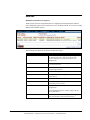
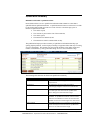
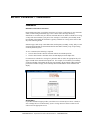
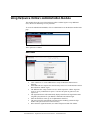
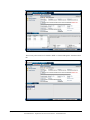
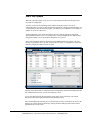
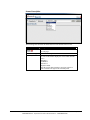
This report can be printed in two ways:
•
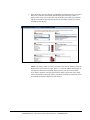
Use the browser print functionality, requires the user to display each page that needs
to be printed on the screen. This works best if the report is of a manageable size.
See Printing the Settlement Summary with a Browser (page 59) for more information.
•
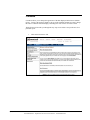
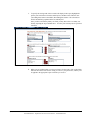
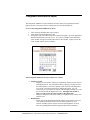
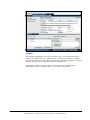
Use the "download/print" button to save the report on your PC in an Adobe PDF file
format, or to just print. This method of printing is recommended as it allows you to
print all report pages with a single command. While this does require you to have the
Adobe Acrobat Reader software installed on your computer, the software can be
downloaded at no cost at http://www.adobe.com.
See Printing the Settlement Summary in Adobe PDF File Format (page 60) for more
information.
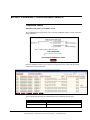
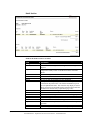
This report can also be downloaded via either Excel or comma-delimited format via the
following methods:
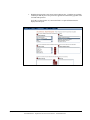
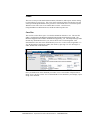
• The "One-Click" download option, available on Settlement Summary reports dated
09/28/01 and later.
This option allows you to export the most commonly used fields in the report with just
one click. While you cannot change which columns are selected for this export, the
number of keystrokes required to execute the function is minimal. The following
fields are exported automatically: As of Date, Chain Number merchant Name,
merchant Number, Deposits, Chargebacks, DCNs, Settlement Fees, Financial
Adjustments, Trailing Chargebacks, Net Deposit.
See One-Click Downloading the Settlement Summary (page 60) for more details.
•
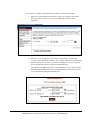
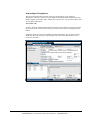
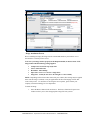
The "User Selects" option, which is a more flexible and powerful download
functionality. This option allows you to select as many data fields as desired, but also
requires more keystrokes. You can also specify values for downloading records that
meet certain criteria.
See User-Select Downloading the Settlement Summary (page 61) for more details..
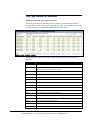
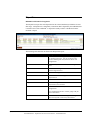
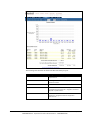
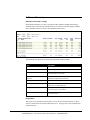
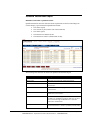
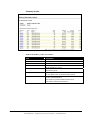
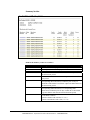
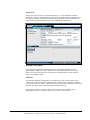
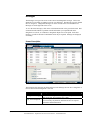
There are many different ways you may navigate the report.
• Click on the underlined hierarchy or merchant name to go directly to the page
containing data for that entity.
• Use the "Next" or "Prev" buttons to move forward 1 page or back 1 page.
• Enter the desired page number in the Page box and press return to go directly to that
page.
• Quickly move to the first page of the report by clicking on the "First" button, or to the
last page of the report by clicking on the "Last" button.
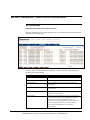
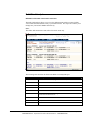
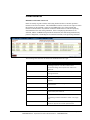
Printing the Settlement Summary with a Browser
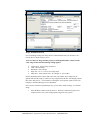
Proceed through the following steps in order to print your Settlement Summary from inside
your Browser:
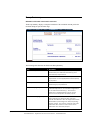
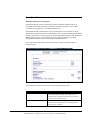
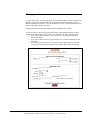
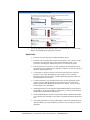
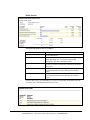
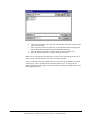
1. Display page of the report that you wish to print.
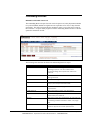
2. Change font size of type in the report to 75%. Click on the drop-down box that
displays 100% and highlight "75%" option.
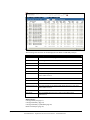
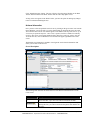
3. Move cursor to body of report and right click. Highlight "Select All" and all data on
page will be highlighted.
April, 2003
Recon $olution Manual V4.0
CONFIDENTIAL - Paymentech Product Documentation - CONFIDENTIAL
59