1
Chapter 3. Installing Track+ PM Manually
Check if the database server is listening:
netstat -an | grep 3050
should result in a line including LISTEN in it. Go and change the default SYSDBA password from MASTERKEY
to your own. Don’t forget this password!
/opt/interbase/bin/gsec -modify sysdba -user sysdba
-password MASTERKEY -pw <new_SYSDBA_password>
Add a new user with name ”trackp” and some password:
/opt/interbase/bin/gsec -add trackp -user sysdba
-password <new_SYSDBA_password>
-pw <trackplus_admin_password>
The database is created from scratch using the isql command line utility (don’t type the isql prompts) from
where you extracted your Track+ PM database package:
/opt/interbase/bin/isql -u trackp -p tissi
isql> create database "/opt/interbase/db/track.gdb";
isql> quit;
Make sure the owner and permissions are set right:
chown -R firebird /opt/interbase/db
chmod 700 /opt/interbase/db
To access the database via FlameRobin, you have to register it in this tool. The file path that needs to be
entered is as seen from the server (e.g. /opt/interbase/db /track.gdb). The alias is of no importance.
3.3.3 MS SQL Server
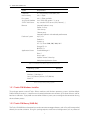
Track+ PM works well with MS SQL Server Version 2000 , 2005, and 2008. Track+ PM uses the jTDS JDBC
driver to connect to the database server. The most important point to consider is the correct setting of the
character set and collation, so that non-ANSI characters are properly stored and retrieved. This setting should
be explicitly set when creating the database.
It is not recommended to use the standard settings of the database server. Create the database with the
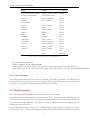
Enterprise Manager tool. Make sure you are using the right collation set when creating the database (see
Table 3.1). It might be best to add a new user which will be used as owner of the database.
The database should now be up and running. The MS SQL Server JDBC driver needs to be enabled in the
Torque.properties file located in the webapps directory of your servlet container or application server as
described below. You need to choose the right character set.
Example configuration for a standard German MS SQLServer installation:
17