1
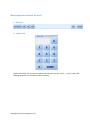
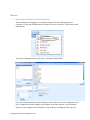
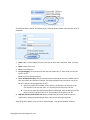
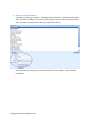
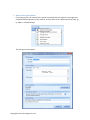
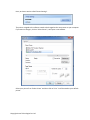
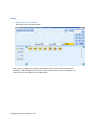
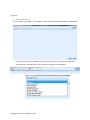
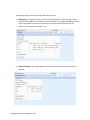
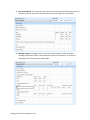
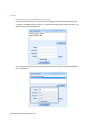
You will then see the ‘Name’ box where cursor is blinking. Now to add an item you have to fill all
the details.
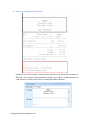
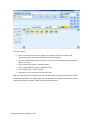
1. Code: Code is a short identity for your item. You can write short codes like ‘P001’ or ‘Pastry1’.
2. Name: Name of the item.
3. Price: Price of the item.
4. Tax (Percentage): Tax in percent for that item. No need to put ‘%’ after value. You can just
write 5 not 5%.
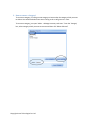
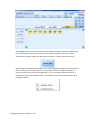
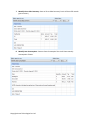
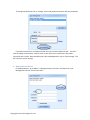
Below, there are two check boxes,
1. Tax is included in the price: If the Price that you have entered for the item, includes the Tax
also, then select this check box. Example: You add a Pineapple Pastry and price it at Rs. 60
per unit. And the Tax Rate applicable is 10%.
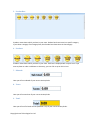
a. Now if you select this checkbox, then in the bill, the base price of the pastry is Rs.
54.5 and the Tax on the item is Rs. 5.5. The total price of the pasty is Rs. 60.
b. If you do not select the check box and leave it unchecked, then the base price of the
pastry in the bill is 60 and Tax is Rs. 6. The total price of the pastry is Rs. 66.
2. Skip item check in stock before sale: When you add items in the bill you don’t want to
check stock in inventory while selling an item, then you can select this checkbox.
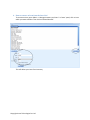
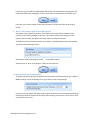
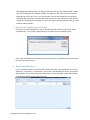
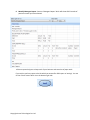
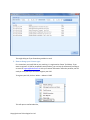
After filling all the details, you can click on ‘Save Changes’. Your item is added in inventory.
Copyright Arvan Technologies Pvt. Ltd.