1
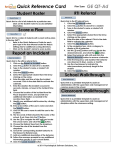
Quick Reference Card Student Roster Quick link to a list of all students for a particular user. Click on the student name to access detailed information. Score a Plan Quick link to a roster of students with current active plans in Review 360™. • Refer to the Quick Reference Guide for each plan type in the User Manual under the Help & Settings tab for additional scoring directions. • Click on the student name to score a plan. Report an Incident Quick link to the office referral form. 1. Click on the Report an Incident button. 2. Click the … button to search for a student. 3. Type in the student’s name or student’s ID number. 4. Click the Search button. 5. Select the appropriate student from the list by clicking on the name. 6. Enter the date and time of day the incident occurred. Click in the date field to activate the calendar. 7. Enter the duration the incident occurred in seconds, minutes, or hours in the Incident Time field. 8. Choose the location of the incident from the Place dropdown menu, and provide any additional information as needed in the Location Desc field. 9. Identify any additional staff involved by clicking the add button. 10. Enter a few letters of the user’s name and click the Search button. 11. Click on the user’s name to add the user to the incident. 12. The Occurred At field should list the name of the school. If not, then click the … button. 13. Use the to navigate the tree until you locate the school name, and click the Add button. 14. Choose the Referral Type from the dropdown. 15. Choose the role of the student from the dropdown. 16. Check the corresponding student behavior in the Reason for Referral area. 17. Add any additional description of the behavior. 18. Follow the onscreen prompts for any additional information specific to your school district. 19. Click the Create Incident button. Plan Type: GE QT-T RTI Referral Quick link to the RTI referral form. 1. Click the RTI Referral button. 2. Click the … button to search for a student. 3. Type in the student’s name or student’s ID number. 4. Click the Search button. 5. Select the appropriate student from the list by clicking on the name. 6. Enter the date of the referral. Click in the date field to activate the calendar. 7. Click the Add Behavior button. 8. In the navigation tree, click a category to display a list of behaviors. 9. Use the and buttons until you locate the desired behavior, and click the Add button. 10. Select the behavior with a þ and click the Remove Behavior button to remove a behavior. 11. Enter the frequency and duration the behavior was observed in days, weeks, or months. 12. Use the checkboxes to indicate the rules/procedures previously taught to the student. 13. Click the Submit button. Reports Quick link to a variety of reports for incidents, Spot Check, and Student Plans. The user is able to save certain reports and place them on the Dashboard. 1. Select a report. 2. Define the report parameters by using the onscreen options: • Report Date • Organization • Reporting Group • Gender • Grade • Ethnicity • Incident Type • Location 3. Click the Update Report button to display the report on the screen. 4. Click the Save Report button to save the report. 5. Name the report, and check the box next to the Add to Dashboard text to save the report to the Dashboard. 6. Click the Ok button 7. The report should now appear on the Dashboard. This feature is available only if given access by the district. © 2011 Psychological Software Solutions, Inc. Quick Reference Card Spot Check Home Quick Link Return to the Dashboard. Score Plan Quick Link Links to plan scoring. Report an Incident Quick Link Links to incident reporting. View Reports Quick Link Links to reports. Reset to Default Used to reset the widgets on the Dashboard to the default. Add Widget Used to add a widget to the Dashboard. Edit Used to customize a widget. Remove Used to remove a widget from the Dashboard. Help Used to access the online user manual and help content that corresponds to the specific content the user is viewing. View Used to view information. Edit Used to edit informtion. Plan Type Used to access and identify a student’s plan type. Go Back Used to return one navigation level. Help Options Online Help 4. GE QT-T Special Icons Quick link to the Spot Check template. • Allows the user to see a roster of their students and to quickly indicate those students who are struggling with the established classroom rules, procedures, and appropriate interactions. • The student data is pre-populated based on the class roster(s). Only those students that struggle with an area of behavior are noted on the Spot Check. • Save the data entered by clicking the Save button. 1. 2. 3. Plan Type: Click on the Help & Settings tab. Choose Contact Support from the dropdown. Enter a subject. Give a detailed description of the issue, your name, phone number, and school in the Message section. Click the Send button. Phone Help Contact Technical Support toll free at 1-877-411-7360. © 2011 Psychological Software Solutions, Inc.