1
Quick Start Guide
Use your phone for more than just talking
Cellular Video
AT&T Music
MEdia Net
Mobile Email
Downloadable Fun
Instant Messaging
2
MOTORAZR V9
See User Manual for Spanish Instructions
Additional charges may apply. Visit att.com for
more details. Phone features subject to change
without prior notice. All phone screens are simulated.
© 2007 AT&T Knowledge Ventures. All rights reserved. Subsidiaries and
affiliates of AT&T Inc. provide products and services under the AT&T brand.
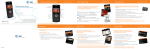
Getting to Know Your Phone
left soft key
center select key
open menus,
select menu items
browser key
navigation key
smart key
Bluetooth
indicator light
camera
volume keys
music key
port for
charger/
headset
send key
make & answer
calls
press and hold
to call voicemail
right soft key
Cellular Video
key
power/end
key
press and hold
to change ring
to vibrate
clear/back key
Visit att.com/devicesupport for more information
microphone
AT&T Music
Your phone is a complete music experience from an integrated
music player to music news, chat and streaming music. Even use
your phone to identify song titles and artist when you’re out
and about.
• In Idle mode, press the Center key s > Press AT&T Music
.
Listen to your music on an integrated Music Player
Personalize with ringtones and Answer Tones™ under Shop Tones
Instantly ID the title and artist of a song with MusicID
Enjoy dozens of commercial free music stations with Streaming Music
Watch the latest music videos under Music Videos
Transferring Music
Listen to music on your phone. Transfer your favorite tunes today!
1. Y
ou must convert your music to either .MP3, .AAC, or .AAC+ format
using the media player of your choice.
2. R
emove the battery and insert the microSD™ card* (gold contacts
facing down) into the slot at the top of the phone.
3. Power on the phone and connect it to your PC using a USB data cable*.
4. T
he PC recognizes the phone as a Removable Disk under My Computer. Open the folder
where your music is stored and transfer your files by dragging and dropping them onto the
Removable Disk icon.
5. When finished, disconnect the USB cable.
Warning! Do not disconnect phone while file transfer is in progress.
NOTE: The number of files you can store depends on the size and format options of the memory card.
*microSD card and USB cable sold separately: go to att.com
Requirement: Windows 2000 or later. Not compatible with Mac OS.
Playing Music
Listen to music from our favorite artists right from your device.
To listen to music that you have transferred to your device,
follow these quick easy steps.
• In idle mode, press Center key s > Select
> Music Player
.
• Search music by Playlists, Artists, Albums, Genres or Composers.
• Scroll up/down and Press Center key s to select.
• Up Navigation key pauses music and red End key exits the music player.
Answering a call while playing music
• When a call comes in, your music will pause to ring and show caller ID
- Answer: press Left Soft key. When done, press red End key.
Music will continue to play.
- Ignore: press Right Soft key to send a call into voicemail.
Playback will resume automatically.
Cellular Video
EDIT
es
My Favorit
NBC PLAY Rebuilding The
My Favorit
es
Big Easy
Cellular Video brings your phone to life. Watch news,
sports, weather and entertainment clips while on the go. ESPN
• In Idle mode, press the
key.
• Once connected, select the program options you wish to view
and press Center key s.
• Select the clip you want to play and press Center key s.
Personalize your Cellular Video content:
•S
elect Customize Cellular Video from the Cellular Video
home screen.
• Select Edit My Favorites and press Center key.
•S
elect the content you would like to appear on your
Cellular Video Home screen and press the Center key.
Access to Cellular Video requires a MEdia™ Max Bundle.
Parental Controls available. See box insert for details.
NBC
EDIT
PLAY
Rebuildin
akes
g The
Rookie m
Big Easy
pick
final draft
ESPN
PLAY
PLAY
e Preview
O Rookie makes
HBO MobilY
on HBfin
PLA W ha t’s
al dr
aft pick
Mobile
Access
HBO Mob
ile Previe
w
PLAY
Hollywood
W
hat’s on
s shineMon
HBO
PLAY St ar
obile
rpet
the red ca
Access Ho
llywood
PLAY
Stars sh
ine on
thse red ca
gorie
rpet
Video Cate
o
1. TV to G
inmen
Vitdeo Cat
2. Enterta
egories
1.Weather
3. News & TV to Go
2.
4. Sports Entertainment
3. obile
6. HBO M News & Wls
eather
4. m Channe
7. PremiuSports
6. HBO
CVM
obile
Customize
rols
ntiu
7. Co
em
m Chann
ParentalPr
els
Cus axmiz
e CV
MEdia Mto
Pa
Help rental Controls
MEdia M
ax
Help
Mobile Email
Take your email with you. With Mobile Email you can check
your Yahoo!® Mail, AOL®, AIM and Windows Live Mail and
quickly and easily from your wireless phone.
• In Idle Mode, press the Left Navigation Key S.
•S
croll to the email carrier of your choice and press the
Left Soft key - to Select. Accept terms and conditions
pressing Left Soft key -, I agree.
•T
ype in your personal Email address (e.g., “silverfox2”), then enter
your account’s Password and press the Sign In Right Soft key.
•Y
ou will be connected to your account’s Inbox and contacts,
where you can send and receive emails.
Yahoo!, Y! and the Yahoo! and Y! logos are the trademarks and/or registered trademarks of Yahoo! Inc. AOL, America Online and the Triangle
logo are registered trademarks of America Online. MSN and the MSN Logo are either trademarks or registered trademarks of Microsoft
Corporation in the United States and/or other countries and are used under license from Microsoft.
Instant Messaging
If you subscribe to an instant messaging service such as AIM®,
Windows Live Mail, or Yahoo!® you can take the convenience and
fun of instant messaging on the go with your mobile phone.
To choose your IM service:
• In idle mode press Right Navigation key S.
• Accept terms and conditions.
• Highlight your IM Community and press the Center key s.
•T
he first time you enter a community, enter your Screen Name
and your Password.
• Press the Left Soft key - to Select Done.
To use IM:
•O
nce signed on, you’re ready to send instant messages
to your buddy list already set up with your IM service.
Note: When you receive an incoming instant message, a “new message” icon will appear on screen.
MEdia™ Net
With MEdia™ Net, you can get the information that is important
T
ome
EDI
et H
ia N or
d
E
to you at a glance. Check local weather, your team scores
M
s
Link
My
movie listings with just a few clicks.
r
eles
athe Ang
5
MEd
ia Ne
t Hom
My L
e
inks
Wea
ther
EDIT
Los
We Los ntly 8
Curr Angeles
e
r
ently
Cur
85
Spo
rts
• In idle mode, press Center key s > Select
.
) Yaanl)ke
B
s
t
L
r
e
in
M
o
s
(
N
F
p
(
(
s
S s.
Highlight the content you want to view and press the Center key
a 2 YY 3 - S MLB)
kee
Yan 3 - Se
n ea 2
(Fin
Cmhaeil o
NYY
al)
ck Y
ur E
- Weather
o
our
t
h
Y
e
k
E
G
c
m
e
o
T
a
!
il on
DI
Ch
!
E
o
Cate
- News
G
gorie
the
s
1s
rie
h!
s
- Sports... and more!
ego W
t
a
Hotat’s sH&otPic
EDIT
C
2
’s
t
T
!
o
e
ne
ha
m
s
a
W
,
g
Gagm
1
3eM
,aG
in
s
n
il &esMsa es & P
o
T
2 4S&M
Personalize your MEdia™ Net Home screen:
ics
essa
ailpo
ging
3 5ME rtsrts
t
n
n
o
e
t
p
e
rtain
S
• From MEdia™ Net home screen, scroll to “Customize MEdia™ Net”
inm
04 M
erta me ries
Eonret aCategnot
My5 A rC
e tegorie
and press Center key s.
o
c
t s
et
Mc
Cus 0 oucnctoun E
ia N
tomyizA
M d
e
M
e
iz
Help
• Select Edit Categories and press the Center key s.
mEdia
toM
Net
rch
Cus
Sea
Help
•H
ighlight the categories you would like to appear on your MEdia™ Net
home screen and press Save.
Sea
rch
Take a Picture
Capture those special moments right from your phone
and send them to friends and family.
Take a Picture:
• Long press the Camera key located on the left side of the handset.
• Adjust the image by aiming the camera at the subject.
• Use the Navigation key for special effects such as zoom
or lighting conditions.
• Press the Center key s to take a picture.
• Press Options to; Store: Apply As Wallpaper/Screen Saver or Print
To Send a Picture:
• Press the Right Soft key + Send.
• Press the Send To Right Soft key + to bring up the Address Book.
• Highlight phone number and press Center key to select or enter own number,
press Options > Enter Number
• Press Right Soft key + to Send.
Note: To view all pictures stored, in Idle mode press Center key s > Select My Stuff > Media Finder >
press Pictures > All Pictures.
Organize Me
Stay Organized and on schedule with time saving tools including a calendar,
alarm clock and tasks. All of these great tools are just a few clicks away.
• In Idle mode, press the Center key s.
• Highlight My Stuff
•
and press the Left Soft key -.
Scroll to Tools
and press the Left Soft key -.
- Select Alarm Clock and press the Left Soft key -.
- Select Calendar and press the Left Soft key -.
- Select Calculator and press the Left Soft key -.
Downloadable Fun
Personalize your phone with downloadable games, graphics,
ringtones and applications. AT&T gives you access to the latest
games and graphics right on your phone and access to the best
new ringtones from today’s hottest artists. Personalize your
phone today.
• In Idle mode, press the Center key s. Highlight AT&T Mall
and press the Left Soft key -.
•S
elect Shop Music, Shop Games, Shop Graphics, Shop Multimedia
or Shop Applications and press the Left Soft key - to Go To.
•W
hen your web connection is established, choose a category and press
the Center key s.
Text Messaging
When you need to communicate privately and quickly,
use text messaging. You can text message to other
mobile phones and email addresses.
How to send a text message:
• In Idle mode, press s > Select Messaging
>
Select Create Message > Type Message > Select Options.
•T
o send your message, press the Send To + soft key
and select the name and number of the person you
would like to send the message to and select Send.
• When message is complete press Send.
Accessories
AT&T has accessories for productivity, convenience and fashion.
You can also shop accessories at att.com/wireless.
Bluetooth® Headset H700
MOTOROKR™ S9 Bluetooth®
Stereo Headphones
Battery
2 GB microSD Memory Card
Vehicle Power Adapter
MOTOROLA and the Stylized M Logo are registered in the U.S. Patent & Trademark Office. All other
product or service names are the property of their respective owners. The Bluetooth® word mark
and logos are owned by the Bluetooth SIG, Inc. and any use of such marks by Motorola, Inc. is under
license. © Motorola, Inc. 2007
Travel Charger
Leather Case
6809512A43