1
Fleet Manager II
Importing Data into Fleet Manager II
7.
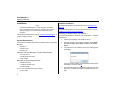
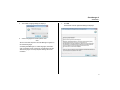
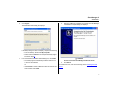
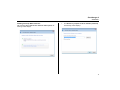
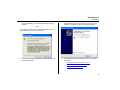
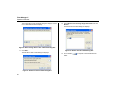
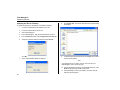
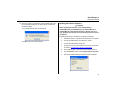
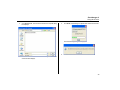
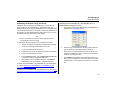
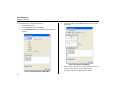
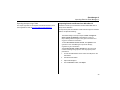
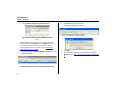
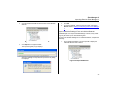
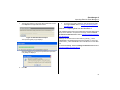
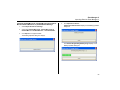
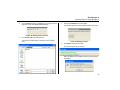
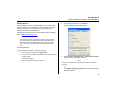
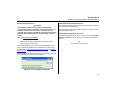
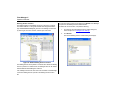
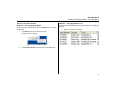
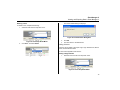
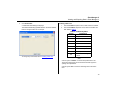
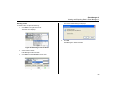
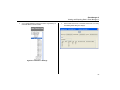
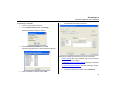
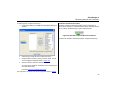
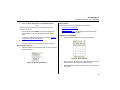
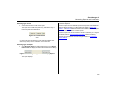
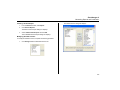
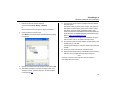
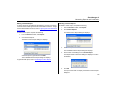
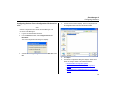
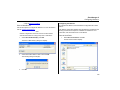
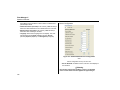
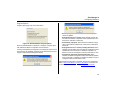
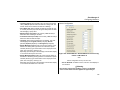
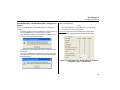
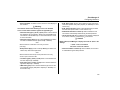
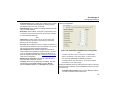
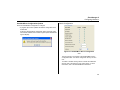
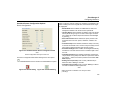
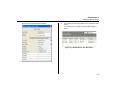
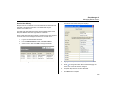
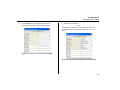
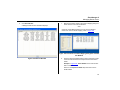
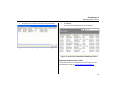
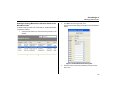
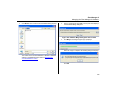
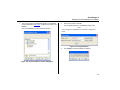
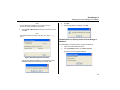
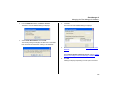
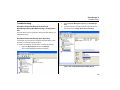
The file name appears in the Import Device Data main screen.
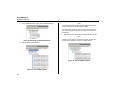
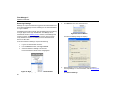
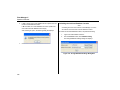
Click Import on the right side of the screen.
9.
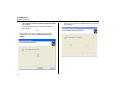
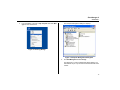
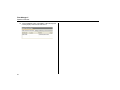
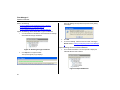
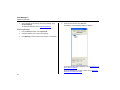
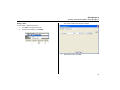
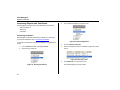
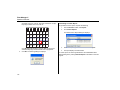
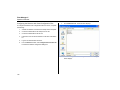
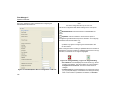
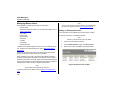
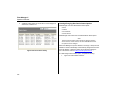
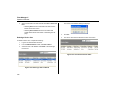
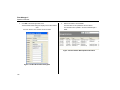
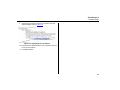
To view the event logs or datalogs, under the Devices toolbar
click Logs / Results. Refer to Viewing and Exporting Data in
Fleet Manager II.
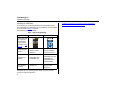
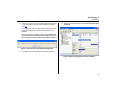
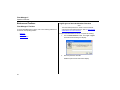
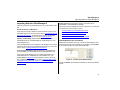
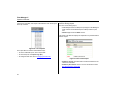
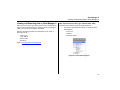
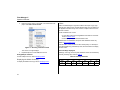
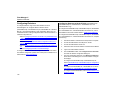
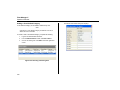
Method 2 — Importing Data from the MicroDock II
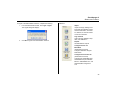
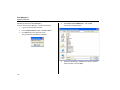
Figure 41. Selected File To Import
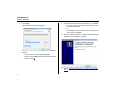
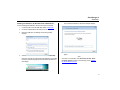
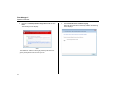
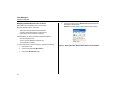
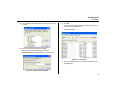
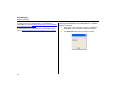
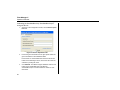
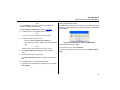
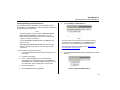
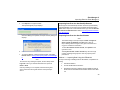
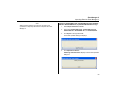
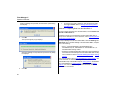
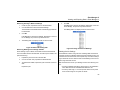
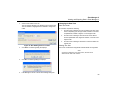
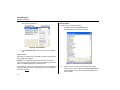
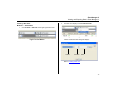
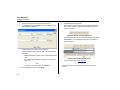
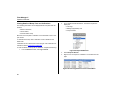
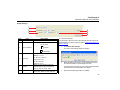
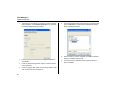
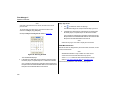
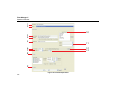
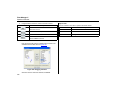
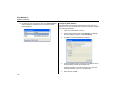
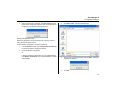
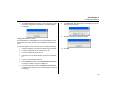
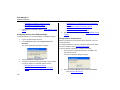
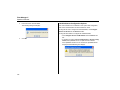
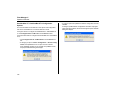
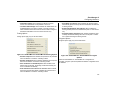
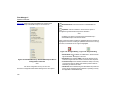
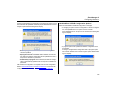
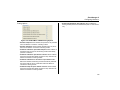
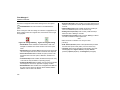
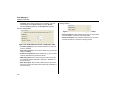
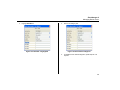
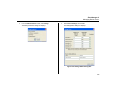
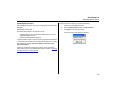
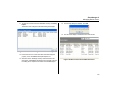
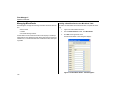
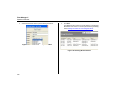
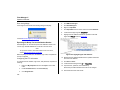
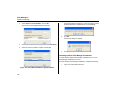
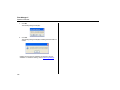
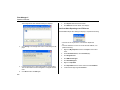
The Import Progress pop up displays.
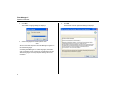
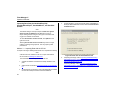
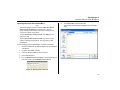
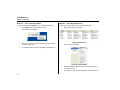
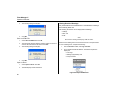
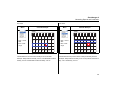
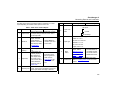
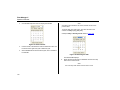
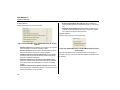
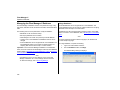
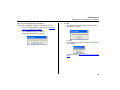
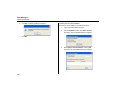
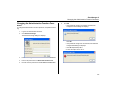
The GasAlert Extreme event log is transferred to the base station after a
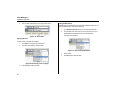
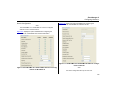
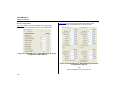
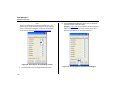
bump test or calibration. To import the event logs, select the Results
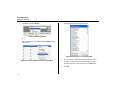
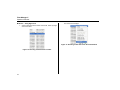
and Events via MicroDock tab. Refer to Importing Results and Events
from MicroDock II.
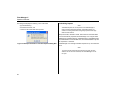
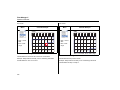
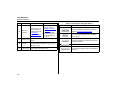
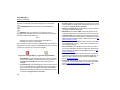
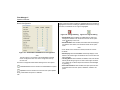
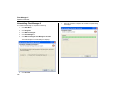
Datalogs are transferred to the base station by pushing C DATA
TRANSFER on the GasAlert Extreme docking module. For more information about C DATA TRANSFER, refer to the MicroDock II User Manual.
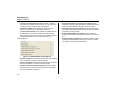
To download datalogs, select the Datalogs via MicroDock tab. Refer to
Importing Datalogs from MicroDock II.
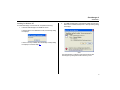
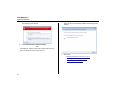
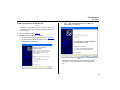
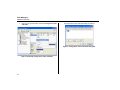
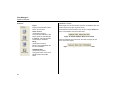
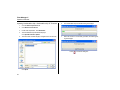
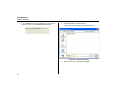
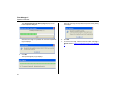
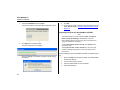
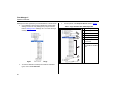
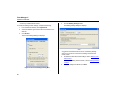
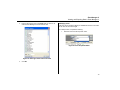
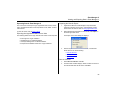
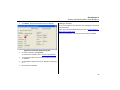
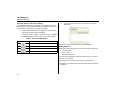
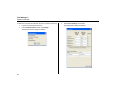
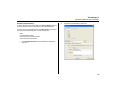
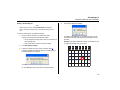
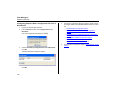
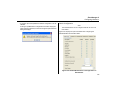
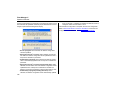
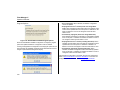
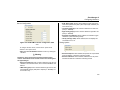
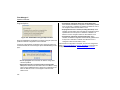
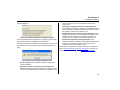
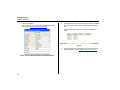
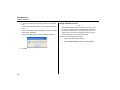
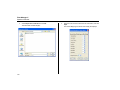
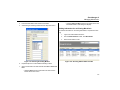
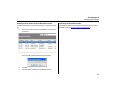
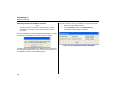
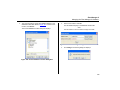
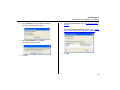
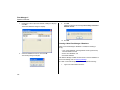
When the datalog or event log has imported, the Import Summary dialog box displays.
8.
Click OK.
51