1
User Manual
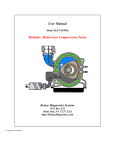
Model ReCT-04
The Rotary-engine Compression Tester
Rotary Diagnostics Systems
P.O. Box 524
Mont Alto, PA 17237 USA
http://RotaryDiagnostics.com
© Copyright 2014 by RDS
1
Using the Rotary-engine Compression Tester System
Introduction
The Rotary-engine Compression Tester can be used to obtain accurate engine compression
measurements in a rotary (i.e., Wankel) engine. The Tester combines the output from an AST
pressure transducer with the data conversion function of a DATAQ analog-to-digital device to
acquire and record accurate compression readings for each face of each rotor in a rotary engine.
This system also allows the calculation of engine cranking RPM during the test for data
normalization.
1
Figure 1. Rotary-engine Compression Tester system Model ReCT-04 components
.
This system is useful in helping to diagnose suspected engine-related issues, to monitor engine
health over time and to demonstrate engine health in real-time.
1
A windows computer, preferably a notebook/laptop, with an available USB port is required for use with this system. A
computer is not included with the tester. For connecting the tester to a remotely-located computer, a USB extension cable up
to 10 feet in length can be used with the supplied cable. USB extension cables are available from a number of sources
including RDS (http://rotarydiagnostics.com). Do not exceed 16 feet total length of any USB cable or cable-extension
combination.
2
It should be clearly understood that this system requires installation and configuration of
software and manual extraction of the compression readings and engine cranking RPM from the
recorded data. The readings are not automatically presented to the user, as is the case with much
more expensive, rotary-engine compression testers. Users with basic computer skills should have
no problem installing and operating this system.
This user manual contains all the information you will need to install and configure the
associated software and to operate the system to conduct a compression test on your rotary
engine. However, should you wish to know more about the DATAQ data conversion hardware or
the WinDaq® software, manuals for both are installed on your computer with the programs and
are available via the WINDAQ® program group under the Programs menu. (WinDaq® is a
registered trademark of DATAQ Instruments, Inc.) You can also go to the DATAQ web site for
more information. Links to that site, as well as to the AST web site, are in the References section
of this manual. All support for the Tester is provided by RDS. The user should not contact the
component manufacturers directly for support. (See the Warranty section for instructions on how
to obtain support for this system.)
Installing the DATAQ software2
The software installation and configuration3 task involves the following steps:
1. Installation of the hardware drivers and the WinDaq® programs associated with the DI-145
data converter unit.
2. Configuration of the DATAQ Instruments Hardware Manager.
The main programs associated with the DI-145 data converter are the DATAQ Instruments
Hardware Manager (hereinafter referred to as the Hardware Manager) and the WinDaq®
Waveform Browser. The Hardware Manager is used to record the compression data during the
test, and the WinDaq® Waveform Browser is used to view, extract and analyze the compression
readings. The hardware drivers and both programs are provided on The WinDaq® Resource Disk
and must be installed on your computer.
If you have basic computer skills, you can probably work through the install process with little or
no assistance. [Otherwise, refer to Appendix A for step-by-step instructions.] Do not connect the
main enclosure to your computer at this time. During the install process, you will be instructed
when to connect the main enclosure. To begin software installation, insert the WinDaq®
Resource Disk into your CD/DVD drive. The install program should start automatically. If it
does not, navigate to your CD/DVD drive and double-click on the exe file. Follow the
instructions on each succeeding install window.
When asked if you want to install WinDaq/XL, select “No Thanks”. WinDaq/XL is an add-on
program which requires an additional purchase and it is not required for this application. The
installation of hardware drivers and programs is a one-time exercise. If you have successfully
completed the driver and software installation, you can proceed with configuring the Hardware
Manager.
2
These instructions apply specifically to the DATAQ DI-145, the associated WinDaq® Lite program, and AST4000 pressure
transducer (0-200 PSI, 10-28VDC input, 1-5VDC output).
3
This task does not require access to a vehicle. It can be completed anywhere as long as the system enclosure is connected to: the
computer using the supplied USB cable, to a 12 VDC power source, and to the pressure transducer.
3
Hardware Manager Configuration4
To begin the Hardware Manager configuration, connect the main enclosure to the computer
using the USB cable provided. Then connect the pressure transducer-quick coupler to the
enclosure and connect the power cord to the enclosure and to any 12VDC power source—usually
the car battery. If you installed the DI-145 drivers successfully, the operating system will
automatically activate the drivers for the DI-145 when the cable is plugged into the USB port.
Launch the Hardware Manager program from the Start>Programs>WinDaq® program group
menu. When the devices list appears, highlight the DI-145 device and press the Start WinDaq®
button. Continue with the following settings.
Edit>Channels
Figure 2. Hardware Manager channel selection.
4
All settings in the Hardware Manager are specific to the System hardware and are usually retained for future tests. (See note on
page 10 for more information.)
4
At the blinking cursor, type “-4” and press enter. Type “-3” and press enter. Type “-2” and press
enter. (You may have to use the minus and number keys at the top of the keyboard rather than
the keypad.)
Figure 3. Selecting only 1 channel to record.
Verify that only the number 1 is shown adjacent to Channels.
Figure 4. One channel selected.
5
NOTE: It is important that only one channel is shown since the maximum total throughput
sampling rate of 240 samples/second (S/s) is divided by the number of channels activated. For
example, if 4 channels are activated, the sample rate for your one channel test will be reduced to
60 S/s, resulting in a very notchy-looking trace. Accuracy will not be significantly affected, but
the data display will appear to be very crude.
View>Format Screen
Select 1 Waveform
Figure 5. Hardware Manager screen display setting
6
Edit>Engineering Unit Settings:
Figure 6. Hardware Manager Engineering Unit Settings.
Upper Level Volts=5 volts
Upper Level EU=200
Lower Level Volts=1
Lower Level EU=0
EU Tag=PSI
Click OK.
Figure 7. Hardware Manager Engineering Unit Settings.
7
Edit>Engineering Unit Settings (yes again).
Verify settings.
Click on Set Offset.
Enter 0 in the Desired Reading box.
Click OK, then OK again to complete this setting.
Figure 8. Hardware Manager Engineering Unit Settings, Set Offset.
Scaling>Limits:
Top Limit=200
Bottom Limit=0 (may show as .00)
Click OK
Figure 9. Hardware Manager scaling limit setting.
8
Edit>Sample Rate:
Figure 10. Sample rate selection.
Make sure that the Sample Rate is set at 2405. If it is not, type in 240.
Figure 11. Sample rate setting.
5
The default maximum total throughput sample rate for the WinDaq®/Lite program supplied with this system is 240
samples/second. Use the default rate for the most pleasing data display.
9
Verify that the per-channel S/s rate setting in the lower left of the display.
Figure 12. Sample rate set at 240 S/s.
Do File>Save default setup and you have completed configuration of the Hardware Manager
(see Note below). You are now ready to conduct compression tests. To conduct a test, follow the
instructions on the next few pages.
[Note: The settings just configured are associated only with the specific DATAQ unit installed in
the enclosure. Each System has a unique serial number that is the same as the DATAQ unit
serial number. Note that the unit/System serial number is listed along with the DATAQ unit
description in the main hardware windows.
The configuration settings completed above will normally be retained in your computer for
future use. However, if you are not planning to conduct a test now, we strongly advise that you
run through the configuration procedure again as part of your preparation to conduct a test
when all tester components are connected and powered up.]
10
Conducting the compression test
Preparing the vehicle and recording program:
1. Warm up the engine. If using the car battery as the power source, it should be fully charged.
2. Remove one of the spark plugs—either leading or trailing—in one of the rotor housings. Do
not remove any other spark plugs.
3. Disable engine ignition and fuel delivery systems. If you are not sure how to do this, consult a
workshop manual for your particular vehicle to determine the best method for disabling these
systems. For most modern fuel-injected rotary engines, that can be accomplished by removing
the EGI fuse(s) from the engine-compartment fuse box. However, in the case of the RX-8,
Mazda recommends disconnecting the Eccentric Shaft Position Sensor located at the lower,
front left of the engine to disable these systems.
4. Screw the spark plug hole adapter into the plug hole. Make sure the adapter is screwed in
finger-tight, but snugly and that the O-ring is sealing. Do not over tighten. You can use a
little silicone-based grease, like dielectric grease for example, to lubricate the O-ring and
facilitate sealing. But DO NOT use a petroleum-based oil or grease on the O-rings.
5. Connect the pressure transducer-quick coupler to the adapter and to the enclosure using the
attached cable and DIN connector. [NOTICE: The pressure transducer used in this system is
a precision instrument and should be handled accordingly. While the unit is not fragile,
extreme mishandling, especially involving high, lateral G forces, may damage the internal
sensor elements in the pressure transducer, rendering it inoperable.]
6. Plug the power cord into the connector on the side of the enclosure and connect the battery
clips to the appropriate battery terminals (Red=Pos; Black=Neg), or another 12VDC power
source. [Be very careful when making this connection. Connect red clip to positive battery
post, then black clip to negative battery post. Remove in reverse order when the test is
completed.]
7. Verify that the green LED power indicator is lit. If it is not, see the Troubleshooting section.
8. Boot up your computer fully and connect the USB cable to the Tester enclosure and to the
computer.
9. Launch the Hardware Manager program from the Start>Programs>WINDAQ® program
group. Select the DI-145 when it appears in the list and click Start WinDaq®.
Figure 13. Hardware Manager hardware listing of DI-145.
11
10. Verify that the Scaling>Limits upper and lower limits are 200 and 0 (or .00) respectively. If
they are not, you will need to run through the Hardware Manager configuration again before
proceeding.
11. Select File>Record from the Hardware Manager menu to start data recording. Select a folder
for storing the data file and name the file something meaningful, like the car year and model and
the date, then click Open.
Figure 14. Hardware Manager Record file name selection.
12. Select the recording time/file size desired and when you are ready, and only when ready, to
conduct the test and to start the recording, click OK.6 Continue with “Conducting the test”
section that follows when ready.
Figure 15. Hardware Manager recording time and file size selection.
6
To pause the recording at any time during the test, do File>Stop. To resume recording do File>Record. To completely stop
recording, do File>Close or File>Exit.
12
Conducting the test:
Now that your car has been prepared for the test, all the data and power connections have been
made, and the Hardware Manager program has been set up and ready to record, you are ready to
conduct the test.
1. Check all your connections before proceeding and make sure the ignition and fuel delivery
systems have been disabled. (Note: Make sure all connections are well clear of engine
rotating parts.)
2. Start the recording function in Hardware Manager (Click OK as instructed in item 12.
above.)
3. Get in the car, depress the gas pedal to the floor (important) and activate the starter for
about 5 seconds.7
4. Put the software on standby (File>Stop).8
5. Remove the spark plug hole adapter from the first rotor plug hole, and reinstall the spark
plug. Remove a spark plug from the other rotor housing, screw in the adapter and attach the
pressure transducer-quick coupler.
6. Resume the Record function in the Hardware Manager program (File>Record).
7. Get in the car, depress the gas pedal to the floor and activate the starter for about 5 seconds.
8. Stop recording (File>Stop). The test is completed so you can save the recording (File>Exit).
Exit the Hardware Manager program, disconnect all cables and remove the adapter.9 If the
Hardware Manager device selection window is still open, close it.
9. Reinstall the spark plug, reconnect the spark plug wires and enable the ignition and fuel
delivery systems. You have completed the data acquisition part of the test.
The recorded data can now be viewed and analyzed using the WinDaq® WaveForm Browser as
described in the following sections.
Extracting and interpreting the data
Launch the WinDaq® Waveform Browser from the Start>Programs>WinDaq® program group
and open the “.wdq” file created during the test. Using the slider at the bottom of the window,
scan for and locate the recorded compression pulses. [A helpful hint is in order at this point. The
total record time for the test is likely to be several minutes long, and a 5-second burst of
compression pulses, therefore, may be difficult to locate or keep track of in the data record.
Before concluding that no data was recorded, scan the entire record for the compression pulses.
It actually may be there somewhere, essentially hiding in the long data record.]
A cursory examination of the recorded data will quickly reveal any significant problems with
engine compression. The absence of pulse peaks where expected or very low compression
readings are indications of rotor seal failure and one need go no further with data extraction and
analysis. The engine will likely require rebuilding or replacement. However, additional
compression tests should be conducted to verify any questionable numbers. (See the section
Meaning of the compression readings for additional information.)
7
You may choose to have someone else do this part while you monitor the tester, connections and computer.
This is optional, but your data record will be much longer if you don’t pause the recording when switching plug holes and you
may have difficulty keeping track of the compression pulse locations in the record.
9
Disconnecting tester hardware from the computer before closing the programs may cause your computer to freeze requiring a
reboot.
8
13
Significant differences between the peak pulse amplitudes is also an indication of failing rotor
seals, and depending on the extent of the difference, this may also be an indication the need to
rebuild or replace an engine. In this case, continue with data extraction and analysis to determine
the relative health of the engine. Proceed with the following instructions to extract the recorded
values and to normalize the data for comparison to the vehicle manufacturers specifications.
Only then can the recorded readings be used to determine the exact status of engine health.
Referring to the sample record in Figure 16, note that the compression pulses are represented by
the peaks in the recording, each peak representing a compression pulse of a single rotor face. The
compression of each rotor face is repeated every third pulse. The maximum compression of each
face is represented by the peak value at that point in the test. Peak compression readings for each
rotor face are viewed by moving the line cursor in the display to the peak of each pulse and
noting the compression number displayed at the left side of the window (119.44 PSI in the
sample).
Figure 16. Sample recorded compression readings for a single rotor.
To move the line cursor, place the mouse cursor on the “DATA” bar at the bottom of the display
directly below the line cursor, hold down the left mouse button and drag the line cursor to the
desired position in the display. Move the line cursor left and right slightly until the maximum
reading for the peak of interest is shown at the left. After you have read and made note of a
meaningful series of peak pulses, you can easily calculate the differences between the
compression readings of rotor faces and between rotors in order to compare the readings with the
engine manufacturers specification.
14
To spread out the peaks for a clearer display of the data, select Edit>Compression from the menu
and type in a negative number like –2 in the Compression box. Higher negative numbers will
spread out the display even further. [The term compression as used here refers to data display
compression, not engine compression.]
However, if the engine cranking speed at the time of the test was significantly higher or lower
than 250 RPM you should normalize the readings in order to compare them to the Mazda10
engine specifications.
Normalizing the recorded data
Mazda specifications for engine compression are generally specified with an engine cranking
speed of 250 RPM. If your engine cranking speed (see below for how to calculate engine
cranking speed) during the test is close to 250 RPM, you can use the readings as recorded.
However, if engine-cranking speed deviates significantly from the Mazda criteria, you may want
to proceed with normalization of the recorded readings. Essentially, slower engine cranking
RPM during the test will result in readings lower than the Mazda “standard”. Mazda workshop
manuals provide simple graphs that can be used for this purpose.
Be aware that our systems do not compensate for differences in atmospheric pressure due to
elevation or weather conditions. Mazda shop manuals for some models include a graph for
elevation/altitude correction. Comparable graphs are available on various web sites including
Wikipedia.com.
The following instructions provide procedures for calculating engine cranking RPM from the
recorded data to convert the readings for comparison to the Mazda specification.
Engine RPM calculation. As stated above, to normalize the measured compression readings, the
engine cranking RPM at the time of the test must be determined. Using the WinDaq® Waveform
Browser, the engine cranking RPM during the test can be determined by measuring elapsed time
between a number of compression peaks and converting that to the equivalent revolutions of the
eccentric shaft per minute. [Note: For the highest accuracy, use a series of compression peaks
near the middle of recorded data to eliminate any start-up lag at the beginning of the test and
possible minor battery voltage drop-off near the end of the test.]
Using the example in Figure 17 for reference, calculate the engine RPM as follows: First, place
your cursor in the “DATA” bar at the bottom of the display directly below the line cursor on the
screen. Holding the left mouse button down, move the cursor to one of the compression peaks
and record the time displayed at the lower left corner of the window.
In the example, the elapsed time at peak #0 is 127.19 (rounded from 127.188) seconds. Move the
line cursor 9 peaks further along the data record (i.e., peak #9), recording the time—129.03.
Subtracting 127.19 from 129.03 gives an elapsed time of 1.84 seconds. Since this span of pulses
equates to 9 compression cycles or 9 eccentric shaft revolutions (i.e., 3 eccentric shaft revolution
per rotor revolution x 3), the elapsed time of 1.84 seconds equates to the elapsed time for 9
eccentric shaft revolutions. In the example, engine RPM calculation is determined by solving for
10
This discussion assumes that the Tester is being used with a Mazda rotary engine. For other rotary engines, consult the
appropriate workshop manual for engine compression specifications.
15
“x” in the simple ratio of 9/1.84=x/60, where “x” equals engine cranking RPM at the time of the
test. (That is, 1.84x=9*60; therefore x=540/1.84 or 293.)
Figure 17. Example of engine cranking RPM calculation.
Figure 18. Indication of healthy engine, front rotor readings from 3rd generation RX-7.
16
If any rotor faces are well below the Mazda minimum standard, your engine probably requires
rebuilding or replacement. The example below (Figure 19) was recorded from the same 3rd
generation RX-7 engine as the above example, but as you can see, compression readings for two
of the rear rotor faces are significantly lower than the third face and well below the Mazda
minimum. This is definitely an indication of seal failure and the engine will need to be rebuilt or
replaced. Obviously, if any of the recorded readings are at or near zero, your engine is definitely
sick and will need to be rebuilt or replaced. For questionable compression readings, it is
advisable to run additional tests to verify the numbers and to verify that you prepared the tester
system correctly for a test with questionable results.
Figure 19. Evidence of failed seal, rear rotor readings from 3rd generation RX-7.
In the shop manual for the second generation RX-7, Mazda states the compression specifications
for the 13B engine at sea level with engine cranking speed of 250 RPM. The minimum
compression for this engine is given as 85 PSI. So, in general, compression higher than that
should indicate a relatively healthy engine. Mazda also indicates that the maximum difference
between the rotor faces should be no more than 21 PSI.
The workshop manual for the RX-8 states the “standard” compression as 120 PSI at 250 RPM,
and the minimum as 98.6 PSI at 250 RPM. Standard difference in chambers should be within
21.8 PSI, and difference between rotors within 14.5 PSI.
Readings outside of those levels, i.e., lower compression readings or greater difference in
readings between rotor faces or between rotors, indicates a less-than-healthy engine that may
require rebuilding or replacement in the near future.
Consult the appropriate workshop manual for compression specifications for other rotary
engines.
17
Troubleshooting
Problem: When I connect the power cord to the battery, the green LED power-on indicator does
not light and the system does not function.
Answer: Double check the battery clip attachments and make sure the red clip is attached to the
positive/plus pole of the battery and the black clip is attached to the negative/minus pole. If the
connections seem to be in order, disconnect the battery clips and remove the enclosure cover.
Check to see if the 1A fuse is blown. If it is, replace it with a comparable fuse and see if the
system now powers up. If the fuse is not blown or if you replaced it and the system still does not
power up, try connecting the system to another, known-good, 12VDC battery. If none of that
solves the problem, contact the RDS for assistance.
Problem: When I run the test, nothing is recorded by the Hardware Manager.
Answer: First, carefully scan through the entire data record using the WinDaq® Waveform
Browser to verify that nothing was recorded. Remember, if the recording ran for say 60 seconds,
a 5-second burst of compression pulses may be difficult to locate in the data stream. So, scan the
data to verify that the compression data is, in fact, not there. If it is definitely not there, then go
through a full test setup as follows:
Shut down the Hardware Manager program, disconnect all cables and basically start over. Plug
the USB cable into the DATAQ port on the side of the enclosure and launch the Hardware
Manager program. Run through the instructions in the section entitled Hardware Manager
Configuration to verify that the program is configured correctly. [Note: the USB cable must be
connected to the DATAQ port and to the computer before launching the Hardware Manager
program.]
If still no data is recorded, contact the RDS for further instructions.
Problem: The test seems to run OK, but the data shows what look like irregularly-spaced
compression pulses.
Answer: Compare your recording to the sample record in Figure 18. As you can see in the
sample, the compression pulses are very regularly spaced and similar in amplitude. If your
recorded data shows what would be gaps where a pulse or pulses should be shown, this is
probably due to lack of compression on one or more rotor faces—most likely the result of one or
more failed/failing seals. If you like, you can e-mail a copy of the .wdq file to RDS for
evaluation.
Problem: I ran the test but the data is difficult to “read” because the pulses are too close
together.
Answer: The sample rate during the test may have been inadvertently set too low. Either re-run
the test at 240 samples/second (see page 9) or set the data display compression as instructed at
the top of page 15. Re-running the test at the higher sampling rate will result in a “smoother”
display of the data if it had been run at a slower sample rate.
18
Problem: My recorded readings show compression pulses with differences in amplitude. What
does that indicate?
Answer: In order to answer that question, you must first extract and compare the readings from
all rotor faces. Then consult the appropriate workshop manual to determine the engine
compression specifications for your particular engine to see if the readings fall within the
manufacturers limits for a healthy engine. In general, however, if the differences in the
compression readings between rotor faces and/or between rotors are significant, your engine is
less than healthy. And depending on the specific compression numbers, your engine may require
rebuilding or replacement.
Problem: When I launch the Hardware Manager program, the DATAQ device is recognized, but
when I click on Start WinDaq® I get an error message.
Answer: Occasionally, internal program component linkages are “lost” or the installation of a
program or security fix after installation of the DATAQ software will modify a required
component of the program. Try rebooting the computer and if that doesn’t eliminate the error,
reinstall and configure the DATAQ software. Also, if you disconnected the USB cable after
starting the Hardware Manager program, the program will almost certainly freeze or show an
error message. If this is the problem, reboot the computer and restart Hardware Manager.
Otherwise, uninstall the WinDaq® programs, reboot the computer and reinstall the latest version
of the software. A link to the latest software can be found at the bottom of the following page on
our web site: http://www.rotarydiagnostics.com/pricing%20combined.htm.
NOTE: Rotary Diagnostics Systems has made a good-faith effort to build and deliver a working
test device that will provide accurate compression measurements for many years. However, we
strive constantly to improve our products, so your constructive criticisms and your suggestions
will be greatly appreciated. Do not hesitate to contact the RDS if you have problems with the
system or if you would like to pass on any comments.
Contact Information
For assistance or questions, contact Larry at:
Rotary Diagnostics Systems
P.O. Box 524
Mont Alto, PA 17237 USA
(717) 352-7096 (In case no one answers, leave a message and you will be contacted ASAP.)
(717) 360-3633 (cell)
[email protected]
http://RotaryDiagnostics.com
19
Warranty
The Tester is warranted for a period of one year from the date of purchase. This warranty is
limited to repair or replacement of any components necessary to restore the system to full
functionality. Rotary Diagnostics Systems (RDS) will restore the system to full functionality at
no cost to the customer unless the malfunction is the result of improper use or abuse of the
Tester. In rare cases, the Tester may be replaced with a new system at the option of RDS.
Contact RDS for instructions on returning a system for service or for a warranty claim.
Safe and effective operation of each unit is verified prior to sale. Any modifications to this
system by anyone other than RDS totally voids the stated warranty. The customer is authorized
to remove the enclosure cover to check and/or replace the fuse if necessary. No other servicing
of, or modifications to, the Tester by the customer are authorized.
Beyond the stated warranty, RDS is not liable for any system failures due to improper or abusive
use of the system. For example, reversing battery connections resulting in component damage
constitutes an improper use of the Tester. Nor is RDS responsible for resultant damage to an
engine or engine component due to misuse of the Tester system.
CAUTIONS: Do not attempt to disassemble the spark plug hole adapter (item 3, Figure 1). The
threads are sealed with an epoxy and any attempt to separate the components will almost
certainly render this component inoperable, requiring replacement at the owners’ expense.
In addition, the pressure transducer (Item 2, Figure 1) in this system is a precision instrument and
should be handled accordingly. While the unit is not fragile, extreme mishandling, especially
involving high lateral G forces or excessive stress on the cable, may damage the internal
elements and render it inoperable. The pressure transducer is not user-serviceable, and attempts
to disassemble or modify it in any way will likely result in an inoperable system and will
definitely void the warranty.
NOTICE: Customer service requests, particularly those that potentially involve component
warranty claims, must be handled through RDS. Do not contact component manufacturers
directly without first contacting RDS for assistance. Support services and warranties on
individual system components fall to the original component purchaser--namely Rotary
Diagnostics Systems. For further guidance, contact RDS.
20
Appendix A: Tester System software installation.
The following instructions are for installing the hardware drivers and programs on computers
running Windows operating systems.
Power up your computer and allow it to fully boot up. Do not connect the main enclosure to your
computer at this time. Insert the WinDaq® Resource Disk into your CD/DVD drive. The
WinDaq® install program should launch automatically and bring up the first install process
window. Follow the instruction in each succeeding window. When asked if you want to install
WinDaq/XL, select “No Thanks”. WinDaq/XL is an add-on program which requires an
additional purchase and it is not required for this application. If the program does not launch
automatically, navigate to your CD/DVD drive and double-click on the exe file to launch the
program. (The exe file should be named something similar to dataq_starterkits.exe. Your
Resource Disk may contain a more recent install file by a slightly different name.)
When instructed, connect the enclosure to your computer using the supplied USB cable. Make
sure the cable connects securely into the enclosure port and the USB port on your computer. You
should hear the “USB connect” tone when the cable is plugged in. You are now ready to
configure the Hardware Manager program. Return to page 4 to complete the software
configuration. If problems are encountered with the this procedure, try the Alternate Tester
System instructions below.
Alternate Tester System software installation.
Go to the latest software download page (http://www.dataq.com/support/installationinstructions.html). Follow the instructions on that page which includes an imbedded link to
download the WinDaq software.
Congratulations! You have successfully installed all the software required by the System. You
can remove the Resource Disk from the computer drive, but if you plan to complete the
Hardware Manager configuration at this time you can leave the System enclosure connected to
your computer. Return to page 4 when ready to configure the Hardware Manager program and
complete the software installation and configuration process.
21