1
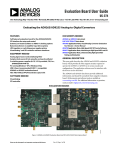
Application Note 1914 Running Program for the RGB GUI A) USB Communication (Hardware) - Gather the required materials and connect the PC to the ISL29125 by mini USB cable as shown in Figure 7. C) Once “ChromaMeter” is clicked, the window displayed in Figure 9 should open. If it does not display cross-points in the Chromaticity diagram on the right and numbers on the left panel of GUI, then check your connections. If the problem still persists, then you may want to restart the software. Figure 12 shows the error message that displays if the evaluation board is improperly attached. FIGURE 7. ISL29125 EVALUATION BOARD CONNECTED TO PC BY MINI USB Once the evaluation board is connected to the PC, D6, which is next to mini USB socket at the bottom of evaluation board, should light up. If the LED is not ON, please check your connection. B) Launching the RGB GUI - Once the installation is complete, click “Finish” to launch the RGB GUI. If you wish to launch from your PC desktop, us the path shown in Figure 8. (Start Program Intersil RGB Chroma Meter Chroma Meter. FIGURE 9. CHROMA TEST GUI D) Figure 9 shows an example using the ISL29125. Please note that all demonstrations within this document use the ISL29125. A detailed explanation of the operating modes can be found in the datasheet of the individual devices and Figure 10 details the GUI display. FIGURE 8. INSTALLATION READY TO INSTALL SCREEN Submit Document Feedback 3 December 7, 2015 AN1914.2