1
Support Your Customers
Salesforce Knowledge
Salesforce Knowledge Article Versions
Article versions allows you to save an older version of a published article and then see which version
of the article is associated with a case. To save the previous version, select the Flag as new
version checkbox when publishing a new version. The previously published version is saved
and the new version is published with the next sequential version number as an identifier.
When an article is attached to a case and a new version of the article is published, the system
identifies the version attached to the case as being outdated. For example, if Version 2 is attached
to a case and a third version is published, the article attached to the case becomes Version 2
(outdated). This notation ensures that there is a permanent record of which content was associated
with the case.
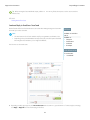
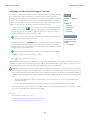
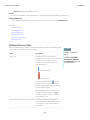
When you click the version number in the Article View, and the Article or Translation Detail pages,
you’ll see the Version History list. In this list you can:
EDITIONS
Available in: Salesforce
Classic
Salesforce Knowledge is
available in Performance
and Developer editions.
Salesforce Knowledge is
available for an additional
cost in Enterprise and
Unlimited editions.
• View the list of archived versions.
• Click a version’s title to view that version of the article.
USER PERMISSIONS
• Expand the version to view its field change history (if you have history tracking enabled for the
article type and for fields).
By default, the system stores up to ten versions of an article, plus any versions that are attached to
cases.
When several versions of an article exist, you can restore an older version and republish it. Click
Revert to Draft Version to copy the archived version’s content into a draft article, then
republish it as a new version. You can also restore the older version of any associated translations
at the same time.
Note: When there is an existing draft for the article, the option to revert isn’t available.
You can delete an older, outdated version of a published article by selecting Delete This
Version from the article detail page.
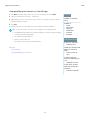
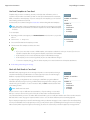
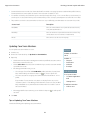
1. On the Article Management tab, in the left-side View panel, select the Articles tab.
2. Select Published Articles.
3. In the published articles list, click on the title of the article you want to delete.
4. In the left-side Article Properties panel, click the version number.
5. In the pop-up, click the version number you want to delete.
To create, edit, or delete
articles:
• “Manage Articles”
AND
“Create,” “Read,” “Edit,”
or “Delete” on the article
type
To publish or archive
articles:
• “Manage Articles”
AND
“Create,” “Read,” “Edit,”
and “Delete” on the
article type
To submit articles for
translation:
• “Manage Articles”
AND
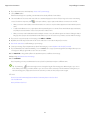
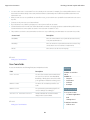
6. Click Delete This Version. Salesforce warns you when the version is associated with
a case. If you delete the article version, it will no longer be attached to the case. Translated
article versions are dependent on the master language article. If the master language version
is deleted, the translated versions are also deleted.
7. To delete the version, click Delete.
Versions also appear in custom reports, allowing you to find and read the article version attached
to a case.
SEE ALSO:
Managing Articles and Translations
162
“Create,” “Read,” and
“Edit” on the article type
To submit articles for
approval:
• Permissions vary
depending on the
approval process
settings