1
A-EN2-100-13 (2)
Network Camera
User’s Guide
Before operating the unit, please read this manual thoroughly
and retain it for future reference.
Software Version 2.1
SNC-VB635/VB630/VB600/VB600B
SNC-VM630/VM600/VM600B/VM631/VM601/VM601B/
VM632R/VM602R
SNC-EB630/EB630B/EB600/EB600B/EB632R/EB602R
SNC-EM630/EM600/EM631/EM601/EM632R/EM602R
SNC-XM637/XM636/XM632
SNC-CX600W/CX600
© 2012 Sony Corporation
Table of Contents
Overview
Features .................................................................. 4
How to Use This User’s Guide .............................. 5
System Requirements ............................................ 5
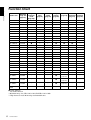
Function Chart ...................................................... 6
Accessing the Camera Using the Web
Browser ................................................................... 7
Basic Configuration by the Administrator ......... 9
Precautions for Preventing Access to the Camera
by an Unintended Third Party ........................... 10
How to set up ................................................... 10
Operating the Camera
Administrator and User ...................................... 11
Logging in to System ........................................... 12
Logging in as a user ......................................... 12
About Viewers .................................................. 12
Configuration of Live Viewer ............................. 13
Main menu ....................................................... 13
Control panel section ....................................... 13
Monitor image .................................................. 15
Plug-in free viewer ........................................... 15
Using Solid PTZ function ................................ 15
Controlling via the control panel (Operation
common to Area zoom mode and Vector
dragging mode) .............................................. 16
Panning and tilting by clicking the monitor image
(Area zoom mode only) ................................. 16
Panning, tilting and zooming by specifying the
area (Area zoom mode only) .......................... 16
Panning and tilting by dragging the screen (Vector
dragging mode only) ...................................... 17
Using pan/tilt/zoom operations with the displayed
control bar (PTZ Control bar only) ................ 17
Switching Transmission Mode ........................... 17
Playback viewer ................................................... 18
Control panel section ....................................... 18
Monitor image .................................................. 20
Administrating the Camera
Basic Operations of the Administrator
Menu ..................................................................... 21
How to set up the Administrator menu ............ 21
Configuration of the Administrator menu ........ 21
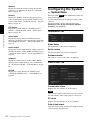
Configuring the System — System Menu ......... 22
Information Tab ................................................ 22
2
Table of Contents
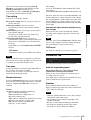
Date & time Tab ................................................22
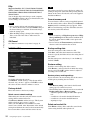
Installation Tab .................................................23
Initialize Tab .....................................................24
System log Tab .................................................25
Access log Tab ..................................................25
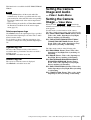
Setting the Camera Image and Audio
— Video / Audio Menu Setting the Camera Image
— Video Menu ......................................................25
Picture Tab ........................................................26
Focus Tab — Adjusting the Focus ....................27
Focus / Zoom Tab — Adjusting the
focus/zoom ......................................................28
Video codec Tab ...............................................28
Audio Tab .........................................................30
Superimpose Tab ..............................................30
Day/Night Tab ..................................................31
Privacy masking Tab .........................................32
Streaming Tab ...................................................33
Configuring the Network — Network Menu .....35
Network Tab .....................................................35
Wi-Fi Tab ..........................................................37
Wi-Fi network connection check ......................37
Manual setting of a Wi-Fi network ...................37
WPS settings .....................................................38
Connection status ..............................................38
QoS Tab ............................................................39
Setting the Security — Security Menu ...............41
User Tab ............................................................41
Access limit Tab ...............................................41
SSL Tab ............................................................42
How to install the CA certificate ......................45
To remove an installed CA certificate ..............46
802.1X Tab .......................................................47
System configuration of 802.1X network ........48
Referer check tab ..............................................49
Setting the PTZ control — PTZ control
Menu .....................................................................50
Solid PTZ Tab ...................................................50
Serial Tab ..........................................................50
Setting the Sensor input/Camera tampering
detection/Motion detection — Action input
Menu .....................................................................51
Event condition Tab ..........................................52
Sensor input Tab — Set the sensor input 1/2 ....52
Camera tampering detection Tab — Set the
camera tampering detection ............................53
Motion detection Tab — Set the motion/VMF
detection ..........................................................53
What is VMF ....................................................53
Setting items for motion detection ....................54
VMF settings ....................................................55
Face detection Tab — Set the face detection ....58
Network disconnection Tab — Monitoring the
connection of a specified IP address .............. 59
Setting the Action output — Action output
Menu ..................................................................... 59
Execution Condition Tab .................................. 59
Mail Transfer Tab — Setting the e-Mail (SMTP)
Function .......................................................... 60
Alarm output Tab — Setting the Alarm
output .............................................................. 62
Edge Storage Tab — Setting the Edge Storage
movie and still image function ....................... 62
Voice alert Tab .................................................. 64
HTTP alarm notification Tab ........................... 65
FTP still image sending Tab ............................. 65
White LED tab ................................................. 67
Setting the Schedule — Schedule Menu ............ 68
Schedule Tab .................................................... 68
Setting the CLOUD service — CLOUD
Menu ..................................................................... 69
Setting Tab ........................................................ 69
Others
Glossary ................................................................ 70
Index ..................................................................... 72
Table of Contents
3
Overview
Overview
Features
• High-quality Full HD (1080P) real-time monitoring,
up to 60 fps. (SNC-VB635/VB630/VM630/VM631/
VM632R)
• High-quality Full HD (1080P) real-time monitoring,
up to 30 fps. (SNC-XM637/XM636/XM632)
• High-quality SXGA (1280 × 1024) live images from
camera can be monitored at a maximum frame rate of
60 fps. (SNC-VB635/VB630/VB600/VM630/
VM600/VM631/VM601/VM632R/VM602R)
• High-quality HD (720P) real-time monitoring, up to
30 fps. (SNC-CX600W/CX600)
• Exmor CMOS sensor enables high-quality images for
streaming.
• Wide dynamic range (View-DR) and Visibility
Enhancer enable clearer images for streaming in the
high contrast environment.
• NR (XDNR) enables clearer images for streaming in
the low lightness environment.
• Two video compression modes (video codecs) JPEG/
H.264 are supported.
• The maximum triple codec mode is available.
• Easy Focus enables easier focus adjustment when it is
installed. (Except SNC-EB630B/EB600B/XM637/
XM636/XM632/CX600W/CX600)
• “Edge Storage” for recording of video or audio signal
based on alarm detection (such as network block), and
same protocol real-time image streaming. (SNCVB635/VB630/VB600/VB600B/VM630/VM600/
VM600B/VM631/VM601/VM632R/VM602R/
XM637/XM636/XM632)
• Motion detection, passive infrared motion sensor
(SNC-CX600W/CX600) and camera tampering
detection functions.
• Up to 20 users (SNC-CX600W/CX600: five users)
can view images from one camera at the same time.
• Date/time can be superimposed on the image.
• PoE (Power over Ethernet) compliant. (except SNCCX600W)
• The recorded movie in the memory card can be
played, saved, or deleted by using the browser. (SNCVB635/VB630/VB600/VB600B/VM630/VM600/
VM600B/VM631/VM601/VM601B/VM632R/
VM602R/XM637/XM636/XM632/CX600W/
CX600)
• The camera image can be sent by using Wi-Fi. (SNCCX600W)
4
Features
NOTICE TO USERS
© 2012 Sony Corporation. All rights reserved. This
manual or the software described herein, in whole or in
part, may not be reproduced, translated or reduced to
any machine readable form without prior written
approval from Sony Corporation.
SONY CORPORATION PROVIDES NO
WARRANTY WITH REGARD TO THIS MANUAL,
THE SOFTWARE OR OTHER INFORMATION
CONTAINED HEREIN AND HEREBY EXPRESSLY
DISCLAIMS ANY IMPLIED WARRANTIES OF
MERCHANTABILITY OR FITNESS FOR ANY
PARTICULAR PURPOSE WITH REGARD TO THIS
MANUAL, THE SOFTWARE OR SUCH OTHER
INFORMATION. IN NO EVENT SHALL SONY
CORPORATION BE LIABLE FOR ANY
INCIDENTAL, CONSEQUENTIAL OR SPECIAL
DAMAGES, WHETHER BASED ON TORT,
CONTRACT, OR OTHERWISE, ARISING OUT OF
OR IN CONNECTION WITH THIS MANUAL, THE
SOFTWARE OR OTHER INFORMATION
CONTAINED HEREIN OR THE USE THEREOF.
Sony Corporation reserves the right to make any
modification to this manual or the information
contained herein at any time without notice.
The software described herein may also be governed by
the terms of a separate user license agreement.
• “IPELA” and
are trademarks of
Sony Corporation.
•
is trademark of Sony Corporation.
• “Exmor” and
are trademarks of Sony
Corporation.
• Microsoft, Windows, Internet Explorer and
Microsoft DirectX are registered trademarks of
Microsoft Corporation in the United States and/or
other countries.
• Java Script is a trademark of Sun Microsystems, Inc.
in the United States and other countries.
• Intel Core is a registered trademark of Intel
Corporation or its subsidiaries in the United States
and other countries.
• Adobe, Adobe Reader and Adobe Flash are
trademarks of Adobe Systems Incorporated in the
United States and/or other countries.
• SD and microSD are trademarks of SD-3C and LLC.
All other company and product names are trademarks
or registered trademarks of the respective companies or
their respective makers.
How to Use This User’s
Guide
Jumping to a related page
When you read the User’s Guide on the computer
display, you can click on a sentence to jump to a related
page.
Software display examples
Note that the displays shown in the User’s Guide are
explanatory examples. Some displays may be different
from the ones that appear in actual use.
The illustrations of the camera and menu display in the
User’s Guide show the SNC-VB600 as an example.
Printing the User’s Guide
Depending on your system, certain displays or
illustrations in the User’s Guide, when printed out, may
differ from those that appear on your screen.
The following computer environment is necessary for
the computer to display images and the controls of the
camera.
(Apr 2014)
Overview
This User’s Guide explains how to operate the Network
Camera from a computer.
The User’s Guide is designed to be read on the computer
display.
This section gives tips on making the most of the User’s
Guide. Read it before you operate the camera.
System Requirements
Common
OS
Microsoft Windows XP, Windows Vista (32-bit version
only), Windows 7 (32-bit version, 64-bit version),
Windows 8 Pro (32-bit version, 64-bit version)*,
Windows 8.1 Pro (32-bit version, 64-bit version)*
Authorized editions:
Windows XP: Professional
Windows Vista: Ultimate, Business
Windows 7: Ultimate, Professional
Windows 8: Pro
Windows 8.1: Pro
Microsoft DirectX 9.0c or higher
Web Browser
Windows Internet Explorer Ver. 7.0, Ver. 8.0, Ver. 9.0,
Ver. 10.0*, Ver.11.0*
Firefox Ver.19.0
Safari Ver.5.1
Google Chrome Ver.25.0
Installation Manual (printed matter)
The supplied Installation Manual describes the names
and functions of parts and controls of the Network
Camera, connection examples, and how to set up the
camera. Be sure to read the Installation Manual before
hand.
CPU
Intel Core i7, 2.8 GHz or higher
Intel Core2 Duo, 2.13 GHz or higher (SNC-CX600W/
CX600)
Memory
2 GB or more
Display
1600 × 1200 pixels or higher
* In case of Windows 8 or Windows 8.1, use the Internet
Explorer desktop user interface (desktop UI) edition.
How to Use This User’s Guide / System Requirements
5
Function Chart
Maximum
image size
(page 29)*
High
framerate
mode
(page 28)**
Sensor
input
(page 51)
Alarm
output
(page 62)
Edge
Storage
(page 62)
Audio
(page 30)
SNC-VB635
Full HD
z
2
2
z
z
Overview
Model name
–
z
SNC-VB630
Full HD
z
2
2
z
z
–
–
SNC-VB600
HD
z
2
2
z
z
–
–
SNC-VB600B
HD
–
2
2
z
z
–
–
SNC-VM630
Full HD
z
2
2
z
z
–
–
SNC-VM600
HD
z
2
2
z
z
–
–
SNC-VM600B
HD
–
2
2
z
z
–
–
SNC-VM631
Full HD
z
2
2
z
z
–
–
SNC-VM601
HD
z
2
2
z
z
–
–
SNC-VM601B
HD
–
2
2
z
z
–
–
SNC-VM632R
Full HD
z
2
2
z
z
z
–
SNC-VM602R
HD
z
2
2
z
z
z
–
SNC-EB630
Full HD
–
–
–
–
–
–
–
SNC-EB630B
Full HD
–
–
–
–
–
–
–
SNC-EB600
HD
–
–
–
–
–
–
–
SNC-EB600B
HD
–
–
–
–
–
–
–
SNC-EB632R
Full HD
–
–
–
–
–
z
–
SNC-EB602R
HD
–
–
–
–
–
z
–
SNC-EM630
Full HD
–
–
–
–
–
–
–
SNC-EM600
HD
–
–
–
–
–
–
–
SNC-EM631
Full HD
–
–
–
–
–
–
–
SNC-EM601
HD
–
–
–
–
–
–
–
SNC-EM632R
Full HD
–
–
–
–
–
z
–
SNC-EM602R
HD
–
–
–
–
–
z
–
SNC-XM637
Full HD
–
–
–
z
z
(only mic)
–
–
SNC-XM636
Full HD
–
–
–
z
z
(only mic)
–
–
SNC-XM632
Full HD
–
–
–
z
z
(only mic)
–
–
HD
–
–
–
z
z
–
–
SNC-CX600W/
CX600
z Usable function
– Not usable function
* Maximum image size; HD: 1280 × 1024, Full HD: 1920 × 1080
** High framerate mode: Monitoring maximum 60 frames
6
IR
Serial
Illuminator control I/F
(page 31) (page 50)
Function Chart
Accessing the Camera
Using the Web Browser
The live viewer window appears (in SSL
communication).
1
Overview
After the IP address has been assigned to the camera,
check that you can actually access the camera using the
Web browser installed on your computer.
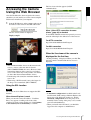
Start the Web browser on the computer and type the
IP address of the camera in the URL address bar.
The live viewer window is displayed.
Display sample
When “Allow HTTP connection for some
clients” (page 43) is checked
To use HTTP and SSL connections separately to access,
enter the following in the address box of the browser.
For HTTP connection
http://192.168.0.100/index.html?lang=en
For SSL connection
https://192.168.0.100/index.html?lang=en
When the live viewer of the camera is
displayed for the first time
Note
“Security Warning” is displayed. When you click Yes,
ActiveX control is installed and the live viewer is
displayed.
• The maximum number of users on the network who
can see a viewer at the same time is 20 users
(SNC-CX600W/CX600: five users). However, if the
transmission function of the camera is overloaded,
access to the camera may not be possible, even if there
are fewer than the maximum number of users.
• If monitoring with sound, the maximum number of
users is 10.
• When using a Wi-Fi network, it may take longer for
the image to be transmitted. (SNC-CX600W)
Using the SSL function
Note
The model on sale in China does not support the SSL
function.
When Internet Explorer is used
When you enter the camera IP address, “Certificate
Error” may appear according to the status of the
certificate set on the camera. In this case, click Continue
to this website (not recommended). to continue.
Notes
• If Automatic configuration is enabled in the Local
Area Network (LAN) settings of Internet Explorer, the
image may not be displayed. In that case, disable
Automatic configuration and set the proxy server
manually. For the setting of the proxy server, consult
your network administrator.
• When you install ActiveX Control, you should be
logged in to the computer as Administrator.
Accessing the Camera Using the Web Browser
7
Tip
The software is optimized for Internet Explorer using
medium font.
Overview
To display the viewer correctly
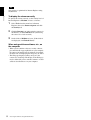
To operate the viewer correctly, set the security level of
Internet Explorer to Medium or lower, as follows:
1
Select Tools from the menu bar for Internet
Explorer, then select Internet Options and click
the Security tab.
2
Click the Internet icon (when using the camera via
the Internet), or Local intranet icon (when using
the camera via a local network).
3
Set the slider to Medium or lower. (If the slider is
not displayed, click Default Level.)
When using antivirus software, etc., on
the computer
• When you use antivirus software, security software,
personal firewall or pop-up blocker on your computer,
the camera performance may be reduced, for example,
the frame rate for displaying the image may be lower.
• The Web page displayed when you log in to the
camera uses JavaScript. The display of the Web page
may be affected if you use antivirus software or other
software described above on your computer.
8
Accessing the Camera Using the Web Browser
Basic Configuration by
the Administrator
Overview
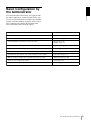
You can monitor the camera image by logging in with
the initial conditions set for this network camera. You
can also set various functions according to the installing
position, network conditions or purpose of the camera.
We recommend you configure the following items
before monitoring images from the camera.
Setting contents
Setting menu
Set the format of the image sent from the camera.
Video codec Tab (page 28)
Select the White balance mode according to the installation position.
White balance (page 27)
Select the brightness of the image sent from the camera.
Exposure (page 26)
Brightness (page 27)
Select the quality of the image sent from the camera.
Video codec Tab (page 28)
Select the view size of the image.
View size (page 13)
Select whether the audio from the external input is sent or not.
Audio Tab (page 30)
Synchronize the date and time of the camera with those of the computer.
Date & time Tab (page 22)
Make the setting for sending the monitor image attached to an e-mail.
Mail Transfer Tab (page 60)
Set the user access right for the camera.
User Tab (page 41)
Use Wi-Fi to make the setting for connecting the camera (SNC-CX600W)
Wi-Fi Tab (page 37)
Basic Configuration by the Administrator
9
Overview
Precautions for
Preventing Access to
the Camera by an
Unintended Third Party
The camera may be accessed by an unintended third
party on the network, depending on the usage
environment. Changing the user name and password of
the camera administrator from the default settings is
highly recommended for security reasons. If the camera
is accessed by an unintended third party, there may be an
undesired effect, such as operations or settings to block
monitoring, etc.
The camera can be fraudulently accessed in a network
environment where a device is connected or connectable
to the network without the administrator's permission, or
a PC or other network device connected to the network
can be used without any permission. Connect to these
environments at your own risk. To prevent unauthorized
access to the camera, set it according to the following
steps.
4
Set the user name and password of the
administrator of the camera.
For details, refer to “Setting the Security —
Security Menu” in the Administrator menu on page
41.
5
Check the Referer check checkbox.
For details, refer to “Setting the Security —
Security Menu” in the Administrator menu on page
41.
Hereafter, use the camera using the SSL connection. If
you use the FTP still image sending function, the SSL
function will be disabled, and communication content
will not be coded. Do not use the FTP still image
sending function if the camera is at risk of unauthorized
access.
Note
The model on sale in China does not support the SSL
function.
Do not use the browser you use to set the camera to
access other websites while you set or after setting the
camera. You will remain logged in to the camera as long
as the browser is open, so to prevent an unintended third
party's use or execution of malicious programs, close the
browser after you finish setting the camera.
How to set up
10
1
Set the network address of the camera using SNC
toolbox.
For details about how to use SNC toolbox, refer to
the application guide.
After this step, do not use SNC toolbox to change
the network settings of the camera. Use SNC
toolbox to search for the camera only.
2
Start the web browser and set the SSL function to
Enable in the camera settings.
For details, refer to “Setting the Security —
Security Menu” in the Administrator menu on page
41.
3
Restart the web browser and access the camera
again.
Precautions for Preventing Access to the Camera by an Unintended Third Party
Operating the Camera
Administrator and User
This network camera identifies those who log in as the
Administrator or User.
The Administrator can use all the functions of this
network camera, including camera settings. The User
can use the functions for monitoring the image and
audio from the camera, and control the camera. The
Viewer mode setting is used to restrict the user’s access
rights. There are five types of users.
This section explains how to monitor the image from the
camera using your Web browser.
The functions of the camera should be set by the
Administrator. For the setting of the camera, see
“Administrating the Camera” on page 21.
Operating the Camera
Each type of user can use the corresponding functions below.
Function
Administrator
User
Full
Pan/Tilt
Light
View
Monitor a live image
z
z
z
z
z
View the date and time
z
z
z
z
z
Control the frame rate (JPEG mode only)
z
z
–
–
–
Control the image view size
z
z
z
z
–
Save a still image and movie in the computer
z
z
z
z
–
Switch the TCP/UDP transmission mode (Available in
H.264 mode only)
z
z
–
–
–
Perform the pan/tilt/zoom operation
z
z
z
–
–
Receive audio
z
z
z
z
z
Select the codec mode
z
z
z
z
–
Control the setting menu
z
–
–
–
–
Play the recorded file in the memory card
z
z
–
–
–
Delete the recorded file in the memory card
z
–
–
–
–
z Usable function
– Not usable function
The access rights of the administrator and the user can
be set in “Setting the Security — Security Menu” of the
Administrator menu on page 41.
Administrator and User
11
Logging in to System
Logging in as a user
1
Start the Web browser on your computer and type
the IP address of the camera you want to monitor.
Operating the Camera
The live viewer is displayed.
Display sample:
Plug-in free viewer
This viewer enables a browser other than Internet
Explorer to display images.
Notes
• If Automatic configuration is enabled in the Local
Area Network (LAN) Settings of Internet Explorer,
the camera image may not be displayed. In that case,
disable Automatic configuration and set the proxy
server manually. For the setting of the proxy server,
consult your network administrator.
• When you install ActiveX Control, you should be
logged in to the computer as the Administrator.
Tip
Every page of this software is optimized for Internet
Explorer in Medium font.
Note
If the live viewer does not start correctly, the security
level of the Internet Explorer may be set to higher than
Medium. See “To display the viewer correctly” on
page 8 and check the security level.
About Viewers
You can use the following viewers.
ActiveX viewer
This viewer can monitor the camera image in any of the
JPEG and H.264 video codecs.
Two types of ActiveX viewer are available: Live viewer
and Playback viewer.
You must install this viewer when you access the viewer
for the first time.
When you display the viewer of the camera for
the first time
When you access the network camera using ActiveX
viewer for the first time, the Security Warning appears.
Click Yes and install ActiveX Control. You can use all
the functions of the viewer with ActiveX Control.
12
Logging in to System
Configuration of Live
Viewer
Control panel section
This section explains the functions of the parts and
controls of the live viewer. For a detailed explanation on
each part or control, see the specified pages.
You can drag the panels to the monitor screen and
configure them.
To return to the control panel, drag the panel and
configure the control panel.
Click the
to hide the detail setting menu or click it
again to show the menu.
Live viewer using ActiveX viewer
Information panel
Operating the Camera
Main menu
Check the date and time here.
View panel
Control panel
section
Monitor image
section
Main menu
Live viewer
Displays the ActiveX viewer or the Plug-in free viewer.
Playback viewer
Click to play, save and delete the recorded movie in the
memory card. (page 18)
Setting
Click to display the Administrator menu. (page 21)
You can operate this function only when logging in as
the administrator.
License notice
Displays the software consent agreement, etc.
Language
Set language from pull-down.
You can change the screen mode, view size of the image,
image codec mode and frame rate. Also, still images and
movies can be saved (movie saving can also be stopped)
from here. Microphone and audio output levels can be
adjusted.
Screen mode
Select Window or Full Screen.
View size
Selects the view size to be displayed.
Click View size list box to select the view size.
Select ×1/4 to display images, reduced to 1/4 of the size
set in Image size.
Select ×1/2 to display images, reduced to 1/2 of the size
set in Image size.
Select ×1 to display images set in Image size (page 29)
of the Video / Audio menu or Video menu.
Select Full to display images according to the view size.
Select Fit to display images according to the view size,
with fixed aspect ratio.
Image codec
Select Image1, Image2 and Image3 of the video codec.
Frame rate
(Displayed only when the camera image is in JPEG.)
Selects the frame rate to transmit images.
Configuration of Live Viewer
13
Capture
Click to capture a still image shot by the camera and to
store it in the computer. Click to open the folder to be
saved.
Camera control panel
Note
In the case of Windows VISTA, Windows 7, Windows 8
or Windows 8.1, if “Enable Protected Mode” is checked
in Control Panel-Internet Option-Security, still images
cannot be shot.
Operating the Camera
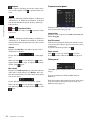
Run/
Stop Save Video
Runs and stops Save Video. Click
to be saved.
to open the folder
Note
In the case of Windows VISTA, Windows 7, Windows 8
or Windows 8.1, if “Enable Protected Mode” is checked
in Control Panel-Internet Option-Security, video content
cannot be saved.
Volume
Displays when Enable in the Audio tab of the Video /
Audio menu is checked.
Use the slide bar to adjust the volume for sound output
level.
When you click
, the icon changes to
and the
output from the speaker stops. To output sound from the
speaker, click
again.
Mic volume
Displays when Audio upload (page 30) in the Audio tab
of the Video / Audio menu is set to Enable, and a user
with audio enabled in the User tab of the Security menu
accesses the device.
Use the slide bar to adjust the microphone volume.
When you click
, the icon changes to
and the
microphone input stops. To input the microphone, click
again.
14
Configuration of Live Viewer
This panel allows you to control the camera’s pan/tilt/
home position and zoom (page 16).
Image action
Select the mode of operation from Off, Area zoom and
Vector dragging.
Pan/Tilt control
Click the arrow button the direction in which you want
to move the camera. Keep it pressed to move the camera
continuously.
To return to the home position, click
.
Zoom control
Click
to zoom out, and click
to zoom in.
Zooming continues while the button remains pressed.
Other panel
(The Other panel is displayed in the case of an H.264
image.)
You can switch between TCP and UDP (Unicast/
Multicast).
Each click switches the transmission mode of the video/
audio data between TCP mode, Unicast mode, and
Multicast mode (page 17).
Monitor image
There are two modes for on-screen pan/tilt/zoom
operation using a mouse: Area zoom mode and Vector
dragging mode. A control bar is displayed on the screen.
In the Area zoom mode, click to adjust the camera
direction to the center of the image.
The Area zoom will move the camera in the direction
that displays the area selected by the operator and zooms
in at the same time. The operator can choose a part of the
image to view and zoom in by surrounding the area with
a frame by dragging the mouse.
In the Vector dragging mode, the camera moves to the
dragged direction. How long you drag the mouse
determines the speed. Releasing the button on the mouse
after dragging stops the panning or tilting of the camera.
You can also use the tool bar to change the camera
direction.
The zoom operation using the mouse wheel is available
in all modes.
Operating the Camera
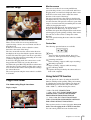
The image shot by the camera is shown here.
There are two modes for on-screen pan/tilt/zoom
operation using a mouse: Area zoom mode and Vector
dragging mode.
In the Area zoom mode, click to adjust the camera
direction to the center of the image.
The Area zoom will move the camera in the direction
that displays the area selected by the operator and zooms
in at the same time. The operator can choose a part of the
image to view and zoom in by surrounding an area with
a frame by dragging the mouse.
In the Vector dragging mode, the camera moves to the
dragged direction. How long you drag the mouse
determines the speed. Releasing the button on the mouse
after dragging stops the panning or tilting of the camera.
You can also use the camera control panel bar to change
the camera direction.
The zoom operation using the mouse wheel is available
in all modes.
Monitor screen
Control bar
The following operation buttons are available.
Setting
You can set the streaming method, image size,
frame rate, PTZ operation mode and image codec.
Streaming start button
Starts streaming. (Appears while stops streaming.)
Streaming stop button
Stops streaming. (Appears while streaming.)
Save still image button
Captures still images taken by the camera and saves
them to the computer.
Using Solid PTZ function
Plug-in free viewer
Live viewer using Plug-in free viewer
Display sample:
You can operate the camera by using the Solid PTZ
function, which provides panning, tilting and zooming
by adjusting the position and zooming ratio from the
maximum image size (1280 × 720*, 1280 × 1024**,
1920 × 1080***), without moving the camera.
* 1280 × 720: SNC-CX600W/CX600
** 1280 × 1024: SNC-VB600/VB600B/VM600/
VM600B/VM601/VM601B/VM602R/EB600/
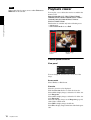
EB600B/EB602R/EM600/EM601/EM602R
*** 1920 × 1080: SNC-VB635/VB630/VM630/
VM631/VM632R/EB630/EB630B/EB632R/EM630/
EM631/EM632R/XM637/XM636/XM632
Control bar
Monitor screen
There are three modes of camera operation: Area zoom
mode, Vector dragging mode and PTZ Control bar.
You can control pan/tilt and zoom in either mode.
Configuration of Live Viewer
15
The available functions for the camera operation modes
vary according to the live viewer display. The available
functions are as follows.
ActiveX
viewer
Plug-in free viewer
JPEG
MJPEG
Operating the Camera
Operation from
control panel
a
–
–
Area zoom
a
a
a
Vector dragging
a
a
a
PTZ control bar
–
a
a
Notes
• Pan/Tilt limitation
The solid PTZ function controls streaming by
cropping or reducing a maximum size image.
Thus, the more the camera zooms out, the less area to
be panned or tilted, and becomes unavailable at the
WIDE end.
• Zoom limitation
The solid PTZ function enables you to display an area
of 1/16 the maximum image size (Aspect ratio: 1:4),
when zoomed in at the TELE end. An image cannot be
enlarged beyond this.
And the whole area shot in the maximum image size
will be displayed if the camera is zoomed out at the
WIDE end.
The solid PTZ function’s zoom is performed digitally;
therefore, some deterioration in image quality may be
observed at the TELE end.
• The Plug-in free viewer display method will be
selected automatically.
Controlling via the control panel
(Operation common to Area zoom
mode and Vector dragging mode)
You can operate the camera direction and zoom by using
the control panel for the monitor image currently
displayed.
Pan/Tilt control
Click the arrow button in the direction in which you
want to move the camera. Keep it pressed to move the
camera continuously.
To return to the home position, click
.
Zoom control
Click
to zoom out, and click
to zoom in.
Zooming continues while the button remains pressed.
Note
The four edges of the image may be dark depending on
the zoom position. This is a phenomenon related to the
structure of the camera, and does not cause a problem.
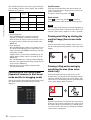
Panning and tilting by clicking the
monitor image (Area zoom mode
only)
Click on the monitor image, and the camera moves so
that the clicked portion is positioned at the center of the
display.
Panning, tilting and zooming by
specifying the area (Area zoom
mode only)
Click and hold the left button of the mouse on the
monitor image, and drag the mouse diagonally to draw a
red frame around the portion you want to enlarge. The
camera moves so that framed portion is positioned at the
center of the display and is zoomed in.
Note
When the specified area is zoomed in, the center may be
shifted or some portion of the image may appear out of
the monitor image section. In this case, click the point
you want to move to the center or click the arrow button
on the camera control panel.
16
Configuration of Live Viewer
Panning and tilting by dragging the
screen (Vector dragging mode
only)
Switching Transmission
Mode
When you click on the starting point on the image and
drag to the end point, the camera pans/tilts in the
direction of the arrow from the starting point to the end
point. The speed of operation is determined by the
length of arrow. Releasing the button on the mouse stops
the panning/tilting of the camera.
You can change the transmission mode for video/audio
data.
This function can be used when the video codec mode is
set to H.264 and the ActiveX viewer in the live viewer is
used.
Operating the Camera
Note
The function may not operate correctly if you use
personal firewall software or antivirus software on your
computer. In that case, disable the software or select the
TCP mode.
1
Select TCP, Unicast or Multicast from the
Connection drop-down list in the Other panel.
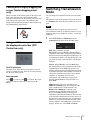
Using pan/tilt/zoom operations with
the displayed control bar (PTZ
Control bar only)
TCP: This is normally selected.
When TCP is selected, HTTP communication is
adopted for video/audio communications. HTTP is
the protocol used for reading the usual Web page. In
an environment capable of reading Web pages, you
can watch or listen to video/audio by selecting the
TCP port.
Pan/Tilt operations
Click the arrow of the direction you wish to move the
camera. Continue pressing on the arrow to keep moving
the direction of the camera.
Zoom operation
Click
to zoom out, click
to zoom in. The zoom
operation continues while you are pressing on the
button.
Unicast: When Unicast is selected, RTP (Realtime Transport Protocol) is adopted for video/audio
communications. Since RTP is the protocol for
running video/audio data, the video/audio playback
is smoother than when TCP (HTTP) is selected. If
a firewall is installed between the camera and the
computer, or depending on the network
environment, video/audio may not play back
properly when Unicast is selected. In this case,
select TCP.
Multicast: This protocol is selectable when
Multicast streaming in the Streaming tab of the
Video / Audio menu or Video menu is set to
Enable. When Multicast is selected as the
transmission port, RTP (Real-time Transport
Protocol) and UDP multicast techniques are
adopted for video/audio transmission. By selecting
it, the network transmission load of the camera can
be reduced. If a router that does not correspond to a
multicast or firewall is installed between the camera
and the computer, video/audio may not play back
properly. In this case, select TCP or Unicast.
Switching Transmission Mode
17
Note
When connecting via a proxy server, neither Unicast nor
Multicast can be selected.
Playback viewer
Operating the Camera
You can play, save or delete the movies recorded in the
memory card.
Supported models: SNC-VB635/VB630/VB600/
VB600B/VM630/VM600/VM600B/VM631/VM601/
VM601B/VM632R/VM602R/XM637/XM636/
XM632/CX600W/CX600
This function is available only in the following users.
• Administrator
• When Viewer mode is set to Full
Control panel
section
Monitor image
section
Control panel section
View panel
You can change the screen mode or view size of the
image.
Screen mode
Select Window or Full Screen.
View size
Select the view size to be displayed.
Click the View size list box to select the view size.
Select ×1/4 to display images, reduced to 1/4 of the size
set in Image size.
Select ×1/2 to display images, reduced to 1/2 of the size
set in Image size.
Select ×1 to display images set in Image size (page 29)
of the Video / Audio menu.
Select Full to display images in full size.
Select Fit to display images in full size with fixed aspect
ratio.
18
Playback viewer
Search panel
Go to the previous search result
Displays the previous search results.
Save recorded movie
Save the selected movie to your computer. Click
open the folder in which the movie is to be saved.
Specify the search period.
End
Select the end time for searching.
Delete recorded movie
Delete the selected movie(s).
Operating the Camera
Start
Select the start time for searching.
to
Note
Only the administrator can delete movies. Deleted
movies cannot be restored.
Control panel (Basic)
Maximum search number
You can specify the maximum number of the search
results.
Search
Search for recorded movies in the specified period.
Search results list
You can play, pause, stop, fast forward or jump the
selected movie on the search results list. Also you can
specify the start position for playback.
If you click the
button, the control panel (detail) is
displayed.
Control panel (Detail)
Specify the start position for playback
Specify the playback time
Displays the search results from the search panel. You
can select the movie which you want to play, save or
delete.
You can select multiple files for deletion by clicking
those movies while pressing the control key.
Range of the search results displayed in the list
Indicates the list of the total search results that is
currently displayed.
Go to the next search result
Displays the next search results.
You can play, pause, stop, fast forward or jump the
selected movie on the search results list. Also you can
specify the start position for playback, playback time,
save the movie or save the captured still image.
If you click the
button, the control panel (basic) is
displayed.
Specify the start position for playback
Move the start position by dragging the slider.
Time
Specify the recorded date and time from which the
movie will start playback.
Playback viewer
19
Previous record
Jump to the previous movie.
Monitor image
Stop button
Click this button to stop a movie playing.
Play button
Play the movie.
Click this button to play the movie at the normal speed
after pressing the fast forward button.
Operating the Camera
Pause button
Click this button to pause a movie playing.
Fast forward
Click this button to fast forward the moving being
played.
Next record
Jump to the next movie.
Still image capture
Save the capture of a recorded movie as a still image file
to your computer. Click
to open the folder in which
the movie is to be saved.
Specify the playback time
Specify the start and end position of the movie by
moving the slider.
You can save the specified time to your computer.
You can also specify the start time to In and end time to
Out.
Save selected part of recorded movie
Save the part of movie which is specified by the
playback time to your computer. Click
to open the
folder in which the movie is to be saved.
20
Playback viewer
Play the selected movie from the search results list.
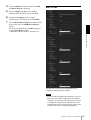
Example: “Date & time” tab of “System” menu
Administrating the Camera
This section explains how to set the functions of the
camera by the Administrator.
For details about monitoring the camera image, see
“Operating the Camera” on page 11.
This section explains the basic operations and each
option of the Administrator menu.
5
After setting, click OK.
The settings you have made become active.
Click Cancel to nullify the set values and return to
the previous settings.
Buttons common to every menu
The following buttons are displayed on all the menus.
Administrating the Camera
Note on the display of menu options
The setting menus of this unit will clearly display only
the setting options that you can currently select. Grayed
out options cannot be selected.
Only supported functions are displayed.
See page 22 for details of the menu tabs and setting
options.
Click this button to confirm the settings.
Basic Operations of the
Administrator Menu
You can use the Administrator menu to set all functions
to suit the user’s needs.
Click Setting in the viewer to display the Administrator
menu.
How to set up the Administrator
menu
1
Log in to the homepage to display the viewer.
For details, see “Logging in as a user” on page 12.
2
Click Setting on the main menu.
The authentication dialog appears. Enter the user
name and password for Administrator. The
Administrator menu appears.
The user name “admin” and password “admin” are
set at the factory for the Administrator.
For security, be sure to change the password from
the factory setting before using the camera.
3
Click the menu name (example: System) on the left
side of the Administrator menu.
The clicked menu appears.
Example: “System” menu
4
Select the required tab above the menu, and set each
setting option in the tab.
Click this button to nullify the set values and return to
the previous settings.
General notes on menus
• One-byte katakana character is not valid for any text
field, such as User name.
• After changing a setting on a menu, wait at least 30
seconds before turning off the power of the camera.
If the power is turned off immediately, the new setting
may not be stored correctly.
• If the camera settings are changed while watching the
live viewer, some settings cannot be restored. To
reflect the change on the opening live viewer, click
Refresh on the Web browser.
Configuration of the Administrator
menu
System
Displays the System menu. (“Configuring the System —
System Menu” on page 22)
Video / Audio
Displays the Video / Audio menu for setting the camera
image and audio. (“Setting the Camera Image and Audio
— Video / Audio Menu Setting the Camera Image —
Video Menu” on page 25)
Video
Displays the Video menu for setting the camera image.
(“Setting the Camera Image and Audio — Video / Audio
Menu Setting the Camera Image — Video Menu” on
page 25)
Basic Operations of the Administrator Menu
21
Network
Displays the Network menu for setting the network
connection. (“Configuring the Network — Network
Menu” on page 35)
Security
Displays the Security menu for setting the login user
name and password to specify which computer(s) can
connect to the camera. (“Setting the Security — Security
Menu” on page 41)
PTZ control
Displays the setting menu for solid PTZ and serial
interface. (“Setting the PTZ control — PTZ control
Menu” on page 50)
Administrating the Camera
Action input
Displays the setting menu for all built-in detection
functions. (“Setting the Sensor input/Camera tampering
detection/Motion detection — Action input Menu” on
page 51)
Action output
Displays the Action output menu for setting an action of
the functions such as e-Mail (SMTP) and Edge Storage.
(“Setting the Action output — Action output Menu” on
page 59)
Schedule
Displays the Schedule menu for the e-Mail (SMTP)
function, Alarm output function, Voice alert function,
etc. (“Setting the Schedule — Schedule Menu” on page
68)
Configuring the System
— System Menu
When you click System in the Administrator menu, the
System menu appears.
Use this menu to perform the principal settings of the
software.
The System menu consists of the following tabs:
Information, Date & time, Installation, Initialize,
System log and Access log.
Information Tab
Model Name
The model name of the camera is displayed.
Serial number
The serial number of the camera is displayed.
Software version
The software version of the camera is displayed.
Date & time Tab
CLOUD
Displays the setting menu for the CLOUD service.
(“Setting the CLOUD service — CLOUD Menu” on
page 69)
Current date & time
Displays the date and time set on the camera.
Note
After you have purchased the camera, be sure to check
the date and time of the camera and set as necessary.
PC clock
Displays the date and time set on your computer.
Date & time format
Select the format of date and time to be displayed in the
viewer from the drop-down list.
22
Configuring the System — System Menu
You can select the format between yyyy-mm-dd
hh:mm:ss (year-month-day hour:minutes:seconds),
mm-dd-yyyy hh:mm:ss (month-day-year
hour:minutes:seconds), and dd-mm-yyyy hh:mm:ss
(day-month-year hour:minutes:seconds).
For example:
In case of (UTC-06:00) Central Standard Time (USA
and Canada);
CentralStandardTime6DaylightTime1,M3.2.0,M11.1.0
Time setting
The name of the time zone is CentralStandardTime and
the time difference is 6 hours. The name of the summer
time is DaylightTime, and the summer time offset from
the time difference is 1 hour, starting from the second
week on Sunday in March until the first week on Sunday
in November.
Select how to set the day and time.
NTP server
Synchronize with the selected NTP server address.
Note
When the CLOUD service is activated, you cannot set
the time and cannot change the NTP server. If you want
to set them, deactivate the CLOUD service.
Automatically adjust clock for daylight saving
time changes
When selected, the clock is automatically adjusted
according to the daylight saving time of the selected
time zone.
Administrating the Camera
Keep current setting: Select if you do not need to set
the date and time.
Synchronize with PC: Select if you want to
synchronize the camera’s date and time with the
computer.
Manual setting: Select if you want to set the camera’s
date and time manually.
Select the year, month, date, hour, minutes and
seconds from each drop-down list.
Synchronize with NTP: Select if you want to
synchronize the camera’s date and time with those of
the time server called NTP server (Network Time
Protocol).
Set the NTP server when Synchronize with NTP is
selected.
Note
If the time zone selected in Time zone is different from
that set on the computer, the time is adjusted using the
time zone difference and set on the camera.
OK/Cancel
See “Buttons common to every menu” on page 21.
Installation Tab
You can perform settings related to installation.
Time zone
Set the time difference from Greenwich Mean Time in
the area where the camera is installed.
Select the time zone in the area where the camera is
installed from the drop-down list.
Manual time zone
If you select Manual in Time zone, you can set a desired
time zone that is not included in the list box. The input
format is compliant with IEEE 1003.1 section 8.3
standard.
Format:
stdoffset[dst[offset][,start[/time],end[/time]]]
std: 3 to 100 character strings
offset: time difference (displayed in +-)
dst: name of summer time
offset: offset of summer time, default time is 1 hour
start: start date and time of summer time
end: end date and time of summer time
Values in [ ] can be omitted.
Auto iris responding speed
Supported models: SNC-VB635/VB630/VB600/
VB600B/EB630/EB630B/EB600/EB600B
When you use a non-standard lens, adjust the speed
according to the lens you use.
Select high values to make the iris respond faster, lower
values to make the iris respond slower.
Stabilizer
Set the stabilizer function. Select the checkbox to
display steadier images when the camera is installed in
a place subject to vibration.
Notes
• When the stabilizer function is set, the angle of image
taken will be smaller than usual.
• The stabilizer may not respond, depending on the
amount of vibration.
• Be sure to set this function during the installation.
• Set the privacy masking position or the motion
detection area, before setting the stabilizer.
Configuring the System — System Menu
23
Eflip
Supported models: SNC-VM630/VM600/VM600B/
VM631/VM601/VM601B/VM632R/VM602R/EM630/
EM600/EM631/EM601/EM632R/EM602R/XM637/
XM636/XM632
You can display flip vertical images on the computer.
Select On/Off according to the type of installation, such
as on a ceiling, or on a rack, etc.
Note
Administrating the Camera
• Privacy mask positions and motion detection areas,
etc., will not be inverted, even if the On/Off setting of
the inverted image is switched. To invert the image,
make the setting again.
• When the Eflip setting is changed, the settings in the
Video codec tab of the Video / Audio menu are
initialized.
OK/Cancel
See “Buttons common to every menu” on page 21.
Initialize Tab
Tip
The camera can also be reset to the factory settings by
turning on the power of this unit while pressing the reset
button on the camera. For details, refer to the supplied
Installation Manual.
Format memory card
You can format a memory card (not supplied) inserted
into the card slot of the camera. When you click Format
memory card, a confirming message appears. Click
OK to start formatting. Any files and folders stored in
the memory card will be deleted.
Notes
• Before formatting, set Edge Storage movie and Edge
Storage still image in the Execution Condition tab of
the Action output menu to Off, to write-protect the
memory card.
• Do not activate the Format memory card function
when no card is inserted into the card slot.
Backup setting data
Saves the setting data of the camera in a file.
Click Save, and follow the instructions on the Web
browser to specify the folder and save the setting data of
the camera.
The file name preset at the factory is “snc-vb600.cfg”
for SNC-VB600.
Restore setting
Loads the stored setting data of the camera.
Click Browse... and select the file in which the setting
data is stored. Click OK, and the camera is adjusted
according to the loaded data.
Reboot
Used when rebooting the system.
Click Reboot, and the message “This System will be
rebooted. Are you sure?” appears. Click OK to reboot
the camera. It takes about two minutes to restart.
Factory default
Resets the camera to the factory settings.
Retain current network settings
When this item is checked, only the current network
settings will be retained after reset.
Click Factory default, and the message “This System
will be rebooted. Are you sure?” appears.
When you click OK, the network indicator on the
camera starts to blink. After adjustments of the default
settings have finished, the camera reboots automatically.
Do not turn off the camera until the camera reboots.
24
Configuring the System — System Menu
Restore privacy masking settings
If you select this, the stored setting data of the camera
and the privacy masking data are loaded.
Notes
• With Restore setting, some items in the Network
menu (page 35) cannot be restored.
• The following items cannot be stored or restored with
Backup setting data or Restore setting.
– audio files uploaded using the SNC audio upload
tool
– a certificate to be used in the 802.1X function
– a certificate to be used in the SSL function
– superimpose logo
Delete voice alert file
Click Delete to delete all the audio files stored in the
camera using the SNC audio upload tool.
This function is not available for SNC-XM637/XM636/
XM632.
Notes
• Clicking Delete deletes all the stored audio files
simultaneously. To delete a specified audio file only,
perform deletion of the audio file in the corresponding
Execution Condition tab of the Action output menu
(page 59).
• Before deleting the audio file, set Voice alert to Off in
the Execution Condition tab of the Action output
menu (page 59).
Delete superimpose logo
System log Tab
The data of the software activity of the camera is
recorded in this log. It includes data that is useful if a
problem occurs.
Click Reload to reload the latest data.
Access log Tab
The access record of the camera is displayed.
Click Reload to reload the latest data.
— Video / Audio Menu
Setting the Camera
Image — Video Menu
When you click Video / Audio or Video menu in the
Administrator menu, the Video / Audio menu or Video
menu appears.
Use this menu to set the functions of the camera.
The Video / Audio menu consists of the following tabs:
SNC-VB635/VB630/VB600/VB600B: Picture, Focus,
Video codec, Audio, Superimpose, Day/Night,
Privacy masking and Streaming.
SNC-VM630/VM600/VM600B/VM631/VM601/
VM601B/VM632R/VM602R: Picture, Focus /
Zoom, Video codec, Audio, Superimpose, Day/
Night, Privacy masking and Streaming.
Administrating the Camera
Click Delete to delete the superimposed logo, specified
by Position in the Superimpose tab of the Video / Audio
menu, from the camera.
To set whether to show or hide the superimpose logo,
you need to configure the setting under the Superimpose
tab.
Setting the Camera
Image and Audio
The Video menu consists of the following tabs:
SNC-EB630/EB600: Picture, Focus, Video codec,
Superimpose, Day/Night, Privacy masking and
Streaming.
SNC-EB630B: Picture, Video codec, Superimpose,
Day/Night, Privacy masking and Streaming.
SNC-EB632R/EB602R/EM630/EM600/EM631/
EM601/EM632R/EM602R: Picture, Focus /
Zoom, Video codec, Superimpose, Day/Night,
Privacy masking and Streaming.
SNC-XM637/XM636/XM632: Picture, Video codec,
Audio, Superimpose, Day/Night, Privacy masking
and Streaming.
SNC-CX600W/CX600: Picture, Video codec, Audio,
Superimpose, Privacy masking and Streaming.
Setting the Camera Image and Audio — Video / Audio Menu Setting the Camera Image — Video Menu
25
Picture Tab
Exposure
Adjust the settings of exposure.
Wide dynamic range (View-DR)
Unsupported models: SNC-CX600W/CX600
In high-contrast scenes such as against a back light, this
function reduces overexposure and underexposure.
Select the checkbox to turn on the Wide dynamic range
(View-DR) function.
Administrating the Camera
Wide dynamic range (View-DR) level
Supported models: SNC-VB600/VB600B/VM600/
VM600B/VM601/VM601B/VM602R/EB600/EM600/
EM601/EM602R/EB602R
Using the Wide dynamic range (View-DR) function will
improve visibility of bright and dark parts of an image.
The level of this function is adjustable.
Notes
You can set the color conditions, exposure, etc., of the
camera.
Preview screen
Preview the image and adjust the picture setting.
Picture mode
Select the combination of image quality mode to suit the
camera scene.
You can set the scene to Standard, Situation Priority,
Flickerless.
When the dialog appears, click OK to apply the selected
picture mode. You can change the settings of image
quality individually.
Standard
Set the image quality to suit variable scenes.
Situation Priority
You can set the priority to Moving object or Low noise.
Priority level can also be set.
Moving object: Stabilizes images.
Low noise: Reduces noise on images especially dark
scenes.
Flickerless
Select when you want to reduce the flicker on images.
Set according to power frequency (50 Hz or 60 Hz) of
the lighting you use.
26
• To improve visibility of bright and dark parts, the
camera superimposes images taken by fast shutter
speed.
When you select High, the camera takes the image by
superimposing 4 images.
When you select Middle, the camera takes the image
by superimposing 2 images.
When the wide dynamic range (View-DR) is
activating, Middle is automatically activated for
models for which this option is not displayed.
When you select High or Middle, the effect of the
Shutter speed function in the Picture tab of the Video /
Audio menu or Video menu is limited, depending on
the scene.
• When you set Wide dynamic range (View-DR) level
to High, High framerate mode in the Video codec
tab of the Video / Audio menu cannot be set to On.
(SNC-VB600/VM600/VM601/VM602R)
• When Wide dynamic range (View-DR) is selected,
High framerate mode in the Video codec tab of the
Video / Audio menu or Video menu cannot be set to
On. (SNC-VB635/VB630/VM630/VM631/
VM632R)
• When the Wide dynamic range (View-DR) setting is
changed, the video codec setting is initialized.
Visibility Enhancer
Using the Visibility Enhancer function will make the
darker part of a camera image brighter as well as
automatically correct brightness and contrast to show
bright parts clearly without overexposure.
Backlight compensation
Select the checkbox to enable the backlight
compensation function.
Setting the Camera Image and Audio — Video / Audio Menu Setting the Camera Image — Video Menu
Exposure compensation
Select the exposure correction value from the list box to
adjust the target brightness for the automatic exposure
setting. A larger value brightens the image, and a smaller
value darkens the image.
Picture
Auto gain Max. value
Limit the maximum value of gain-controlled automatic
exposure control.
Brightness
Set the brightness. Select high values to make the image
brighter, lower values to make the image darker.
Note
The value shown in the auto gain maximum rate is a
standard value, and may differ from the actual one.
White balance
Mode
Select the White balance mode.
ATW: Eliminating the influences caused by
environmental illumination or lights, adjust the white
balance automatically to reproduce original colors of
the objects (approximately 2000 K to
10000 K).
ATW-PRO: Automatically adjusts the color to be
closest to the image you are viewing (approximately
2500 K to 6000 K).
When ATW or ATW-PRO is selected, R gain offset
and B gain offset become effective.
Indoor: Sets a white balance suitable for indoor
photography.
Outdoor: Sets a white balance suitable for outdoor
photography.
Fluorescent lamp: Sets a white balance suitable for
photography under three-band fluorescent lighting
with a neutral white color.
Mercury lamp: Sets a white balance suitable for
photography under a mercury lamp.
Sodium vapour lamp: Sets a white balance suitable for
photography under a high-pressure sodium vapor
lamp.
Metal halide lamp: Sets a white balance suitable for
photography under a metal halide lamp.
White LED: Sets a white balance suitable for
photography under the light of white LEDs.
One push WB: The One push trigger button becomes
active. Click On to adjust the white balance instantly.
Manual: When this option is selected, R gain and B
gain become active. Selectable gain values are from
0 to 4095.
Saturation
Set the saturation. Select high values to make the image
color stronger, lower values to make the image color
weaker.
Notes
Administrating the Camera
Shutter speed
Auto-controlled shutter speed automatically sets the
exposure.
Select the minimum and maximum shutter speeds from
the list box.
NR (XDNR)
Select the level to reduce image noise. When you select
Off, the NR function is not available.
Supported models: SNC-CX600W/CX600
• The image color may not change if the subject is in a
dark place.
• When the selected value is not 0, the image color may
change after the brightness is changed.
Sharpness
Set the sharpness. Select high values to make the image
edges sharper, lower values to make the image edges
smoother.
Contrast
Set the contrast. Select high values to make the image
contrast stronger, lower values to make the image
contrast softer.
Camera operating mode (SNC-XM637/
XM636/XM632/CX600W/CX600)
You can switch the operating modes of the camera.
Select either 25 fps or 30 fps.
The settings of the camera operating mode are related to
the frame rate selected in the Video codec tab.
OK/Cancel
See “Buttons common to every menu” on page 21.
Focus Tab — Adjusting the Focus
Supported models: SNC-VB635/VB630/VB600/
VB600B/EB630/EB600
Setting the Camera Image and Audio — Video / Audio Menu Setting the Camera Image — Video Menu
27
Preview screen
Preview the image and adjust the focus.
Easy Focus
Adjust the focus position.
Click the Start button to adjust the focus position
automatically.
Focus
The most suitable focus position may not be available
depending on imaging conditions. If so, adjust the focus
position manually.
Note
Note
The most suitable focus may not be available depending
on imaging conditions. If so, click the <<<, <<, <, >, >>,
>>> buttons to adjust the focus.
Zoom
Click the button to adjust the zoom position accordingly.
Note
The focus is moved slightly after adjusting; adjust the
focus again, as necessary.
Video codec Tab
Administrating the Camera
Use Focus only when Easy Focus cannot be set to the
most suitable focus position.
Use this tab to set the items for the video codec.
Focus reset
High framerate mode
Click the On button to return to the default flange back
position.
Supported models: SNC-VB635/VB630/VB600/
VM630/VM600/VM631/VM601/VM632R/VM602R
When the setting is set to On, set the maximum frame
rate to 60 fps (NTSC) or 50 fps (PAL).
When the setting is set to Off, the maximum frame rate
is 30 fps (NTSC) or 25 fps (PAL).
For details about how to switch NTSC/PAL, refer to the
supplied Installation Manual.
Focus / Zoom Tab — Adjusting the
focus/zoom
Display sample: SNC-VM630
Notes
Supported models: SNC-VM630/VM600/VM600B/
VM631/VM601/VM601B/VM632R/VM602R/EM630/
EM600/EM631/EM601/EM632R/EM602R/EB632R/
EB602R
Adjust the focus and zoom position by looking at the
image.
Preview screen
Preview the image and adjust the focus/zoom.
Easy Focus
Adjust the focus position.
Click the Start button to adjust the focus position
automatically.
• When the setting is set to On, Image 2 may not be
available, and Image 3 is not available.
• When the high framerate mode setting is changed,
settings for Image 1, Image 2, and Image 3 are
returned to the default settings.
• When Wide dynamic range (View-DR) level in the
Picture tab of the Video / Audio menu is set to High,
you cannot select On. (SNC-VB600/VM600/VM601/
VM602R)
• When Wide dynamic range (View-DR) in the
Picture tab of the Video / Audio menu is set, you
cannot select On. (SNC-VB635/VB630/VM630/
VM631/VM632R)
Image 1, Image 2 and Image 3
Up to three image codec modes can be set. Configure the
following setting for each image mode.
Image codec
Select H.264, JPEG or Off. Note that Image 1 cannot be
set to Off.
Focus
The most suitable focus position may not be available
depending on imaging conditions. If so, adjust the focus
position manually.
28
Setting the Camera Image and Audio — Video / Audio Menu Setting the Camera Image — Video Menu
Note
Notes
Image size
You can select the size of images sent from the camera.
Notes
• The frame rate or bit rate that is actually transmitted
may be different from the set values depending on
image size, scene, network environment.
• The Adaptive rate control cannot operate when the
Plug- in free viewer is being used.
• If you want to use the Adaptive rate control, set the
connection method in the live viewer to Unicast. If
you set TCP as a connection method, the adaptive rate
control will be disabled. For details, refer to
“Switching Transmission Mode” in “Operating the
Camera” on page 17.
Bit rate
When you set Image codec to H.264 and set Bit rate
compression mode to CBR, the bit rate of the image
transmission for a line can be set.
When the bit rate is set to a high level, a high image
quality can be enjoyed.
Maximum bit rate limit
Enable the check box when Bit rate compression mode
is set to VBR, to set the maximum value of the bit rate.
• Some parts of the screen may not be displayed
depending on the image size.
• If the image size is 720 × 574 or 720 × 480, the full
image is displayed but not in the 1:1 pixel aspect ratio.
Max: Set the maximum value of the bit rate when the
camera is operated with VBR.
Accept frame skip: If you enable the checkbox, the
frame skip will be allowed for bit rate control.
Frame rate
Set the frame rate of the image.
Min, Max
Set the maximum and minimum bit rates that are
adjusted with the adaptive rate mode when Bit rate
compression mode is set to Adaptive rate control.
“fps” is a unit indicating the number of frames
transmitted per second.
The frame rate of JPEG image can be changed by the
setting of Image quality.
I-picture interval
Set the I-picture insertion interval in seconds.
H.264 profile
Set the profile setting for H.264 video codec to high,
main or baseline. The video compression efficiency is
high, main and baseline in sequence. The specified
profile may not be available depending on the program
you use. Select the profile which is suitable for your
program.
Bit rate compression mode
Select CBR, VBR or Adaptive rate control.
If you want to keep the bit rate fixed, select CBR. If you
want to keep the image quality fixed, select VBR.
If you select Adaptive rate control, the bit rate is
automatically optimized for unstable network
connections or wireless networks with a lot of
interference.
Administrating the Camera
The selectable size of images and frame rate for Image
2 and Image 3 may be limited, depending on the setting
of codec type, image size, frame rate, and image quality
for Image 1.
• The total of frame rate for Image 1, Image 2 and Image
3 should not exceed 60 fps.
• If you set the bitrate of Image 1 to 32000 kbps, set
Image 2 and Image 3 to Off.
• If you set the bitrate of Image 1 to 16000 kbps or
faster, set the bitrate of Image 2 and Image 3 below
4000 kbps.
If you set a value exceeding the standard, the following
symptoms may occur.
• The image delays more than usual.
• The frame is skipped when playing an image.
• The voice is broken.
• The response of the camera to commands delays.
Image quality
If you set Image codec to JPEG, or Bit rate
compression mode to VBR when Image codec is set to
H.264, the image quality setting will be enabled.
Selectable values are from 1 to 10. When 10 is selected,
the best image quality is achieved.
Bandwidth control
Limits the network bandwidth for the JPEG image data
output from the camera when you set Image codec to
JPEG.
Note
Audio may be interrupted depending on the selected
bandwidth. In this case, select a wider bandwidth. This
function is not available when the setting is set to 0.
OK/Cancel
See “Buttons common to every menu” on page 21.
Setting the Camera Image and Audio — Video / Audio Menu Setting the Camera Image — Video Menu
29
Audio Tab
Enable
Select the checkbox to enable the audio upload function.
Volume
Set the speaker volume level from –10 to +10.
OK/Cancel
See “Buttons common to every menu” on page 21.
Superimpose Tab
Audio sending
Make settings for sending audio from the m
microphone input connector or the built-in microphone.
Administrating the Camera
Enable
Select the checkbox if you want to send audio from the
network camera.
Note
When you change the Audio setting, click Refresh on
the Web browser to reflect the change on the opening
live viewer page.
Audio in
Select microphone input or line input.
SNC-XM637/XM636/XM632/CX600W/CX600
models only have a built-in microphone. An audio
cannot be selected.
Notes
• For setting the superimposing, set Image size1 in the
Video codec tab of the Video / Audio menu or Video
menu to the maximum rate.
• Deselect the checkbox of Stabilizer in the Installation
tab of the System menu. After setting superimpose, set
the Stabilizer function again.
Mic volume
When the Audio in is set to the microphone input, set the
volume level of the audio input from the m microphone
input connector or the built-in microphone. It is
adjustable from –10 to +10.
Preview screen
Audio codec
Select the codec type for sending audio input from the
m microphone input connector or the built-in
microphone. The bit rate may differ, depending on the
codec type.
Image
Note
No audio is output if the Plug-in free viewer is used.
Audio upload
Using the SNC audio upload tool, you can output audio
that is input to your computer's audio input terminal to
the speaker connected to the line output jack of the
camera or the built-in speaker of the camera.
This function is not available for SNC-XM637/XM636/
XM632.
30
Select whether or not to superimpose the custom string
and the character date & time on the image.
Preview the image, and adjust the superimposed image.
You can move the position of superimposed image
displayed on the preview screen by drag and drop.
Select the video codec mode to set for the superimposed
image.
The setting for the superimposed image is available if
you select the checkbox next to the list box.
For details about the video codec mode, see the Video
codec tab in the Video / Audio menu or Video menu.
Position
Select the number of the display position or logo, on the
preview screen. When Logo is selected, the logo file
setting is displayed.
Note
Permissible logo file specifications;
File format: PNG8 with alpha channel
Image size: 160 × 120 or smaller
Width (pixels): multiples of 16
Setting the Camera Image and Audio — Video / Audio Menu Setting the Camera Image — Video Menu
When display position number 1, 2 or 3 is selected, the
following setting menus appear.
Type
Set the type of display information to codec, date &
time, event or text.
Custom string
Text color
Select the font color of the superimposed text.
Background color
Select the background color of the superimposed text.
Alignment
Set the horizontal position of the superimposed text.
Transparent
Select the background color transparent of the
superimposed text. When you select Off, transparent is
not available.
Events displayed
Displays in the menu when the type is set to Event.
Select the type of superimpose to be displayed for the
event.
OK/Cancel
See “Buttons common to every menu” on page 21.
Day/Night Tab
Use this tab to set the day/night function of the camera.
Mode
Select the day/night mode. This function has the
following modes.
Auto: Normally works in day mode; switches
automatically to night mode in a dark place.
Sync with IR Illuminator
Supported models: SNC-VM632R/VM602R/
EM632R/EM602R/EB632R/EB602R
IR Illuminator level
Supported models: SNC-VM632R/VM602R/
EM632R/EM602R/EB632R/EB602R
This setting is available when Sync with IR
Illuminator is set to On.
Set the infrared intensity of the irradiator.
Note
When the Sync with IR illuminator is used, a closeup object in images may have blown out highlights.
To avoid blown out highlights, set Wide dynamic
range (View-DR) in the Picture tab of the Video /
Audio menu or Video menu to On.
Administrating the Camera
Describes the superimposed content for each position.
For Type setting, codec is displayed as <codecinfo>,
date & time is displayed as <datetime>, event is
displayed as <event>, and you can add a custom string.
Codec: Displays the video codec information.
Date & time: Displays the date and time.
Event: Displays the event alarm information.
Text: Displays the custom string.
On: The irradiator works in conjunction with day/
night switching.
Off: Deactivate the irradiator.
Threshold
Set the brightness level when the night mode is set.
For SNC-VM632R/VM602R/EM632R/EM602R/
EB632R/EB602R, this setting is available when
Sync with IR Illuminator is set to Off.
Brightness threshold
Supported models: SNC-VM632R/VM602R/
EM632R/EM602R/EB632R/EB602R
This setting is available when Sync with IR
Illuminator is set to On.
Set the brightness level when the night mode is set.
Hold time
Set the reaction time of changes in brightness.
Manual: Switch the day/night mode manually.
When the checkbox of the night mode is selected, the
camera works in night mode. Otherwise, the camera
works in day mode.
Timer: Normally the camera works in day mode. It
switches to night mode at the time you set in Timer
of Day/Night in the Schedule menu.
Sensor input: Controls the day/night mode by
synchronizing it with the sensor input.
Select the synchronized sensor from Sensor input 1
and Sensor input 2. While a sensor input is detected,
the camera works in night mode.
Supported models: SNC-VB635/VB630/VB600/
VB600B/VM630/VM600/VM600B/VM631/
VM601/VM601B/VM632R/VM602R
Status
Displays the day/night function status.
Easy Focus
If you check Day/Night Sync, Easy Focus will operate
together with Day/Night switching, and the focus will
be automatically adjusted.
Setting the Camera Image and Audio — Video / Audio Menu Setting the Camera Image — Video Menu
31
For details about Easy Focus, refer to “Focus Tab —
Adjusting the Focus” on page 27 and “Focus / Zoom Tab
— Adjusting the focus/zoom” on page 28.
Notes
• The image goes out of focus while Easy Focus is
operating.
• The motion detection alarm does not work while Easy
Focus is operating.
• If you want to check Day/Night Sync, check if the
image is in focus under the monitoring environment
for Day/Night mode in advance.
Position
Select the number corresponding to the display position
on the preview screen.
After completing the configuration, register by clicking
OK.
Clear
Click the button to delete the privacy mask set in
Position.
Clear all
Click the button to delete all privacy mask.
OK/Cancel
See “Buttons common to every menu” on page 21.
Setting a privacy mask
Administrating the Camera
Operate according to the following procedure to set a
privacy mask in the position of your choice:
Privacy masking Tab
Using the privacy masking enables you to hide images
by masking specified parts of the images when
streaming.
1
Select the number to register from the Position
drop-down list.
2
Specify the privacy mask area by dragging the
mouse on the preview screen.
3
Select the effect and color of the mask from the
Effect and Color drop-down list.
Note
The color is common to every privacy mask. The
color selected last is applied.
Note
Perform the following before setting the privacy
masking.
• Set Image size1 in the Video codec tab of the Video /
Audio menu or Video menu to the maximum rate.
• Deselect the checkbox of Image 1 in the PTZ control
tab of the PTZ control menu.
• Deselect the checkbox of Stabilizer in the Installation
tab of the System menu. After setting the privacy
masking, set the Stabilizer function again.
4
Click OK.
The mask is displayed on the preview screen.
OK/Cancel
See “Buttons common to every menu” on page 21.
Preview screen
This screen is for monitoring images and configuring
privacy masking.
You can move the position of the privacy mask displayed
on the preview screen by drag and drop.
Effect
Set the effect of privacy masks.
Color
Specify the color of privacy masks. This setting is
common to every privacy mask.
32
Setting the Camera Image and Audio — Video / Audio Menu Setting the Camera Image — Video Menu
Audio port number
Specify the transmission port number of the audio data.
It is initially set to 56000. Specify an even number from
1024 to 65534. Two port numbers (the number specified
here and an odd number with 1 added to the specified
number) are used for audio data communication and
control. When operating multi-transmission at the same
time, a different port number will be used in every
transmission based on the port number specified here.
Streaming Tab
Note
Specify different numbers for the video port number and
the audio port number.
Use this tab to set the items for the transmission by
unicast or multicast.
Unicast streaming
Specify the transmission port numbers of the H.264
video data and audio data to be used when Unicast is
selected from the Connection drop-down list in the
Other panel on the live viewer.
Video port number 1, 2, 3
Specify the transmission port number of the H.264 video
data. The default setting is 50000, 52000 or 54000.
Specify an even number from 1024 to 65534. Two port
numbers (the number specified here and an odd number
with 1 added to the specified number) are actually used
for video data communication and control. When
performing simultaneous multi-transmission, a different
port number will be used for every transmission, based
on the port number specified here.
The settings for Image 1, Image 2 and Image 3 apply to
Video port number 1, 2 and 3 respectively.
Administrating the Camera
RTSP video port number 1, 2, 3
Specify the H.264 video transmission port number used
for RTSP unicast streaming. The default setting is
51000, 53000 or 55000. Specify an even number from
1024 to 65534. Two port numbers (the number specified
here and an odd number with 1 added to the specified
number) are actually used for video data communication
and control. When performing simultaneous multitransmission, a different port number will be used for
every transmission, based on the port number specified
here.
The settings for Image 1, Image 2 and Image 3 apply to
RTSP video port number 1, 2 and 3 respectively.
RTSP audio port number
Specify the audio transmission port number used for
RTSP unicast streaming. The default setting is 57000.
Specify an even number from 1024 to 65534. Two port
numbers (the number specified here and an odd number
with 1 added to the specified number) are actually used
for audio data communication and control. When
performing simultaneous multi-transmission, a different
port number will be used for every transmission, based
on the port number specified here.
Multicast streaming
Set whether the camera uses multicast streaming for
H.264 video data and audio data or not. It reduces the
transmission load on the camera by having a computer
of the same segment network receive the same
transmitting data.
Enable
Select the checkbox to allow multicast sending.
When you select the checkbox, set Multicast address,
Video port number and Audio port number properly.
Multicast address 1, 2, 3
Type the multicast address used on the multicast
streaming.
Setting the Camera Image and Audio — Video / Audio Menu Setting the Camera Image — Video Menu
33
Video port number 1, 2, 3
Specify the H.264 video transmission port number used
for the multicast streaming. The default setting is 60000,
62000 or 64000. Specify an even number from 1024 to
65534. Two port numbers (the number specified here
and an odd number with 1 added to the specified
number) are used for video data communication and
control.
The settings for Image 1, Image 2 and Image 3 apply to
Video port number 1, 2 and 3 respectively.
RTSP time out
Specify the time out of the Keep-Alive command by
RTSP streaming. You can set the time out from 0 second
to 600 seconds.
At the 0 setting, time out of the Keep-Alive command is
not available.
OK/Cancel
See “Buttons common to every menu” on page 21.
Administrating the Camera
Audio port number
Specify the audio transmission port number used for the
multicast streaming. It is initially set to 58000. Specify
an even number from 1024 to 65534. Two port numbers
(the number specified here and an odd number with 1
added to the specified number) are used for audio data
communication and control.
Note
Specify different numbers for the video port number and
the audio port number.
RTSP multicast address
Set the multicast address used on RTSP multicast
streaming.
RTSP multicast video port number 1, 2, 3
Specify the H.264 video transmission port number used
for RTSP multicast streaming. The default setting is
61000, 63000 or 65000. Specify an even number from
1024 to 65534. Two port numbers (the number specified
here and an odd number with 1 added to the specified
number) are actually used for video data communication
and control.
The settings for Image 1, Image 2 and Image 3 apply to
RTSP video port number 1, 2 and 3 respectively.
RTSP multicast audio port number
Specify the audio transmission port number used for
RTSP multicast streaming. The default setting is 59000.
Specify an even number from 1024 to 65534. Two port
numbers (the number specified here and an odd number
with 1 added to the specified number) are actually used
for audio data communication and control.
RTSP setting
Set the RTSP setting which cannot be set in the Unicast
streaming setting and Multicast streaming.
RTSP port No.
Set the port number used for RTSP streaming. The
default setting is 554.
If you change the setting, the RTSP server will be
rebooted.
34
Setting the Camera Image and Audio — Video / Audio Menu Setting the Camera Image — Video Menu
Configuring the Network
— Network Menu
When you click Network in the Administrator menu, the
Network menu appears.
Use this menu to configure the network to connect the
camera and the computer.
The Network menu consists of the following tabs:
Network and QoS
SNC-CX600W has the Wi-Fi tab also.
IP address
Displays the current IP address.
Subnet mask
Displays the current subnet mask.
Default gateway
Displays the current default gateway.
LinkLocal IP address
Displays the current link-local IP address.
Primary DNS server
Displays the current primary DNS server.
Network Tab
Administrating the Camera
Secondary DNS server
Displays the current secondary DNS server.
IPv6 address 1, 2
Displays the current IPv6 address.
IPv6 default gateway
Displays the current IPv6 default gateway.
LinkLocal IPv6 address
Displays the current link-local IPv6 address.
IPv4 setting
Configure the IPv4 network setting.
To obtain the IP address automatically from
a DHCP server
Select Obtain an IP address automatically
(DHCP).
The IP address, subnet mask, default gateway are
assigned automatically.
Note
This section provides the menus for connecting the
camera through the network cable.
When you select Obtain an IP address
automatically (DHCP), make sure that a DHCP
server is operating on the network.
MAC address
Displays the MAC address of the camera.
To specify the IP address manually
Deselect Obtain an IP address automatically
(DHCP). Type the address in the IP address,
Subnet mask and Default gateway boxes. Host
name and Domain suffix are not available.
Ethernet status
Displays the current transmission rate.
IP address
Type the IP address of the camera.
Auto-MDI/MDIX
According to the port of the connected Ethernet
device, automatically switches the port of the unit
between MDI and MDI-X for transmission.
Displays the Ethernet port mode of the unit.
Subnet mask
Type the subnet mask.
Status
Default gateway
Type the default gateway.
Configuring the Network — Network Menu
35
Host name
Type the host name of the camera to be transmitted
to the DHCP server. This setting is valid only when
Obtain an IP address automatically (DHCP) is
selected.
Domain suffix
Type the domain suffix of the camera to be
transmitted to the DHCP server. This setting is valid
only when Obtain an IP address automatically
(DHCP) is selected.
Note
Administrating the Camera
The domain suffix is sent to the DHCP server as
FQDN (Fully Qualified Domain Name)
information when Host name is set.
IPv6 setting
Configure the IPv6 network setting.
To obtain the IPv6 address automatically
Select Obtain IP address automatically.
The IP address, prefix length, default gateway are
assigned automatically.
Note
If you select Obtain IP address automatically, ask
the network administrator whether an IPv6 address
can be assigned.
This function is not available in a multi-prefix
environment. The transmission may not work
properly.
To specify the IPv6 address manually
Deselect Obtain IP address automatically. Type
the address in the IP address, Prefix length and
Default gateway boxes.
IP address
Type the IP address of the camera.
Prefix length
Type the prefix length value.
Default gateway
Type the default gateway.
Common setting
Configure the common setting for IPv4 and IPv6
network.
HTTP port number
Type the HTTP port number. Normally select 80.
36
Configuring the Network — Network Menu
MTU
Type the IP-MTU value for the Ethernet port.
To obtain DNS server address
automatically
Select Obtain DNS server address automatically.
The Primary DNS server and Secondary DNS
server are assigned automatically.
Note
To obtain a DNS server address automatically, first
enable Obtain an IP address automatically
(DHCP) in the IPv4 setting, or Obtain IP address
automatically in the IPv6 setting.
Ask the network administrator whether a DNS
server address can be obtained automatically.
To specify the DNS server address
manually
Deselect Obtain DNS server address
automatically. Type the address in the Primary
DNS server and Secondary DNS server boxes.
Primary DNS server: Type the IP address of the
primary DNS server.
Secondary DNS server: Type the IP address of the
secondary DNS server, if necessary.
OK/Cancel
See “Buttons common to every menu” on page 21.
Wi-Fi Tab
Display sample: SNC-CX600W
Security
Displays the current setting method as either
authentication or encryption.
None
Connect to a Wi-Fi router without encryption.
WEP
Connect to a Wi-Fi router using WEP (Wired Equivalent
Privacy).
WPA/WPA2
Connect to a Wi-Fi router by performing an
authentication which is compliant to WPA/WPA2
(Wi-Fi Protected Access).
Administrating the Camera
Channel
Displays the wireless channels of a Wi-Fi router that can
be connected to.
Signal
Displays the signal strength. If it is lower than 60%,
improve the installation environment as follows:
Supported models: SNC-CX600W
Use this tab to set the connection of the Wi-Fi network.
Notes
• A wired network and a Wi-Fi network cannot be used
at the same time.
• The IP address of a Wi-Fi network will be assigned
only when a wired network is not connected.
1
Change the installation position of the camera.
2
Adjust the antenna angle of the Wi-Fi router.
3
Change the installation position of the Wi-Fi router.
4
Install a repeater.
Note
The displayed signal intensity is an estimate. If the
number is small, the connection may break easily.
Refresh
Refresh the Wi-Fi network display.
Note
Wi-Fi network connection check
Displays the current connection status of a Wi-Fi
network.
If the camera is connected to a Wi-Fi router, the display
will be highlighted.
SSID
Displays SSID of the Wi-Fi router that can be connected
to.
When you click Refresh, video or images may be
interrupted.
Manual setting of a Wi-Fi network
You can set the connection of a Wi-Fi router manually.
Before connecting, locate the Wi-Fi router setting
information (SSID, authentication, encryption, key or
password, etc.).
Configuring the Network — Network Menu
37
Note
The connection may not be possible if you use the router
that is not compliant with the Wi-Fi standard (802.11b/
g/n).
3
The automatic setting between the Wi-Fi router and
the camera starts. It takes up to two minutes to
connect.
4
When the connection is complete, the status will be
Connected.
The status Connection failure. means the
connection was not performed successfully. Check
whether the WPS function of the Wi-Fi router is
enabled. For details, refer to the instruction manual
of the Wi-Fi router. If you still cannot connect, use
“Manual setting of the Wi-Fi network.”
5
An IP address for a Wi-Fi network will be assigned
when the network cable of the camera is
disconnected.
SSID
This is the identification for the Wi-Fi network
connection.
Security
Select authentication and encryption to combine with a
Wi-Fi network connection.
Note
Administrating the Camera
Communication contents may be intercepted depending
on the security setting.
WPA/WPA2
Connect to the Wi-Fi network using WPA/WPA2
authentication. It is necessary to enter a Passphrase.
WEP (Deprecated)
Type a WEP key (encryption key) of alphanumeric
characters.
Communication contents may be intercepted because
the security of WEP is weak. This setting is not
recommended.
None (Deprecated)
Connect to the Wi-Fi network without encryption.
Communication contents may be intercepted from an
unencrypted connection. This setting is not
recommended.
Wi-Fi network connection by PIN code
1
Click Generate to generate the PIN code.
2
Enter the 8-character PIN code generated by step 1
to connect to the Wi-Fi router. For details on how to
enter or connect, refer the instruction manual of the
Wi-Fi router.
3
Click Connect to start the connection by PIN
method. It takes up to two minutes to connect to
WPS.
4
When the connection is complete, the status will be
Connected.
The status Connection failure. means the
connection was not performed successfully. Check
whether the WPS function of the Wi-Fi router is
enabled. For details, refer to the instruction manual
of the Wi-Fi router. If you still cannot connect, use
“Manual setting of the Wi-Fi network.”
5
An IP address for a Wi-Fi network will be assigned
when the network cable of the camera is
disconnected.
WPS settings
Set WPS (Wi-Fi Protected Setup).
WPS is the standard of Wi-Fi Alliance to simply connect
to a Wi-Fi network with security protection. Before
connecting to the Wi-Fi network, check whether the WiFi router is compliant with the WPS standard.
Click the WPS push button, or enter the 8-character PIN
code for the Wi-Fi router.
Connection status
Displays the setting status.
Wi-Fi network connection by WPS button
MAC address
1
Refer the instruction manual of the Wi-Fi router,
and enable the WPS function (button method).
Displays the MAC address of the camera.
2
Click WPS. Check the status whether it is
Connecting.
IP address
Displays the current IP address.
Subnet mask
Displays the current subnet mask.
38
Configuring the Network — Network Menu
Default gateway
Displays the current default gateway.
Primary DNS server
Displays the current primary DNS server.
Secondary DNS server
MTU
Type the IP-MTU value for the Ethernet port.
To obtain DNS server address
automatically
Select Obtain DNS server address automatically.
The Primary DNS server and Secondary DNS
server are assigned automatically.
Displays the current secondary DNS server.
Note
IPv4 setting
Configure the IPv4 network setting.
Note
When you select Obtain an IP address
automatically (DHCP), make sure that a DHCP
server is operating on the network.
To specify the IP address manually
Deselect Obtain an IP address automatically
(DHCP). Type the address in the IP address,
Subnet mask and Default gateway boxes. Host
name and Domain suffix are not available.
IP address
Type the IP address of the camera.
Administrating the Camera
To obtain the IP address automatically from
a DHCP server
Select Obtain an IP address automatically
(DHCP).
The IP address, subnet mask, default gateway are
assigned automatically.
To obtain a DNS server address automatically, first
enable Obtain an IP address automatically
(DHCP) in the IPv4 setting.
Ask the network administrator whether a DNS
server address can be obtained automatically.
To specify the DNS server address
manually
Deselect Obtain DNS server address
automatically. Type the address in the Primary
DNS server and Secondary DNS server boxes.
Primary DNS server
Type the IP address of the primary DNS server.
Secondary DNS server
Type the IP address of the secondary DNS server, if
necessary.
OK/Cancel
See “Buttons common to every menu” on page 21.
QoS Tab
Subnet mask
Type the subnet mask.
Default gateway
Type the default gateway.
Host name
Type the host name of the camera to be transmitted
to the DHCP server. This setting is valid only when
Obtain an IP address automatically (DHCP) is
selected.
Domain suffix
Type the domain suffix of the camera to be
transmitted to the DHCP server. This setting is valid
only when Obtain an IP address automatically
(DHCP) is selected.
Note
The domain suffix is sent to the DHCP server as
FQDN (Fully Qualified Domain Name)
information when Host name is set.
In this tab, you can mark the data traffic packets sent
from the device and configure the settings for QoS
control. Rules for the types of data traffic can be created
using IPv4 address, port number, protocol, etc. A
maximum of 10 rules can be registered.
Configuring the Network — Network Menu
39
IPv4 QoS
Enable
Select the checkbox to configure the QoS setting for
IPv4.
Rule
Used to register, edit and delete QoS.
Move Down
Decreases the priority of the rule.
Select a rule from the QoS table to lower its priority and
click Move Down.
No.
Select the number to use when registering on the QoS
table.
When you select a registered number, the registered QoS
information is displayed.
QoS table
Displays the list of registered QoS information. If
multiple conditions match, the rule with the smallest
number has priority.
Administrating the Camera
Network address
Enter the network address of the target on which to
perform QoS.
Subnet
Enter the subnet mask values of the target on which to
perform QoS.
Tip
The subnet mask value represents the number of bits
from the left side of the network address.
Protocol
Select the protocol.
Port
Enter the port number for the data traffic of the device
(e.g. HTTP:80).
DSCP
Set a value to mark the data traffic (0 ~ 63).
This value is set in the DSCP field included in the IP
header of the data traffic.
Set
Used when registering on the QoS table.
QoS is set according to the following procedure:
1
Select No. from No. and enter the necessary
conditions for Network address, Subnet, Protocol
and/or Port No..
2
Enter values in DSCP.
3
Click Set and configure the QoS.
Delete
Select No. to delete the setting and click Delete.
40
Move up
Increases the priority of the rule.
Select a rule from the QoS table to prioritize and click
Move Up.
Configuring the Network — Network Menu
OK/Cancel
See “Buttons common to every menu” on page 21.
Setting the Security
— Security Menu
When you click Security in the Administrator menu, the
Security menu appears.
The Security menu consists of the User, Access limit,
SSL, 802.1X and Referer check tabs.
User Tab
Set the user names and passwords of Administrator and
up to 9 types of user (User 1 to User 9), and the viewer
mode of each user.
Specify User name, Password, Re-type password and
Viewer mode for each user ID.
User name
Type a user name between 5 and 16 characters.
Password
Type a password between 5 and 16 characters.
Re-type password
To confirm the password, retype the password that you
typed in the Password box.
Audio
Use the SNC audio upload tool to set whether to enable
the audio output to the speaker connected to the line
output jack of the camera or the built-in speaker. If you
need to output the audio, select the checkbox to enable.
Note
For the functions available for each viewer mode, see
“Administrator and User” on page 11.
Viewer authentication
Set whether the user is authenticated or not when the
viewer is displayed.
When the checkbox is selected, the viewer is displayed
in accordance with the viewer mode of the authenticated
user. When the checkbox is not selected, select the
viewer mode of the viewer which is displayed without
authentication from Full, Light or View.
Administrating the Camera
Administrator, User 1 to 9
Pan/Tilt: In addition to the Light mode, the user can
operate pan/tilt/zoom.
Light: In addition to the View mode, the user can select
the image size of the viewer, select codec and capture
a still image.
View: The user can only monitor the camera image.
Authentication mode
Set the authentication method for user authentication.
Basic authentication: Use the basic access
authentication.
Digest authentication: Use the digest access
authentication.
Note
If you change the settings in Authentication mode,
close the web browser and access again.
OK/Cancel
See “Buttons common to every menu” on page 21.
Access limit Tab
When you want to set the audio output using the SNC
audio upload tool, be sure to set Audio upload in the
Audio tab of the Video / Audio menu to Enable.
Playback
Set whether to enable using the playback viewer. Select
the checkbox to enable.
Viewer mode
When the user is authenticated for logging in the viewer,
select the viewer mode to be displayed after
authentication.
Administrator: The user can operate all functions in
this mode.
Full: The user can operate all functions except deleting
the recorded movie in the memory card.
This allows you to control which computers can have
access to the camera.
Likewise, when using IPv6, security settings can be
configured for each network.
Setting the Security — Security Menu
41
Enable
Select the checkbox to enable the access limit.
SSL Tab
Default policy
Select the basic policy of the limit from Allow and Deny
for the computers specified in the Network address/
Subnet 1 to Network address/Subnet 10 menus below.
Network address/Subnet 1 to Network
address/Subnet 10
Administrating the Camera
Type the network addresses and subnet mask values that
you want to allow or deny access to the camera.
You can specify up to 10 network addresses and subnet
mask values. For a subnet mask, type 8 to 32.
(In the case of IPv6, enter a value between 8 and 128.)
Select Allow or Deny from the drop-down list on the
right for each network address/subnet mask.
Tip
The subnet mask value represents the bit number from
the left of the network address.
For example, the subnet mask value for “255.255.255.0”
is 24.
If you set 192.168.0.0/24 and Allow, you can allow
access from computers having an IP address between
“192.168.0.0” and “192.168.0.255”.
Note
You can access the camera even from a computer having
an IP address whose access right is set to Deny, if you
enter the user name and password set for the
Administrator boxes in the User menu.
OK/Cancel
See “Buttons common to every menu” on page 21.
Configure the SSL or TLS function (called “SSL”
hereafter). The settings allow the camera to
communicate with the client PC by using SSL.
Notes
• The model on sale in China does not support the SSL
function.
• When using the SSL function, always configure the
settings after setting the date and time of the camera.
If the date and time are not correctly set, it may cause
browser connection problems.
42
Setting the Security — Security Menu
• Reload the window when you change the SSL setting.
Press the F5 key on the keyboard to reload.
window from the browser. In this case, reload the
window. Press the F5 key on the keyboard to reload.
Common setting
SSL server authentication
SSL function
Select Enable to use the SSL function.
Certificate options
Select an installation mode of the certificate.
When Enable (Allow HTTP connection for some
clients) is selected, both HTTP and SSL connections are
allowed. When Enable is selected, only SSL connection
is allowed.
Use an external certificate: Uses the certificate
including private key information issued by a CA.
The PKCS#12 and PEM formats are supported.
Note
When Internet Explorer is used
When SSL session is established, appears in the right
of the address bar on your web browser.
1
Set the SSL function to Enable (Allow HTTP
connection for some clients).
2
Click OK to close the viewer and the setting
window.
3
Display the viewer in SSL connection.
Refer to “Using the SSL function” on page 7 for
connection.
4
After confirming that SSL connection is possible,
set the SSL function to Enable.
Administrating the Camera
When you use SSL connection for the first time
When you use SSL connection only with the SSL
function Enable, you cannot access the camera if the
SSL function does not work properly.
In this case, you must reset the camera to the factory
settings. (All settings will be initialized.)
To avoid this, check that SSL connection is possible by
performing the following steps.
SSL is not available when Certificate options-Use an
external certificate is selected, or certificate and private
key password is not set properly even SSL is set to
“Enable”.
Use a self-signed certificate (For test use): This mode
uses the certificate and private key pair generated by
“Self-signed certificate generation” on page 44.
Private key information corresponding to the
certificate is stored in the camera.
You do not need to install an external certificate.
However, you cannot execute the existence proof that
is one of the SSL functions for the following reasons.
– The private key generated in the camera is selfsigned by the camera.
– A prepared value is set for a distinguished name
(Common name, etc).
– The certificate is not issued by a trusted CA.
For reasons of security, we recommend using this
mode only when there is no problem even if perfect
security is not saved.
Notes
Even if the setting window or the browser is closed as
SSL connection is impossible, http connection will be
possible if Enable (Allow HTTP connection for some
clients) is selected. First check the setting contents of
SSL tab in http connection, then check the SSL
connection again.
If Enable (Allow HTTP connection for some clients)
is not selected, you will not be able to access the camera
if SSL connection becomes impossible. In this case, turn
on the power of the main unit while pressing the reset
switch on the camera to initialize. For details, refer to the
supplied Installation Manual.
• When Use a self-signed certificate (For test use) is
selected, the Security Alert dialog appears on the
SSL connection with a browser.
For details, refer to “Using the SSL function”
(page 7).
• SSL connection may be impossible due to the type of
certificate installed in the camera. In this case, refer to
“How to install the CA certificate” on page 45 and
install.
To import the certificate
Click Browse... to select the certificate to be imported.
Click the OK button appearing on the dialog when you
select the file, to import it to the camera.
Note
Note
SSL connection will load the camera down; therefore,
not all images may be downloaded, and the
mark
may appear when the camera accesses the setting
The import process becomes invalid if the selected file is
not a certificate or the imported certificate is not
allowed.
Setting the Security — Security Menu
43
Self-signed certificate generation
A self-signed certificate can be generated in the camera
to be used when Use a self-signed certificate (For test
use) is selected from Certificate options.
Click Generate to generate a self-signed certificate in
the camera. Clicking Generate again after Generate
has been clicked once will update the self-signed
certificate stored in the camera.
Note
Administrating the Camera
Make sure to set the date and time on the camera
correctly before performing this operation. If the date
and time are not correctly set, it may cause browser
connection problems. Before selecting Generate in
Self-signed certificate generation, click OK to select
Use a self-signed certificate (For test use) in
Certificate options.
To display certificate information
When the certificate has been set in the camera correctly,
its information appears on Status, Issuer DN, Subject
DN, Validity Period and Extended Key Usage.
Status
Shows if the status of the certificate is valid or invalid.
The following statuses are recognised.
Valid: The certificate is correctly stored and set.
Invalid: The certificate is not correctly stored and set.
Possible causes are as follows:
– Use an external certificate is selected and the
private key password included in the certificate is
not specified correctly.
– Use an external certificate is selected and the
private key password is specified in spite of the fact
that the key pair in the certificate is not encrypted.
– Use an external certificate is selected and the key
pair is not included in the certificate.
– Use a self-signed certificate (For test use) is
selected without the self-signed certificate being
generated.
Note
When the certificate to be imported is of PKCS#12
format and the private key password is not set correctly,
<Put correct private key password> is displayed in the
boxes of Issuer DN, Subject DN, Validity Period and
Extended Key Usage.
Specify the correct private key password to confirm the
information of the certificate.
Private key password
Type the password for the private key information
included in the certificate using up to 50 characters. This
text box is active only when Certificate options is set to
Use an external certificate.
Leave the text box blank if the private key information
included in the certificate is not encrypted.
If no private key password is set in the camera, an active
text field is displayed and this allows a password to be
entered.
If a private key password is already set, it is displayed as
an inactive text field.
Reset
To change the private key password, click this button.
The current password is cleared and the password text
box becomes active to allow a new password entry.
Note
Click Cancel at the bottom of the menu if you want to
cancel changing the private key password after clicking
Reset. Doing so restores the other setting items in the
Client certificate tab to the previous settings.
SSL client authentication
In this tab, you can manage the CA certificate needed for
the camera to use the client authentication of the SSL
function.
Notes
• When using the client authentication, the personal
certificate must be successfully installed on the PC to
use it. If this preparation cannot be performed, do not
configure settings on this tab. Otherwise, you may not
be able to connect to the camera.
• The setting of SSL client authentication is available
only when SSL server authentication certificates are
uploaded.
Enable
You can configure whether to enable the client
authentication of the SSL function.
Trusted CA certificate 1 to 4
You can import a trusted CA certificate (route
certificate, etc.) to the camera.
Up to four certificates from trusted CAs can be imported
to the camera. Only PEM format is supported.
To import the CA certificate
To delete the imported certificate or self-signed
certificate
Click Delete to delete the certificate or self-signed
certificate imported to the camera.
44
Setting the Security — Security Menu
1
Click Browse… to select the CA certificate to be
saved in the camera.
2
Click the OK button appearing on the dialog.
The selected file will be imported to the camera.
Note
Import process will be invalid if the selected file is not a
CA certificate.
To display the information of the CA certificate
When the CA certificate has been saved in the camera
correctly, its information appears on Issuer DN,
Subject DN, Validity Period, and Extended Key
Usage for your reference.
How to install the CA certificate
The camera may not be connected because the browser
(Internet Explorer) does not display whether the
certificate will be accepted or not due to the type of
certificate. In this case, install the CA certificate as
follows.
1
Save in the PC the certificate of CA which has
signed the certificate to be installed in the camera.
The extension of the certificate file is normally
“.cer”. Double-click this file. The following
Certificate dialog appears.
2
Click Installation Certificate....
The Certificate Import Wizard appears.
To delete the CA certificate
Click Delete to delete the selected CA certificate from
the camera.
Administrating the Camera
Tip
To enable a client certificate, it is recommended that the
settings are configured following the procedure below:
1 Import the necessary CA certificate.
2 Select the SSL client authentication
checkbox and click OK.
Note
When you set SSL client authentication to Enable and
click OK, the camera will immediately operate to enable
client authentication. Make sure that the personal
certificate on your PC is successfully installed.
OK/Cancel
See “Buttons common to every menu” on page 21.
Setting the Security — Security Menu
45
3
Administrating the Camera
4
5
Click Next.
To remove an installed CA
certificate
1
In Internet Explorer, click in the order Tools,
Internet options, Content tab and Certificates.
The Certificates dialog appears.
2
Select the certificate you want to remove.
The CA certificate is usually stored in Trusted
Root Certification Authorities.
3
Click Remove.
Do you want to delete the certificate appears to
confirm.
4
Click Yes.
The certificate will be removed.
There may be a case that a certificate cannot be
removed by the steps above due to the type of
certificate. Check the installation condition and
remove it following the steps below.
Select Automatically selects the certificate store
based on the type of certificate and click Next.
Completing the Certificate Import Wizard
appears.
Check the contents, then click Finish.
The CA certificate will be installed.
Note
You need to log in as Administrator to perform these
steps.
46
Setting the Security — Security Menu
1
Open Run... of the Windows menu, then enter mmc
and click OK.
2
Select File in the Console 1 window and Add/
Remove Snap-in... (when Windows XP
Professional is used).
Add/Remove Snap-in... dialog appears.
3
Click Add to display Add Stand-alone Snap-in
dialog.
You need to follow this step if using Windows XP
Professional.
4
Select Certificates from the list, then click Add.
Certificate Snap-in is displayed.
5
Select Computer account as the certificate
administrated in this Snap-in, then click Next.
6
Select Local Computer as the computer
administrated in this Snap-in, then click Finish.
7
Close Add Standalone Snap-in (for Windows XP
Professional only) and Add/Remove Snap-in...
dialogs.
The items for administrating Certificates appears
in the Console Route window.
Confirm the relevant certificate, then remove it.
802.1X Tab
Administrating the Camera
Configure the wired port-based authentication in
compliance with the 802.1X standard.
Notes
• To use the 802.1X authentication function, you need
knowledge of the 802.1X authentication and digital
certificate. To establish an 802.1X network, you need
to configure the authenticator, authentication server
and other elements. For details on these settings, refer
to the manual of the corresponding equipment.
Setting the Security — Security Menu
47
• When using the 802.1X authentication function,
always configure the settings after setting the date and
time of the camera. If the date and time are incorrect,
port authentication may not be performed correctly.
System configuration of 802.1X
network
The following figure shows a general system
configuration of an 802.1X network.
EAP identity
Type the user name to identify the client in the 802.1X
authentication server up to 250 characters.
EAP password
A supplicant EAP password is needed to be inputted
when PEAP is selected with EAP condition. The
password can contain half-width letters and the length
should be within 50 characters.
Reset
To change the once set EAP password, click Reset and
clear the current password. A new password can be
entered.
Administrating the Camera
Note
Supplicant
(camera)
Authenticator
(hub or router)
Authentication
server + CA
Supplicant
A supplicant is a device that connects to the
authentication server to join the network. This camera
serves as a supplicant in the 802.1X network. The
supplicant can enter the 802.1X network after
appropriate authentication by the authentication server.
Authenticator
An authenticator forwards certificate request data or
response data that the supplicant or authentication server
issues to the other party. Normally a hub, router or
access point serves as an authenticator.
Authentication server
An authentication server has a database of connecting
users and verifies if the supplicant is a valid user or not.
It can also be called RADIUS server.
CA (Certificate Authority)
A CA issues and manages certificates of the
authentication server (CA certificates) and user
certificates. The CA is essential for certificate-based
user authentication. Normally a CA is located inside an
authentication server.
Note
This camera supports EAP mode in which the supplicant
and the server authenticate using the certificate. This
mode requires a CA to issue the certificate.
Common setting
Enable
Select the checkbox to enable the 802.1X authentication
function.
48
Setting the Security — Security Menu
After you click Reset, if you wish to cancel the EAP
password change, click Cancel at the bottom of the
screen. This will cancel other changes made to the
settings.
EAP method
You can select the authentication method used with the
authentication server. This device supports TLS and
PEAP.
TLS: By this method, the supplicant and the server
authenticate each other using a certificate. This
enables secure port authentication.
PEAP: By this method, an EAP password is used for the
supplicant authentication and a certificate is used for
server authentication.
Client certificate
When TLS is selected as the EAP method, the client
certificate is imported, displayed or deleted for the
camera authentication.
To import the client certificate
Click Browse… to select the client certificate to be
imported.
Click the OK button appearing on the dialog, and the
selected file will be imported to the camera.
Note
The import process becomes invalid if the selected file is
not a client certificate or the imported client certificate is
not allowed.
To display the information of the client
certificate
When the client certificate has been saved in the camera
correctly, its information appears on Status, Issuer DN,
Subject DN, Validity Period and Extended Key
Usage.
Status
Shows if the status of the client certificate is valid or
invalid.
Valid means the client certificate is correctly stored and
set.
Invalid means the client certificate is not correctly
stored and set.
Possible causes of Invalid are as follows:
– The private key password included in the client
certificate is not specified correctly.
– The private key password is specified in spite of
the fact that the key pair in the client certificate is
not encrypted.
– The key pair is not included in the client certificate.
To import the CA certificate
Click Browse… to select the CA certificate to be
imported.
Click the OK button appearing on the dialog, and the
selected file will be imported to the camera.
Note
Import process becomes invalid if the selected file is not
a CA certificate.
To display the information of the CA certificate
When the CA certificate has been saved in the camera
correctly, its information appears on Issuer DN,
Subject DN, Validity Period and Extended Key
Usage.
When the client certificate to be imported is of
PKCS#12 format and the private key password is not set
correctly, “<Put correct private key password>” is
displayed in the boxes of Issuer DN, Subject DN,
Validity Period and Extended Key Usage. Specify the
correct private key password to confirm the information
of the certificate.
To delete the CA certificate
Click Delete, and the CA certificate stored in the camera
will be deleted.
To delete the client certificate
Click Delete, and the client certificate stored in the
camera will be deleted.
Referer check tab
Private key password
Type the password for the private key information
included in the client certificate using up to 50
characters.
Leave the text box blank if the private key information
included in the client certificate is not encrypted.
If a private key password is already set, it is displayed as
turned letters.
Reset
To change the private key password, click this button.
The current password is cleared and the password text
box is actived to allow new password entry.
Note
Click Cancel at the bottom of the screen if you want to
cancel changing the private key password after clicking
Reset. Doing so restores the other setting items in the
Client certificate tab to their previous settings.
CA certificate
You can import a trusted CA certificate (server
certificate or route certificate) to the camera. Up to four
certificates from trusted CAs can be imported to the
camera. Only the PEM format is supported.
Administrating the Camera
Note
OK/Cancel
See “Buttons common to every menu” on page 21.
Referer check checks if the web page which requires
access is authorized when the camera is accessed. If the
web page is not authorized, the camera denies access of
the web page to the camera.
If you want to access from web pages other than the one
that the camera provides, register their host names and
port numbers in the Exception list.
Referer check
Select the checkbox for the Referer check.
Exception list
Register the hosts that are not targeted for the Referer
check.
No.
Select the registered numbers of the Exception list.
Host name
Type the host name or IP address of the PC that supplies
the web page you want to register on the Exception list.
Port No.
Type the host name or the port number of the PC that
supplies the web page you want to register on the
Exception list.
Setting the Security — Security Menu
49
Set
Register the values of the Host name and Port No. you
typed to the list of the selected number.
Delete
Delete the contents of the list selected in No.
OK/Cancel
See “Buttons common to every menu” on page 21.
Setting the PTZ control
— PTZ control Menu
When you click PTZ control in the Administrator menu,
the PTZ control menu appears.
The PTZ control menu consists of the following tab:
Solid PTZ
SNC-VB635 displays Serial tab, also.
Solid PTZ Tab
Administrating the Camera
Solid PTZ
Select the checkbox to enable the Solid PTZ function.
You can set Image 1, Image 2 and Image 3 separately.
Note
The Solid PTZ function is not available with Plug-in free
viewer.
OK/Cancel
See “Buttons common to every menu” on page 21.
Serial Tab
Display sample: SNC-VB635
Supported models: SNC-VB635
Set this setting to control other devices connected via
RS-485 interface, in which a control signal (TCP/IP
packets) from the network is converted into an RS-485
signal. Recommended setting depends on the connected
device.
TCP port No.
Set the port number to any number in the range 1024 to
65535, except well-known port numbers.
Baud rate
Set the baud rate corresponding to the connected
devices. The available baud rates are as follows. 38400,
19200, 9600, 4800, 2400, 1200(bps)
50
Setting the PTZ control — PTZ control Menu
Parity bit
Select the character length corresponding to the
connected devices, from [8], [7] (bits).
Setting the Sensor input/
Camera tampering
detection/Motion
detection
Stop bits
— Action input Menu
Select the parity corresponding to the connected
devices, from [none], [odd], [even].
Character length
Select the stop bits corresponding to the connected
devices, from [2], [1] (bits).
OK/Cancel
See “Buttons common to every menu” on page 21.
Administrating the Camera
When you click Action input in the Administrator menu,
the Action input Menu appears.
The Action input Menu consists of the following tabs:
SNC-VB635/VB630/VB600/VB600B/VM630/
VM600/VM600B/VM631/VM601/VM601B/
VM632R/VM602R: Event condition, Sensor
input, Camera tampering detection, Motion
detection, Face detection and Network
disconnection.
SNC-EB630/EB630B/EB600/EB600B/EB632R/
EB602R/EM630/EM600/EM631/EM601/
EM632R/EM602R: Event condition, Camera
tampering detection, Motion detection and Face
detection.
SNC-XM637/XM636/XM632/CX600W/CX600:
Event condition, Camera tampering detection,
Motion detection, Face detection and Network
disconnection.
When the Motion detection or Face
detection tab is displayed for the first
time
When you click Motion detection or Face detection,
“Security Warning” is displayed. When you click Yes,
ActiveX control is installed and the Motion detection or
Face detection tab is displayed.
Notes
• If Automatic configuration is enabled in the Local
Area Network (LAN) settings of Internet Explorer, the
image may not be displayed. In that case, disable
Automatic configuration and set the proxy server
manually. For the setting of the proxy server, consult
your network administrator.
• When you install ActiveX control, you should be
logged in to the computer as Administrator.
Setting the Sensor input/Camera tampering detection/Motion detection — Action input Menu
51
Event condition Tab
Note
You cannot set more than two functions for Presence
sensor, Camera tampering detection or Network
disconnection in the same event condition.
Interval
Administrating the Camera
Specify the interval time used when condition is set to
and, then.
In the case the condition is set as 1 and 2, the system
sounds an alarm when either 1 or 2 happens, and the
other happens within the specified interval.
In the case the condition is set as 1 then 2, the system
sounds an alarm when 1 happens, and then 2 happens
within the specified interval.
If you select “or” condition, this setting will be ignored.
The maximum duration to be set is 7200 seconds.
Create event execute conditions for each action.
Event condition 1, 2, 3, 4, 5
Select the event condition.
You can combine the alarm using the following event
execute conditions.
and: detect when both conditions happen within a
specified interval regardless of the sequence.
or: detect when either condition happens.
then: detect when each of the conditions happen within
a specified interval in sequence.
If you set the event condition to None, the following
alarm 1, 2, 3 menus appear.
1, 2, 3
Select the alarm.
Selectable alarms are as follows.
Displayed items vary depending on the function.
Sensor input 1: The external sensor that is connected to
sensor input 1 of the camera I/O port.
Sensor input 2: The external sensor that is connected to
sensor input 2 of the camera I/O port.
Presence sensor: The alarm is triggered by the presence
sensor function.
Camera tampering detection: The alarm is triggered if
the camera detects tampering, such as direction
shifting or spray.
Motion detection: The alarm is triggered by the motion
detection function.
VMF: The alarm is triggered by the VMF function.
Face detection: The alarm is triggered by the face
detection function.
Network disconnection: The alarm is triggered by
disconnection to a specific IP address.
52
Sensor input Tab — Set the sensor
input 1/2
Sensor input mode
Set the direction of the detected input signal to the
sensor input terminal of the camera.
Normally open: Triggers an alarm when the sensor
input is short-circuited.
Normally closed: Triggers an alarm when the sensor
input is open-circuited.
Notes
• Allow at least two seconds for the input signal to be
detected; otherwise, some events may not be detected.
• When you use video streaming by SSL connection, set
as follows. Some events may not be detected if the
camera is not in the following conditions.
– Set the Bit rate below 1 Mbps.
– Set the Frame rate below 30 fps.
– Use the video streaming below two transmissions at
the same time.
OK/Cancel
See “Buttons common to every menu” on page 21.
Setting the Sensor input/Camera tampering detection/Motion detection — Action input Menu
Camera tampering detection Tab —
Set the camera tampering detection
For security, be sure to change the password from the
factory setting before using the camera.
Note
Notes
Enable
Select the checkbox to activate the function to detect
camera tampering, such as direction shifting or spray.
Detection status
Display the tampering detection state of the time when
Camera tampering detection tab is opened. To clear the
detection status, click Clear button.
What is VMF
Administrating the Camera
• Before using the camera tampering detection function,
first adjust the focus* or the focus/zoom**.
If you adjust focus/zoom with the camera tampering
detection function activated, detection may not be
effective.
* Focus: SNC-VB635/VB630/VB600/VB600B/EB630/
EB600
** Focus/zoom: SNC-VM630/VM600/VM600B/
VM631/VM601/VM601B/VM632R/VM602R/EM630/
EM600/EM631/EM601/EM632R/EM602R/EB632R/
EB602R
• Deselect the checkbox of Stabilizer in the Installation
tab of the System menu. After setting the camera
tampering detection, set the Stabilizer function again.
Perform the following before setting the motion
detection.
• Set Image size1 in the Video codec tab of the Video /
Audio menu or Video menu to the maximum rate.
• Deselect the checkbox of Image 1 in the PTZ control
tab of the PTZ control menu.
• Deselect the checkbox of Stabilizer in the Installation
tab of the System menu.
VMF is a function for detecting an object entering or
passing through a specified area or inspection line, or
when an object has been left or removed from a specified
area or inspection line. Video/audio recording and/or
audio file playback can be synchronized with this alarm.
You can set the inspection methods to execute
independently. Intrusion and Passing can also be set to
execute in combination.
For example:
• An alarm sounds when an object enters areas A, B and
C.
• An alarm sounds when an object passes through area
A and enters area B.
• An alarm sounds when an object passes through areas
A and B, and enters area C.
• An alarm sounds when an object enters area A, and
passes through area B.
Intrusion
When a moving object enters the designated area, an
alarm sounds.
OK/Cancel
See “Buttons common to every menu” on page 21.
Passing
Motion detection Tab — Set the
motion/VMF detection
A passage line is determined, and when a moving object
passes the setting line, an alarm sounds.
Motion detection responds to moving objects in the
camera image and triggers an alarm.
In VMF, an alarm sounds when motion is detected under
the motion detection setting, entering or passing through
a specified area or inspection line. An alarm also sounds
when an object has been left or removed from a specified
area or inspection line.
The detected object will be displayed on the monitor in
the green frame. The removed object and left object will
be displayed in the magenta frame.
When you click the Motion detection tab, a dialog
appears. Enter the user name and password.
The factory setting of the user name and password for
the Administrator is set to “admin”.
Left object
When a moving object has been left in the designated
area, an alarm sounds.
Removed object
When a moving object has been removed from the
designated area, an alarm sounds.
Notes
• Before actual use, perform an operation test and
confirm that the motion detection function works
correctly.
Setting the Sensor input/Camera tampering detection/Motion detection — Action input Menu
53
• Even when privacy masking is used, the motion
detection function operates based on the images
before masking is processed.
Setting items for motion detection
Use the settings tab to set the conditions for the motion
detection function while observing camera images.
Monitor screen
1
Use the following buttons to specify the active
area(s) and inactive area(s).
Add detection area
Clicking this button will add an active area window
in the center of the screen.
When you place the cursor on the area, the cursor
changes to a crossed arrow, which you can drag to
move the area.
When you place the cursor on the vertex of the area,
the cursor changes to n, which you can drag to
move the vertex.
Administrating the Camera
Add non detection area
Clicking this button will add an inactive area
window in the center of the screen.
When you place the cursor on the area, the cursor
changes to a crossed arrow, which you can drag to
move the area.
When you place the cursor on the vertex of the area,
the cursor changes to n, which you can drag to
move the vertex.
Setting item list
Setting area
VMD settings
Detection area
Specify the effective scope of motion detection.
Delete Area
Clicking this button will change the cursor to a
button. While the cursor is a button, click on a part
of the area to delete that area.
After the deletion, the cursor will return to its
original form. To exit this operation, click this
button again.
It is the same function as the button displayed under
VMF settings.
Add vertex
Clicking this button will change the cursor to a
button. In that state, when you click on a part of the
side of the area, a vertex is added to that point. After
the addition, the cursor will return its original form.
To exit this operation, click this button again.
It is the same function as the button displayed in
VMF settings.
Note
The frames shown on the monitor screen are not
displayed on the image files sent or recorded with
motion detection.
Delete vertex
Clicking this button will change the cursor to a
button. In that state, when you click on a part of the
vertex of the area, the vertex added to that point is
deleted. After the deletion, the cursor will return its
original form. To exit this operation, click this
button again.
It is the same function as the button displayed in
VMF settings.
Note
Configuring the detection area
The following procedure is used to configure the motion
detection area:
54
The vertex can be moved in an outward direction
but cannot be moved toward the inside of an area.
Setting the Sensor input/Camera tampering detection/Motion detection — Action input Menu
Moving shadow exemption
Set ON/OFF for the moving shadow exemption function
of motion detection.
Selecting Do not respond to shadows will prevent the
shadows of a moving object from being recognized as
moving objects.
Deselect the checkbox to disable the shadow removal
function of motion detection.
Detection sensitivity
Set the sensitivity of motion detection.
A value from 1 to 256 can be specified.
Clicking Return to the default changes the value to the
default value.
Detection response
Set the response velocity of motion detection.
VMF settings
Administrating the Camera
Set the alarm to sound when the specified conditions
(Intrusion, Passing, Left object, Removed object) of
the motion detection occur. You can also set the order for
Intrusion or Passing, and set the alarm to sound only
when the specified conditions occur in sequence.
Filter type
Select the filter type from Intrusion, Passing, Left
object, Removed object or Off.
A value from 1 to 5 can be specified.
Clicking Return to the default changes the value to the
default value.
Detection size
Specify the minimum detection size and maximum
detection size for motion detection. To specify the
detection size, you can either enter values or drag the
vertexes of the area.
Time until left/removed object is detected
Enter the time you want to elapse before the alarm is
triggered. This setting is available only when the filter
type is set to Left object or Removed object.
Filter settings
Settings for each filter can be edited here.
The inspection line and active window are set to default
values. Edit according to use.
x VMF status indicator of each filter
The filter is on when the set filter type conditions
(Intrusion, Passing, Left object, Removed object) are
met.
Tip
The buttons displayed on the edit screen for filter is used
in the same way as those for detection setting. See
page 54.
The area size is measured in pixels.
• When you place the cursor on the area, the cursor
changes to a crossed arrow, which you can drag to
move to the minimum detection size area and
maximum detection size area.
• When you place the cursor on the vertex of the area,
the cursor changes to n. Drag and move the vertex
to adjust the detection size.
Setting the Sensor input/Camera tampering detection/Motion detection — Action input Menu
55
Intrusion
Placing the cursor on the vertex will turn the cursor into
n, and when you drag the line, the vertex will move.
The arrow displayed in the center of the passing object
trigger line shows the direction of inspection. Trigger is
performed when an object passes the passing object
trigger position in this direction.
Trigger direction setting
Each time you click , the trigger direction toggles
among the directions left, right and both.
Passing object trigger position
Select the passing object trigger position from All sides,
Left side, Top side, Right side and Bottom side.
Administrating the Camera
Left object
This criterion is for whether a moving object exists in
the trigger area.
Similar to an active window, a trigger area can also be
moved and vertexes can be moved, added or deleted.
Passing
This criterion is for whether a moving object has been
left in the trigger area.
Similar to an active window, a trigger area can also be
moved and vertexes can be moved, added or deleted.
Edit the pass inspection line according to the following
procedure:
Passing object trigger line
By default, one passing object trigger line is displayed.
The number of vertexes is 2.
Placing the cursor on the line will turn the cursor into a
cross, and when you drag the line, the whole line will
move.
56
Setting the Sensor input/Camera tampering detection/Motion detection — Action input Menu
Removed object
• Placing the cursor on the vertex of the minimum
trigger size area or maximum trigger size area will
change the cursor to n, then you can drag the vertex
to change the inspection size.
Tip
The minimum and maximum detection sizes configured
in the VMD setting are displayed, but the size of the area
cannot be modified from here.
Trigger speed
Specify the minimum and maximum speeds to be
detected.
Administrating the Camera
This criterion is for whether a moving object has been
removed from the trigger area.
Similar to an active window, a trigger area can also be
moved and vertexes can be moved, added or deleted.
Trigger size
Specify the minimum trigger size and maximum trigger
size of motion. To specify the size, you can either enter
values or drag the vertexes of the area.
• Min. speed and Max. speed can be specified within a
scale of 100.
• The blue marker for minimum speed cannot be set to
the right of the red marker for maximum speed.
• The squares indicating Min. speed and Max. speed
move on the right and left sides of the preview screen.
Note
The set value is only valid under the conditions of
Intrusion or Passing.
Matching decision
Select the filter type you want to match and check Use
as matching condition.
Select Filter 1, Filter 2 and Filter 3 in the list box of
Matching decision.
Set the alarm to sound when the specified maximum 3
conditions occur in sequence. If the conditions occur in
a different order, the alarm will not sound. Select the
condition from Intrusion, Passing or None.
The size of motion is measured in pixels.
• When you place the cursor on the area, the cursor
changes to a crossed arrow, which you can drag to
move the minimum trigger size area and maximum
trigger size area.
Filter order switching button
Clicking
switches the order of filter between the
neighbouring methods.
Setting the Sensor input/Camera tampering detection/Motion detection — Action input Menu
57
e.g., If you click the button between 1 and 2, they will
switch order. If you click the button between 2 and 3,
they will switch order.
Specifying the time
Specify the reference interval in seconds between 1 and
2, or 2 and 3.
For example, if 1 and 2 are set and “3 seconds” is
specified, an alarm will sound when the inspection
conditions of 2 are met within 3 seconds from when the
inspection conditions of 1 are met.
x VMF status indicator of Matching
decision
Administrating the Camera
The indicator is on when the set filter type conditions are
met.
Full-screen display button
Click
to display the ActiveX area in full screen.
Clicking again will show the normal display.
Stretch bar
Click
to hide the menu list on the left and enlarge the
preview screen.
Clicking again will show the menu list as it was before.
OK/Cancel
Click OK to finalize any changes made to the settings
and send them to the camera.
If you click Cancel, changes made to the settings will be
discarded and the screen will be reloaded with the
current camera settings.
Face detection responds to faces in the camera image
and triggers an alarm.
When you click the Face detection tab, a dialog appears.
Enter the user name and password.
The factory setting of the user name and password for
the Administrator is set to “admin”.
For security, be sure to change the password from the
factory setting before using the camera.
Notes
• Before actual use, perform an operation test and
confirm that the face detection function works
correctly.
• Perform the following before setting the face
detection.
– Set Image size1 in the Video codec tab of the Video /
Audio menu or Video menu to the maximum rate.
– Deselect the checkbox of Image 1 in the PTZ
control tab of the PTZ control menu.
– Deselect the checkbox of Stabilizer in the
Installation tab of the System menu.
• Some parts at the top and bottom cannot be set for
models which have a maximum image size of 1280 ×
1024 (SNC-VB600/VB600B/VM600/VM600B/
VM601/VM601B).
• An inactive area cannot be specified.
• A horizontal face (leaning too far sideways) cannot be
detected.
• Vertexes cannot be added or deleted. They are for
specifying a rectangular area only.
• Even when privacy masking is used, the face detection
function operates based on the images before masking
is processed.
Detection area
Face detection Tab — Set the face
detection
Monitor screen
Specify the effective scope of face detection. You can set
the area in the same way as the detection area setting in
VMD settings. (page 54)
A maximum of ten detection areas can be set. Similar to
the detection area setting in VMD settings, a trigger area
and vertexes can also be moved.
Detection sensitivity
Set the sensitivity of face detection. A value from 0 to 64
can be specified. Select low values to limit detection to
the human face, or high values to also detect subjects
that are similar the human face. This makes detection
easier when the subject is far from the camera.
Clicking Return to the default changes the value to the
default value.
Detection size
Specify the minimum and maximum size of face
detection. You can specify the size by specifying values
or by dragging vertexes to choose the area.
Setting item list
58
Setting area
Setting the Sensor input/Camera tampering detection/Motion detection — Action input Menu
OK/Cancel
Click OK to finalize any changes made to the settings
and send them to the camera.
If you click Cancel, changes made to the settings will be
discarded and the screen will be reloaded with the
current camera settings.
Network disconnection Tab
— Monitoring the connection of a
specified IP address
Set the specific IP address of which the network
connection status is to be monitored.
OK/Cancel
See “Buttons common to every menu” on page 21.
Menu
When you click Action output in the Administrator
menu, the Action output menu appears.
The Action output Menu consists of the following tabs:
SNC-VB635/VB630/VB600/VB600B/VM630/
VM600/VM600B/VM631/VM601/VM601B/
VM632R/VM602R: Execution Condition, Mail
Transfer, Alarm output, Edge Storage, Voice
alert, HTTP alarm notification and FTP still
image sending.
SNC-EB630/EB630B/EB600/EB600B/EB632R/
EB602R/EM630/EM600/EM631/EM601/
EM632R/EM602R: Execution Condition, Mail
Transfer, HTTP alarm notification and FTP still
image sending.
SNC-XM637/XM636/XM632: Execution Condition,
Mail Transfer, Edge Storage, HTTP alarm
notification and FTP still image sending.
SNC-CX600W/CX600: Execution Condition, Mail
Transfer, Edge Storage, Voice alert, White LED,
HTTP alarm notification and FTP still image
sending.
Administrating the Camera
Monitored IP address
Setting the Action
output — Action output
Execution Condition Tab
Set execute conditions for each action.
Set the action output execute conditions when the
condition created in the Event condition tab is
implemented.
Displayed items vary depending on the function.
Mail Transfer: Set the condition of mail transfer.
Alarm output 1: Set the condition to control alarm
output of the I/O port on the rear of the camera.
Alarm output 2: Set the condition to control alarm
output of the I/O port on the rear of the camera.
Edge Storage movie: Set the condition to record
movies using the Edge Storage function.
Edge Storage still image: Set the condition to record
still images using the Edge Storage function.
Voice alert 1: Set the condition of Voice alert 1 recorded
in the camera.
Voice alert 2: Set the condition of Voice alert 2 recorded
in the camera.
Voice alert 3: Set the condition of Voice alert 3 recorded
in the camera.
HTTP alarm notification 1: Set the condition for the
HTTP alarm notification to recipient 1.
HTTP alarm notification 2: Set the condition for the
HTTP alarm notification to recipient 2.
HTTP alarm notification 3: Set the condition for the
HTTP alarm notification to recipient 3.
Setting the Action output — Action output Menu
59
FTP still image sending: Set the condition for sending
with the FTP still image sending function.
White LED: Set the White LED lighting condition.
Only the Presence Sensor can be selected. The White
LED lights up when it is dark.
Mail Transfer Tab — Setting the
e-Mail (SMTP) Function
Authentication
Select whether authentication is required when you send
an e-mail.
None: No authentication is required when an e-mail is
sent.
SMTP: Select when SMTP authentication is required.
POP before SMTP: Select when POP before SMTP
authentication is required.
Combination of POP before SMTP and SMTP:
Select when both SMTP authentication and POP
before SMTP authentication is required.
POP mode
Select POP3 or APOP as the authentication method for
POP authentication.
Administrating the Camera
Note
The model on sale in China does not support the APOP
authentication.
Wait time after POP
Set the waiting time in POP before SMTP before
SMTP authentication after POP authentication is
completed. Timeout can be set from 0 to 10,000 msec.
POP server name
This is necessary when POP before SMTP is selected
for Authentication.
Type the POP (receiving mail) server name using up to
64 characters, or type the IP address of the POP server.
This setting is necessary when the SMTP server that
sends e-mails performs authentication using the POP
user account.
POP port number
Enter a port number from 110 or 1024 to 65535.
The standard port number is 110.
SMTP Server
Notes
• You cannot send an audio file by using the e-mail
sending function.
• The frame rate and operability on the viewer may be
reduced while a file is being transmitted by the e-Mail
(SMTP) function.
SMTP server name
Type the SMTP server name using up to 64 characters,
or the IP address of the SMTP server.
SMTP port number
Enter a port number from 25 or 1024 to 65535.
The standard port number is 25.
60
Setting the Action output — Action output Menu
Authentication mode
Select Login or CRAM-MD5 as the authentication
method for SMTP authentication.
Note
The model on sale in China does not support the CRAMMD5 authentication.
User name, Password
Type the user name and password of the user who owns
the mail account using up to 64 characters. This setting
is necessary when the SMTP server that sends e-mails
performs authentication.
Address
Recipient e-mail address 1, 2, 3
Type the recipient e-mail address using up to 64
characters.
You can specify up to three recipient e-mail addresses.
Administrator e-mail address
Type the Administrator e-mail address using up to 64
characters.
This address is used for reply e-mails and sending
system messages from the mail server.
Content
Message
Type the text of the e-mail.
The length for entering letters should be within 384
characters.
Event triggered execution
File attachment
Set whether an image file (JPEG file) is to be attached to
the e-mail or not.
When the checkbox is selected, the image file made
using the settings below is attached. When the checkbox
is deselected, only the message is sent.
Image file name
Type the file name you want to assign to the image to be
attached to an e-mail. You can use up to 10
alphanumeric characters, – (hyphen) and _ (underscore)
for naming.
Suffix
Select a suffix to be added to the file name used when the
e-mail is sent.
None: The name of the sent file will be the image file
name.
Date & time: The date & time suffix is added to the
image file name.
The date & time suffix consists of last two-digits of
the year (2 digits), month (2 digits), date (2 digits),
hour (2 digits), minute (2 digits), second (2 digits),
and sequential number (2 digits), thus adding 14digit number to the image file name.
Administrating the Camera
Subject
Type the subject/title of the e-mail. The length for
entering letters should be within 64 characters.
When an e-mail is sent in response to an alarm detection,
the following string that indicates the type of alarm that
will be added in the subject.
• When the Sensor 1 detects an alarm: (Sensor 1)
• When the Sensor 2 detects an alarm: (Sensor 2)
• When the Presence Sensor detects an alarm: (Presence
Sensor)
• When the Camera tampering detection detects an
alarm: (Tampering)
• When the Motion detection detects an alarm: (VMD)
• When VMF detects an alarm: (VMF)
• When the Network disconnection is detected
(Disconnected)
• When the Face detection detects an alarm: (Face
Detection)
(Event1 (Condition1)) is additionally available for event
condition detection.
The actual image file name will be the specified image
file name with a suffix and the extension .jpg.
Periodical execution
You can set to send e-mails periodically.
Image file name
Type the file name of the image attached to the e-mail
using up to 10 alphanumeric characters, – (hyphen) and
_ (under score).
The actual image file name will be the specified image
file name with a suffix and the extension .jpg.
Suffix
Select a suffix to be added to the file name used when the
e-mail is sent.
None: The name of the sent file will be the image file
name.
Date & time: The date & time suffix is added to the
image file name.
The date & time suffix consists of last two-digits the
year (2 digits), month (2 digits), date (2 digits), hour
(2 digits), minutes (2 digits) and seconds (2 digits),
and sequential number (2 digits), thus adding a 14digit number to the image file name.
Trouble sending
Supported models: SNC-VB635/VB630/VB600/
VB600B/VM630/VM600/VM600B/VM631/VM601/
VM601B/VM632R/VM602R/EM632R/EM602R/
XM637/XM636/XM632/CX600W/CX600
Set to send an e-mail if a problem with a built-in fan or
memory card has been found.
Enable
Select the checkbox to enable the sending of problem
reports.
Continuous sending
Set whether to enable continuous e-mail sending.
Setting the Action output — Action output Menu
61
When the checkbox is selected, an e-mail will be sent
once an hour.
Recipient e-mail address
Type the recipient's e-mail address within 64 characters.
Edge Storage Tab — Setting the
Edge Storage movie and still image
function
OK/Cancel
See “Buttons common to every menu” on page 21.
Alarm output Tab — Setting the
Alarm output
Administrating the Camera
You can perform setting in this menu to control the
alarm output of the I/O port on the rear of the camera
linked to alarm detection function.
Tip
For details on connection of peripheral devices to the
alarm output of the I/O port, refer to the supplied
Installation Manual.
Duration
Duration 1, 2
Enter the duration for which the alarm is output,
between 1 sec. and 60 sec.
Memory card trouble detection
Set to output the alarm when trouble of the memory card
is detected.
Output port 1, 2
Check the I/O port number that outputs the alarm when
the trouble of memory card is detected.
OK/Cancel
See “Buttons common to every menu” on page 21.
With Edge Storage, video or audio signal can be
recorded from the alarm detection results, such as
network block, recorded video and audio can be
streamed with the same protocol as the real-time
streaming.
Notes
• The frame rate and operability on the main viewer
may be reduced during movie or still image recording.
• The actual interval of recording a still image may be
longer than the interval you set.
• Stop the Edge Storage recording before you turn off
the power of the camera with a memory card inserted.
• Before you remove or insert a memory card, stop the
Edge Storage recording and turn off the power of the
camera.
• Before using a memory card, format it by Format
memory card in the Initialize tab of the System menu
(page 24).
• A maximum of 4000 movie records can be saved to a
memory card. If the checkbox of Overwrite is not
selected when the number of records reaches 4000,
new recordings cannot be made. If the checkbox of
62
Setting the Action output — Action output Menu
•
•
•
Common setting
Memory card
Display the available free space of external memory.
Maintenance information
Displays the status of the memory card if you are using
the memory card that corresponds to displaying
Maintenance information.
Overwrite
Select On to overwrite the file when there is insufficient
memory space.
When you select the checkbox, overwrite is enabled.
Old records will be overwritten in chronological order.
When you deselect the checkbox, overwrite is
prohibited, and no recording will be performed.
Note
Records are overwritten in chronological order,
regardless of whether they are movies or still images.
Edge Storage still image
Recording data
You can refer to still image files recorded in the memory
card. These files will be saved in a folder tree as follows.
/sdcard/EdgeStoragePicture/00000000-999999999/
00000000-99999999/
(Prefix)YYYYMMDDhhmmss00000001.jpg
Path: Displays the path name of the recording still
image file.
When you select a file, a still image will be displayed.
Delete: Click Delete to delete the selected folder or file.
If you select a folder, any files in the folder will also
be deleted.
Refresh: Click Refresh to reload the latest data.
Recording target
Select the video codec mode you want to record.
For detailed settings of video codec mode, see the Video
codec tab in the Video / Audio menu.
Administrating the Camera
•
Overwrite is selected when the number of records
reaches 4000, the unit will begin to overwrite old
records in ascending chronological order.
Overwrite is not available for a memory card of less
than 4 GB.
When recording H.264, the recorded data may
become very large and the video/audio may be
interrupted if the Adaptive rate control is set and other
image codec except CBR is selected. Therefore,
selecting CBR is recommended.
If you select CBR, set the video codec as follows:
– Set the Bit rate below 2000 kbps.
– Set the Frame rate below 30 fps.
– Set the I-picture interval to 1 second.
When you record the JPEG with image size 1280 ×
720 or above, set the video codec as follows:
– SNC-VB635/VB630/VM630/VM631/VM601/
VM632R/XM637/XM636/XM632: Set the Image
quality below 2.
– SNC-VB600/VB600B/VM600/VM600B/
VM601B/VM602R/CX600W/CX600: Set the
Image quality below 5.
– Set the Frame rate to 1 fps.
When you record, set the Image codec 2 and Image
codec 3 of the Video codec tab in the Video / Audio
menu to Off.
Notes
• You can record still images even if the video is
specified with an image codec set to H.264.
• Image quality setting for a still image can be changed
only when the image codec is set to JPEG.
• If you want to change the image quality of recorded
still images, change the image codec to JPEG.
• A folder containing no still image files may appear.
Image file name
The file name consists of three parts: a prefix, a file
number and an extension.
Set the prefix of up to 30 alphanumeric characters. You
can include - (hyphen) and _ (underscore) in the prefix.
The file number and extension are assigned
automatically by the camera.
The file number consists of the year (4 digits), month (2
digits), date (2 digits), hour (2 digits), minutes (2 digits),
seconds (2 digits), and a sequential number (8 digits).
The Greenwich Mean Time will be used in the file name.
The extension is .jpg.
Edge Storage movie
Recording status
Display the current recording status.
The recording status will not be updated until the screen
is refreshed.
Use the Start Recording and Stop Recording button to
start or stop the recording manually.
Note
When recording manually, do not set Edge Storage
movie in the Execution Condition tab of the Action
output menu to Off.
Setting the Action output — Action output Menu
63
Recording target
Video: Select the video codec mode you want to record.
For detailed settings of video codec mode, see the
Video codec tab in the Video / Audio menu.
Audio: Set whether to record the audio signals input
from the camera.
Select the checkbox to record.
Voice alert Tab
Note
Set Audio sending (page 30) in the Audio tab of the
Video / Audio menu to Enable.
Administrating the Camera
Recording capacity
Displays the maximum recording time in the current
camera setting of the video mode, image size, bit rate
and frame rate.
Pre-alarm period: Displays the maximum recording
time before the alarm is triggered.
Post-alarm period: Displays the maximum recording
time after the alarm is triggered.
Note
Maximum recording time varies depending on the
image size and quality setting in the Video / Audio
menu.
Recording time
Set the recording time for the Pre-alarm image/audio
and Post alarm image/audio.
Pre-alarm period: Type the recording time of the
image/audio before alarm detection.
Post-alarm period: Type the recording time of the
image/audio after alarm detection.
OK/Cancel
See “Buttons common to every menu” on page 21.
Set the voice alert function to output audio from the
speaker connected to the line output jack of the camera
or the build-in speaker of the camera when an alarm is
triggered by the sensor input or detection functions.
Note
Before using the voice alert function, you need to save
the audio file to the camera using the SNC audio upload
tool. You can download the application guide and SNC
audio upload tool from the following URL.
http://www.sony.net/ipela/snc
Voice alert 1, 2, 3
Up to three voice alerts can be set. Configure the
following setting for each voice.
File
Displays the name of the audio file saved in the camera.
“Not uploaded” is displayed dimly if no audio file is
saved.
To delete the audio file saved in the camera, click
Delete.
Note
Before deleting an audio file, set Voice alert to Off.
Voice alert is included in the Execution Condition tab of
the Action output menu.
Test
When an audio file is saved in the camera, you can check
it by playing it back.
Click Play to play back the audio file.
Repeat
Select playback repeat time from 1 to 3.
64
Setting the Action output — Action output Menu
Notes
• If voice alert is actively linked with a different alarm
type while another voice alert is occurring, the first
voice alert is cancelled and the second one is output.
• When you play back a test, do not set Voice alert in
the Execution Condition tab of the Action output
menu to Off.
• If two or three audio files are set to be output
simultaneously linked with the same alarm type,
priority is given in the order Voice alert 1, 2 then 3.
OK/Cancel
URL
Type the recipient of the alarm.
Test
If you click Execute, the alarm will be notified
manually regardless of whether an event is detected.
Use Proxy
Select the check box if you use a proxy server.
Address
Type the address of the proxy server using up to
255 characters.
See “Buttons common to every menu” on page 21.
Set to notify a specified URL of an alarm when an event
is detected.
HTTP alarm notification 1, 2, 3
Set up to 3 recipients who you want to notify of the
alarm.
User name
Type the user name for proxy server authentication
using up to 64 characters.
Password
Type the password for proxy server authentication
using up to 64 characters.
User name
Type the user name for authentication using up to 64
characters.
OK/Cancel
Password
Type the password for authentication using up to 64
characters.
FTP still image sending Tab
Notification at the beginning of event detection
Select the checkbox for the alarm notification when the
event detection starts.
Administrating the Camera
HTTP alarm notification Tab
Port No.
Type the port number of the proxy server using up to
255 characters.
See “Buttons common to every menu” on page 21.
Set the items for the still file images that are recorded at
alarm detection or recorded periodically and sent to the
FTP server.
Note
URL
Type the recipient of the alarm.
Test
If you click Execute, the alarm will be notified
manually regardless of whether an event is detected.
Notification at the end of event detection
Select the checkbox for the alarm notification when the
event detection ends.
Note
If the VMF, Camera tampering detection, Face
detection, HTTP alarm notification, Event condition
are set as conditions for executing HTTP alarm
notification, the Notification at the end of event
detection cannot be set.
While transferring the files with FTP still image
sending, the frame rate and operability of the main
viewer decrease.
FTP server
Set the items for the FTP server where files will be sent.
Server name
Type the FTP server name of the FTP server where you
want to upload the files using up to 64 characters or type
the IP address of the FTP server.
User name
Type the user name for the FTP server using up to 64
characters.
Setting the Action output — Action output Menu
65
Password
Type the password for the FTP server using up to 64
characters.
Passive mode
Set whether to use the passive mode of the FTP server
when you connect to the FTP sever. If you select the
checkbox, you can connect to FTP sever in passive
mode.
Alarm sending
Administrating the Camera
Image to be sent
Select the video codec mode for the image of alarm
sending.
Set the details of the video codec mode in the Video /
Audio menu or the Video codec tab in the Video menu.
Remote path
Type the path where the files will be sent using up to 64
characters.
Image file name
Type the file name of the image that you want to send to
the FTP server using up to 10 alphanumeric characters,
- (hyphen) and _ (underscore).
Suffix
Select a suffix to be added to the file name used when the
image is sent.
Date & time: The date & time suffix is added to the
image file name.
The date & time suffix consists of last two-digits of
the year (2 digits), month (2 digits), date (2 digits),
hour (2 digits), minute (2 digits), second (2 digits),
and sequential number (2 digits), thus adding 14digit number to the image file name.
Sequence number: A sequential 10-digit number
0000000001-4294967295 and a sequential 2-digit
number are added to the image file name to be sent.
Sequence number clear
If you click Clear, the suffix of the Sequence number
returns 1.
Test
If you click Execute, the image will be sent to the FTP
server once for testing according to the settings of alarm
sending.
Periodical sending
Image to be sent
Select the video codec mode of the image of periodical
sending.
66
Setting the Action output — Action output Menu
Set the details of the video codec mode in the Video /
Audio menu or the Video codec tab in the Video menu.
Remote path
Type the path where the files will be sent using up to 64
characters.
Image file name
Type the file name of the image that you want to send to
the FTP server using up to 10 alphanumeric characters,
- (hyphen) and _ (underscore).
Suffix
Select a suffix to be added to the file name used when the
image is sent.
None: The name of the sent file will be the image file
name.
Date & time: The date & time suffix is added to the
image file name.
The date & time suffix consists of last two-digits of
the year (2 digits), month (2 digits), date (2 digits),
hour (2 digits), minute (2 digits), second (2 digits),
and sequential number (2 digits), thus adding 14digit number to the image file name.
Sequence number: A sequential 10-digit number
0000000001-4294967295 and a sequential 2-digit
number are added to the image file name to be sent.
Sequence number clear
If you click Clear, the suffix of the Sequence number
returns 1.
Test
If you click Execute, the image will be sent to the FTP
server once for testing according to the settings of
periodical sending.
Manual sending
Image to be sent
Select the video codec mode of the image of manual
sending.
Set the details of the video codec mode in the Video /
Audio menu or the Video codec tab in Video menu.
Remote path
Type the path where the files will be sent using up to 64
characters.
Image file name
Type the file name of the image that you want to send to
the FTP server using up to 10 alphanumeric characters,
- (hyphen) and _ (underscore).
Suffix
Select a suffix to be added to the file name used when the
image is sent.
None: The name of the sent file will be the image file
name.
Date & time: The date & time suffix is added to the
image file name.
The date & time suffix consists of last two-digits of
the year (2 digits), month (2 digits), date (2 digits),
hour (2 digits), minute (2 digits), second (2 digits),
and sequential number (2 digits), thus adding 14digit number to the image file name.
Sequence number: A sequential 10-digit number
0000000001-4294967295 and a sequential 2-digit
number are added to the image file name to be sent.
Duration
Select the White LED lighting time from 5 seconds to
30 minutes.
Tip
The lighting time will be extended if the Presence
Sensor detection is continuing.
OK/Cancel
See “Buttons common to every menu” on page 21.
Administrating the Camera
Sequence number clear
If you click Clear, the suffix of the Sequence number
returns 1.
Send
If you click Execute, the image will be sent to the FTP
server once for testing according to the settings of
manual sending.
OK/Cancel
See “Buttons common to every menu” on page 21.
White LED tab
Display sample: SNC-CX600W
Make the setting of the Illuminator level and lighting
time of the Presence Sensor detection and White LED.
Illuminator level
Select the White LED Illuminator level from 1 to 6.
1 is the weakest and 6 is the strongest one.
Test
Perform the lighting test of the White LED.
When you press the execute button, the LED lights up
with the illuminator level you set. When you press the
stop button, the LED turns off.
A message appears if you press the execute button after
changing the illuminator level. Click OK if you want to
change the illuminator level setting.
Setting the Action output — Action output Menu
67
Setting the Schedule
— Schedule Menu
When you click Schedule in the Administrator menu,
the Schedule menu appears.
The Schedule menu consists of the Schedule tab.
Schedule Tab
Administrating the Camera
When you click the Schedule tab, the setting menu for
each action is displayed.
You can set the schedule of the following actions:
SNC-VB635/VB630/VB600/VB600B/VM630/
VM600/VM600B/VM631/VM601/VM601B/
VM632R/VM602R: Mail Transfer (Event), Mail
Transfer (Periodical), Alarm output (Event),
Alarm output (Timer), Edge Storage movie, Edge
Storage still image (Event), Edge Storage still
image (Periodical), Day/Night, Voice alert, HTTP
alarm notification , FTP still image sending
(Event) and FTP still image sending (Periodical).
SNC-EB630/EB630B/EB600/EB600B/EB632R/
EB602R/EM630/EM600/EM631/EM601/
EM632R/EM602R: Mail Transfer (Event), Mail
Transfer (Periodical), Day/Night, HTTP alarm
notification , FTP still image sending (Event) and
FTP still image sending (Periodical).
SNC-XM637/XM636/XM632: Mail Transfer
(Event), Mail Transfer (Periodical), Edge Storage
movie, Edge Storage still image (Event), Edge
Storage still image (Periodical), Day/Night, HTTP
alarm notification , FTP still image sending
(Event) and FTP still image sending (Periodical).
SNC-CX600W/CX600: Mail Transfer (Event), Mail
Transfer (Periodical) , Edge Storage movie, Edge
Storage still image (Event), Edge Storage still
image (Periodical), Voice alert, White LED,
HTTP alarm notification, FTP still image
sending (Event) and FTP still image sending
(Periodical).
Action
Displays an action name to set the schedule.
Always
Select the checkbox to always enable the specified
condition for each action.
Always is not available for Day/Night.
Interval
You can set the interval of the action which is set to
execute periodically.
68
Setting the Schedule — Schedule Menu
Setting the schedule
You can set the schedule by arranging the schedule area
of each action. Click on the area you want to set the
schedule; 1 block for 1 hour. When you double-click on
a selected area, the dialog of setting the start time and
duration appears, and you can set the details.
If you want to delete a schedule you have set, select the
schedule and press the delete key on your keyboard.
Note
When the execution condition of Mail Transfer is set to
Periodical, the interval can be set from 30 minutes to 24
hours.
OK/Cancel
See “Buttons common to every menu” on page 21.
Setting the CLOUD
service — CLOUD Menu
Supported models: SNC-VB635/VB630/VB600/
VB600B/VM630/VM600/VM600B/VM631/VM601/
VM601B/VM632R/VM602R/XM637/XM636/
XM632/CX600W/CX600
When you click CLOUD in the Administrator menu, the
CLOUD menu appears.
The CLOUD menu consists of the Setting tab.
Note
Setting Tab
• It may take time until the CLOUD service can be used
after enabling it.
• The CLOUD service can be enable only when the
NTP server is specified, and the time setting is set to
Synchronize with NTP.
Registered information
When the checkbox of CLOUD service is selected, the
registered information appears.
Organization
The registered organization information appears.
Customer code
The registered customer code appears.
Administrating the Camera
The CLOUD service is not available in some regions.
For details, contact an authorized Sony dealer.
Notes
Site code
The registered site code appears.
Connection status
The connection status to the CLOUD service appears.
OK/Cancel
See “Buttons common to every menu” on page 21.
Set the CLOUD service setting.
Connection to the CLOUD server
Check the status of the connection to the server.
You can confirm the status of the connection when the
checkbox of CLOUD service is not selected.
Token
Enter the necessary Token to connect to the server.
After selecting the OK button and the setting is finished,
you cannot change the Token.
If you want to change the Token, delete it by selecting
the Delete button, then click the OK button. You can
then enter a new Token.
Delete
Delete the Token.
CLOUD service
Enable
Select the checkbox to enable the CLOUD service.
When you enable this function, the video codec setting
will be changed to the setting for the CLOUD service.
Setting the CLOUD service — CLOUD Menu
69
Others
Glossary
ActiveX control
A component program object that can be used with web
pages or other application programs. The technology for
creating ActiveX control is part of software developed
by Microsoft.
Bandwidth control
To limit the amount of transmitted data.
Bit rate
The rate at which data bits are transmitted.
Others
Capture
To send audio and video converted to digital data from
video devices to a computer.
CBR
CBR stands for Constant Bit Rate control. When you
select this setting, bits will be consumed at a constant
rate.
DNS server
Acronym for Domain Name System server. As an IP
address required for connecting to the device on an IP
network is numerical and difficult to remember, the
Domain Name System was established. A domain name
is alphabetic and is easier to remember. When a client
computer uses a domain name to connect to another
computer, it asks a DNS server to translate the name into
the corresponding IP address. The client computer can
then obtain the IP address of the computer to be
connected.
Frame rate
The number of frames of a moving image that can be
transmitted per a second.
HTTP port
A port used to communicate between the web server and
the web client, such as a web browser.
H.264
An image compression format. The standard written by
the JVT (Joint Video Team) a joint organization for
standardization (composed of ISO and ITU-T), is
capable of transmitting video data at a higher
compression rate than that of MPEG4.
IP address
Codec
Acronym for Internet Protocol Address. An individual
IP address is basically assigned to each piece of
equipment connected to the Internet.
Software/hardware for coding/decoding video and audio
data.
JPEG
Contrast
The difference in tone between the lightest and darkest
portions of the image.
Acronym for Joint Photographic Expert Group. The still
image compression technology or standards of ISO
(International Organization for Standardization) and
ITU-T. Popularly used as an image compression format
on the Internet, etc.
Default gateway
Device that can be used to access another network.
MAC address
DHCP server
A network address that uniquely identifies each LAN
card.
Acronym for Dynamic Host Configuration Protocol
server. The IP address of a terminal without an
individual IP address can be automatically distributed by
the Dynamic Host Configuration Protocol (DHCP). The
DHCP server assigns the IP addresses to the terminals.
70
Multicast
The class D IP address assigned between 224.0.0.0 and
239.255.255.255. Using this IP address enables you to
transmit the same data to multiple equipment.
Digital certificate
Network address
An electronic certificate that a CA (Certificate
Authority) attests that a public key to cancel a secret
code is issued by an authentic publisher.
The portion that identifies the local network (subnet) in
an IP address.
Glossary
Network bandwidth
TCP
Bit rate that can be used for networking.
Acronym for Transmission Control Protocol. A standard
protocol used for Internet connection. Compared with
the other protocol, UDP, TCP provides reliable
communication but communication speed is slower.
NTP server
Network time server that transmits and receives time
information over the networks.
Primary DNS server
One of the DNS servers that can first reply to a request
by connected devices or other DNS servers.
Proxy server
A server or software that acts as an intermediary
between a local network and the Internet so that it can
connect to the Internet in place of a computer on a local
network.
QoS
Saturation
The degree to which a color is pure.
Secondary DNS server
Acronym for User Datagram Protocol. A standard
protocol used for Internet connection. Compared with
the other protocol, TCP, UDP can transmit data faster,
but reliable communication is not guaranteed.
Unicast
Transmission of data to specified equipment on a
network by specifying a single address.
VBR
VBR stands for Variable Bit Rate control. When you
select this setting, the bit rate will be adjusted to suit the
camera scene.
WEP
WEP stands for Wired Equivalent Privacy. It is
encryption, compliant with the IEEE802.11 standard.
WPA
Sharpness
WPA stands for Wi-Fi Protected Access. It is a standard
for encryption developed by Wi-Fi Alliance, the trade
group of wireless LAN.
This encryption function compensates for WEP (Wired
Equivalent Privacy) flaws.
The degree to which the boundary of two portions is
clearly distinguished.
WPA2
Subsidiary DNS server used when a primary DNS server
cannot be used.
SMTP Server
A server for sending or relaying e-mail messages
between servers.
Others
QoS stands for Quality of Service. A technology for
controlling communication priority to improve network
stability.
UDP
WPA2 stands for Wi-Fi Protected Access 2. It is a
standard for encryption developed by Wi-Fi Alliance,
the trade group of wireless LAN.
This encryption function has more strength than WPA.
Solid PTZ
Zooming in/out function of an image without using an
optical zooming function.
SSL
Acronym for Secure Sockets Layer. This is a protocol
developed by Netscape Communications Corporation to
be used for communications of encrypted data on the
Internet.
Subnet mask
32-bit stream used to distinguish the subnet address
from an IP address.
Glossary
71
Index
Numerics
802.1X Tab .....................................47
A
Others
Access limit Tab .............................41
Access log Tab ...............................25
access rights ...................................11
Action .............................................68
Action input Menu .........................51
Action output Menu .......................59
ActiveX control ..........................7, 70
ActiveX viewer.........................12, 13
Address...........................................61
Administrator .................................11
Administrator e-mail address .........61
Administrator menu .......................21
Administrator, User 1 to 9..............41
Alarm output Tab ...........................62
Alignment.......................................31
Always............................................68
Area zoom mode ............................15
Audio sending ................................30
Audio Tab .......................................30
Audio upload ..................................30
Authentication ................................60
Auto iris responding speed.............23
B
Background color ...........................31
Backup setting data ........................24
Bandwidth control ..........................70
Baud rate ........................................50
Bit rate............................................70
C
CA certificate .................................49
Camera control panel .....................14
Camera operating mode .................27
Camera tampering detection Tab....53
Cancel button..................................21
Capture .....................................14, 70
CBR................................................70
Channel ..........................................37
Character length .............................51
Clear ...............................................32
Clear all ..........................................32
72
Index
Client certificate .............................48
CLOUD Menu................................69
CLOUD service..............................69
Codec..............................................70
Color...............................................32
Common setting ...........36, 43, 48, 63
Connection status ...........................38
Connection to the CLOUD
server ............................................69
Content ...........................................61
Contrast ..........................................70
Control bar......................................15
Control panel ......................13, 16, 18
Control panel (Basic) .....................19
Control panel (Detail).....................19
Current date & time........................22
Custom string .................................31
D
Date & time format ........................22
Date & time Tab .............................22
Day/Night .......................................31
Day/Night Tab ................................31
daylight saving time .......................23
Default gateway........................39, 70
Default policy .................................42
Delete superimpose logo ................25
Delete voice alert file......................24
Detection area.................................58
Detection sensitivity .......................58
Detection size .................................58
Detection status ..............................53
DHCP server...................................70
Digital certificate............................70
DNS server .....................................70
Duration....................................62, 67
E
Easy Focus......................................28
Edge Storage movie........................63
Edge Storage still image.................63
Edge Storage Tab............................62
Effect ..............................................32
Eflip................................................24
Enable.......................................42, 53
Event condition...............................52
Event condition Tab........................52
Event triggered execution...............61
Events displayed.............................31
Execution Condition Tab................59
Exposure.........................................26
F
Face detection Tab..........................58
Factory default................................24
File..................................................64
File attachment ...............................61
Filter settings ..................................55
Filter type .......................................55
Focus ..............................................28
Focus / Zoom Tab...........................28
Focus reset......................................28
Focus Tab........................................27
Format memory card ......................24
Frame rate...........................13, 29, 70
Full-screen display button ..............58
G
Glossary..........................................70
Greenwich Mean Time ...................23
H
H.264 ..............................................70
High framerate mode......................28
HTTP port.......................................70
I
Image ..............................................30
Image 1, Image 2 and Image 3 .......28
Image codec....................................13
Image file name ..............................63
Image size.......................................29
Information panel ...........................13
Information Tab ..............................22
Initialize Tab...................................24
Installation Tab ...............................23
Internet Explorer...............................8
Interval............................................68
Intrusion..........................................53
IP address ...........................12, 38, 70
IPv4 QoS ........................................40
IPv4 setting...............................35, 39
IPv6 setting.....................................36
J
JPEG...............................................70
L
Language ........................................13
Left object.......................................53
License notice.................................13
Live viewer .....................................13
Logging in................................ 10, 12
PTZ Control bar ............................. 15
PTZ control Menu.......................... 50
M
MAC address............................ 38, 70
Mail Transfer Tab........................... 60
Main menu ..................................... 13
Manual time zone........................... 23
Matching decision.......................... 57
Memory card.................................. 63
Mic volume .................................... 30
mode of operation .......................... 14
Model Name .................................. 22
Monitor image.......................... 15, 20
Monitor screen ............................... 15
Monitored IP address ..................... 59
Motion detection Tab ..................... 53
Multicast ........................................ 70
Multicast streaming........................ 33
Network address............................. 70
Network address/Subnet ................ 42
Network bandwidth........................ 71
Network disconnection Tab ........... 59
Network Menu ............................... 35
Network Tab................................... 35
NTP server ..................................... 71
O
OK button....................................... 21
Overwrite ....................................... 63
P
Pan/Tilt............................... 14, 16, 17
Parity bit......................................... 51
Passing ........................................... 53
Password .................................. 41, 60
PC clock ......................................... 22
Periodical execution....................... 61
Picture ............................................ 27
Picture mode .................................. 26
Picture Tab ..................................... 26
Playback viewer ....................... 13, 18
Plug-in free viewer................... 12, 15
POP server name............................ 60
Position .................................... 30, 32
Primary DNS server ................. 39, 71
Privacy masking Tab ...................... 32
Private key password...................... 49
Proxy server ................................... 71
QoS ................................................ 71
QoS Tab.......................................... 39
R
Reboot ............................................ 24
Recipient e-mail address ................ 61
Recording capacity......................... 64
Recording data ............................... 63
Recording status............................. 63
Recording target............................. 63
Recording time............................... 64
Refresh ........................................... 37
Registered information................... 69
Removed object.............................. 53
Restore setting................................ 24
Re-type password........................... 41
RTSP setting................................... 34
S
Saturation ....................................... 71
Schedule Menu............................... 68
Schedule Tab .................................. 68
Screen mode................................... 13
Search panel ................................... 19
Search results list ........................... 19
Secondary DNS server ............. 39, 71
Security .................................... 37, 38
Security Menu ................................ 41
Security Warning........................ 7, 51
Sensor input mode.......................... 52
Sensor input Tab............................. 52
Serial number ................................. 22
Serial Tab ....................................... 50
Setting ...................................... 13, 21
Setting Tab ..................................... 69
Sharpness ....................................... 71
Signal ............................................. 37
SMTP Server............................ 60, 71
SMTP server name......................... 60
Software version ............................ 22
Solid PTZ ................................. 50, 71
Solid PTZ function......................... 15
Solid PTZ Tab ................................ 50
SSID......................................... 37, 38
SSL client authentication ............... 44
SSL server authentication .............. 43
SSL Tab.......................................... 42
T
TCP .......................................... 17, 71
TCP port No. .................................. 50
Text color ....................................... 31
Time setting.................................... 23
Time zone....................................... 23
Token.............................................. 69
Transmission Mode........................ 17
Transparent..................................... 31
Trigger size..................................... 57
Trigger speed.................................. 57
Trouble sending.............................. 61
Type................................................ 31
Others
N
Q
SSL................................................. 71
Stabilizer ........................................ 23
Status.............................................. 35
Stop bits.......................................... 51
Streaming Tab ................................ 33
Stretch bar ...................................... 58
Subnet mask ............................. 38, 71
Superimpose Tab............................ 30
System log Tab............................... 25
System Menu.................................. 22
U
UDP................................................ 71
Unicast ........................................... 71
Unicast streaming........................... 33
User ................................................ 11
User name ................................ 41, 60
User Tab ......................................... 41
V
VBR ............................................... 71
Vector dragging mode .................... 15
Video / Audio Menu....................... 25
Video codec Tab............................. 28
Video Menu.................................... 25
View panel................................ 13, 18
View size ........................................ 13
Viewer authentication..................... 41
Viewer mode ............................ 11, 41
VMD settings ................................. 54
VMF ............................................... 53
VMF settings.................................. 55
Voice alert ...................................... 64
Voice alert Tab................................ 64
Volume ........................................... 14
Index
73
W
WEP ...............................................71
White balance.................................27
White LED tab ...............................67
Wide dynamic range (View-DR)....26
Wide dynamic range (View-DR)
level..............................................26
Wi-Fi Tab........................................37
WPA ...............................................71
WPA2 .............................................71
WPS settings ..................................38
Z
Zoom ..................................14, 16, 28
Others
74
Index
Sony Corporation