1
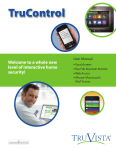
TruControl
Welcome to a whole new level of interactive home security
TruVista’s central monitoring station provides local 24/7 U.L. approved monitoring
for your residence or business.
The following information will provide you an overview of what occurs when the central monitoring
station receives an alarm signal:
Burglary and Fire
1. Customer Notification - Two calls are placed in an attempt to notify the customer
2. Dispatch Authorities
3. Contact List Notification
Panic
1. Dispatch Authorities - No calls are made first
2. Contact List Notification
System Testing
You should test your system monthly. Please see user manual for instructions.
Monitoring Station Number: 1 (800) 868-0063
Suggested Action: Leave the house immediately if you have any doubt about your safety.
© 2010 iControl Networks, Inc. All rights reserved. iControl, iControl Networks, Powered By iControl and the iControl logos are trademarks of iControl Networks.
TruControl - Quick Start Guide
Congratulations! You just made it easier than ever to monitor your property, keep your loved ones
safe, and stay connected to your home and family from virtually anywhere. Our U.L. approved local
monitoring station will allow you to relax knowing your home or business is protected.
Introduction
TruControl’s interactive TouchScreen acts as the control center that
enables you to operate your security system and interact with your
home at the touch of a button. Use it to arm and disarm your system,
view live video from cameras placed in your home and view real-time
web content all from the full-color display. The following section
provides an overview of your TouchScreen and offers quick tips on
how to use the various features.
Arm
1. Touch the green Disarmed - Press to Arm button on the top left of the Home Screen.
2. Enter your 4-digit security code to arm the system.
• Arm Away: Arms perimeter with entry/exit delays, interior sensors armed
• Arm Stay: Arms perimeter with entry/exit delays, interior sensors not armed
• Arm Night: Arms perimeter without exit delays, motion is not enabled
Note: You are able to view the arming sequence in the top left banner on
your TouchScreen.
Follow these steps for remote access to your system:
Web Portal Access
Upon activation of your security system, you will receive an email with a temporary username/
password. The temporary username/password, along with the master code, will be required to log into
the web portal for first time access. Web Portal: www.truvista.net/icontrol. You will then be prompted
to create your own permanent username/password. Once you are logged in, you will arrive at your
personal security portal. Navigational details can be found in the user manual.
iPhone® Access
Download the “uControl” app from the App Store. Then, launch the application by tapping
on the home screen of your iPhone®.
1
Instructions for accessing the app from your iPhone®/iPad®/
iPod Touch® for the first time:
1.Click on the box (with two wheels) at the top right corner.
4
2.Then enter truvista.net/icontrol in the Custom 1 text box and make sure there is a Check Mark to the right of the text box by tapping directly to the right of the Custom 1 textbox.
Disarm
1. Touch the red Armed - Press to Disarm button on the top left of the Home Screen.
3.Then click on the Done button at the top.
4.Then enter your iControl Username and Password and click Login.
2. Enter your 4-digit security code to disarm the system.
Note: Audible alerts last for 30 seconds for entry.
3
Important Items to Remember:
Master Security Code (for TouchScreen/Web Portal disarming and Settings control): _________________________________
Account #:_________________ Security Password (to give to the monitoring station in case of false alarm):_____________
Central Station Phone Number: 1 (800) 868-0063
Web Portal Address: www.truvista.net/icontrol
Web Portal Username (for remote access): _______________ Web Portal Password (for remote access): _____________
Note: The above information is strictly confidential for you.
2
Security