1
One Technology Way · P.O. Box 9106 · Norwood, MA 02062-9106 · Tel: 781.329.4700 · Fax: 781.461.3113 · www.analog.com
EVALUATING THE
AD9266/AD9649/AD9629/AD9609
ANALOG-TO-DIGITAL CONVERTERS
Preface
This QuickStart user guide describes the evaluation boards, AD9266-80EBZ, AD9649-80EBZ,
AD9629-80EBZ, and AD9609-80EBZ that are used to evaluate the following Analog Devices, Inc.,
products: AD9266, AD9649, AD9629, and AD9609. These evaluation boards provide the support
circuitry required to operate these devices in their various modes and configurations. The application
software used to interface with the devices is also described.
The AD9266 , AD9649, AD9629, and AD9609 data sheets provide additional information and should
be consulted when using the evaluation board. All documents and software tools are available at
www.analog.com/hsadcevalboard. For additional information or questions, send an email to
[email protected].
Note that, though the 80 MSPS speed grade ADCs and boards are referred to in this document, this
user guide is applicable to the other speed grades, as well.
The AD9266/AD9649/AD9629/AD9609 share ADC core characteristics with the AD9269 family of dual
ADCs. Additional application information can be found in the Evaluation Board User Guide for Dual
ADCs of this family.
Typical Measurement Setup
Rev 03 Jun 2015 18:39 | Page 1
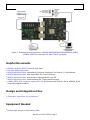
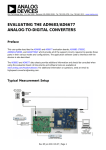
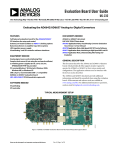
Figure 1. Evaluation Board Connection—AD9266-80EBZ/AD9649-80EBZ/AD9629-80EBZ/
AD9609-80EBZ (on Left) and HSC-ADC-EVALCZ (on Right)
Helpful Documents
●
●
●
●
●
●
●
AD9266, AD9649, AD9629, AD9609 data sheet
HSC-ADC-EVALC data sheet
AN-905 Application Note, VisualAnalog Converter Evaluation Tool Version 1.0 User Manual
AN-878 Application Note, High Speed ADC SPI Control Software
AN-877 Application Note, Interfacing to High Speed ADCs via SPI
AN-835 Application Note, Understanding ADC Testing and Evaluation
ad9649_9629_9609_triggered_capture_files.zip, Instructions and FPGA bin file for AD9649_29_09
externally triggered capture
Design and Integration Files
●
Schematics, layout files, bill of materials
Equipment Needed
●
Analog signal source and antialiasing filter
Rev 03 Jun 2015 18:39 | Page 2
●
●
●
●
●
●
Sample clock source (if not using the on-board oscillator)
2 switching power supplies (6.0 V, 2.5 A), CUI EPS060250UH-PHP-SZ (or equivalent), provided
PC running Windows®
USB 2.0 port
AD9266-80EBZ, AD9649-80EBZ, AD9629-80EBZ, or AD9609-80EBZ board
HSC-ADC-EVALCZ FPGA-based data capture kit
Getting Started
This section provides quick start procedures for using the AD9266-80EBZ, AD9649-80EBZ,
AD9629-80EBZ, or AD9609-80EBZ board.
Configuring the Board
Before using the software for testing, configure the evaluation board as follows:
1. Connect the evaluation board to the data capture board, as shown in Figure 1. The AD9266,
AD9649, AD9629, and AD9609 are all pin compatible and use the same evaluation board.
2. Connect one 6 V, 2.5 A switching power supply (such as the CUI, Inc., EPS060250UH-PHP-SZ (or
equivalent) that is supplied) to the AD9266-80EBZ/AD9649-80EBZ /AD9629-80EBZ /AD9609-80EBZ.
3. Connect one 6 V, 2.5 A switching power supply (such as the supplied CUI EPS060250UH-PHP-SZ (or
equivalent)) to the HSC-ADC-EVALCZ board.
4. Connect the HSC-ADC-EVALCZ board (J6) to the PC using a USB cable. Check that the jumper on J9
of the HSC-ADC-EVALCZ is in the 2.5V position.
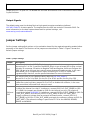
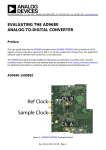
5. On the ADC evaluation board, confirm that the jumpers are installed as shown in Figure 2. The
configuration in Figure 2 enables SPI control of the device, with the onboard crystal oscillator
enabled and utilizing the on-chip voltage reference.
6. On the ADC evaluation board, use a clean signal generator with low phase noise to provide an
input signal to the Input SMA Connector J502. Use a shielded, RG-58, 50 Ω coaxial cable (optimally
1 m or shorter) to connect to the signal generator. For best results, use a narrow-band, band-pass
filter with 50 Ω terminations and an appropriate center frequency. (Analog Devices uses TTE, Allen
Avionics, and K&L band-pass filters.)
7. The evaluation board has an 80 MHz Valpey Fisher oscillator (VFAC3HL-80MHZ) that is enabled by
jumpering J605 Pin 1 to J605 Pin 2. However, if the user provides an external clock source, provide
a clean, low jitter clock source to Connector J602 at the desired ADC conversion rate. Move the
jumper on J605 to connect Pin 2 to Pin 3 to override the built-in oscillator, and remove C610 to
disconnect the oscillator from the external clock source. The input clock level should be between
10 dBm and 14 dBm.
Evaluation Board Hardware
The evaluation board provides the support circuitry required to operate the AD9266 and AD9649 in
Rev 03 Jun 2015 18:39 | Page 3
their various modes and configurations. Figure 1 shows the typical bench characterization setup used
to evaluate ac performance. It is critical that the signal sources used for the analog input and clock
have very low phase noise (ideally ~100 fs rms jitter) to realize the optimum performance of the
signal chain. Proper filtering of the analog input signal to remove harmonics and lower the integrated
or broadband noise at the input is necessary to achieve the specified noise performance.
See Schematics, layout files, bill of materials for schematics and layout diagrams.
Power Supplies
This evaluation board comes with a wall-mountable switching power supply that provides a 6 V, 2 A
maximum output. Connect the supply to a 100 V ac to 240 V ac, 47 Hz to 63 Hz wall outlet. The
output from the supply is provided through a 2.1 mm inner diameter jack that connects to the printed
circuit board (PCB) at P101. The 6 V supply is fused and conditioned on the PCB before connecting to
the low dropout linear regulators that supply the proper bias to each of the various sections on the
board.
The evaluation board can be powered in a nondefault condition using external bench power supplies.
To do this, remove E101, E102, E103, E105, E107, E108, and E114 ferrite beads to disconnect the
bench supply traces from the on-board LDOs. Note that in some board configurations, some of these
ferrite beads might already be uninstalled.
P102 and P103 need to be installed to connect external bench supplies to the board and E109, E110,
E111, E112, and E113 need to be populated to connect P102 and P103 to the board power domains. A
1.8 V, 0.5 A supply is needed for P102 Pin 5 (1.8V_DUT_AVDD). The supplies for P103 Pin 1
(DUT_DRVDD) and P103 Pin3 (AUX_DVDD) can be any voltage from 1.8 V to 3.3 V. These two supplies
can be shared or separate but if they are separate, the voltages on each must match the other.
Two additional supplies, 3.3V_CLK and 3.3V_AMPVDD, are used to bias the optional input path
amplifiers, SPI buffers, and optional AD9517-4 clock chip. If used, each of these supplies need at least
a 0.5 A current capability.
Input Signals
When connecting the ADC clock and analog source, use clean signal generators with low phase noise,
such as the Rohde & Schwarz SMA, or an equivalent. Use a shielded, RG–58, 50 Ω coaxial cable
(optimally 1 m or shorter) for connecting to the evaluation board. Enter the desired frequency and
amplitude (see the Specifications section in the ADC data sheet). When connecting the analog input
source, use of a multipole, narrow-band band-pass filter with 50 Ω terminations is recommended.
Analog Devices uses band-pass filters from TTE and K&L Microwave, Inc. Connect the filters directly to
the evaluation board.
When an external clock source is used, it must be supplied with a clean signal generator, as
previously specified for the analog input signals. Analog Devices evaluation boards typically accept
~2.8 V p-p or 13 dBm sine wave input for the clock. If an external off-board clock source is used,
Rev 03 Jun 2015 18:39 | Page 4
jumper J605 Pin 2 to J605 Pin 3 to disable the oscillator and remove C610 to disconnect the on-board
crystal oscillator.
Output Signals
The default setup uses the Analog Devices high speed converter evaluation platform (
HSC-ADC-EVALCZ) for data capture. The outputs from the ADC are routed to Connector P902. For
more information on the data capture board and its optional settings, visit
www.analog.com/hsadcevalboard.
Jumper Settings
Set the jumper settings/link options on the evaluation board for the required operating modes before
powering on the board. The functions of the jumpers are described in Table 1. Figure 2 shows the
default jumper settings.
Table 1. Jumper Settings
Jumper
J203
J302
J605
J201 and
J202
Description
In the default state, the MODE_OR pin is an output that indicates an overrange condition.
Connecting Pin 1 to Pin 2 connects the MODE_OR pin to an on-board LED to give a visual
indication of overrange. SPI writes to Register 0x08 and Register 0x2A can configure the
MODE_OR pin to be an input that controls power-down and standby modes. In the case
where MODE_OR is configured as an input, connecting Pin 2 to Pin 3 invokes the
programmed pin function; see the product datasheet for more information.
J302 sets the ADC for SPI communications with the HSC-ADC-EVALCZ.
Connect Pin 1 to Pin 2 for SDIO, Pin 4 to Pin 5 for SCLK, and Pin 8 to Pin 9 for CSB.
This jumper enables or disables the on-board crystal oscillator. Jumper Pin 1 to Pin 2 to
enable the crystal oscillator; Jumper Pin 2 to Pin 3 to disable the oscillator, in the case
where an external off-board clock source is used.
These jumpers select between internal VREF and external VREF.
To choose the internal (on-chip) 1 V reference, connect J201 Pin 2 (DUT_SENSE) to J201
Pin 3 (GND). No jumpers are needed on J202 for the internal (on-chip) 1 V reference.
To use the on-board AD822BRZ 1 V reference, connect J201 Pin 2 (DUT_SENSE) to J201 Pin
1 (1.8V_DUT_AVDD), and connect J202 Pin 2 (DUT_VREF) to J202 Pin 3 (EXT_REF).
To apply a reference voltage from an external off-board source, connect J201 Pin 2
(DUT_SENSE) to J201 Pin 1 (1.8V_DUT_AVDD) and apply the reference voltage to J202 Pin
2 (DUT_VREF). The reference voltage is specified at 1.0 V for the AD9266, AD9649,
AD9629, and AD9609.
Rev 03 Jun 2015 18:39 | Page 5
Figure 2. Default Jumper Connections for AD9266-80EBZ/AD9649-80EBZ/AD9629-80EBZ/
AD9609-80EBZ Board
Evaluation Board Circuitry
This section explains the default and optional ADC settings or modes allowed on the AD9266-80EBZ
and the AD9649-80EBZ boards.
Power
Connect the switching power supply that is supplied in the evaluation kit between a rated 100 V ac to
240 V ac, 47 Hz to 63 Hz wall outlet and to P101.
Analog Input
The analog input on the evaluation board is set up for a double balun-coupled analog input with a 50
Ω impedance. The default analog input configuration supports analog input frequencies of up to ~200
MHz.
Rev 03 Jun 2015 18:39 | Page 6
RBIAS
DUT_RBIAS has a default value of 10 kΩ (R203) to ground and is used to set the ADC core bias current.
Note that using other than a 10 kΩ, 1% resistor for DUT_RBIAS (R203) may degrade the performance
of the device.
Clock
The default clock input circuit is derived from a simple transformer coupled circuit using a high
bandwidth 1:1 impedance ratio transformer (T601) that adds minimal jitter to the clock path. The
clock input is 50 Ω terminated and ac-coupled to handle single-ended sinusoidal inputs. The
transformer converts the single-ended input to a differential signal that is clipped by CR601 before
entering the ADC clock inputs. The AD9266,AD9649,AD9629, and AD9609 ADCs are equipped with an
internal 8:1 clock divider to facilitate use with higher frequency clocks. When using the internal
divider and a higher input clock frequency, remove CR601 to preserve the slew rate of the clock
signal.
The AD9266-80EBZ, AD9649-80EBZ, AD9629-80EBZ, and AD9609-80EBZ boards are set up to be
clocked through the transformer coupled input network from the crystal oscillator, Y601. If a different
clock source is needed, remove C610 (optional) and place a jumper between Pin 2 and Pin 3 of J605 to
disable the oscillator and connect the external clock source to the SMA connector, J602 (labeled
ENCODE+).
Modes of Operation
Standalone (PIN) Mode
The AD9266/AD9649/AD9629/AD9609 ADCs can operate in pin mode if there is no need to program
and change the default modes of operation via the SPI. For applications that do not require SPI mode
operation, the CSB pin is tied to 1.8V_DUT_AVDD by removing any jumper on Pin 8 of J302. In this
configuration, the SDIO/PDWN pin controls the power-down function, and the SCLK/DFS pin controls
the digital output format.
Table 2 and Table 3 specify the settings for pin mode operation. (These settings apply only when CSB
is tied high, that is, J302 Pin 8 has no jumper.)
Rev 03 Jun 2015 18:39 | Page 7
Table 2. Power Down Pin Settings
SDIO/PDWN (J302 Pin 2) Voltage
Device Mode
AUX_DVDD (jumper J302 Pin 2 to Pin 3) Power Down
GND (no jumper on J302 Pin 2)
Normal Operation
Table 3. Digital Output Format Pin Settings
SCLK/DFS (J302 Pin 5) Voltage
Output Format
AUX_DVDD (jumper J302 Pin 5 to Pin 6) Twos Complement
GND (no jumper on J302 Pin 5)
Offset Binary
Note that the settings in Table 2 and Table 3 apply only when CSB is tied high (J302 Pin 8 has no
jumper) at power up.
Additional information on the standalone (pin) mode is provided in the AD9266, AD9649, AD9629, and
AD9609 data sheets.
Default Mode
To operate the device under test (DUT) using the SPI, follow the jumper settings for J302 as shown in
Table 1.
How To Use The Software For Testing
Setting up the ADC Data Capture
After configuring the board, set up the ADC data capture using the following steps:
1. Open VisualAnalog on the connected PC (install from
http://www.analog.com/en/converters-tools/adc-tools/topic.html). The appropriate device type is
listed in the status bar of the VisualAnalog – New Canvas window. Select the template that
corresponds to the type of testing to be performed (see Figure 3, where the AD9266 is shown as an
Rev 03 Jun 2015 18:39 | Page 8
example).
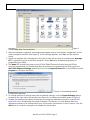
Figure 3.
VisualAnalog, New Canvas Window
2. After the template is selected, a message might appear asking if the default configuration can be
used to program the FPGA (see Figure 4). If this message appears, click Yes, and the window
closes.
3. Select the template that corresponds to the type of testing that needs to be performed. Average
FFT is a good first test to check ADC operation. Select Yes when VisualAnalog prompts for
programming the FPGA.
4. The Done LED should illuminate on the HSC-ADC-EVALCZ board indicating that the FPGA is
correctly programmed. (If VisualAnalog does not prompt for programming the FPGA, select the
ADC Data Capture Settings window and click on the Capture Board tab. In the FPGA box select
program to configure the FPGA.)
Figure 4. VisualAnalog Default
Configuration Message
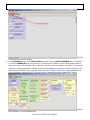
5. To change features to settings other than the default settings, click the Expand Display button,
located on the right side of the window (see Figure 5), to display the window shown in Figure 6.
6. Change the features and capture settings by consulting the detailed instructions in the AN-905
Application Note, VisualAnalog Converter Evaluation Tool Version 1.0 User Manual. After the
changes are made to the settings within any of the control icons/blocks in the VA canvas, click the
OK button to invoke the changes and collapse the edit window.
Rev 03 Jun 2015 18:39 | Page 9
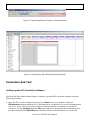
Figure 5. VisualAnalog Window Toolbar, Collapsed Display
Figure 6. VisualAnalog, Main Window Expanded Display
Evaluation And Test
Setting up the SPI Controller Software
After the ADC data capture board setup is complete, set up the SPI controller software using the
following procedure:
1. Open the SPI controller software by going to the Start menu or by double-clicking the
SPIController software desktop icon. If prompted for a configuration file, select the appropriate
one. If not, check the title bar of the window to determine which configuration is loaded. If
necessary, choose Cfg Open from the File menu and select the appropriate file based on your
part type. Note that the CHIP ID(1) box should be filled to indicate whether the correct SPI
Rev 03 Jun 2015 18:39 | Page 10
controller configuration file is loaded (see Figure 7).
Figure 7.
SPI Controller, CHIP ID(1) Box
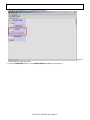
2. Click the New DUT button in the SPIController window (see Figure 8).
Rev 03 Jun 2015 18:39 | Page 11
Figure 8.
SPI Controller, New DUT Button
3. In the ADCBase 0 tab of the SPIController window, find the CLOCK DIVIDE(B) box (see Figure
9), and the MODES(8) box (see Figure 9). If using the clock divider, use the drop-down menu to
select the correct clock divide ratio, as desired. If there is any interruption of the ADC clock during
power-up or during operation, a digital reset may be needed to reinitialize the ADC (Figure 10). For
additional information, refer to the data sheet, the AN-878 Application Note, High Speed ADC SPI
Control Software, and the AN-877 Application Note, Interfacing to High Speed ADCs via SPI.
Figure 9.
SPI Controller, CLOCK DIVIDE(B) Box
Rev 03 Jun 2015 18:39 | Page 12
Figure
10. SPI Controller, Chip Power Mode - Digital Reset Selection
4. Note that other settings can be changed on the ADCBase 0 tab (see Figure 9) to set up the part in
the desired mode. See the appropriate part data sheet, the AN-878 Application Note, High Speed
ADC SPI Control Software, and the AN-877 Application Note, Interfacing to High Speed ADCs via SPI
for additional information on the available settings.
5. Click the Run or Continuous Run button in the VisualAnalog toolbar (see Figure 11).
Figure
11. Run/Continuous Run Buttons (Encircled in Red) in VisualAnalog Toolbar, Collapsed Display
Adjusting the Amplitude of the Input Signal
The next step is to adjust the amplitude of the input signal as follows:
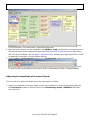
1. Adjust the amplitude of the input signal so that the fundamental is at the desired level. Examine
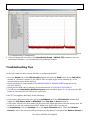
the Fund Power reading in the left panel of the VisualAnalog Graph - AD9266 FFT window
(see Figure 12).
Rev 03 Jun 2015 18:39 | Page 13
Figure
12. Graph Window of VisualAnalog
2. Click the floppy disk icon within the VisualAnalog Graph - AD9266 FFT window to save the
performance data as a .csv formatted file for plotting or analysis.
Troubleshooting Tips
Lack of SPI communication causes difficulty in configuring the ADC.
●
●
●
●
Go to the Global tab of the SPIController window and push the Read button in the CHIP ID(1)
window. If “Unknown” appears in the CHIP ID field, the part might not be powered up, or SPI
communication might not be working.
Check that there is correct power to the AD9266-80EBZ or AD9649-80EBZ board and to the
HSC-ADC-EVALCZ.
Check that the USB cable is properly connected from the PC to the HSC-ADC-EVALCZ.
The LED on the VisualAnalog ADCDataCapture block should be green. If it is red, push the USB
button on the same block to refresh the connection.
If the FFT plot appears abnormal, do the following:
●
●
●
If you see an abnormal noise floor, go to the ADCBase0 tab of the SPIController window and
toggle the Chip Power Mode in MODES(8) from Chip Run to Reset and back.
If you see a normal noise floor when you disconnect the signal generator from the analog input, be
sure that you are not overdriving the ADC. Reduce the input level, if necessary.
In VisualAnalog, click the Settings icon in the Input Formatter block. Check that Number
Format is set to the correct encoding (offset binary by default). Check that the Number Format in
Rev 03 Jun 2015 18:39 | Page 14
●
the VisualAnalog Input Formatter matches the data format selected in the SPIController
ADCBase0 OUTPUT MODE(14) window.
For proper capture, DCO-to-data output timing might need to be adjusted. In the ADCBase0 tab of
SPIController (shown in Figure 9), in the OUTPUT DELAY(17) field, check the DCO DELAY EN box, and
try various output delay settings to see if capture improves.
If the FFT appears normal but the performance is poor, check the following:
●
●
●
●
That an appropriate filter is used on the analog input.
That the signal generators for the clock and the analog input are clean (low phase noise).
That if noncoherent sampling is being used, change the analog input frequency slightly.
That the SPI configuration file matches the product being evaluated.
If the FFT window remains blank after Run in VisualAnalog (see Figure 12) is clicked, do the following:
●
●
●
Make sure that the evaluation board is securely connected to the HSC-ADC-EVALCZ board.
Make sure that the FPGA has been programmed by verifying that the DONE LED is illuminated on
the HSC-ADC-EVALCZ board. If this LED is not illuminated, make sure that the U4 switch on the
board is in the correct position for USB CONFIG.
Make sure that the correct FPGA program was installed by clicking the Settings icon in the ADC
Data Capture block in VisualAnalog. Then, select the FPGA tab and verify that the proper FPGA bin
file is selected for the device.
© Analog Devices, Inc. All rights reserved. Trademarks and
registered trademarks are the property of their respective owners.
Rev 03 Jun 2015 18:39 | Page 15
www.analog.com