1
Finally, Microarray Inspector requires the LaTeX environment - pdflatex and a few other packages.
There are many ways to provide LaTeX support on different Operating Systems. Please refer to
installation section for the correct platform.
3. Installation
3.1 Windows
Before installing Microarray Inspector, the user should download and install additional packages
mentioned in the System Requirements section:
1. From http://www.oracle.com/technetwork/java/javase/downloads/index.html download
the Java run-time engine (JRE) specific to your platform. Afterwards, start the JRE installation
and follow the instructions.
2. From http://www.r-project.org/ download the latest version of R for Windows. When the
download is complete, start the R installation and follow the instructions.
3. Download the latest MiKTeX (2.7 or higher) package from http://miktex.org/ that is specific
to your version of Windows. Afterwards, install MiKTeX with all packages, following the
instructions.
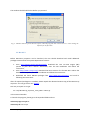
After all the required packages are installed, the user can start the installation of Microarray
Inspector. Please obtain the newest copy of the installer from our website.
1.
2.
3.
4.
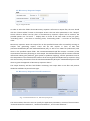
Start the Microarray Inspector installer.
Select the destination folder where the Microarray Inspector will be installed.
Select the Start Menu Folder where the shortcut to Microarray Inspector will be created.
Start installation.
Fig.1 Microarray Inspector® Installer
After installing, the Microarray Inspector is ready for use and can be started from the “Start” menu.
ATTENTION: when running the program for the first time, Windows XP users will be asked about the
access restrictions. Please deselect the default option “Run this program with restricted access”.
Microarray Inspector User’s Manual
4