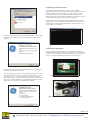
1
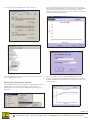
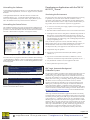
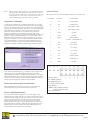
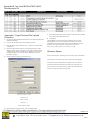
4. Click on the Device Manager button (Figure 15 below). If you are running this application for the first time, an error message appears that the communications port is not available. Continue running the application. In the eCO2View Settings menu (Figure 18 below), change the settings to the communications port to which the USB serial port driver iterated (Figure 19 below). Figure 15: Hardware Tab Figure 18: eCO2View Settings Menu Figure 16: Device Manager Window The USB software generally iterates to the next available open serial port: in Figure 16 above, port 7. Running the Development Software Figure 19: Serial Commu nications Port Window After you click OK, you must click the Start Graphing button to continue logging data. This may take several seconds, but eventually you should see data streaming to the graph area of the application (as shown in Figure 20 below). The Setup Wizard installs a shortcut on the user’s desktop and a group in the Start Menu. From the Start Menu (Figure 17 below), select eCO2View from the T6613/6615 Development Kit option to start the application. Figure 17: Start Menu – Development Software Figure 20: Running eCO2View Application Page 4 of 9 Willow Technologies Ltd. Unit 3 Borers Yard, Borers Arms Road, Copthorne, West Sussex, RH10 3LH, United Kingdom. + 44 (0) 1342 717102 + 44 (0) 1342 717014 [email protected] http://www.willow.co.uk W362013