1
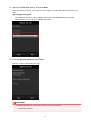
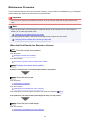
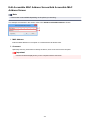
Note
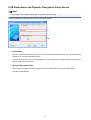
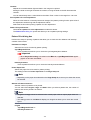
• If you are using the XPS printer driver, the "Canon IJ Status Monitor" becomes the "Canon IJ XPS
Status Monitor".
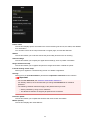
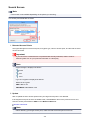
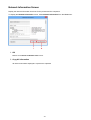
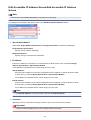
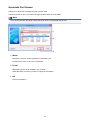
About
Opens the About dialog box.
The version of the printer driver, plus a copyright notice, can be checked.
In addition, the language to be used can be switched.
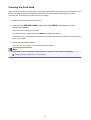
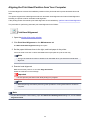
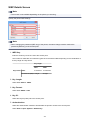
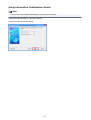
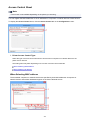
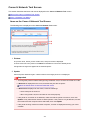
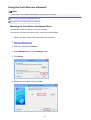
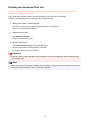
Initial Check Items
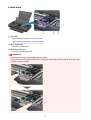
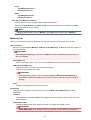
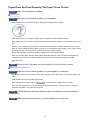
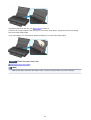
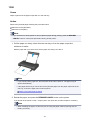
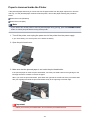
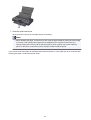
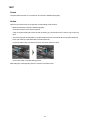
Before running Cleaning or Deep Cleaning, check that the printer power is on, and open the cover of the
printer.
Check the following items for each ink.
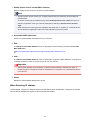
• Check the amount of ink remaining in the tank.
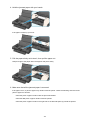
• Make sure that you push in the ink tank completely until you hear a clicking sound.
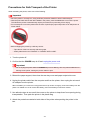
• If an orange tape is adhered to the ink tank, peel it off completely.
Any remaining tape will hinder ink output.
• Check that the ink tanks are installed in their correct positions.
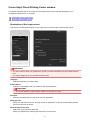
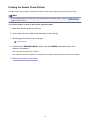
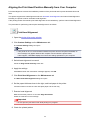
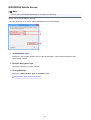
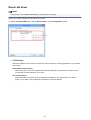
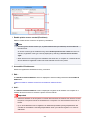
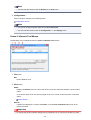
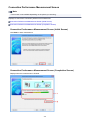
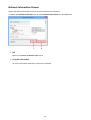
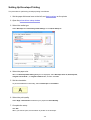
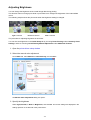
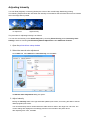
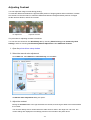
Start Print Head Alignment dialog box
This dialog box allows you to adjust the attachment position for the print head, or to print the current
setting value for the print head position.
Align Print Head
Aligns the print head.
Print head alignment corrects the installation positions of the print head and improves deviated colors
and lines.
Align the print head immediately after installing the print head.
Print Alignment Value
Click this button to check the current setting value of the print head position.
Prints the current setting value for the print head position.
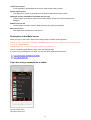
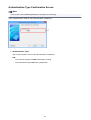
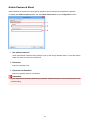
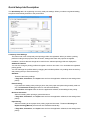
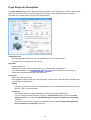
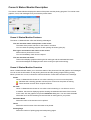
Print Head Alignment dialog box
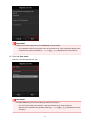
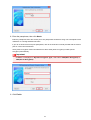
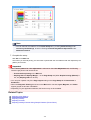
To adjust the print head position manually, click Align Print Head in the Start Print Head Alignment
dialog box, and perform the operations instructed in the messages. The Print Head Alignment dialog
box is then displayed.
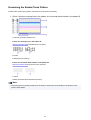
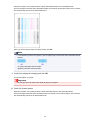
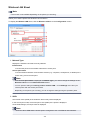
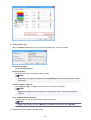
This dialog box allows you to check the printed pattern and adjust the print head position.
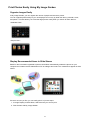
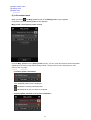
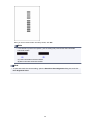
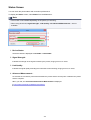
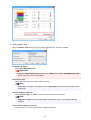
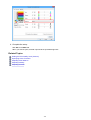
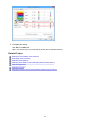
Preview Window
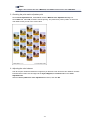
Displays the pattern of Print Head Alignment, and checks the position of the selected pattern.
You can also change the setting by clicking the pattern on the screen directly.
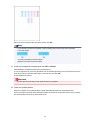
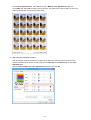
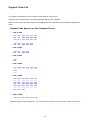
Select the Pattern Number
Compare the printed adjustment patterns, and enter the pattern number of the pattern with the
least visible streaks or horizontal stripes into the corresponding box.
380