1
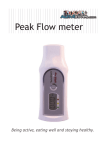
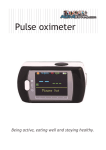
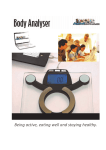
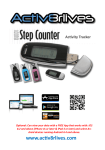
Being active, eating well and staying healthy. BuddyTM step counter Pulse oximeter Being active Bacterial biomarkers respiratory wellness (FUTURE) Peak Flow meter Body Analyser Eating well Staying healthy Image-based food diary FREE Smartphone apps iPhone, Android, Blackberry, Windows 8 2 Introduction: Activ8rlives Buddy step counter The Activ8rlives Buddy step counter is a wearable device which allows you to monitor your activity levels and energy expenditure — especially useful as part of an exercise schedule or weight loss programme. It uploads information via your computer to your private personal account at Activ8rlives so that you can learn to manage your health and wellbeing and better support your family and friends with theirs. You can stay committed to your goals by forming groups with other members of your family, club, school or by joining our on-line communities. By working together in groups, we are more successful in achieving our health goals. Activ8rlives is designed to help you achieve this. The Activ8rlives Buddy step counter does a lot more than just count your steps — it helps you understand how your activity changes throughout your week. It measures your activity and calculates your energy expended in calories, the distance you have walked or run and the total active time during each day. This manual shows you how to quickly set-up your Activ8rlives Buddy step counter — it will take just 5 minutes if you follow through this guide . Being active, eating well and staying healthy is about making small changes to our lives. Being active is one of these challenges and Activ8rlives helps you to make simple changes, which you can fit into your already busy daily schedule to stay healthy. Eating well can also be achieved through self monitoring using our Food Diary. Images taken using our FREE Smartphone App are sent directly to your Activ8rlives account. Your activity, body composition (from the Body Analyser) and food intake are viewed on a single page. Talk about cause and effect - very powerful. Our goal is to provide YOU with the tools (and teach you how to use them) so that you can keep you and your family healthy and well. Self management through self monitoring is the motivation driving what we do. 3 4 WARNING: The Activ8rlives Buddy step counter is NOT waterproof. Do not place it in water or get it wet in the rain, take it swimming or leave it in the pockets of your clothing when you wash them. Removal of the back cover of your Buddy (other than the cover for the battery, which can be replaced by the user with the miniature tool provided—see instructions in this booklet) - will invalidate your warranty. Health and Safety Notices: Yes, the boring bits, but please read this first to make sure that you do not do anything to injure yourself or other people with this device. PLEASE seek medical advice before undertaking strenuous exercise or weight loss programmes. This device is not a toy. Only recommended for children over 7 years of age. Use a soft, microfibre cloth for cleaning. Don’t use harsh cleaning products as these will cause damage to your Buddy. Don’t allow sharp objects to scratch the screen of the LCD display as this may damage it. Do not allow your monitor to be subjected to excessive forces, shocks, dust, temperature changes or humidity. Don’t expose your Buddy to direct sunlight for long periods of time. Harsh physical treatment may stop your Buddy working properly or at all. Don’t remove the back cover and tamper with the internal components. If you do, you will invalidate your warranty and may cause irreparable damage. Other than the replacement of the battery (CR 2032), there are no user serviceable parts. Take precautions when handling all battery types and dispose of batteries properly. Remove the battery if you are planning to store the monitor for a long period of time. We hope you use your monitor for many years of course, but long periods of storage with the battery in place may damage the monitor and will cause the battery to discharge. Only use the battery type recommended in this manual. Do not touch the exposed electronic circuits, as there is a danger of electric shock. When disposing of this product, ensure that it is collected separately for special treatment and not as normal household waste. The measurement functions built into the Buddy are not meant to substitute for professional measurement or medical precision devices. Values produced by the unit should be considered as reasonable representations only. The technical specifications for this product and the contents of the user manual are subject to change without notice. Contact us via www.activ8rlives.com if your monitor does not work properly. 5 6 The Display, Buttons and USB connector Cover for USB connector Your Activ8rlives Buddy step counter has three parts: the DISPLAY, the BUTTONS and the USB connector which is used to connect to your computer. RESET MODE SET MEMORY keys Activating your Activ8rlives Buddy step counter A B Your Buddy step counter is supplied with a new battery (CR2032) (A). Simply pull out the white tab to activate it. To change the battery: undo the retaining screw with the screw driver supplied to remove the cover (B). Slide in the battery under the top cover and close. Secure with the safety screw. This prevents access to the small coin battery by young children (WARNING: choking hazard). C 7 8 Counting steps, distance walked, calories and activity time. Steps We have done the easy bit. Now we have to actually use our Activ8rlives Buddy step counter! Attach your step counter to your belt, hang it around your neck, wear it in your sock or in our arm/ankle strap when you are cycling. It does not matter where you attach it as long as you wear it all day. Pockets are not great for step counters—we forget about them and they end-up in washing machines. For this reason, it is recommended that you DO NOT wear your Buddy in pockets. The Activ8rlives Buddy step counter has a 3-axis accelerometer chip and a microprocessor which measures how you move (accelerate) in three dimensions and it uses this information to calculate the number of steps you take. You will notice that the display does not always update as you move (it has a 10 step filter to eliminate inaccuracies due to non activity-related movement) and may even go blank. It has a sleep mode to make the battery last longer but will wake up and update from time-to-time or if you continue moving. It also records how much time you spend exercising. Useful as part of a rehabilitation programme. If you hold the Buddy in your hand as you walk, you will see just how accurately it can “sense” your steps and starts counting these after you have taken 10 consecutive steps. Another ability of the Buddy is that it will count and store your steps for your last 7 days so that you can upload these at any time. Calories Calories are calculated based on your stride length and your weight. The values are approximate but gives you a useful indication of how much effort it takes to burn off the food you have eaten. You will be able to measure how much physical effort it takes to burn-off even 200-300 Kcal— talk about an incentive to reduce your intake of “junk” calories (a chocolate muffin at Starbucks is 500 calories—that takes a lot of walking to burn this snack off!) Distance Again, an approximate distance value is calculated for you based on your steps and your average stride length. Useful for estimating how far you walk at work or at school, for example. Steps, distance, calories and activity time are all saved to your Buddy step counter and can be uploaded to your personal Activ8rlives account. This is covered in later sections. You can have a lot of fun with this information. 9 10 There are two ways to set-up your Activ8rlives Buddy step counter: 1. The easy way 2. The hard(er) way We will do the easy way first. 11 12 But before we start….. Getting your computer up-to-date. The Activ8rlives Service link is designed to run on Windows XP, Vista, 7 and 8 and Apple’s Leopard, Snow Leopard and Lion versions of its OS. It is strongly recommended that before you install the Activ8rlives Service Link that you bring your computer’s operating system fully up-to-date with the latest version of its operating system. You will need an internet connection throughout. PCs running Microsoft’s Windows: If you have not already done so, go to the START menu and navigate to Windows UPDATE. From there, and depending on the version of the Windows operating system, you can install all of the updates required to make your system current. This is good practice for all Windows PCs users and will make the installation and operation of the Service Link a great deal easier for you if a little time is spent doing this before proceeding. A special note for Windows XP users. We all loved XP—it was stable and simple—but it has now been left behind by the developers at Microsoft and you may need to upgrade your operating system: If you are running XP, it must be updated to at least Service Pack 2. This free upgrade can be found on the Microsoft support pages. With Windows XP, go to your Start Button (bottom left) and to WINDOWS UPDATE to automatically update your system. Once you have got your Windows PC up to date, we can get started. Worth spending the time doing this though—as it is good practice and keeps your PC in good working order. 13 1. The easy way Setting-up the Buddy step counter using your Activ8rlives account. The Buddy step counter uploads and downloads information directly from your Activ8rlives account every time you connect it to your PC with the Activ8rlives Service Link open on your computer. This is fast and really easy. Creating an Activ8rlives account You can use the great on-line facility we have created to help you work in groups, to increase your motivation and to help you achieve your goals. Joining is FREE FOR LIFE. There are no fees, or upgrades to pay for. You will not be asked to enter your credit card details or have a free trial etc. It is FREE! To create your FREE Activ8rlives account, go to our website: www.activ8rlives.com and select the REGISTER link which appears on every page. If you already have an account, select the LOGIN account. When you choose the REGISTER link, you will be presented with a series of screens which that you through the registration process and will also give you valuable information about your health status. 14 Personal Details Some basic details are needed for the calculations used for your Body Mass Index, the calories you use and the distances you walk. You can create your own target values for steps and weight too. Activ8rlives will help you to understand whether your activity levels and weight are in the “healthy” zones. Simply follow along as the software guides you. Stride length: a simple way to calculate your stride length is presented over the page. A default of 60cm (24 inches) is a pretty good setting for most of us. If you also track your lung and heart health, there is a screen in which you can enter these details. You can skip these sections if you do not track your heart rate, oxygen saturation, Peak Flow or Forced Expiratory Volume at 1 second (FEV1). Contact Activ8rlives for more information if this is of interest to you or your family. 15 16 Calculating your stride length Your Activ8rlives account has some great things you can do with your data from the Activ8rlives Buddy step counter. This makes it fun to use - especially if you are part of a group or team. We all tend to do the things we like doing. So having fun is part of the motivation for changing our life styles. Having fun, creating new challenges and goals, while being more active, also means that we enjoy our new healthy lives. The Buddy has a couple of great features, which we use to have fun: it automatically calculates the distance we walk and the calories we use during the day. For the Buddy to work these out for us, we need to enter our weight (in Kg or lbs) and our stride length (in cm or in inches). If you have never calculated your stride length before, here is how we do it: Find a space in which you can measure 10m. This could be anywhere—indoors or outdoors—any place that you can walk without having to stop. Make sure that you mark the beginning and end of the distance. Then just walk along this distance. Try to use a normal stride and speed. Count the number of steps you take. Now the mathematics. Divide 1,000 cm (10m expressed as cm) by the number of steps you made. For example, if you took 16 steps, your stride length is 1,000 ÷ 16 = 62.5cm. (Most of us use a calculator to do this). This is the value you enter into the Buddy (via your on-line Activ8rlives ACCOUNT). 17 10m ACCOUNT Once you have worked through the registration process on the website, you can review and edit your details and parameters used to programme the Buddy in your web-based Activ8rlives ACCOUNT section. You can also upload an image to represent you so that your friends know who you are when you post messages. 18 Your targets You can change your targets for steps, weight and lung function in the YOUR TARGETs tab. 19 Downloading the Service Link The Service Link is a small software programme which we use to upload and download information to and from devices. After you have logged into your Activ8rlives account, go to the HELP link at the top of each page. There you will find a a page with the latest version of our Instruction booklets, the latest versions of the Service Link software and details about where to contact us for support and help. If you find the installation process difficult, do call us during office hours (9am—6PM) on UK +44(0)1480 352 821 and we can help you over the telephone and by logging into your computer using TeamViewer. 20 To install the Service Link Software, click on the link for the Service Link. This will initiate the installation process. Depending on the anti virus protection software you have, our software may trigger various messages and warning about installing software. Please go ahead and install the software—it has no viruses and there is no malware embedded within it. Once the installation process has been started, the software will automatically install all of the services you need to run it and to download data from any of our devices: the Buddy, Pulse oximeter, Peak flow meter as well as the Body Analyser. Just work through the installation Wizard and the software will do everything for you. It make take a few minutes. Please be patient - allow the auto installation process to work. At times it may seem as if nothing is happening. But watch for the processor light on your computer to see that the software is busy being installed. 21 ONCE COMPLETED, REBOOT YOUR WINDOWS or APPLE PC FOR THESE CHANGES TO TAKE EFFECT. 22 Downloading the Service Link For Windows Vista Windows Vista has its own set of oddities which were removed when Microsoft brought out its successors, Windows 7 and Windows 8. If you are still using Vista, there are some changes which may have to be made to enable you to edit users. 1. 2. 3. 4. 5. First, go to the Start Menu and select Control Panel. Next, chose to see the options in the “Classic View.” Open the page called Users. There is an option which is generally checked (selected) called “Turn User Account Control on or off.” This takes you to another window, where you simply untick the checkbox to disable UAC. 23 Using the Service Link You will now have a desktop icon for your Activ8rlives Service Link application. Open the Service Link software: 24 Using the Service Link Click on the “Manage Users” link: Then click “Add” to add the first user. 1. 2. Enter your nick name. Enter the email address and password you used to create your Activ8rlives account. 3. Choose the User Number (P1, P2, P3 etc) you selected on your data Body Analyser if you have one. It is a good idea to make each new user the next number in the series—this makes it easier if you set-up your Body Analyser at a later date. The Service Link will automatically retrieve your User ID for you. Easy! 4. 25 26 Acquiring data from your Activ8rlives Buddy and setting up the device. Connect the Buddy to your Windows or Apple PC with the Service Link open on the desktop of your computer. The Buddy will automatically make a connection with your PC. Your PC may display a message indicating that it is looking for drivers which it will automatically install. Be patient if your computer is old and a bit slow. On older PCs, this may require a second attempt. Once the drivers have been installed, then the Service Link software programmes your Buddy with the current time, and your personal data such as your weight, stride length and even your preference for metric or imperial units. This all takes place in seconds. We recommend uploading your data at regular intervals throughout the week to prevent loss of data due to damage of your Buddy or in case you lose it. That’s it. All you have to do from now on is plug your Buddy into your computer with the Service Link open (an internet connection is required to upload to your account on Activ8rlives). 27 Setting up the Buddy — the hard(er) way. 1. Setting the Date and Time OK, so setting-up the Buddy manually is not that difficult, but some find the very small buttons fiddly. They are small and recessed so that you don't accidentally reset the device. Losing a week’s worth of steps can be very upsetting. To SET the current TIME: Press SET button for 5 seconds. The 12/24Hr setting will flash. To change to 12/24Hr setting, press the MODE button. Press SET again to move forwards ... The HOUR will flash. Change the HOUR using the MODE or RESET buttons. An unusual feature of the design of the Buddy is that the bottom button (RESET) increases the value while the MODE button above it decrease the values. It takes a few attempts to get used to this eccentricity. Press SET again to accept the new HOUR value and to move to MINUTES. Change MINUTES using the MODE or RESET button. Press SET to accept the new MINUTES value. 28 2. Personal information Adding personal information about your, weight, stride length and choice of metric or imperial measurements, allows the Activ8rlives Buddy step counter to calculate the distance you have walked and the calories you have used. Useful information as you plan your activity schedule. You can choose to display your information in metric units (Km, cm and Kg) or imperial measurements (miles, inches and lbs). Use the MODE or RESET buttons to select which units you want to work in and press SET to save. PLEASE NOTE: If you change measurement mode after you have started to collect data the DEVICE WILL RESET AND WIPE THE MEMORY. Stride length. Press SET again to advance to stride length. You can change this using the RESET and MODE buttons. If you do not know what your stride length is, choose 60cm or 24 inches to begin with. You can measure your stride length using our suggestions in the section on page 17. Press SET again to move to …. Weight. You will then be asked to enter your weight using the RESET and MODE buttons to select the right number. Press SET to save. Remember to change this value when your weight decreases! Press SET again to enter your … Step target. Use the RESET and MODE buttons to increase your daily step target. This can be set anywhere from 100 to 99,000 steps per day. Be realistic in setting your target and take advice from your medical team if you are under medical supervision. Work up gradually. It is easy to change these values later as your fitness increases. Press SET again to return to the main screen. 29 Resetting Steps, Distance, Calories and Minutes. The Activ8rlives Buddy step counter has a cool feature— it sets the display to zero at midnight for you but records each day in its 7-day memory for you. So you can set and forget. Your activity information stays in the memory so that you can upload it to your personal Activ8rlives account later. This allows you to use the Activ8rlives Buddy step counter in a number of powerful ways: 1. Display all of the steps you have ever made (continuous count on the display or TOTAL STEPs). 2. Measure the number of steps each day (STEP COUNT). If you wish to, you can reset the steps for TODAY by using the MODE button to select STEPS and then pressing RESET. WARNING: if you reset your steps during a day, these will be lost and cannot be uploaded. If you wish to, you can reset the steps for the ENTIRE PERIOD by using the MODE button to select TOTAL STEPS and then pressing RESET. WARNING: if you reset your steps, these will be lost and cannot be uploaded. The Buddy has been designed for you to set it and forget it. The buttons on the rear of the unit are recessed which makes it difficult to operate and reset your device by mistake. This possibility is completely removed by using the protector supplied with your unit. Not only does this prevent accidental pressing of the buttons, but protects the screen from being scratched and prevents the ingress of dust or moisture. If you wear your Buddy under your clothes and next to your skin, it is a good idea to use the protector which can be washed and prevent sweat entering the Buddy and damaging the electronics. 30 Checking your progress throughout the day We all like to see how well we are doing throughout the day. The Activ8rlives Buddy step counter allows you to toggle between STEPS, DISTANCE, CALORIES and TIME. Just press the MODE button. STEPS PROGRESS BAR TIME DISTANCE CALORIES 31 Activity time TOTAL step count 32 Check your history on your Buddy You don't have to upload your activity information to the Activ8rlives website for you to check your daily activity history on the Buddy, you can do this directly. This means that you can compare how you did today with the last few days even if you do not have a computer with you, for example when you are on a long hike in the countryside, or where you have no internet connection. To see your activity history, press repeatedly the MEMORY button. The display will automatically scroll back 7 days. On each day, you can scroll between STEPS, DISTANCE, CALORIES and TIME by pressing SET. To return to the main screen, press MODE. 33 34 That’s it! Join groups, invite friends and have fun while being active and healthy. 35 A quick guide to your Activ8rlives website Home screen HOME is where you will arrive each time that you login. It is your personalised data page in which you can see your news feed and Key Performance Indicators (trackers). In this instruction booklet, we won’t explain everything—half the fun is learning what the site can do for you, but we will cover the basic set-up to get you started. The site has 7 major sections: 1. HOME—where you can see at a glance what is going on. 2. DATA —this is information about your activity and health (KPIs) which only you can see. It’s where you set-up your personal details and add/remove devices. 3. FOOD DIARY— powerful tool to track your food and drink intake, to help you manage your weight. Works with our FREE Smartphone apps. 4. 5. GROUPS — this is where you can find, join and create groups and chat to your friends. REWARDS —where you can see how many points and medals you have earned and where you can donate points to the groups you are a member of. ACCOUNT—how to change your details, passwords, targets and a place to create custom trackers. 6. 7. HELP—video instructions, Service Link and software downloads. 36 Data DATA is the page in which you can see your Key Performance Indicators (trackers —all the information about your activity, weight or body composition, BMI, lung and cardiovascular data). At the top of the page, you can view either the steps you have taken, the minutes of exercise you have logged and the distance you have travelled. Further down the page are the data from the Body Analyser, Peak Flow meter and Pulse oximeter, which ONLY appears once you have uploaded your data from these devices. 37 A walk in the park. Google Earth is built into Activ8rlives. This tool can be used by group Administrators to design a route for the group to walk along. Steps from each group member are combined and progress can be tracked using the stunning imagery available. 38 Changing the battery WARNING: Removing the battery or allowing the Activ8rlives Buddy step counter battery to become completely discharged through use will erase the memory of the unit. All of your data data will be permanently lost . BEFORE removing the battery, upload your data to your web account to avoid anguish and irritation (or worse). Your battery will last between 3 and 6 months depending on the way you use your device. When the battery is low, there is a LOW BATTERY warning on the screen. The Activ8rlives Buddy step counter is powered by a CR2032 Lithium battery. Replacement batteries can be purchased from most DIY stores or on-line from Amazon, Tesco, Homebase or B&Q etc., and are inexpensive. Please dispose of the battery in accordance with local policies and legislation. The vendor of replacement batteries usually can recycle these for you. To replace the battery, remove the securing screw of the battery cover on the rear of the Buddy step counter with the micro cross-head screw driver included with your product. Caution: Small parts such as batteries and screws represent a choking hazard for children. 39 Specifications Type Description Dimension (L x W X H) 850mm x 32mm x 11mm Weight 30g (including battery) Steps taken 0—99,999 steps Distance travelled 0—99,999 (Km or miles) Calories used 0—99,999 Stride distance input range 10—150cm Age input range 6—80 years Body weight input range 10—150 Kg Units Metric or Imperial Operating temperature 0—40oC Storage temperature 0—50oC Power 1 x CR2032 3V battery (supplied) 40 Warranty Activ8rlives (Aseptika Ltd) guarantees this product for one (1) year after the date of purchase. The guarantee does not cover the battery, packaging and damages of any kind due to misuse, such as: dropping or physical misuse caused by the user or water damage. Claimed products will be replaced when returned together with the original proof-of-purchase. For any general enquiries or technical questions concerning the product or questions about the warranty, please contact us—details are on the back of this instruction manual. EU-Declaration of conformity Activ8rlives declares that the Activ8rlives Buddy step counter is in compliance with EMC directive 2004/108/EC. This symbol indicates that this product should not be disposed of with other household wastes in the EU. Please recycle responsibly. To dispose of your used device, please use the retailer’s return and collection systems or contact the retailer you purchased this product from, who will advise on correct disposal. 41 Accessories The Activ8rlives Buddy step counters have a number of accessories to help make your monitor fun and easier to use. A full list can be found on our website: www.activ8rlives.com Lanyards and protector sleeve The most popular accessories are lanyards—straps—to wear around the neck or secure to your belt. These are available in 5 colours and can be provided with your own organization’s name printed on them (subject to minimum orders etc). The use of the mobile phone connector means that you can attach it to lanyards from other sources. The neck lanyard accessory available from our website. Features a break-away clip for safety. Available in: silver, blue, pink, black and red. 42 Arm / ankle strap These make the Activ8rlives Buddy step counters very comfortable to wear. Made of neoprene, they are so light that you forget you are wearing them. The materials are splash proof to keep your monitor from being damaged. The arm / ankle strap can also be worn on the ankle for walking or during cycling. This helps translate the actions of cycling into “steps” - the unit of measure used by Activ8rlives. Arm / ankle strap accessory for the Activ8rlives Buddy step counter. Soft, comfortable and provides protection for your monitor. Available in silver, blue, pink, black and red, with a reflective surround for greater visibility at night. 43 Carry bag Multi-pocket accessory bags. Available in pink, grey and black. 44 Beach Bag Sometimes, nothing but a beach-proof bag is required. Activ8rlives.com accessories include a waterproof bag which floats on water to keep your monitor, MP3 player and your phone safe from water and sand. You can even answer the phone while it is in the Beach Bag. Includes neck strap and arm band. 45 46 47 Cardiovascular health: Pulse oximeter Pulse oximeter 48 Measures oxygen saturation. Calculates pulse. Built-in battery. Records directly to the Service Link software. Calculates average value over a 2 minute period. Lung health: Peak Flow meter Peak Flow meter measures Peak Expiratory Flow (PEF) and Forced Expiratory Volume at 1 second (FEV1). Single button operation. Upload data directly to your Activ8rlives account via USB using dedicated base station supplied. Downloads your target PEF and FEV1 values to the device, with performance indication. Takes best of three readings. Allows timeline evaluations (before and after treatments etc). Unit is washable with a sealed battery (two year life). 49 Activ8rlives Food Diary: FREE Smartphone Apps Web account Smartphones 50 Track your food and liquid intake using our image-based food diary. Take pictures of what you eat and drink with your Smartphone. Records pictures in your Activ8rlives Smartphone food diary. SEE what you eat and drink every week. Syncs with your Activ8rlives on-line account. Score everything you consume as a “Good Choice” or a “Bad choice” for YOU! No calorie counting. No points. Record and track your daily activity levels and weight. LEARN how your weight changes when small changes are made to your diet and levels of exercise. Join on-line groups and form communities with friends and family. Chat with your group, provide support and receive encouragement. Earn medals for being active. Activ8rlives provides tools to empower changes in behaviour leading to a healthier lifestyle. Being active, eating well and staying healthy. 51 52 Make it fun — do it together! We are more effective when we work in groups. Being active, eating well and staying healthy. 53 54 55 Being active, eating well and staying healthy. Activ8rlives (Aseptika Ltd) 14 Elizabeth Drive Huntingdon Cambridgeshire T: +44 (0) 1480 352 821 PE29 1WA E: [email protected] United Kingdom W: www.activ8rlives.com © 2013. All rights reserved. 56