1
USB CF / SM / SD / MMC / MS Reader/Writer
DDREADER-18
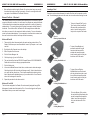
The “Removable Disk” icon
does not appearon my destop.
An error message appears
during driver installation.
USB CF / SM / SD / MMC / MS Reader/Writer
Introduction
Apple Macintosh
CAUSE
SYMPTOM
DDREADER-18
SOLUTION
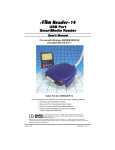
Thank you and congratulations on your purchase of the eFilm Reader-18 combination
USB reader/writer. Before you begin use of this product, please take some time to read
all instructions and warranty information.
The driver software may not
have been properly installed.
Reinstall from CD or download
driver from www.delkin.com
The reader is not connected
properly.
Unplug the reader and plug it
back in.
The card is not properly
inserted in the reader.
Remove the card and re-insert.
A card must be inserted in
order for an icon to appear on
the desktop.
Possibly a conflict with
another driver or program.
Try installing the drivers with
extensions off (hold the shift
key down during boot-up).
The files where not copied to
the hard drive properly.
The Option key must be held
down while copying files to the
computer. Otherwise, only the
icons are placed on the hard
drive.
IBM compatible desktop or laptop PC
In Extensions Manager, set the
Selected Set to My Settings.
• MAC OS 8.6 / 9 / X 10.2
The Reader-18 is designed to read and write to Compact Flash Cards Type I and II,
including the IBM Microdrive, SmartMedia, Secure Digital, MultiMedia Cards and
Memory Stick. It is a convenient bridge between your PC or Mac and removable media
applications. All media cards are accessed as removable drives. In Windows the
Reader will appear as two separate drive icons in My Computer, one for each slot, and
on a Macintosh the installed cards appear as icons on the desktop.
Please look to our web site at http://www.delkin.com for FAQs and current information on
compatibility issues as well as the latest drivers.
Included Components
eFilm Reader-18
Driver CD
Manual
System Requirements
After transferring files, the file
icons dissapear when the card
is removed.
When a card is inserted, an
error message appears stating
that the card is not formatted.
The Extensions Manager is
set to load only the Mac OS
base drivers.
• Windows XP / 2000 / ME / 98 / 98 SE
• USB port
Apple Macintosh desktop or laptop
• USB port
Driver Software Installation for Windows®
Test Drive Your Equipment
Windows® XP / Windows ME
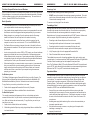
We advise that you put all of your equipment through a dry run before transferring
important or irreplacable files. This will not only insure that your equipment is functioning, but will also familliarize you with the transfer process.
Driver installation is not necessary for the Windows XP and Windows Millenium (ME)
operating systems. When the Reader-18 is connected to the USB port, the computer will
detect the new hardware and install the required drivers automatically. The Reader-18
uses the MSD (Mass Storage Device) specification, which these operating systems
support by default, therefore additional drivers are not needed.
Copy a few files to the card using your camera or digital device. Then insert the card
into the reader and use the transfer method you are most comfortalble with – drag and
drop, copy and paste, etc. Some devices, such as MP3 players, require third party
software to access files. Refer to the device manual for information. Once the files are
stored on your hard drive, access them one at a time and check that they are to your
satisfaction. Experiment until you are happy with the results and comfortable with the
process. Then you can simply delete the test files from the card to return it to its
original state.
Page 8
Delkin Devices User’s Manual
Windows® 2000 / 98 / 98 SE
Before connecting the device, you must install the device driver located on the accompanying CD-ROM. To avoid compatibility issues, install only the Reader-18 driver. On
Windows 2000 systems, it is recommended that you install the latest service pack,
available for download at the Microsoft website.
1.
Start Windows and close any other applications during installation.
2.
Insert the Delkin Devices driver CD-ROM. If the CD does not start automatically,
double click on the CD-ROM drive in My Computer. The CD will open in a driver
installation application.
3.
Click eFilm Reader-18 from the list of products on the left to open the installation
window for the Reader-18. (See Figure 1)
Delkin Devices User’s Manual
Page 1