1
8.5. WORKLET RULE SETS AND THE RULES EDITOR
201
The Toolbar
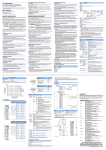
The toolbar buttons replicate the functions available from the main menu see Figure 8.16.
Figure 8.16: Toolbar
•
New Tree or Rule Set: If there is no rules file currently open in the Editor, this button displays the New
Rule form to allow the creation of an entirely new rule set file for a specification (i.e. one that does not
yet have a rule set file defined). If there is a rules file currently open in the Editor, displays the New
Rule form to allow the addition of new tree sets to the opened rule set file (for rule types that have not
yet been defined for that specification). See the Creating a New Rule Set and/or Tree Set section below for
more details.
•
Open Rules File: Opens an existing rules file for browsing and/or editing. The title bar shows the
name of the specification associated with the currently loaded rule set.
•
Close Rules File: Closes the currently opened rules file. Only one rules file may be open at any one
time.
•
Add New Rule Node: Displays the Add Rule form to allow the addition of a new rule node to an
existing tree to refine a worklet selection. See the section below on the Adding a New Rule for more
details.
•
Tree Viewer: Displays the Tree Viewer form, which provides the ability to view large trees in full-screen
mode.
•
Config Form: Displays the configuration form discussed above.
•
About Box: Displays some information about the rules editor (version number, date and so on).
Other Features
•
Current Rule Type: This drop-down list displays each rule type that has a tree set defined in the
opened rules file. Selecting a rule type from the list displays in the Tree View an associated rules tree
from the tree set. Works in conjunction with the Task Name drop-down list.
•
Current Task Name: This drop-down list displays the name of each task that has a rules tree associated
with it for the rule type selected in the Rule Type list. Selecting a task name will display the rules tree
for that task in the Tree View. This drop-down list is disabled for case level rules types.
•
Tree View: This area displays the currently selected rules tree in a graphical tree structure. Selecting a
node in the tree will display the details of that node in the Selected Node and Cornerstone Case panels.
Nodes are colour coded for easier identification:
– Blue nodes represent the root node of the tree
– Green nodes are true (exception) nodes (i.e. they are on a true branch from their parent node)