1
 •
When transmitting data, the analyzer reverses the bits before they are sent out over the circuit. For example, if you are transmitting data in LSB mode and you enter the pattern $01, the analyzer sends out 0000 0001. If you are transmitting in MSB mode and you enter the pattern $01, the analyzer bit reverses this and transmit 1000 0000. •
The analyzer remembers what bit order was used to capture the data with. If you create a capture file with the bit order set to MSB, the data always is displayed in that form. •
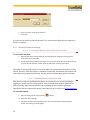
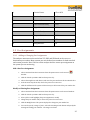
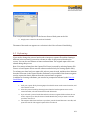
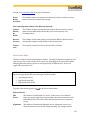
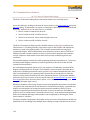
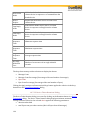
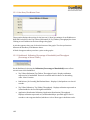
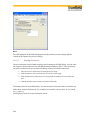
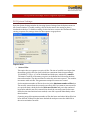
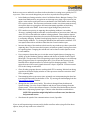
If you are monitoring HDLC or SDLC data and the bit order is set to MSB, it is probable that the CRC's is not calculated correctly. 3.6.4 Flow Control Flow control (sometimes called "handshaking") is only available in source mode. There are four flow control options: None, RTS/CTS, DTR/DSR or Xon/Xoff. The default option is None. If you choose None, the analyzer does not employ any flow control techniques. Hardware flow control can be accomplished using either the RTS /CTS pair or DTR /DSR pair. Choose which pair you would like the analyzer to use. To use software flow control, choose the Xon/Xoff option. The analyzer uses the Xon/Xoff characters given in the boxes below the flow control option. These numbers must be specified in hexadecimal (hex) characters. By default, the analyzer uses hex 11 for Xon and hex 13 for Xoff. 3.6.5 Selecting a Custom Protocol Stack To change the protocol stack: 1.
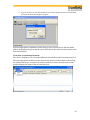
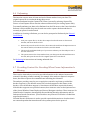
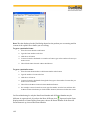
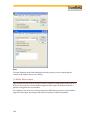
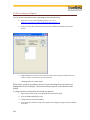
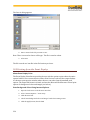
Click on the Custom Protocol Stack button to start the Protocol Stack Wizard. If you are capturing framed data but did not select a protocol stack before capturing, your data needs to be framed. To frame your data, complete the following steps: 1.
Select a protocol stack. 2.
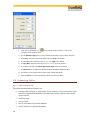
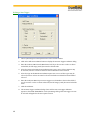
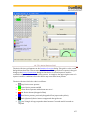
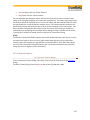
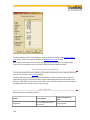
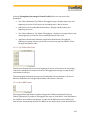
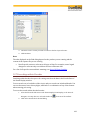
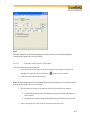
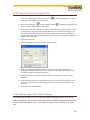
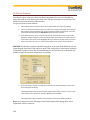
Go to the Control window and choose Reframe from the File menu. See Reframing a Function for more information. 3.6.6 I/O Settings Dialog in Capture File Viewer The I/O Settings dialog only appears when viewing serial data. It displays the settings that were in effect when the file was captured. The window looks different depending on whether you are viewing asynchronous or synchronous data. When using capture file viewer, the I/O Settings dialog is grayed out except for the Custom Protocol Stack button and the Names button. 24