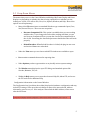
1
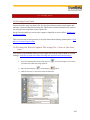
 4.
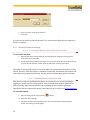
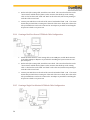
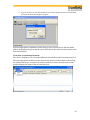
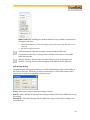
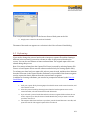
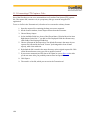
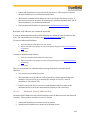
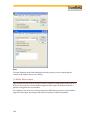
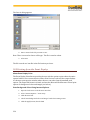
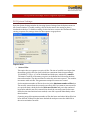
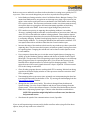
Type a filename in the File name box at the bottom of the screen. 5.
Browse to select a specific directory. Otherwise your file is saved in the default capture file directory. 6.
When you are finished, click OK. 16.3 Saving the Entire Capture File with Save Selection 1.
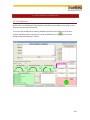
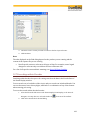
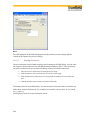
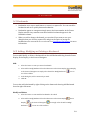
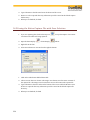
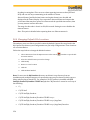
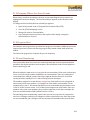
If you are capturing data, click on the Stop icon save data to file while it is being captured. 2.
Open the Event Display 3.
Right click in the data 4.
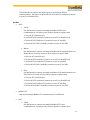
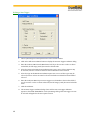
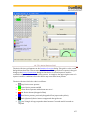
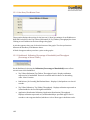
Select Save Selection or Save As from the right click menu or Frame Display to stop data capture. You cannot window. 1.
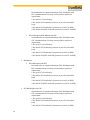
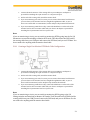
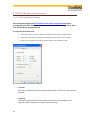
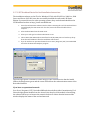
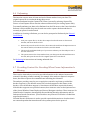
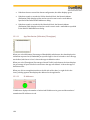
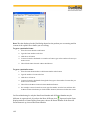
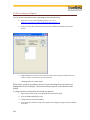
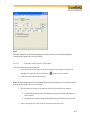
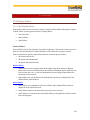
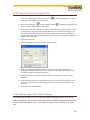
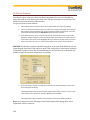
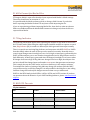
Click on the radio button labeled Entire File. 2.
Choose to save Events or Frames. Choosing to save Events saves the entire contents of the capture file. Choosing to save Frames does not save all events in the capture file. 3.
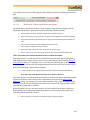
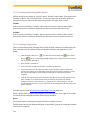
Type a filename in the Save As box at the bottom of the screen. Click the Browse icon to browse to a specific directory. Otherwise your file is saved in the default capture file directory. 4.
When you are finished, click OK. 226