Transcript
SSE232-ST
Quick Start Guide
Serial Server
1. Introduction
This quick guide will lead you step by step through the most
important aspects of SSE232-ST installation. It is intended to
system administrators that are familiar with operating systems
or other Exemys products.
To configure SSE232-ST you will need an IP address to be
assigned to the SSE232-ST or a DHCP server in the network.
Follow the next steps to configure SSE232-ST:
IMPORTANT.
You will find a detailed description for SSE232-ST installation
and configuration in the User’s Manual that is distributed
together with this product in the CD or you can download it
from our web site.
This product must be installed and powered according to its
ratings and installation instructions.
The unit shall be powered from a NEC class 2 source of
supply or a LPS source, having an output
rated 9-26 Volts AC, 9-30 Volts DC, 200 mA min.
The installation of this product inside shall be in accordance
with the NEC, specifically Article
725-54. Wiring from/to this unit is to be Class 2 wiring and
shall be segregated from other wiring
in the equipment as noted in the NEC.
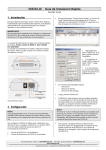
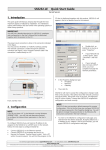
The network connection is made through the Ethernet
connector (see figure). Use a crossover network cable if the
connection is made directly to a PC.
Connect SSE232-ST to the Ethernet network.
Connect SSE232-ST to the power.
Execute the Program “Exemys Device Locator” from a
PC within the same network. You will find this program in
the CD that is distributed together with this product or you
can download it from our web site.
SSE232-ST will appear in the list of devices found in the
network.
Double-click on SSE232-ST in the list or press
“Properties”.
If your Network has a
DHCP server, select
“Use HCP” and click Ok.
If your network does not
have a DHCP server,
you must complete
manually the network
parameters.
Vin
Vin
Vin Vin
Main Connector
Vin Vin
+
In the Properties dialog
box type:
IP Address
Netmask
Gateway
Vin Vin
+
9-30 Vdc
9-30 Vdc
Then click Ok.
RJ45 Ethernet Connector
Net Indicator Led
SSE232-ST will reset to accept the configuration changes
made. After a few seconds, if the yellow led of the
network connector (see figure) blinks, being dark most of
the time, and lightened only for a short instant, it means
that SSE232-ST accepted the configuration and reset
correctly.
NOTE.
(yellow)
Data Indicator Led
SSE232-ST does not provide a default password for remote
configuration. If this is the first time you configure SSE232ST, do not type a password in the Properties dialog box.
You will be able to change this password later on by
following the instructions contained in the User’s Manual.
COM A RS-232 connector
(green)
Front and Rear View
2. Configuration
NOTE.
If you do not have a PC in the Network running Windows
95/98/NT-2000 , you will find and alternative method
to configure the network basic parameters in the
User’s Manual.
To enter to the SSE232-ST configuration web page use a
web browser that allows Javascript. By typing SSE232ST ´s IP Address in the “address” field of your browser,
you will access SSE232-ST configuration web page.
For technical support please contact: [email protected] - For sales please contact: [email protected]
www.exemys.com
Exemys products are in constant evolution to satisfy our customer’s needs. For that reason, the specifications and capabilities are subject to change without prior notice.Updated information can be found at www.exemys.com.
Copyright © Exemys, 2005. All Rights Reserved. R2.00