1
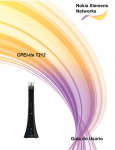
Nokia Siemens Networks CPEi-lte 7212 User Manual Contents Chapter 1: CPEi-lte 7212 User Guide Overview .......................................................................................................................................... 1-1 Powerful Features in a Single Unit .................................................................................................. 1-2 Front of the CPEi-lte 7212 ............................................................................................................... 1-2 Back of the CPEi-lte 7212 ................................................................................................................ 1-2 Operating Information ..................................................................................................................... 1-3 Chapter 2: Installation Overview .......................................................................................................................................... 2-1 Before you Begin.............................................................................................................................. 2-1 Easy Setup ....................................................................................................................................... 2-1 Advanced Setup ............................................................................................................................... 2-1 Procedure to Log into the CPEi-lte 7212 ......................................................................................... 2-1 Logging in to the CPEi-lte 7212 ....................................................................................................... 2-2 Chapter 3: Basic Configuration Overview .......................................................................................................................................... 3-1 Internet Security.............................................................................................................................. 3-1 Local Area Network ......................................................................................................................... 3-2 DDNS Menu ..................................................................................................................................... 3-3 NAT Menu ........................................................................................................................................ 3-4 Port Forwarding Menu..................................................................................................................... 3-5 UPnP Menu ...................................................................................................................................... 3-6 DMZ Menu ....................................................................................................................................... 3-6 Chapter 4: Wi-Fi Settings Overview .......................................................................................................................................... 4-1 Wi-Fi Basic Settings ......................................................................................................................... 4-1 Wireless Security Menu ................................................................................................................... 4-2 WPA/WPA2 Configuration ................................................................................................................ 4-3 Wi-Fi Protected Setup (WPS) ........................................................................................................... 4-3 Push Button Configuration (PBC) .................................................................................................... 4-3 Personal Identification Number (PIN) ............................................................................................. 4-4 Wi-Fi Guest Network........................................................................................................................ 4-4 Wireless Distribution System (WDS)................................................................................................ 4-5 SEP 2011 i Advanced Settings ........................................................................................................................... 4-6 Chapter 5: Administration Overview .......................................................................................................................................... 5-1 Management .................................................................................................................................... 5-1 Time Setting..................................................................................................................................... 5-2 LTE Interface ................................................................................................................................... 5-3 Software Management..................................................................................................................... 5-3 Certificate Management .................................................................................................................. 5-4 Factory Defaults............................................................................................................................... 5-4 Chapter6: About Overview .......................................................................................................................................... 6-1 Status ............................................................................................................................................... 6-1 Device Info ....................................................................................................................................... 6-1 Legal Notice..................................................................................................................................... 6-2 Chapter7: Troubleshooting Power ............................................................................................................................................... 7-1 A Computer Cannot Log On to the CPEi-lte 7212 ............................................................................ 7-1 Cannot Connect to the Internet ....................................................................................................... 7-1 Additional Troubleshooting Help ..................................................................................................... 7-1 ii SEP 2011 CPEi-lte 7212 User Guide 1 Chapter 1: CPEi-lte 7212 User Guide Overview Thank you for purchasing the Nokia Siemens Networks Indoor CPEi-lte 7212 desktop device. The Desktop CPEi-lte 7212 allows you to connect to the wireless world easily and seamlessly without complicated installation and setup procedures. The Desktop Indoor CPEi-lte 7212 device provides the user: Convenience - with easy plug and play functionality. Control - remote management capability allows easy detection and authentication when the unit is set up. Wi-Fi - wireless LAN. The features and the physical appearance of your Desktop CPEi-lte 7212 device may differ slightly from the illustration. Figure 1-1: CPEi-lte 7212 For the most recent documentation, visit the Product Documentation page at www.nokiasiemensnetworks.com/devices. SEP 2011 1-1 1 CPEi-lte 7212 User Guide Powerful Features in a Single Unit The CPEi-lte 7212 device provides the following features: LTE Authentication WAN DHCP Client LAN DHCP Server Home Gateway Functions Firewall Protection Port Forwarding Wi-Fi Front of the CPEi-lte 7212 The front of the CPEi-lte 7212 unit contains LED Link/Activity indicators. The LEDs show the status of the CPEi-lte 7212 initialization and network status during normal operation. (Wi-Fi) LED - is lit it Indicates Wi-Fi is enabled. Otherwise Wi-Fi is disabled. (Signal Strength) - When the CPEi-lte 7212 has acquired LTE service: One to five LTE Signal Strength LEDs are lit indicating signal strength with one LED indicating a low signal through five LED’s indicating a very strong signal is being received. LTE Status - While acquiring access to the LTE Network: All LTE Signal Strength LEDs will blink, Scanning for LTE service. LAN Status - Indicates the status of the Ethernet connection and activity. Power - Indicates if the device is powered on or off. Device power up - Middle signal strength LED will BLINK while others are solidly lit. Back of the CPEi-lte 7212 The back of the CPEi-lte 7212 unit contains the RESET switch, WPS switch, DC Power Connector, Ethernet connector and Ethernet LED. Figure 1-2: CPE Ports and Connections 1-2 SEP 2011 CPEi-lte 7212 User Guide 1 Operating Information Operating temperature for this unit is 0-40°C (32-104°F). SEP 2011 1-3 Installation 2 Chapter 2: Installation Overview To install the Desktop CPEi-lte 7212 Series, review the following sections: Before You Begin Easy Setup Before you Begin Verify you have received the following items with your Desktop CPEi-lte 7212: AC Power Adapter - Power adapter connects the Desktop CPEi-lte 7212 to an AC electrical outlet. Ethernet Cable - Ethernet cable connects the Ethernet port on the CPEi-lte 7212 to your PC or laptop computer. Desktop CPEi-lte 7212 Quick Start and Regulatory Guides. In addition, you need: A computer. Easy Setup The CPEi-lte 7212 is easily set up. Perform the following tasks before attaching the power cord or powering up the unit: Stand the CPEi-lte 7212 on a flat surface. Plug the AC power adapter cord into an AC outlet. Plug one end of the Ethernet cable into the Ethernet connector on the back of the unit. Plug the other end of the Ethernet cable into the Ethernet connector of your computer. Plug the other end of the AC power adapter into DC Power Connector of the CPEi-lte 7212. Advanced Setup The CPEi-lte 7212 can also be used to connect to a multi-port switch (hub) - purchased separately from the CPEi-lte 7212. Connecting the CPEi-lte 7212 device to a hub allows you to connect more than one computer to your CPEi-lte 7212 device. Procedure to Log into the CPEi-lte 7212 Some settings on your computer need to be verified or changed to ensure that the computer configuration can support the Desktop CPEi-lte 7212. Verify that the IP addresses and DNS settings are automatically generated in your Local Area connection of your Internet Protocol (TCP/IP) properties. SEP 2011 2-1 2 Installation Logging in to the CPEi-lte 7212 Use the following procedure to log into the Desktop CPEi-lte 7212: On a computer that is connected to the Desktop CPEi-lte 7212, open a web browser. In the Address or Location field, type http://192.168.15.1 and press ENTER. Alternatively you may enter the IP address: “http://mylte.”. The Welcome to NSN CPEi-lte 7212 screen is displayed and prompts you for user name and password. In the Username field, type the user name (default is admin). In the Password field, type the password (default is admin). Click “Login”. First time users will see a pop-up box that states: “The Wizard application will guide you through for the first time configuration”. Click “OK”. Figure 2-1: Login Screen 2-2 SEP 2011 Basic Configuration 3 Chapter 3: Basic Configuration Overview After the CPEi-lte 7212 setup has completed, you can log in to your CPEi-lte 7212 from any computer on your home network. To log in, type the device name in the address bar on your computer (the default device name is mylte) or type in http://192.168.15.1. This section describes menus Setup Internet Security Local Network DDNS NAT Port Forwarding UPNP DMZ Internet Security The Internet Security submenu provides the options to make your local network more secure. Figure 3-1: Setup Menu SEP 2011 3-1 3 Basic Configuration Table 3-1: Internet Security Field or Button Description Firewall The Firewall helps protect your home network by preventing unauthorized access to your home network. Block Internet Ping Request Blocking the anonymous internet ping request (ICMP Echo Request) can reduce the risk of exposing your device on the internet. Click “Apply” to save changes. Local Area Network The Local Network submenu provides the options to configure your local network. Figure 3-2: Local Network Menu 3-2 SEP 2011 Basic Configuration 3 Table 3-2: Local Network Field or Button Description Device Name You can type in the device name with a period at the end in the address bar of your Web browser to log into the device from any computer at your home network (e.g. http://mylte.). Local IP Address This is the local network IP address of the device. The default value is 192.168.15.1. Subnet Mask A 32-bit number that masks an IP address, and divides the IP address into network address and host address. Subnet Mask is made by setting network bits to all "1"s and setting host bits to all "0"s. Default value is 255.255.255.0 DHCP Server Enables Dynamic Host Configuration Protocol (DHCP) Server functionality on the LAN, allowing the device to dynamically assign lease IP addresses to clients that connect to it from the local network. DHCP Starting IP Address The IP address pool you would like the DHCP server to start with. DHCP Ending IP Address The IP address pool you would like the DHCP server to end with. DHCP Lease Time The lease duration of the IP Address to be assigned to the host/PC. DHCP Reservation Table Allow you to assign the same IP address to a local host/PC on the network. Click “Apply” to save changes. DDNS Menu Dynamic Domain Name Service (DDNS) allows a user with a non-static IP address to keep their domain name associated with an ever changing IP address. As an example, DDNS is used when you are hosting your own website. Figure 3-3: DDNS Menu SEP 2011 3-3 3 Basic Configuration Table 3-3: DDNS Field or Button Description DDNS Service Enable or Disable the service. DDNS service is disabled by default. DDNS Service Provider Only valid if DDNS service is enabled. Select DDNS Service Provider that you belong to from the drop-down box. DDNS User Name Only valid if DDNS service is enabled. Enter your DDNS account user name. DDNS Password Only valid if DDNS service is enabled. Enter your DDNS account password. DDNS Host Name Only valid if DDNS service is enabled. Enter the DDNS Host Name. This is assigned by the DDNS service. Click “Apply” to save changes. NAT Menu NAT maps all of the private IP addresses on a home network to a single public IP address supplied by an Internet Service Provider (ISP). This allows computers on the home network to share a single Internet connection. Additionally, it enhances home network security by limiting the access of external computers into the home IP network space. Figure 3-4: NAT Menu Table 3-4: NAT Field or Button Description NAT Service Enable or Disable the service. NAT service is enabled by default. Click “Apply” to save changes. 3-4 SEP 2011 Basic Configuration 3 Port Forwarding Menu Port Forwarding forwards inbound connections destined to ports on the Internet interface to a specific (PC/laptop) client on your local network. You can specify a corresponding destination LAN port range as well. Port forwards can be used to support a web server or other special service offered on your local network. Figure 3-5: Port Forwarding Menu Click “ADD” to create additional Port Forwarding rules Table 3-5: Port Forwarding Field or Button Description Select Select a box when you want to delete the specific row. Protocol Select TCP (Transmission Control Protocol) or UDP (User Datagram Protocol). WAN Port Start Enter the beginning port range for external network access. WAN Port End Enter the ending port range for external network access. LAN IP Address Enter the IP address to host the service. LAN Port Start Enter the beginning port range for internal network access. LAN Port End Enter the ending port range for internal network access. Enabled Check to enable specific port forwarding. Click “Apply” to save changes. SEP 2011 3-5 3 Basic Configuration UPnP Menu Universal Plug and Play (UPnP) allows certain applications running on the PCs to setup the port forwarding rules dynamically on this device. Figure 3-6: UPnP Menu Table 3-6: UPnP Field or Button Description UPNP Enable or Disable the service. By default UPNP is enabled. Click “Apply” to save changes. DMZ Menu DMZ allows a specific LAN host to accept inbound Internet traffic which does not match any port forwarding rules if exist. This LAN host is referred as DMZ (Demilitarized Zone). Figure 3-7: DMZ Menu 3-6 SEP 2011 Basic Configuration 3 Table 3-7: DMZ Field or Button Description DMZ Enable or Disable the service. DMZ is disabled by default. DMZ Host IP Address IP address of the LAN PC/Laptop that is designated as the DMZ host. e.g. 192.168.15.2. Click “Apply” to save changes. SEP 2011 3-7 Wi-Fi Settings 4 Chapter 4: Wi-Fi Settings Overview This section describes the Wi-Fi setting configuration for your device. This section describes menus Basic Settings Wireless Security Guest Network WDS Advanced Settings Wi-Fi Basic Settings Wi-Fi (Wireless LAN) basic network settings are configured at this menu. Figure 4-1: Wi-Fi Basic Settings Menu Table 4-1: Basic Settings Field or Button Description Wi-Fi Wireless Service Enable or Disable the Wi-Fi service. Wi-Fi Network SSID Network Service Set Identifier (SSID) is a label/name that distinguishes one wireless LAN (Wi-Fi network) from another. The field is case-sensitive and must not exceed 32 characters. For added security, changing the default SSID (Wi-Fi) to a unique name is recommended. (Continue) SEP 2011 4-1 4 Wi-Fi Settings Table 4-1: Basic Settings (Continued) Field or Button Description Operating Mode Options of 802.11b only, 802.11g only, 802.11b/g and 802.11n. Operating Channel Choice of Wi-Fi operating channel. Note: the Wi-Fi operating channels are different depending on the country/region. The device will choose the best operating channel available if Auto is selected. Click “Apply” to save changes. Wireless Security Menu The Wi-Fi Security menu enables you to choose the wireless LAN security protocol to enable authentication and secure data transmission on the Wi-Fi network. Verify the selected network security protocol is supported by the wireless devices on the network. Figure 4-2: Wireless Security Menu Click “Apply” to save changes. 4-2 SEP 2011 Wi-Fi Settings 4 WPA/WPA2 Configuration Manage WPA/WPA2 security protocol settings. Table 4-2: WPA/WPA2 Menu Selections Field or Button Description Group Key Renewal This setting determines how often the group key is going to change. The group key renewal interval range is 300 to 7200. Default setting is 3600 seconds. Security Type Authentication keys can be generated either automatically or entered manually. The types of authentication selections are: • Remote (Radius) - Radius Server IP address where the field is broken into 4 sub-fields with each limited to 3 digits and the default is empty. • Shared (local) - a pre-shared key that includes the PSK passphrase where the default is an empty field. Wi-Fi Protected Setup (WPS) Your device supports Wi-Fi Protected Setup (WPS) to simplify the setup of your wireless security. WPS is used to configure client devices such as wireless adapters in computers that support WPS. Use WPS to set up your client device. Access the security section of the Wi-Fi configuration, click “Wi-Fi menu”, then click “Wireless Security Submenu”. Before you begin, you should configure the security settings in the device as described in the section above. If your client devices do not support WPS, you will have to manually configure those devices. There are two primary options available when utilizing WPS: PBC and PIN. Use the option below that applies to the Wi-Fi client device you are configuring. WPS configures one client device at a time. Repeat the procedure for each client device that supports WPS. Push Button Configuration (PBC) Use this method if your Wi-Fi client device has a WPS button. There are two ways to use the PBC method: hardware WPS and software WPS. The hardware WPS button is on the back of the device. The software WPS button (“Add Enrollee”) is in Wi-Fi Menu/Wireless Security submenu. The Wi-Fi connection between the client and this device will be automatically established through either PBC method. To use the hardware WPS button on this device, Wi-Fi client setup is completed using the following procedure. Press the WPS button on the back of this device. Press the WPS button on the Wi-Fi client device. SEP 2011 4-3 4 Wi-Fi Settings To use the software WPS button on this device, Wi-Fi client setup is completed using the following procedure. Navigate to the Wi-Fi menu/Wireless Security submenu page. Select “PBC” at the WPS Method dialog box. Press the “And Enrollee” Button. Press the WPS button on the Wi-Fi client device. Personal Identification Number (PIN) Use this method if your Wi-Fi client device does NOT have a WPS button with a WPS PIN number. The Wi-Fi connection between the client and this device will be automatically established using the following procedure: Initiate the WPS PIN procedure on the client device per the manufacturer’s instructions. Navigate to the Wi-Fi menu/Wireless Security submenu page. Select “PIN” option in the WPS Method dialog box. Enter the PIN number of the client device. Press the “And Enrollee” Button. This must be completed within 2 minutes of starting the procedure on the client device. Wi-Fi Guest Network Wi-Fi guest network is a wireless network to allow "visitors" to access an Internet connection through your device. The Guest Network is separated from your LAN and home Wi-Fi network. For security purposes, users connected using the Wi-Fi guest network will not be able to see or access any other computers or resources on the local network. Figure 4-3: Wi-Fi Guest Network Menu 4-4 SEP 2011 Wi-Fi Settings 4 Table 4-3: Guest Network Field or Button Description Guest Network Enable or Disable the Wi-Fi guest network. Guest Network Name (SSID) Guest Network Service Set Identifier (SSID). It should be set a different name than the home network SSID. It is case-sensitive and must not exceed 32 characters. Broadcast Guest SSID By default the network name (SSID) of the guest network is broadcast into open air at regular interval. This allows Wi-Fi client to dynamically discover and roam between Wi-Fi networks. Disabling broadcasting SSID could improve the security of your Wi-Fi guest network. Click “Apply” to save changes. Wireless Distribution System (WDS) Wireless Distribution System (WDS) allows a Wi-Fi network to be expanded using multiple wireless Access Points instead of relying on a connection to a wired/Ethernet network. For two Wi-Fi APs to communicate over a WDS, they must be on the same channel and have the same configuration settings (e.g. transmit rate, security setting and etc). WDS related settings are configured at this menu. Figure 4-4: WDS Menu SEP 2011 4-5 4 Wi-Fi Settings Table 4-4: WDS Field or Button Description WDS Mode With choices of Bridge Mode, AP Mode and Mixing mode. Default is AP Mode. Bridge Mode: This mode allows connecting two or more physically separated wired-LAN segments via Wi-Fi AP. In this mode, the Wi-Fi radio is only used to bridge wired networks. No wireless clients can associate to this device. WDS AP Mode: This mode allows this device to communicate with other Wi-Fi APs over WDS as well as allowing wireless clients attachment. WDS Mixing Mode: In this mode, as long as the network setting (channel, security and etc.) are matching, this device can communicate with any other WDS-enabled AP regardless which mode it is in. WDS MAC Address Table List of the MAC address of the Wi-Fi APs to communicate with this device over WDS. Click “Apply” to save changes. Advanced Settings Wi-Fi Advanced network settings are configured at this menu. Figure 4-5: Advanced Settings Menu 4-6 SEP 2011 Wi-Fi Settings 4 Table 4-5: Advanced Settings Field or Button Description Broadcast Home Wireless Network SSID By default, the network name (SSID) of the home wireless network is broadcast into open air at regular interval. This allows Wi-Fi client to dynamically discover and roam between Wi-Fi networks. Disabling broadcasting SSID could improve the security of your home Wi-Fi network. 802.11n Protection: The 802.11n specification provides protection rules to guarantee that 802.11n transmissions do not cause interference with legacy stations or access points. By default, these protection mechanisms are enabled. However, you can turn off these protection mechanisms. 802.11g Transmit Rate The range is from 1 to 54Mbps. The default setting is Auto. The rate of data transmission should be set depending on the speed of your wireless network. You can select from a range of transmission speeds, or keep the default setting, Auto, to have the device automatically use the fastest possible data rate. 802.11n Transmit Rate The range is from 6.5 to 130/270Mbps. The default setting is Auto. The rate of data transmission should be set depending on the speed of your wireless network. You can select from a range of transmission speeds, or keep the default setting, Auto, to have the device automatically use the fastest possible data rate. Transmit Power The amount of radio frequency energy that the device sends over the air. Default is High. Beacon Interval Range 1 and 65,535 milliseconds. The default value is 100. A beacon is a packet broadcast by the device to synchronize the wireless network. The Beacon Interval value indicates the frequency interval of the beacon. RTS Threshold Range: 0 - 2347. Default value of 2347 (bytes). The device sends Request to Send (RTS) frames to a particular receiving station and negotiates the sending of a data frame. After receiving an RTS, the wireless station responds with a Clear to Send (CTS) frame to acknowledge the right to begin transmission. Preamble Type The length of the CRC (Cyclic Redundancy Check) block for communication between the Wi-Fi Access Point and roaming wireless clients. Fragmentation Threshold Range: 256 – 2346. Default setting is 2346. It specifies the maximum size for a packet before data is fragmented into multiple packets. If you experience a high packet error rate, you may slightly increase the Fragmentation Threshold. Setting the Fragmentation Threshold too low may result in poor network performance. DTIM Interval Range: 1 – 255ms. Default value: 3ms. Indicates the interval of the Delivery Traffic Indication Message (DTIM). A DTIM field is a countdown field informing clients of the next window for listening to broadcast and multicast messages. When the device has buffered broadcast or multicast messages for associated clients, it sends the next DTIM with a DTIM Interval value. Its clients hear the beacons and awaken to receive the broadcast and multicast messages. (Continue) SEP 2011 4-7 4 Wi-Fi Settings Table 4-5: Advanced Settings (Continued) Field or Button Description CTS Protection Mode When set to Auto, a protection mechanism will ensure that your Wireless-B devices will connect to this device when many WirelessG devices are present. WMM Wi-Fi Multimedia (WMM) refers to QoS (Quality of Service) over Wi-Fi. QoS enables Wi-Fi access points to prioritize traffic and optimizes the way shared network resources are allocated among different applications. WMM No-Acknowledgment Default setting is Disabled. When enabled, the device will not resend data if an error occurs. Click “Apply” to save changes. 4-8 SEP 2011 Administration 5 Chapter 5: Administration Overview This section describes the administration settings for your device. Administration Menu describes Management Time Setting LTE Interface Software Management Certificate Management Factory Defaults Management Device management settings are configured at this menu. Figure 5-1: Management Menu SEP 2011 5-1 5 Administration Table 5-1: Management Field or Button Description Login Password Password is required to gain access to the device configuration and status pages. To protect your device and your home network, the default password is recommended to be changed during initial setup. If you ever forget your password, you can set it back to default password (admin) by holding the reset button on the side of the device for at least 8 seconds. The maximum length of password is 64 characters. This will also reset all settings back to their initial factory values. Remote Web Access Allow you access the device from the Internet through https. Remote Web Access port number You can change the http port number to login into the device from the Internet. (e.g. If the http port number is changed to 9999, you can log into the device through https://xx.xx.xx.xx:9999 where xx.xx.xx.xx is the WAN IP address of the device). Language Choose from the supported language display. Click “Apply” to save changes. Time Setting Time settings for the device are configured at this menu. Figure 5-2: Time Setting Menu Table 5-2: Time Setting Field or Button Description Time Zone Set the time zone for your location. Auto Adjust for Daylight Saving Time Enable automatic adjustment of local time for Daylight Saving Time. Click “Apply” to save changes. 5-2 SEP 2011 Administration 5 LTE Interface LTE interface settings are configured at this menu. Figure 5-3: LTE Interface Menu Table 5-3: LTE Interface Field or Button Description LTE Wireless Interface Enable or disable the LTE interface of the device. Disable LTE Wireless Interface turns off the wireless communication to the LTE network. The Internet service will be interrupted if LTE Wireless Interface is disabled. Click “Apply” to save changes. Software Management Click “Browse” to search your computer for device software image or software packages. When you have located the device firmware or software package you would like to install on to the device, click “Install”. To remove a software package installed on the device, select the software package you would like to remove and click “Uninstall”. Figure 5-4: Software Management Menu SEP 2011 5-3 5 Administration Certificate Management Click “Browse” to locate trusted CA root certificates for your computer. When you have located the trusted CA root certificate you would like to install on to the device, click “Install”. Figure 5-5: Certificate Management Menu Factory Defaults Restore Factory Settings. To restore your device to the original factory settings, click “Yes”, then “Apply”. Your device will automatically restart. Figure 5-6: Factory Defaults Menu 5-4 SEP 2011 About 6 Chapter6: About Overview The about menu describes device information on your CPE. The About Menu section describes menus Status Legal Notice Device Info Status You can view the status of device, including LTE wireless connection, Internet Network, Local Network and Device Status at this menu. Figure 6-1: Status Device Info You can view the basic properties of your device such as: Model ID, Hardware Version, Serial Number, IMEI, MAC addresses and etc at this menu. SEP 2011 6-1 6 About Figure 6-2: Device Info Legal Notice You can view the Open Source Licenses at this menu. Figure 6-3: Legal Notice Menu 6-2 SEP 2011 Troubleshooting 7 Chapter7: Troubleshooting Power Verify the AC power adapter is properly plugged into the electrical outlet and into the Desktop CPEi-lte 7212. Plug a different device into the outlet to ensure the outlet is receiving power. A Computer Cannot Log On to the CPEi-lte 7212 Disconnect and reconnect the Ethernet cable to the Desktop CPEi-lte 7212 unit and the computer. Cannot Connect to the Internet Verify the Desktop CPEi-lte 7212 connection status from the Web Interface, as shown in Section 2. If the Desktop CPEi-lte 7212 connection is down, and the gateway has not received an IP for 5 minutes to 10 minutes, reset the Desktop CPEi-lte 7212 using the reset button. Additional Troubleshooting Help Contact your service provider for additional help. SEP 2011 7-1 68010072060 Copyright © 2011 Nokia Siemens Networks. All rights reserved. Nokia is a registered trademark of Nokia Corporation, Siemens is a registered trademark of Siemens AG. The wave logo is a trademark of Nokia Siemens Networks Oy. Other company and product names mentioned in this document may be trademarks of their respective owners, and they are mentioned for identification purposes only. Nokia Siemens Networks Corporation, Karaportti 3, FI-02610 ESPOO, Finland