1
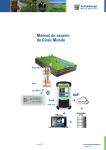
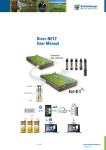
Diver-Mobile
User Manual
Diver-DXT
Diver
max 500 m
GPRS
Radio
Status
Bluetooth
Internet
TM
Charge
Diver-Gate (M)
max 10 m
Office
August 2012
FTP
Server
www.swstechnology.com
copyright of SLB
Version August 2012
All rights reserved. No part of this publication may be duplicated, stored in a
computerized data file or made public in any form or manner whatsoever,
be it electronic, mechanical, in photocopies, recordings or in any other way,
without prior written permission from
Schlumberger Water Services (Netherlands) BV
Schlumberger Water Services
PO Box 553
2600 AN Delft
The Netherlands
Tel.: +31 (0)15 275 5000
www.swstechnology.com
August 2012
www.swstechnology.com
copyright of SLB
Table of Contents
1 Introduction 1
1.1 General 1
1.2 List of supported Divers 1
1.3 Software and hardware requirements 1
2 Diver-Mobile installation instructions
3
2.1 Installing Diver-Mobile (Windows 7, Windows Vista)
3
2.2 Installing Diver-Mobile (Windows XP)
6
3 Getting started with Diver-Mobile
10
3.1 Configuration settings 10
3.2 Diver-Mobile symbols 11
3.3 Starting the Diver-DXT datalogger 11
3.4 Reading data in the field 13
3.5 Management of data collected by Diver-Mobile
15
August 2012
www.swstechnology.com
copyright of SLB
1 Introduction
1.1 General
Diver-Mobile is a software package that can be used on a mobile device for collecting field data from a monitoring network. In combination with Diver-NETZ hardware, Diver-Mobile constitutes a complete and flexible measurement system.
The Diver-Mobile installation package consists of the following components:
• Diver-DXT-Start to start the Diver-DXT datalogger.
• Diver-Mobile to read data from Diver-DXT and Diver dataloggers.
• Configuration tool and file to configure the monitoring network setup and to
configure the system settings.
1.2 List of Supported Devices
Dataloggers
Cera-Diver DI701, DI702, DI705, DI710
Mini-Diver DI501, DI502, DI505, DI510
Micro-Diver DI601, DI602 DI605, DI610
Baro-Diver DI500
CTD-Diver DI271, DI272, DI273
Diver-DXT Baro datalogger AS338
Interface
Diver-Mobile supports the following Diver interfaces:
Diver-Gate(M) AS345
1.3 Software and hardware requirements
Software requirements for the PC:
• Installed ActiveSync (Windows XP) or Windows Mobile Device Center
(Windows 7 and Windows Vista).
For downloading ActiveSync (Windows XP) go to:
http://www.microsoft.com/download/en/details.aspx?id=15
Follow the instructions on the website.
For installing Windows Mobile Device Center (Windows 7, Windows Vista) go to:
http://www.microsoft.com/download/en/details.aspx?id=14 (32-bit) or
http://www.microsoft.com/download/en/details.aspx?id=3182 (64-bit)
Follow the instructions on the website.
Page |
August 2012
1
www.swstechnology.com
copyright of SLB
System requirements for a mobile device:
• Windows Mobile Version 6.1 professional or higher
• Minimum of 128 MB of RAM
• Minimum of 4 GB of Flash memory (SD card)
• Bluetooth V2.1 + EDR
• GPRS modem and SIM card with data service enabled (optional for sending data to FTP server)
Diver-Mobile has been tested on the following mobile devices:
• HTC-HD2 with Windows Mobile 6.5 Professional
• NAUTIZ X7 with Windows Mobile 6.1 Professional
Page |
August 2012
2
www.swstechnology.com
copyright of SLB
2 Diver-Mobile installation instructions
2.1 Installing Diver-Mobile (Windows 7, Windows Vista)
Before the installation it is recommended to remove the previous version of DiverMobile.
To install Diver-Mobile:
1. Connect your mobile device to your computer. The following window should pop up on your computer screen:
If this screen does not pop up, refer to the Windows Mobile Device Center Manual.
2. Double-click the Diver-Mobile_xxx.msi files to launch the installation.
This file can be downloaded from the www.swstechnology.com website.
Page |
August 2012
3
www.swstechnology.com
copyright of SLB
3. Choose an installation folder and click next.
4. Confirm installation by clicking next. The installation will begin and may take a
few minutes.
5. Click Close once the installation is complete.
Page |
August 2012
4
www.swstechnology.com
copyright of SLB
6. When all the installation files have been downloaded to your device, a window will pop up asking you to check the mobile device for additional installation steps.
7. The following applications will now be installed on your mobile device:
• Microsoft.NET CF 3.5 EN-String Resource
• Microsoft.NET CF 3.5
• SWS Diver-Mobile
• SQLServerCompact 3.5 Core
Follow the instructions shown on the device to install these applications. The order
in which the applications are installed may be different. For each step, choose
Device as the install location and click install.
Installation of Diver-Mobile is now successfully completed.
Page |
August 2012
5
www.swstechnology.com
copyright of SLB
2.2 Installing Diver-Mobile (Windows XP)
Before the installation it is recommended to remove the previous version of DiverMobile.
To install Diver-Mobile:
1. Connect your mobile device to your computer. The following window should pop up on your computer screen:
2. Double-click the Diver-Mobile_xxx.msi files to launch the installation.
This file can be downloaded from the www.swstechnology.com website.
Page |
August 2012
6
www.swstechnology.com
copyright of SLB
3. Click Next to start Diver-Mobile installation.
4. Choose an installation folder and click Next.
5. Confirm installation by clicking Next. The installation will begin and may take a
few minutes.
Page |
August 2012
7
www.swstechnology.com
copyright of SLB
6. Click Close once the installation is complete.
7. When all the installation files have been downloaded to your device, a window
will pop up asking you to check the mobile device for additional installation steps.
Page |
August 2012
8
www.swstechnology.com
copyright of SLB
8.
The following applications will now be installed on your mobile device:
• Microsoft.NET CF 3.5 EN-String Resource
• Microsoft.NET CF 3.5
• SWS Diver-Mobile
• SQLServerCompact 3.5 Core
Follow the instructions shown on the mobile device to install these applications.
The order in which the applications are installed may be different. For each step,
choose Device as the install location and click install.
If a window pops up with a message asking if you want to continue with the installation of the program from an unknown publisher, select Yes.
Installation of Diver-Mobile is now successfully completed.
Page |
August 2012
9
www.swstechnology.com
copyright of SLB
3 Getting Started with Diver-Mobile
3.1 Configuration settings
During installation of Diver-Mobile a default configuration tool (ConfigTool) and
xml file (Config.xml) are created. The ConfigTool will allow the user to configure
the network ID and the FTP server.
Configuration tool
With the configuration tool the user can configure under the “General” tab:
• Communication session duration (Comm. session duration). This duration
indicates the available time for transferring data between the Diver-DXT and the Diver-Gate(M). The default communication session duration is 60 seconds, which is the recommended duration.
• Network ID. The Network ID secures your monitoring network. The default Network ID is 1234. The user can program the Network ID in the Diver-DXT with Diver-Office 2012. With the Configuration tool of Diver-Mobile you can setup the Diver-Gate(M) for a different Network ID.
• Wake-up session duration (Wakeup session duration). This duration indicates the available time for scanning Diver-DXTs with the Diver-Gate(M). The default
wake-up session duration is 29 seconds, which is the recommended duration.
The “FTP” tab is used for configuring the FTP server settings:
• IP address. The IP address should be in a numerical format (URL not supported).
• Port. The port number to connect to.
• User name. A user name (user id) on the host.
• Directory. File directory listing.
• Password. The password corresponding to the user name.
The configuration tool (ConfigTool) can be accessed via Program Files\DiverMobile.
Page |
August 2012
10
www.swstechnology.com
copyright of SLB
3.2 Diver-Mobile symbols
The picture below illustrates the symbols used in Diver-Mobile to indicate the performance of the equipment, status of data collection and transfer.
Battery
level
Diver-Gate(M)
Battery
level
Diver-Gate(M)
Battery
level
Diver-DXT
Battery
level
Diver-DXT
Signal
strength
Signal
strength
Low
BitBit
Error
Rate
Low
Error
Rate
Medium
BitBit
Error
Rate
Medium
Error
Rate
High
BitBit
Error
Rate
High
Error
Rate
Downloading
Downloading
Downloaded
successfully
/ Transferred
successfully
to to
FTP
Downloaded
successfully
/ Transferred
successfully
FTP
Skip
download
/ Skip
transfer
to FTP
Skip
download
/ Skip
transfer
to FTP
Error
downloading
/ Error
transferring
to FTP
Error
downloading
/ Error
transferring
to FTP
3.3 Starting the Diver-DXT datalogger
In this section we assume that pairing of the Diver-Gate(M) with a mobile device is
done and the settings in the configuration file are set to the user’s preferences (see
Configuration settings in this manual). See Schlumberger Water Services DiverNETZ User Manual for instructions on how to pair the Diver-Gate(M) with a mobile
device.
Before using the Diver-DXT-Start application, there should be a Bluetooth connection between the Diver-Gate(M) and a mobile device. A Bluetooth connection is
indicated when the Bluetooth LED flashes with a high frequency.
Diver-DXT-Start can be accessed via the Diver-Mobile program folder (e.g. Program
Files\Diver-Mobile). When starting the Diver-DXT Start for the first time a splash
screen will appear (with the software version number). See example figure below:
Page |
August 2012
11
www.swstechnology.com
copyright of SLB
When the Diver-Gate(M) has been detected a second screen will display the
number of scanned devices (default 30 seconds). See example figure below:
The third screen displays the information of the scanned devices (location codes).
All the locations are unchecked by default. See example figure below:
Using the checkboxes the user can select the location(s) to indicate which DiverDXT baro logger must be started. By clicking the “Start” button, the Diver-DXT baro
logger will be started. The measuring interval of the Diver-DXT baro logger is 60
minutes (full hour). See example figures below:
Page |
August 2012
12
www.swstechnology.com
copyright of SLB
3.4 Reading data in the field
Before working with the Diver-Mobile a pairing between the Diver-Gate(M) and a
mobile device must be performed, and the configuration file settings must be set to
the user’s preferences. See Schlumberger Water Services Diver-NETZ User Manual
for instructions on how to pair the Diver-Gate(M) with a mobile device.
When the pairing is done take the following steps to establish the Bluetooth
connection:
• Make sure the field computer is not completely shut down.
• Turn the Diver-Gate(M) on.
• After 20 seconds the Status LED will blink and the Bluetooth LED will also light up periodically.
• After 10 to 30 seconds the Bluetooth LED will blink irregularly (looks almost
continuously on).
• The Bluetooth connection is made and Diver-Mobile can be started.
When using Diver-Mobile make sure that you are within radio range of the DiverDXT. More information on the radio range can be found in the Schlumberger Water
Services Diver-NETZ User Manual. To allow Bluetooth communication between the
Diver-Gate(M) and a mobile device, make sure that the mobile device you are using
is visible to other devices.
Once the prerequisites are met, start the Diver-Mobile application.
1. Start Diver-Mobile from the start menu or using the shortcut (if created).
2. Scan for Diver-DXT devices.
Page |
August 2012
13
www.swstechnology.com
copyright of SLB
3. Select locations of scanned Diver-DXT devices.
Location codes may be displayed in one or two boxes, depending on whether the
locations have already been scanned and read in the past 24 hours. The location(s)
that have been scanned on that day will be displayed in the lower box.
4. Collect data.
If needed, it is possible to use the “Skip” button to skip the reading of a selected
Diver-DXT device and to go to the next Diver-DXT.
5. Send data to FTP Server.
Page |
August 2012
14
www.swstechnology.com
copyright of SLB
6. Quit Diver-Mobile.
Quit an application by selecting OK. If needed, the scanning of
Diver-DXT devices can be repeated using the “ReScan” button.
3.5 Management of data collected by Diver-Mobile
There are two ways to manage data (DAT files) collected by
Diver-Mobile:
• via an FTP server (optional)
FTP
Server
GPRS
Radio
Status
Bluetooth
TM
Charge
Diver-Gate (M)
Internet
Office
Important note: If a user chooses to send the data to the FTP server, the DAT files
in the Queue folder will be removed after the data are successfully sent to the FTP
server. However the data is still present in the Diver-Mobile database.
Page |
August 2012
15
www.swstechnology.com
copyright of SLB
• via ActiveSync
Radio
Status
Bluetooth
TM
Charge
Diver-Gate (M)
Office
Data collected with Diver-Mobile is stored on the SD card of the mobile device.
To access the collected data, go to Start and open File Explorer. In the File Explorer
window select My Device and open Storage Card by clicking on it. Collected
data are stored in the Queue folder. Using ActiveSync it is possible to copy these
files and import them into Diver-Office or Diver-Office Premium. When not using
ActiveSync it is still possible to copy data directly from the SD card to a PC.
Page |
August 2012
16
www.swstechnology.com
copyright of SLB