1
Drake Software User’s Manual
Accepting Payments
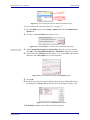
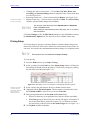
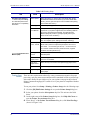
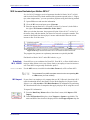
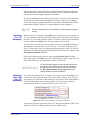
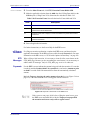
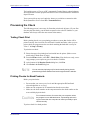
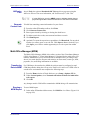
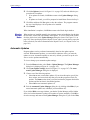
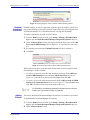
7. Click Send.
Accepting Payments
New for 2014: Drake allows you to accept credit card payments from your clients. You
can also import from a Excel, CSV, or tab delimited worksheet containing payment
information directly into Drake.
Merchant Credit Card Processing
Sign up to accept your customers’ credit and debit cards as payment for your services
with EPS Financial’s credit card processing program. If you are already taking credit
cards, find out if EPS’ programs can save you money.
NOTE
Although EPS Financial is offering this service, you can take advantage
of it regardless of which of Drake’s banking partners you choose.
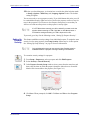
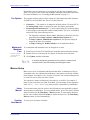
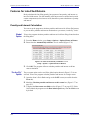
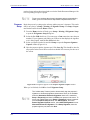
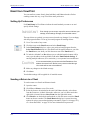
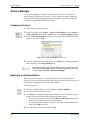
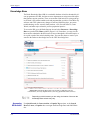
To apply, go to the EOM. From the EOM menu bar, click Enrollment > Merchant
Credit Card Processing, complete an application, and click Save. (If you’ve completed a bank application, much of the information is filled out for you.) After the
application is submitted (after you click Save), you’ll receive an email confirmation
and an EPS enrollment account executive will contact you.
For more information, email EPS Financial at [email protected] or call
(844) 244-1787 to speak with an Account Executive regarding the status of the application.
Data Entry
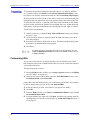
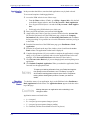
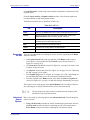
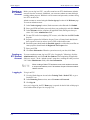
To accept payment from a customer’s credit card:
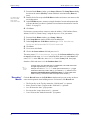
1. Calculate the return.
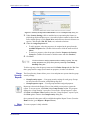
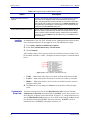
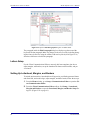
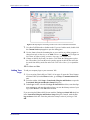
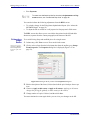
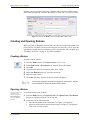
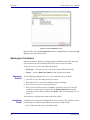
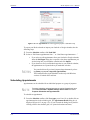
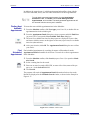
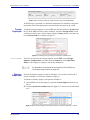
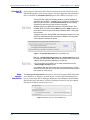
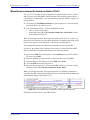
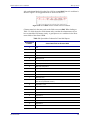
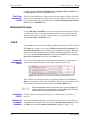
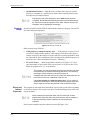
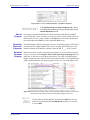
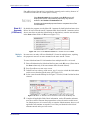
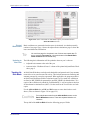
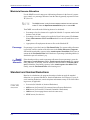
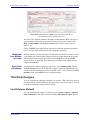
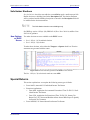
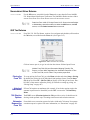
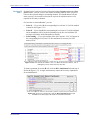
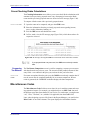
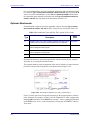
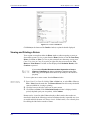
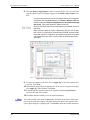
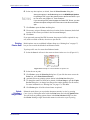
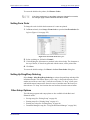
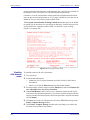
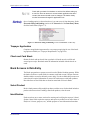
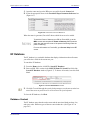
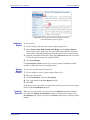
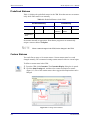
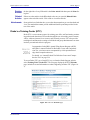
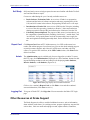
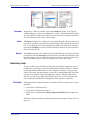
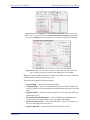
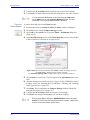
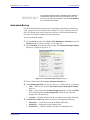
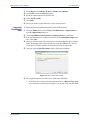
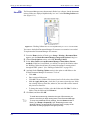
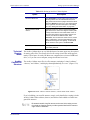
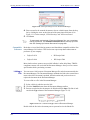
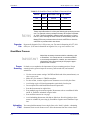
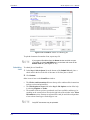
2. From the Data Entry Menu toolbar, click the e-Pay icon to open the E-Pay dialog box (Figure 6-20). The calculated preparation fees appear in the Amount Due
and Amount to Pay fields. Adjust the amount to pay as needed.
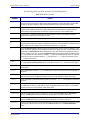
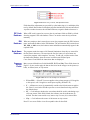
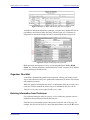
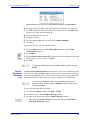
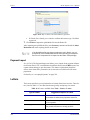
Figure 6-20: Select Swiped Credit Card or Keyed Credit Card tab on the E-Pay dialog box
Tax Year 2014
259