1
Drake Software User’s Manual
•
•
•
Overriding
Other
Preparer
Information
Making Changes on the Fly
cable lines on the return. For ERO, the program uses the information entered on
the EF tab in Setup > Options.
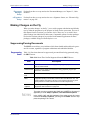
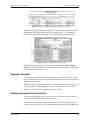
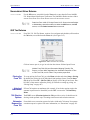
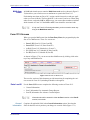
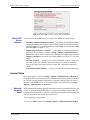
Data entered on the PREP (Preparer Information) screen overrides the default
data and the corresponding Return Options selections on screen 1. ERO information is not affected by PREP screen entries but is affected by a selection from the
ERO # drop list on screen 1. For more on the PREP screen, see “Overriding
Other Preparer Information,” following.
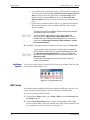
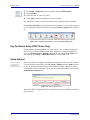
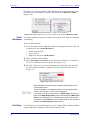
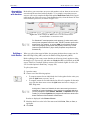
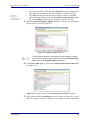
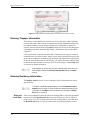
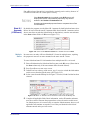
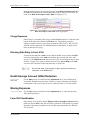
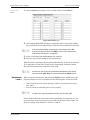
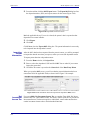
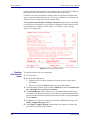
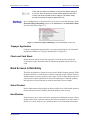
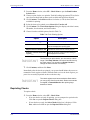
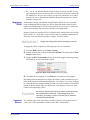
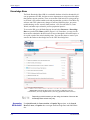
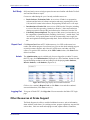
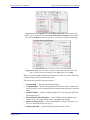
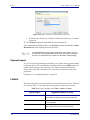
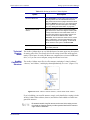
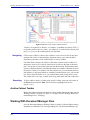
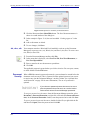
The Data Entry # field (shown in Figure 2-26) is for tracking purposes only.
A firm or preparer must be entered in Setup > Firm(s) or Setup > Preparer(s) in
order to show up as an option in the override drop lists on screen 1.
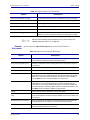
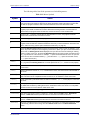
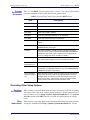
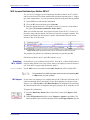
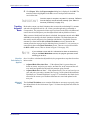
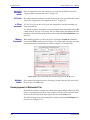
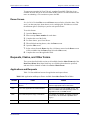
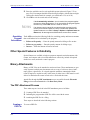
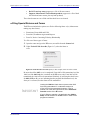
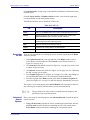
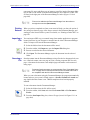
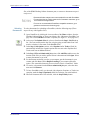
The PREP screen in data entry allows you to override the following data for a return:
•
•
•
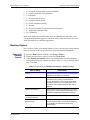
Third-party designee (See “Third Party Designee” on page 197.)
Federal preparer information (if the preparer is not set up in Preparer Setup)
State preparer information (if the preparer is not set up in Preparer Setup)
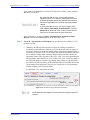
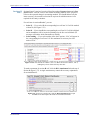
If you make an entry in the Federal Preparer Information section of the PREP
screen, the program requires that full override information for both the preparer and
the firm also be entered in this section.
The PREP screen also includes an option to not print the preparer’s information on
the letter, bill, or summary.
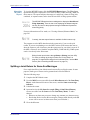
NOTE
You can now enter state preparer registration information for California,
Maryland, Minnesota, New York, Oregon, and Virginia on the PREP
screen. You can also enter a firm’s foreign address information in both
the federal and state preparer information sections.
Overriding the Bill Amount
Standard rates must be established in Pricing Setup, but you can change the billing
amount for a return, either by overriding the total or by adjusting individual amounts.
Overriding
the Total
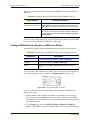
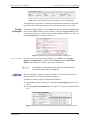
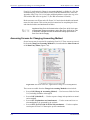
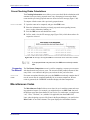
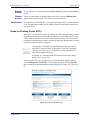
To override the total amount on a client’s bill, go to screen 1 and enter the desired
amount in the Fee Override field (located in the Return Options section).
Adjusting
Individual
Amounts
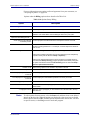
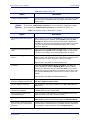
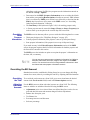
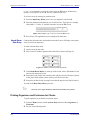
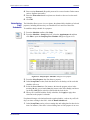
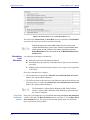
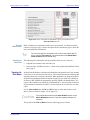
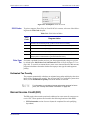
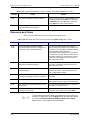
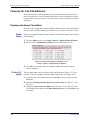
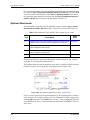
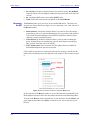
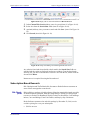
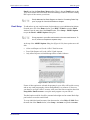
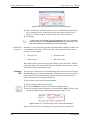
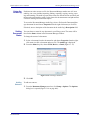
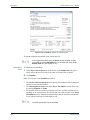
Use the BILL screen to adjust individual amounts on a client’s bill. The following
items are added to or subtracted from the bill using the BILL screen:
•
•
•
•
•
Tax Year 2014
Adjustments (write-in or selected from user-defined drop lists) such as for coupons and other discounts and amounts charged for these adjustments
Balance due from prior years
Tax Planner fees
Percentage increases and discounts
Sales tax percentage
73