1
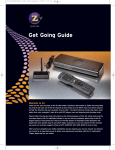
 ZvBox® 180 HD 1080i MPEG2 Encoder / QAM Modulator Get Going Guide ZvBox® 180 is a 1U combination HD MPEG 2 Encoder and frequency agile QAM Modulator. It allows you to convert any HD video source, Component or RGB (VGA), in real‐
time and very high quality into an HDTV cable channel. This channel is placed onto standard COAX wiring, where it can be combined with up to 134 other HDTV channels and distributed over an entire premise. This guide will take you through a typical installation procedure, and will have you broadcasting your own HDTV channel in less than 10 minutes. For additional assistance or more complex installations, please refer to the Zv Support page at www.zeevee.com, where you will find answers to frequently asked questions, and helpful tips from ZeeVee experts. If you still cannot find the answers you need, our technical support hotline at 877‐
5ZEEVEE (877‐593‐3833) is here to help. INSTRUCTIONS PERTAINING TO A RISK OF FIRE, ELECTRIC SHOCK, OR INJURY TO PERSONS Important Safety Instructions. Save These Instructions. WARNING: When using electronic products, basic precautions should always be followed, including: 1.
2.
3.
4.
5.
6.
7.
8.
9.
Keep these instructions. Heed all warnings. Follow all instructions. Do not use this apparatus near water. Clean only with dry cloth. Do not block any ventilation openings. Install in accordance with the manufacturer’s instructions. Do not install near any heat sources such as radiators, heat registers, stoves, or other apparatus (including amplifiers) that produce heat. Do not defeat the safety purpose of the polarized or grounding‐type plug. A polarized plug has two blades with one wider than the other. A grounding type plug has two blades and a third grounding prong. The wide blade or the third prong is provided for your safety. If the provided plug does not fit into your outlet, consult an electrician for replacement of the obsolete outlet. Power cord must be accessible to allow for the removal of power from the unit. 10. Protect the power cord from being walked on or pinched, particularly at plugs, convenience receptacles, and the point where they exit from the apparatus. 11. Unplug the apparatus during lightning storms or when unused for long periods of time. 12. Only use attachments/accessories specified by the manufacturer. 13. Refer all servicing to qualified service personnel. Servicing is required when the apparatus has been damaged in any way, such as power‐supply cord or plug is damaged, liquid has been spilled or objects have fallen into the apparatus, the apparatus has been exposed to rain or moisture, does not operate normally, or has been dropped. 14. WARNING: To reduce the risk of fire or electric shock do not place this apparatus in a position where it is exposed to dripping or splashing liquids, rain, moisture, or excessively high humidity. Objects containing liquid shall not be placed in proximity to the unit such that they present a risk of spillage onto the apparatus. The lightning flash with arrowhead symbol, within an equilateral triangle, is intended to alert the user to the presence of uninsulated “dangerous voltage” within the product’s enclosure that may be of sufficient magnitude to constitute a risk to persons. The exclamation point within an equilateral triangle is intended to alert the user to the presence of important operating and maintenance (servicing) instructions in the literature accompanying the product. FCC Statement FCC Compliance and Advisory Statement: This hardware device complies with Part 15 of the FCC rules. Operation is subject to the following two conditions: 1) this device may not cause harmful interference, and 2) this device must accept any interference received including interference that may cause undesired operation. This equipment has been tested and found to comply with the limits for a Class B digital device, pursuant to Part 15 of the FCC Rules. These limits are designed to provide reasonable protection against harmful interference in a residential installation. This equipment generates, uses, and can radiate radio frequency energy and, if not installed or used in accordance with the instructions, may cause harmful interference to radio communications. However there is no guarantee that interference will not occur in a particular installation. If this equipment does cause harmful interference to radio or television reception, which can be determined by turning the equipment off and on, the user is encouraged to try to correct the interference by one or more of the following measures: 1) reorient or relocate the receiving antenna; 2) increase the separation between the equipment and the receiver; 3) connect the equipment to an outlet on a circuit different from that to which the receiver is connected; 4) consult the dealer or an experienced radio/TV technician for help. Any changes or modifications not expressly approved by the party responsible for compliance could void the user’s authority to operate the equipment. Where shielded interface cables have been provided with the product or specified additional components or accessories elsewhere defined to be used with the installation of the product, they must be used in order to ensure compliance with FCC regulations. ®
ZvBox 180 Get Going Guide v.1.0 Page 2 What’s in the box: ZvBox® 180 (ZP180‐NA) User Manual
AC Power Cord
Rack Mounts USB Cable
Get Going Guide
Table of Contents Basic Installation .................................................................................................... 4 Configuring ZvBox® 180 ......................................................................................... 5 Front and Back Panel Details ................................................................................. 6 Contact ZeeVee ...................................................................................................... 7 Warranty Information ........................................................................................... 7 ®
ZvBox 180 Get Going Guide v.1.0 Page 3 Basic Installation Factory default settings in the product allow ZvBox® 180 to broadcast a component HD source with analog audio on channel 2.1 over coax cabling, for reception at connected HDTVs. 1.
2.
3.
4.
5.
Plug ZvBox® 180 power cord into AC outlet. Connect Component Video output of HD source to Component Video Input of ZvBox® 180. Connect SPDIF audio output of HD source to Digital Audio Input of ZvBox® 180. Connect coaxial output of ZvBox® 180 to HDTV RF Input. Tune HDTV to channel 2.1. ®
ZvBox 180 Get Going Guide v.1.0 Page 4 Configuring ZvBox® 180 In most cases, ZvBox® 180 can be configured using the front panel buttons. Configuration is simple, and usually just involves setting the RF channel on which the ZvBox® will broadcast. Settings are stored in ZvBox® and not lost on power‐down. An example for changing the RF broadcast channel is shown below. Note – make sure the HDTV connected to your ZvBox® is set to Cable mode, vs. Antenna or Over‐the‐air mode. ZvBox® broadcasts using QAM – the same standard used by cable companies. 1. Press the Next button until SET CHANNEL appears in the display 2. Press the + or – key until you see the channel number you want to use – for example 7. 3. Press the OK button That’s it! In this example, your ZvBox® would be broadcasting on RF channel 7, and would be tuned in at your HDTV by entering 7.1. Note – sometimes a channel scan is required at the HDTV before the new channel is recognized. For information on customizing ZvBox® with alternative settings, go to http://zeevee.com/configuration and view or download the ZvBox® 180 Configuration Manual. ®
ZvBox 180 Get Going Guide v.1.0 Page 5 ZvBox® 180 Front Panel 2
1
3
4
Item Description Function 1 Status Display 2 3 4 Next Button +/‐ Buttons OK Button High‐visibility character display for setting and displaying configuration including channel, power, and label configuration; input selection; video output parameters; scanning/system status. For scrolling between functions. For scrolling between options within a function. For selecting functions and options. ZvBox® 180 Back Panel 1
2
3
4
5
6
7
8
9
Item 1 2 3 4 5 6 7 8 9 Description Function Coax output SPDIF Digital Audio Input (Coax) SPDIF Digital Audio Input (Optical) Component Video input, RCA connectors, 75 Ohm VGA (RGB) input; HD‐15 connector VGA (RGB) output; HD‐15 connector USB audio/control IR port; 1/8” mini jack AC input Outputs encoded video as QAM 256 channel Accepts digital audio input (48KHz PCM or AC3) Accepts digital audio input (48KHz PCM or AC3) Accepts Component Video input (Pr, Pb, Y) Accepts standard VGA input Looped output from VGA (RGB) input Operates as USB audio device connection, or control interface Accepts IR commands AC power cord, 120/240 volt ®
ZvBox 180 Get Going Guide v.1.0 Page 6 Contact ZeeVee For support, repairs and warranty service: 877‐5ZEEVEE (877‐593‐3833) Warranty Limited One Year Warranty ZeeVee warrants your ZvBox® 180 (ZP180‐NA) against defects in materials and workmanship for a period of one year from the date of purchase. Visit www.zeevee.com for complete warranty details. To Get Warranty Service Warranty service will be provided by ZeeVee. If you believe you need service for your ZvBox® 180 (ZP180‐NA), please contact ZeeVee directly by calling ZeeVee Support at (877) 593‐3833. If it is determined that the product needs to be returned for service or exchange, you will receive a Return Material Authorization (“RMA”) number. Our agents will help you through the process through which you can return the product. ZeeVee is not responsible for Customer products received without an RMA number and may reject such products. To Get Out‐Of‐Warranty Service To obtain out‐of‐warranty service for your ZvBox® 180 (ZP180‐NA), please contact ZeeVee by calling ZeeVee Support at (877) 593‐3833 for information on the possibility of and any costs for repair or replacement of out‐of‐warranty products. No agent, company, dealer, distributor, or person is authorized to change, modify, or extend the terms of these warranties in any manner. ®
ZvBox 180 Get Going Guide v.1.0 Page 7 zeevee.com
ZeeVee, Inc • One Monarch Drive • Littleton, MA 01460