1
Help.rtf
PageR Enterprise
Page 268 of 270
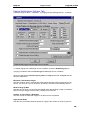
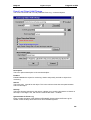
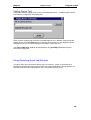
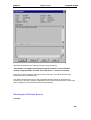
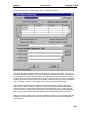
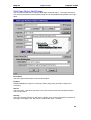
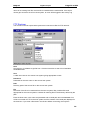
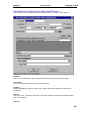
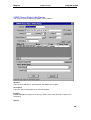
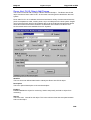
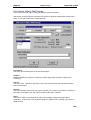
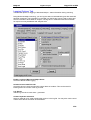
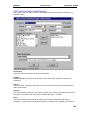
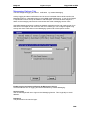
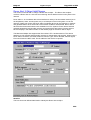
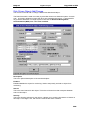
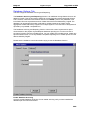
Database tab. Enable the use of the database and select the DSN from the
drop down list. Enter user name and password.
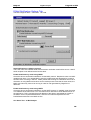
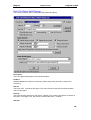
Finally, go the the Options Window and select the Logging tab. Check the
Monitored Object types you wish to have recorded in the database. You do
not have to enable disk file logging, just select the MOs to be included in
database logging.
Now, save the Pager Enterprise configuration by going to Settings/Save
Configuration to Registry. Note that the first time you save the configuration
after enabling the database, there will be a significant delay while Pager
Enterprise writes all your Monitored Objects to the database. After this initial
update, only changed MOs will be updated on future configuration saves.
Logging data to the Database
======================
When database archiving is enabled, Pager Enterprise will record basic
information about new or changed Monitored Objects in the MonitoredObjects
table. It will record the start and stop time of every scanning session and the
time of any configuration change in the ScanLog table. Every alarm generated
by a Monitored Object is recorded in the AlarmLog table as well as any
notifications (paging,email, etc) that are performed in response to alarms or
processing errors (NotificationLog table). Finally, network events processed
by Pager Enterprise MOs (Eventlog, Snmp trap, Syslog, WMI events) are
recorded in the EventLog table.
Records in each table are associated with the host system on which Pager
Enterprise is installed. In this way, one database can record information from
multiple installations of Pager Enterprise.
Database logging can add time to scanning start up. While scanning is
proceeding, information is being logged to the database in the background,
but will add overhead and may slow Pager Enterprise somewhat. When Pager
Enterprise is shutdown, summary downtime statistics collected by Pager
Enterprise are flushed to the database and so slows down the shutdown
process.
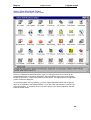
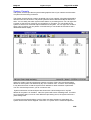
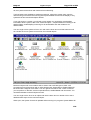
Using the Reports
================
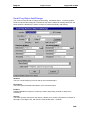
Sample reports are included that were created with the Crystal Reports 10
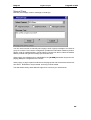
database reporting tool. These sample reports can be run directly, but the
parameter prompting to customize the reports is inflexible and difficult to use.
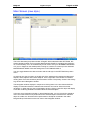
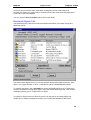
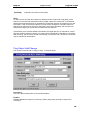
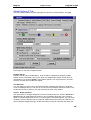
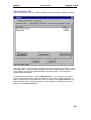
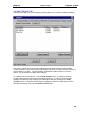
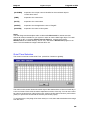
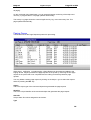
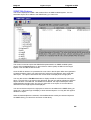
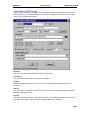
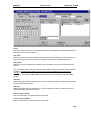
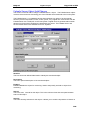
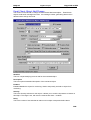
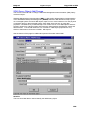
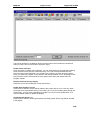
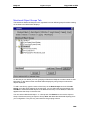
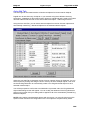
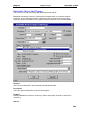
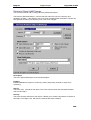
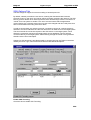
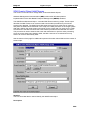
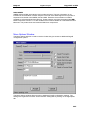
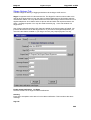
For this reason, a custom Report Viewer was created. When you select a
report using this viewer, it handles the parameter prompting in concert with
268