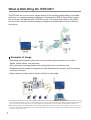
1
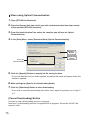
Auto-Download Settings
Make settings here to automatically download data from the selected Remote Units at the
specified time.
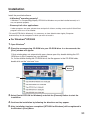
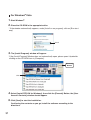
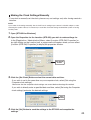
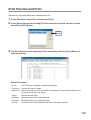
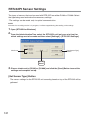
1. Open [RTR-5W for Windows].
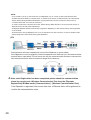
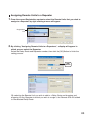
2. Select the Remote Unit(s) you wish to make settings for, and in the [Registration /
Administration] Menu click on [Remote Unit Properties].
*By right clicking on the selected Remote Unit icon(s), a popup menu will appear where
you can select [Remote Unit Properties] to display the same window.
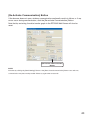
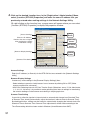
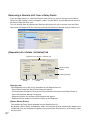
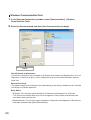
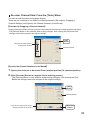
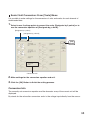
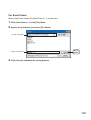
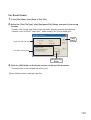
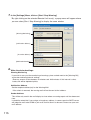
3. Select to download [Every day at a fixed time] or [Fixed Interval] and make the
appropriate settings.
- Every day at fixed time (24 hour clock)
Carry out the downloading of data automatically at a set time every day.
- Fixed Interval
Carry out the downloading of recorded data automatically at a set interval of time. (Make
setting for 10 days or less.)
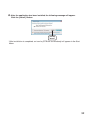
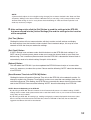
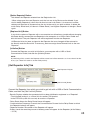
4. Click the [OK] Button to finish the setting process.
Make settings for the time of download.
Make settings for the interval between
downloads.
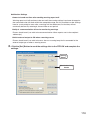
NOTE:
- Make sure that RTR-5W for Windows is open when a programmed Auto-Download is scheduled to occur.
- If, another type of communication, such as a warning monitoring, occurs at the scheduled downloading
time and downloading is not possible, downloading will begin upon the ending of the other communication.
- Depending on radio wave conditions, data downloading may at times be impossible. Please check in the
downloading log for important data.
- If the recording mode is set for One Time and the logger becomes full, you may be downloading the same
data over and over again.
112