1
User Interface
manually changed and is newly analysed, comes to state called conflict. Conflict can be solved in
Analysis tab [Section 8.4.2.2], where you can choose between the newly generated result and the last
manually changed result.
Button located in the fourth column create new steps extending the selected step (e.g. for step "1", new
step "1a" is created in the lower table).
You can navigate through these tables by pressing up and down arrow keys. Pressing enter triggers
various actions depending on the Batch mode setting [Section 8.5].
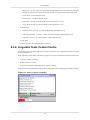
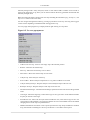
Use case popup menu [Figure 8.5] is displayed when right clicking on a step table.
Figure 8.5. Use case popup menu
•
Add new use case step - Inserts a new empty step at the selected position.
•
Remove - Removes the selected step.
•
Move up - Moves the selected step one row above.
•
Move down - Moves the selected step one row below.
•
Analyse step - Starts analysis of the step.
•
Solve conflict - Shows Analysis tab [Section 8.4.2.2], where conflicts are resolved.
•
Analyse unanalysed steps - Requests analysis of all unanalysed steps of the use case.
•
Reanalyse all steps - Requests analysis of all steps of the use case.
•
Discard manual changes - Discards manual changes performed in the result and use the generated
result.
•
Goto target - Shows the target step, if the sentence type is set to goto action. In the submenu another
step may be chosen as the target.
•
Included use case - Shows the acronym of the included use case, if the sentence type is set to use
case inclusion. In the submenu, you can choose another use case to be included. You will be offered
changing the text of the step to a predefined text.
•
Handles included use case failure - Sets a special option for this step. Only available for condition
steps, that extends a including use case step. See Section 7.1 for effects of this option.
27