1
11. Template Replacement
Sometimes you may finish typing an expression, then decide it would look better with a
different template. Here are a couple of examples:
1. You’re working with quadratic equations, and type this equation:
y=
1 2 3
2
x + x+
2
2
3
You realize the equation would look better with smaller fractions. Rather than re-type it all,
you should use template replacement. Here are the steps for template replacement:
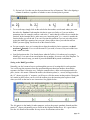
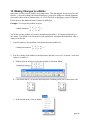
a. Select the first fraction:
.
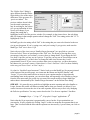
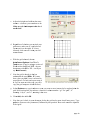
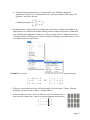
b. While holding down the Ctrl key on the keyboard (Alt key for Equation
Editor, Option key on the Macintosh), select the Reduced-size fraction
template from the Fraction and radical templates palette, as shown to
the right.
c. Repeat for the remaining 2 fractions.
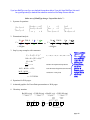
y = 12 x 2 + 32 x + 32
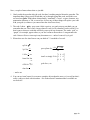
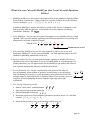
2. You create an integral, and realize you should have specified an expanding integral:
1
∫ 1 + x 2 dx = tan
−1
x+c
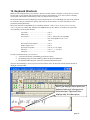
You remember reading in the MathType User Manual that if you hold down the Shift key
while you select an integral template, it creates an expanding integral symbol. You also
remember that holding down the Ctrl key allows you to replace one template with another.
Holding down both the Ctrl and Shift keys (Macintosh, Option + Shift) lets you replace the
integral with an expanding integral.
NOTE: For template replacement, it’s important to select the entire template, but only the
template (and the template contents) you wish to replace.
page 20