1
12. Keyboard Shortcuts
MathType was designed with a “point and click” interface. Find the symbol or template you need, click on it, and it
becomes part of your equation. The program also has many keyboard shortcuts, so you can access the commonlyused symbols and templates without having to take your fingers off the keyboard.
The keyboard shortcuts built in to MathType are listed in the Help file. You’ll find though, that most of the shortcuts
are so intuitive that you can learn them quickly, and be able to use the software even more efficiently to create
professional-looking documents.
Many of the shortcuts used in MathType are “standard” shortcuts – such as CTRL+S for save, CTRL+C for copy,
CTRL+V for paste, etc. (On the Mac, substitute the COMMAND key for the CTRL key.) Listed here are some of the
most commonly-used keyboard shortcuts:
Text mode ..................................................... CTRL+E
Math mode .................................................... CTRL+=
Greek letters .................................................. CTRL+G, followed by corresponding
...................................................................... letter of the alphabet (a for α, etc.)
“Expanding” parentheses .............................. CTRL+9
Full-sized fraction template........................... CTRL+F
Radical (square root) ..................................... CTRL+R
Superscript (exponent) .................................. CTRL+H (“h” for “high”)
Subscript ....................................................... CTRL+L (“ ” for “low”)
Thin space ..................................................... CTRL+SPACE
For more keyboard shortcuts, you can refer to
• “Customize Keyboard” in the MathType Preferences menu
• The MathType Help file under “MathType Reference/Keyboard Shortcuts.”
• The Equation Editor Help file: “Reference Information/Keyboard Guide.”
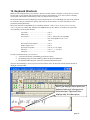
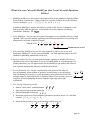
Also note that in MathType, when you point to an item with the mouse, the description and keyboard shortcut are
displayed in the Status Bar:
MathType displays description and
keyboard shortcut information in
the status bar. Equation Editor
displays only the description.
page 21