1
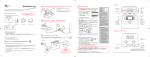
Owner’s Manual In - Dash Navigation Radio Addendum for Pandora Radio PANDORA SCREEN You can access Pandora Radio via your iPhone. NOTE: Your iPhone must be connected to the Media Link using the iPhone adapter cable that comes with your iPhone or is available separately. The Pandora app must be installed on your iPhone. Back Icon: Press this icon to return to the iPod Screen. Mute Indicator: This indicator is displayed when the volume is muted. Time Display: This indicator displays the time as entered by the user in the Settings Menu. Song Icon: Press this icon to bookmark a song. Artist Icon: Press this icon to bookmark an artist. EQ - Equalizer Icon: Press this icon to access the equalizer controls. Audio Icon: Press this icon to access the audio controls. 2 Playback Information Display: Displays station, track, artist, album, and elapsed time information. Pandora Preview Window: Displays album art, if available. Mute Icon: Press this icon to mute the audio output of the unit. The mute indicator will appear. Press this icon again to unmute the volume. The mute indicator disappears. Station List Icon: Press this icon to access the Station List Screen. Play/Pause Icon: Press this icon to begin playback. Press this icon again to pause playback. Next Icon: Press this icon skip a song, subject to the skip limit. Thumbs Down Icon: Press this icon to tell Pandora to not play this track. Pandora will skip to the next track. If the skip limit has been reached, Pandora will continue to play but your feedback will be recorded. Thumbs Up Icon: Press this icon to tell Pandora “you like this track” and bring in more tracks like it to your station. Pandora Radio Operation Station List Screen To Launch/Stop Pandora Radio 1. Launch the Pandora app on your iPhone. The Pandora icon appears on the Main Menu Screen. The Station List Screen allows you to search for music by stations you created. Press a list box item to choose a station. Press the Scroll Down () icon 2. Press the Pandora icon. The Pandora to view the next page in the menu list Screen appears. or the Scroll Up () icon to view the previous page. Back Icon: Press this icon to return to the Pandora Screen. Mute Indicator: This indicator is displayed when the volume is muted. Time Display: 3. Press the icon to begin playback. This indicator displays the time as Icon to exit 4. Press the Back entered by the user in the Settings Pandora and return to the iPod Menu. Screen. By Date Icon: Press this icon sort the station list by date created. A-Z Icon: Press this icon sort the station list in alphabetical order. 5. Press the Pandora icon to return to Pandora Radio. 3 Note: When you exit Pandora and return to music stored on the iPod, you must select “Search”, then select a song/playlist/artist etc, on the iPod to begin playback of iPod music. This is due to a limitation in the way the Apple device interacts with the Pandora app. A future release of Pandora may address this issue. Pandora Error Messages Error Solution BookMark Song Error The song could not be bookmarked, please try again in a moment. BookMark Artist Error The song could not be bookmarked, please try again in a moment. Thumbs Up / Down Error “Error Track Rating” Song feedback could not be sent, please try again in a moment. No Active Station Error This account has no stations in it. Please visit Pandora.com and login to your account and add stations. Skip Limit Reached Please note that Pandora limits skips to a maximum of six skips per station, per hour. If technical support is required, please contact Advent Technical Support at 1-800-323-4815. www.adventproducts.com © 2012 Audiovox Electronics Corp., Hauppauge, NY 11788 128-9074